To send an automatic payment reminder for an overdue invoice in Invoice Office, you switch on Send reminders automatically in your reminder terms. From then on, Invoice Office creates the payment reminder and emails it to your customer by itself once an invoice reaches its expiry date without being paid. This guide shows where the reminder terms are, how to set the email and timing, how to choose which customers get them, and how to check everything before you switch it on.
Reminder terms, not the automations builder
The automations builder under Settings → Automations has no “invoice overdue” trigger and no “send payment reminder” action. Automatic payment reminders are set up in Reminder terms instead. That’s where the timing, the wording and the email for each reminder live.
Open your reminder terms
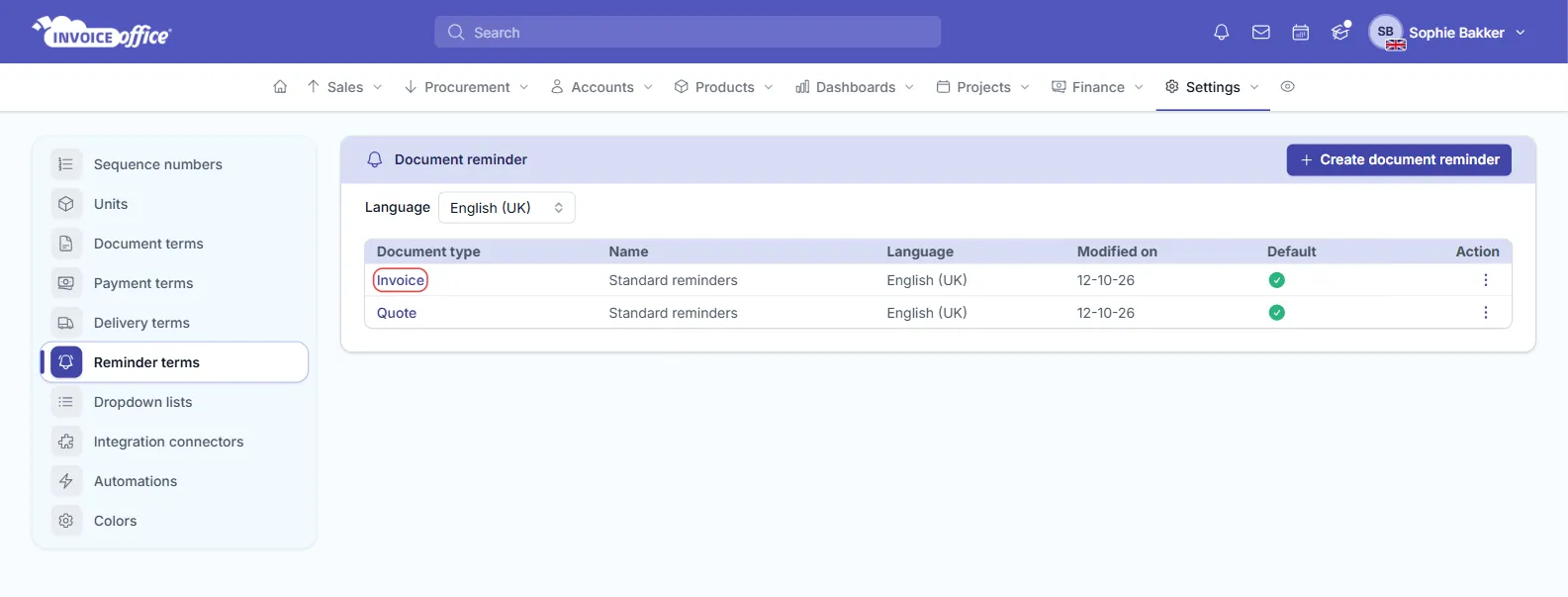
- Go to Settings → Reminder terms.
- Click Invoice to open the reminder terms for invoices.
A set of reminder terms holds one stage per reminder, for example a first reminder, a second reminder and a final notice. Each stage card shows how many days the reminder runs (Reminder expires after) and whether it’s created and sent automatically.
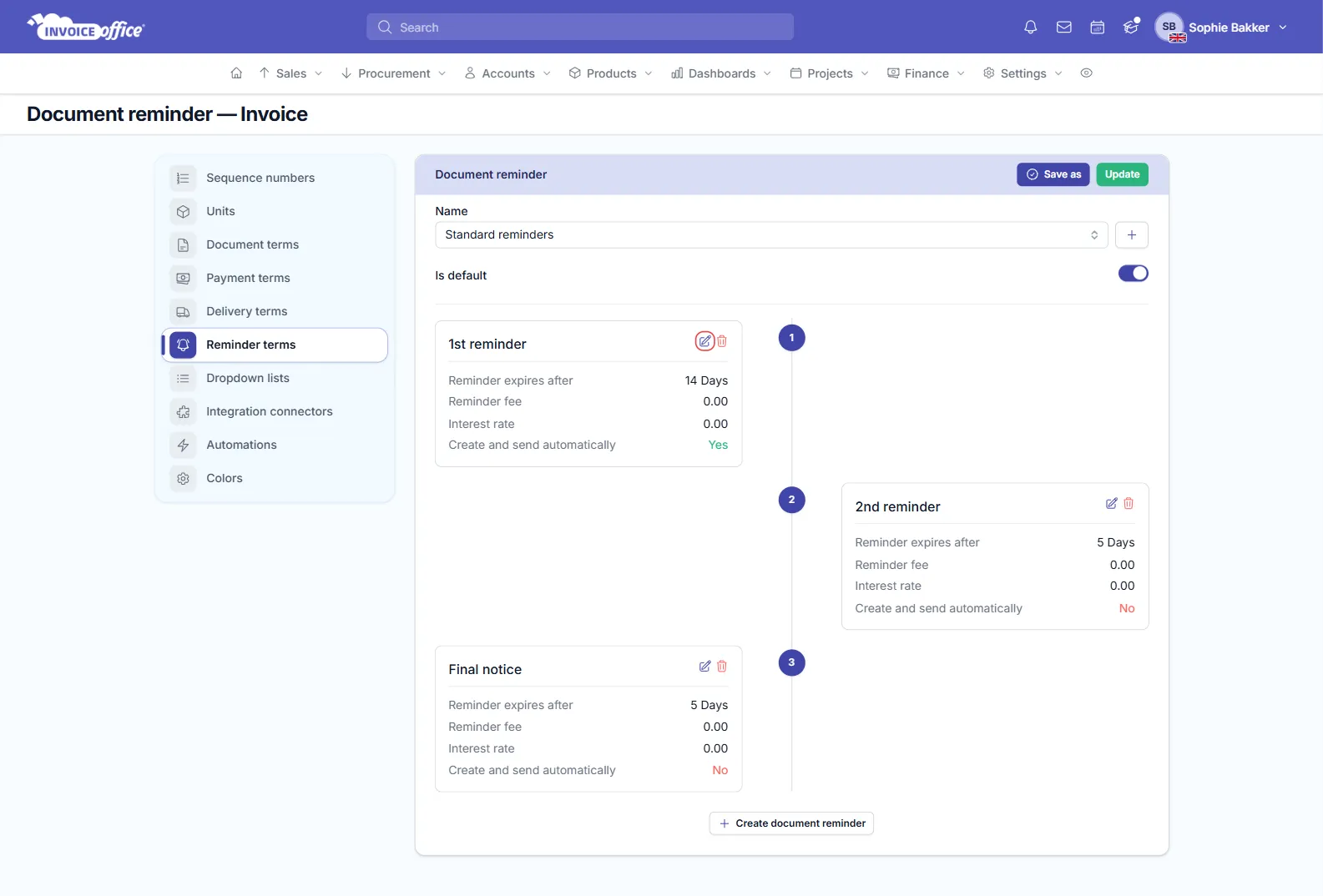
You can keep several sets, for example a strict one and a friendlier one, and one per language. Use the Name list to switch between them, and Is default to choose the set that’s used when a customer has none of their own. For wording ideas, see a payment reminder example.
Set up the reminder that goes out automatically
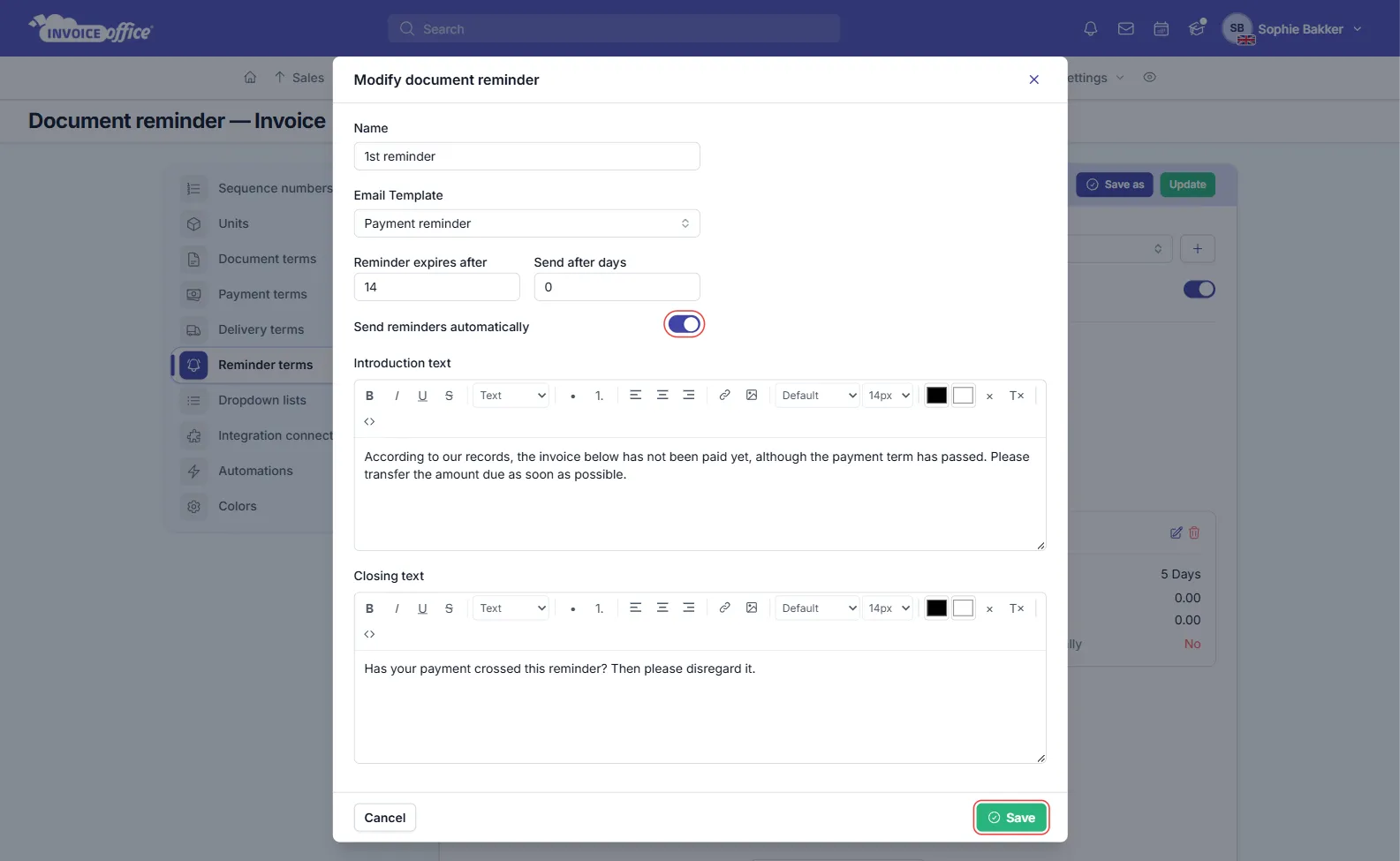
- Click the edit icon on the stage, usually the first one.
- Fill in the stage:
- Name: what the reminder is called, for example “1st reminder”.
- Email Template: the email the reminder is sent with.
- Reminder expires after: how many days the customer gets to pay after the reminder.
- Introduction text and Closing text: the wording above and below the amounts on the reminder.
- Switch on Send reminders automatically.
- Click Save.
When does it go out? Invoice Office checks your invoices every day. On an invoice’s expiry date, if the invoice is final and still unpaid, it creates the payment reminder and, with Send reminders automatically on, emails it to the customer. The expiry date comes from the invoice’s payment term, so the payment term decides the timing. Want to give customers a few extra days before the reminder goes out? Add them to the payment term. See how to set up payment terms.
The Send after days field doesn’t change when the reminder goes out.
With Send reminders automatically off, no reminder is created for that stage automatically. You create it yourself from the invoice when you want to send it.
Invoices that are already paid get no reminder. If a reminder can’t be emailed, for example because the customer has no email address, you get an email about it. To show a customer everything they still owe, send a customer statement.
Choose which customers get automatic reminders
Every invoice follows the reminder terms set on its customer. A customer without their own reminder terms gets your default set for invoices in the invoice’s language.
To give a customer a different set:
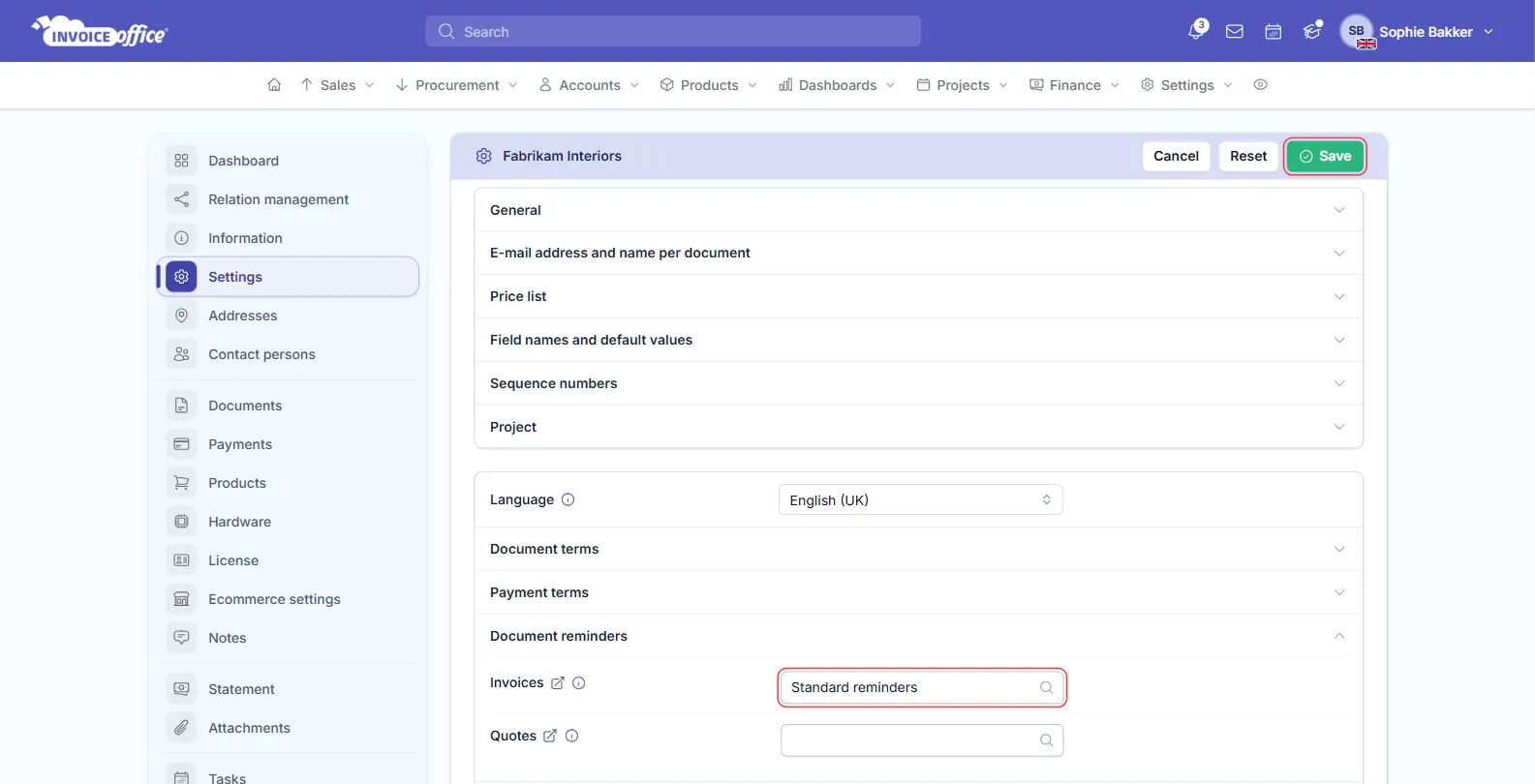
- Open the customer and go to Settings.
- Open Document reminders and pick the reminder terms under Invoices.
- Click Save.
To keep automatic reminders away from one customer, give them a set of reminder terms in which Send reminders automatically is off.
Check it before you switch it on
There’s no test button for automatic reminders, but you can see exactly what your customers will get before you switch it on:
- Leave Send reminders automatically off for now.
- Open an overdue invoice and create a payment reminder from it, as described in how to create a payment reminder. It uses the same reminder terms, texts and email template.
- Preview the reminder and its email. Change the texts or the email template in the reminder terms if needed, and delete the test reminder if you don’t want to send it.
- Happy with it? Switch on Send reminders automatically for the stage and click Save.
The first automatic reminders go out on the next expiry dates that pass after you switch it on.