Payment terms in Invoice Office — your payment conditions — are set in two places, and it helps to know which does what:
- Document terms decide when an invoice is due. Their Invoice expires after days sets the invoice’s Expiry date — the invoice due date. Net 30 means setting it to 30.
- Payment terms hold a payment discount — a percentage or fixed amount taken off the invoice total — plus an optional sentence explaining it, such as “2% if paid within 10 days”.
Set them up once, make your usual ones the default, and pick different ones for any customer who has agreed other terms.
Step 1 — Set your due date (net 30)
- Go to Settings → Document terms and open the invoice terms from the row’s Action → Open.
- Set Invoice expires after days —
30for net 30. - Check the text under Document terms & conditions. It is printed on the invoice when Show text on document is on, so make it match — for example “Please pay within 30 days of the invoice date”.
- Tick Is default to use these terms on every new invoice, then click Save.
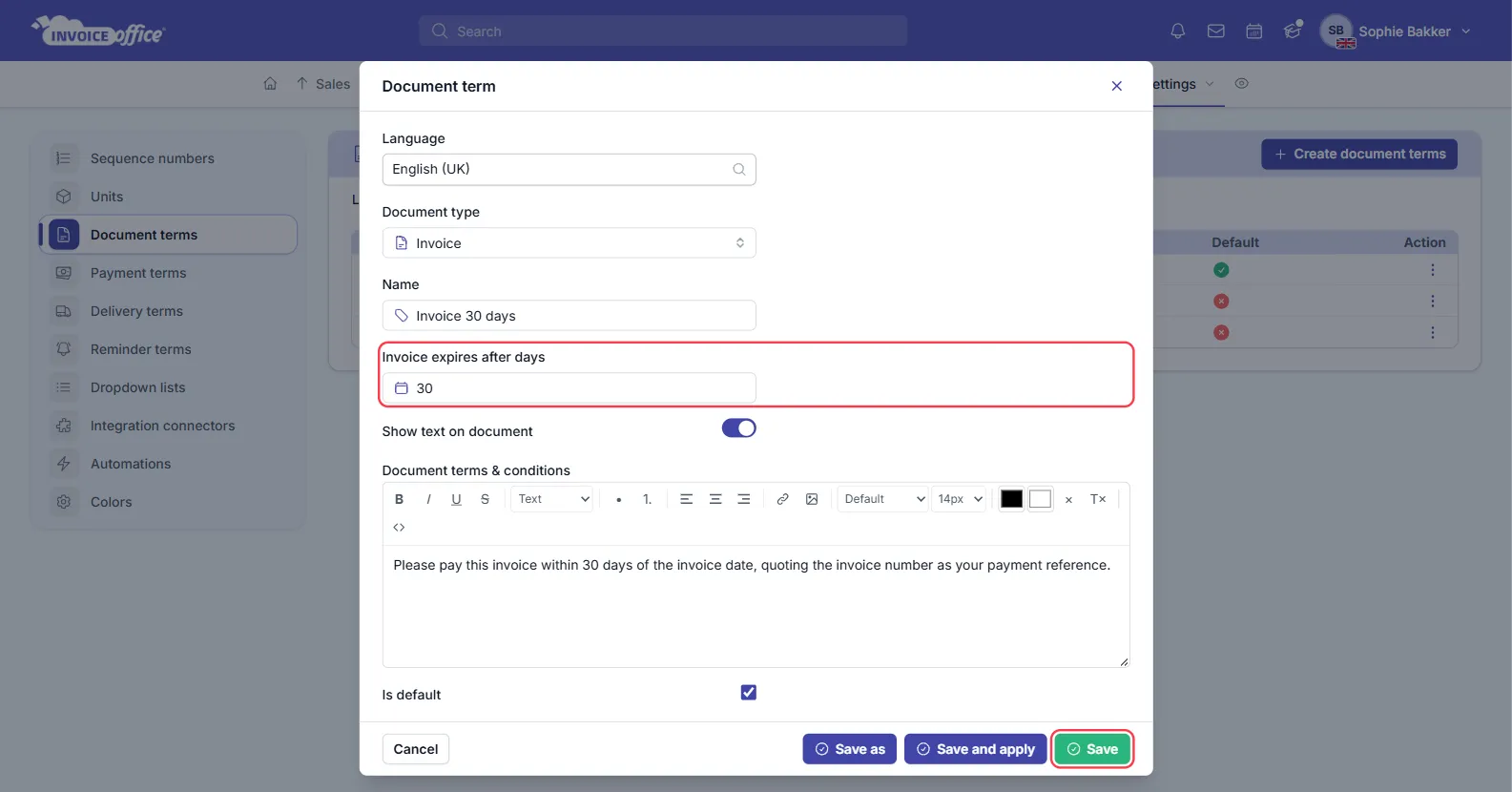
Use Save as to keep a second set, such as net 14 for smaller jobs, next to your default. There is more on the rest of this window in How to use document terms.
Step 2 — Add a payment discount
-
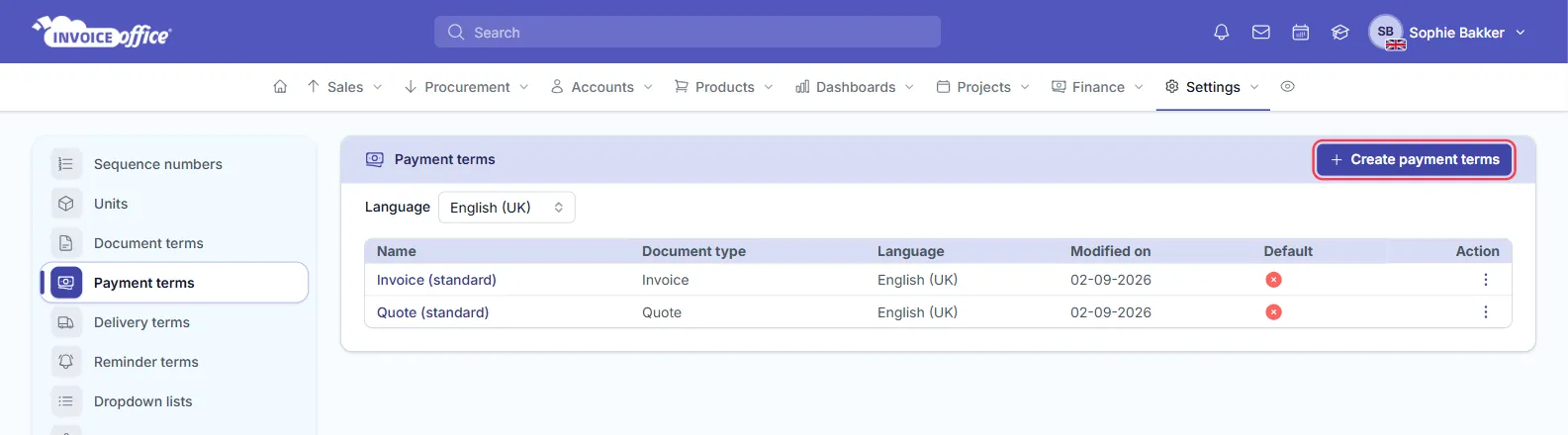
Go to Settings → Payment terms and click Create payment terms.
-
Pick the Language and Document type (Invoice, Quote or Order Confirmation) and give it a Name.
-
Fill in Discount — as a percentage or a fixed amount — and Discount days. The days are for your reference and for the discount sentence; they do not change the amount.
-
Switch on Show discount payment discount text to add a sentence about the discount under Payment discount terms.
-
Click Create, or Create and apply to also make it the default payment terms for that document type and language. To change the default later, open the payment term and tick Is default.
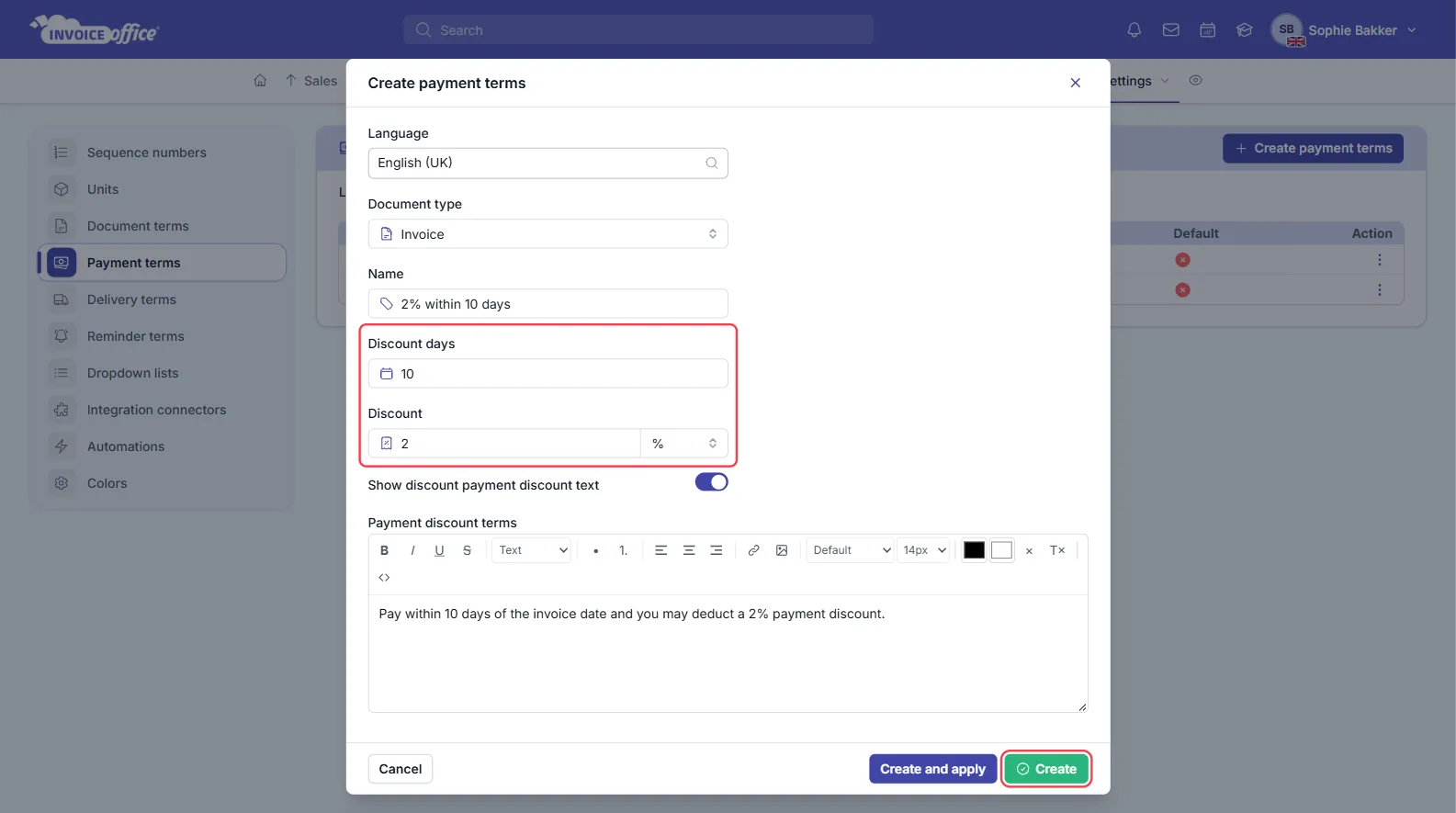
When a payment term is on an invoice, its discount goes into the invoice’s Payment discount and is taken off the total straight away — it does not wait to see when the customer pays. So only make a discount payment term the default if every customer should get it. To remove the discount from one invoice, set Payment discount back to 0.
Step 3 — Give a customer different terms
For a customer who has agreed other terms, set them on the customer. When you select that customer on a new invoice, their terms are filled in.
-
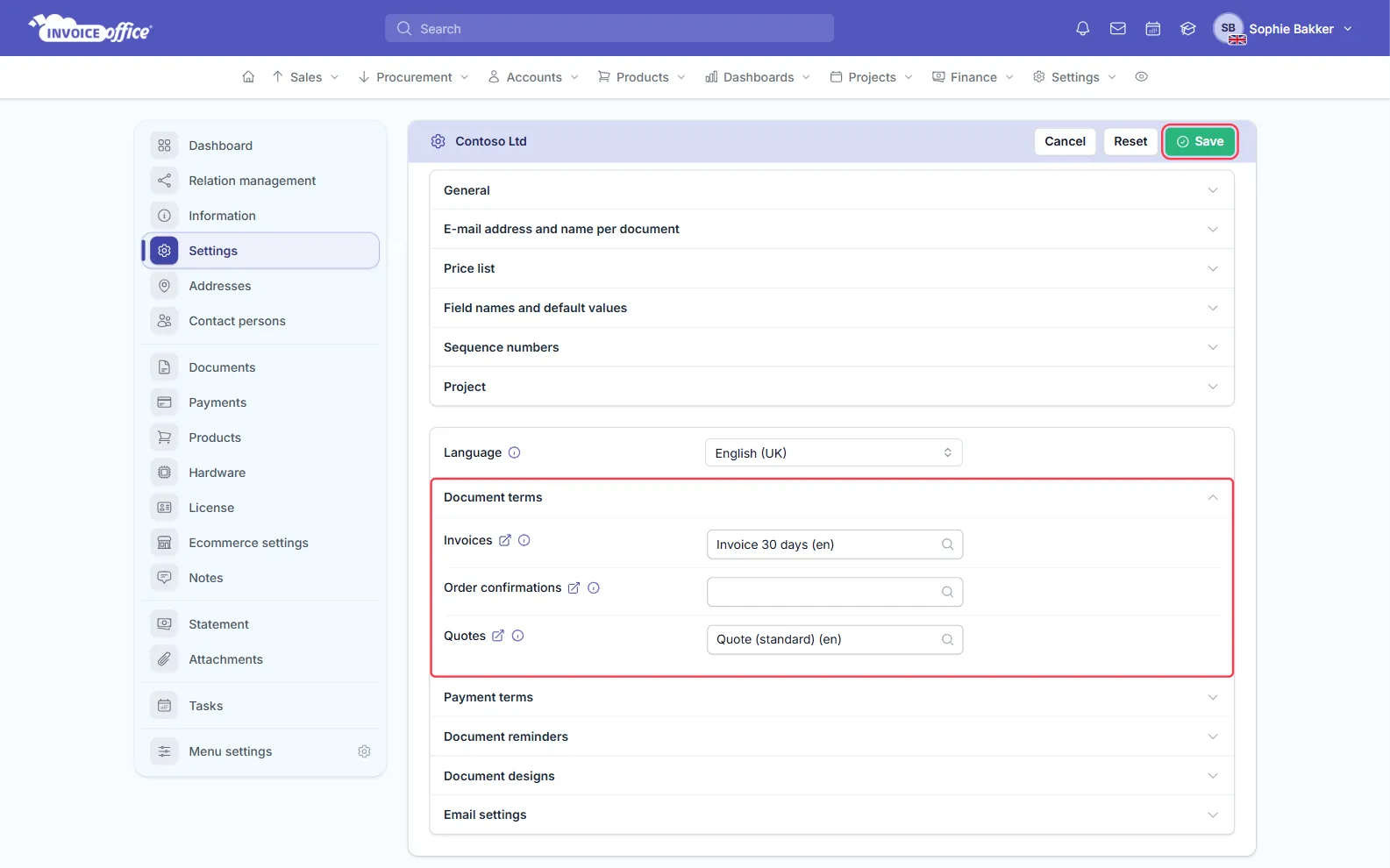
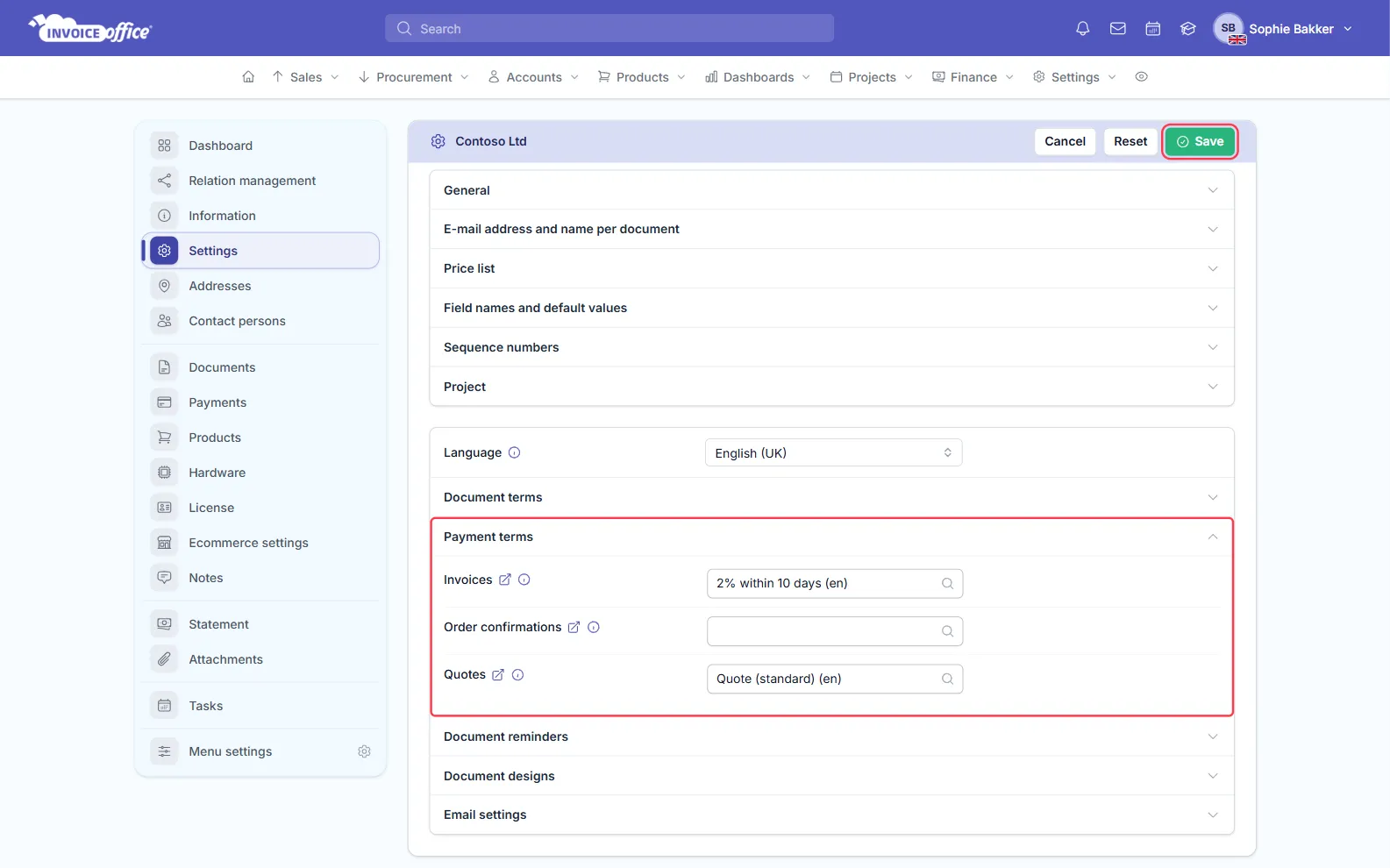
Go to Accounts → Customers, open the customer’s Action menu and choose Settings.
-
Under Document terms, choose the terms for Invoices — and for Order confirmations and Quotes if you like.
-
Under Payment terms, choose the payment terms the same way.
-
Click Save.
The lists show the terms for the customer’s saved Language. To use terms in another language, change Language, click Save and reopen Settings to choose them. See Create a new customer if the customer is not set up yet.
How the due date lands on an invoice
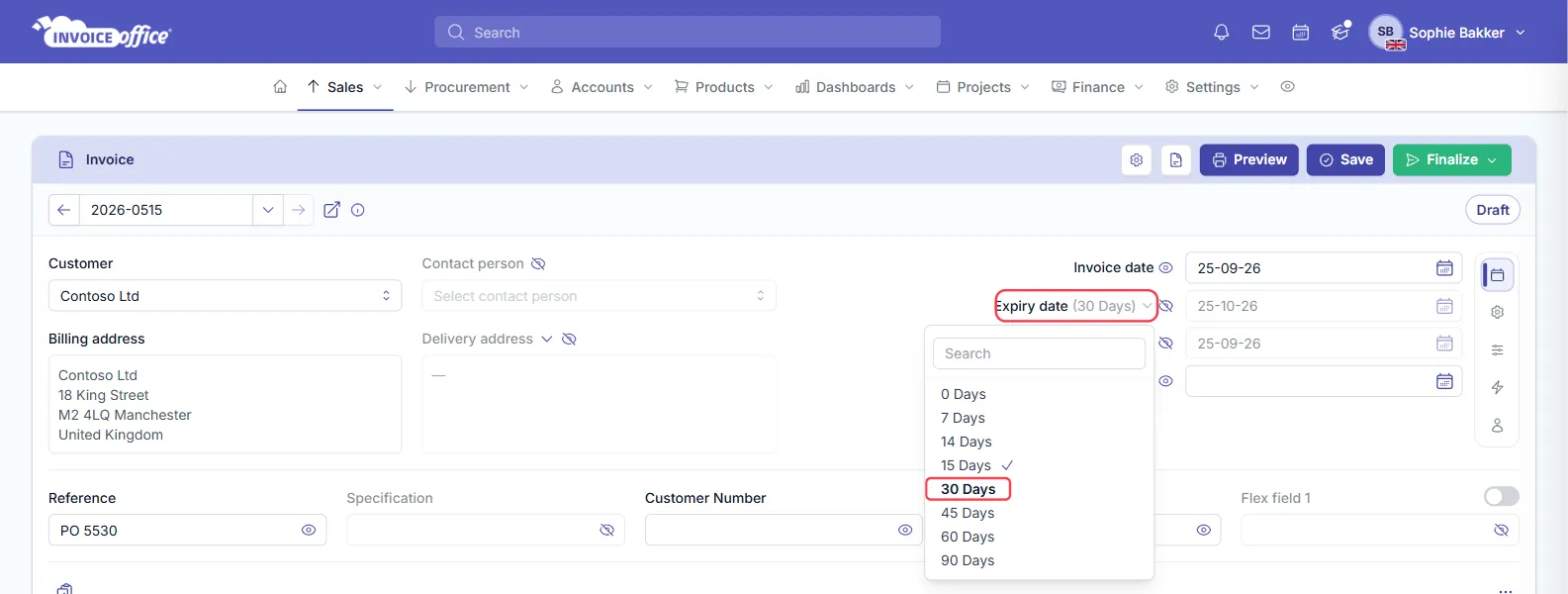
On a new invoice, the Expiry date is worked out from the invoice date and the days in the document terms — the label shows how many, for example Expiry date (30 Days).
To give one invoice a different due date, click the arrow beside Expiry date and pick another number of days: 0, 7, 14, 15, 30, 45, 60 or 90.
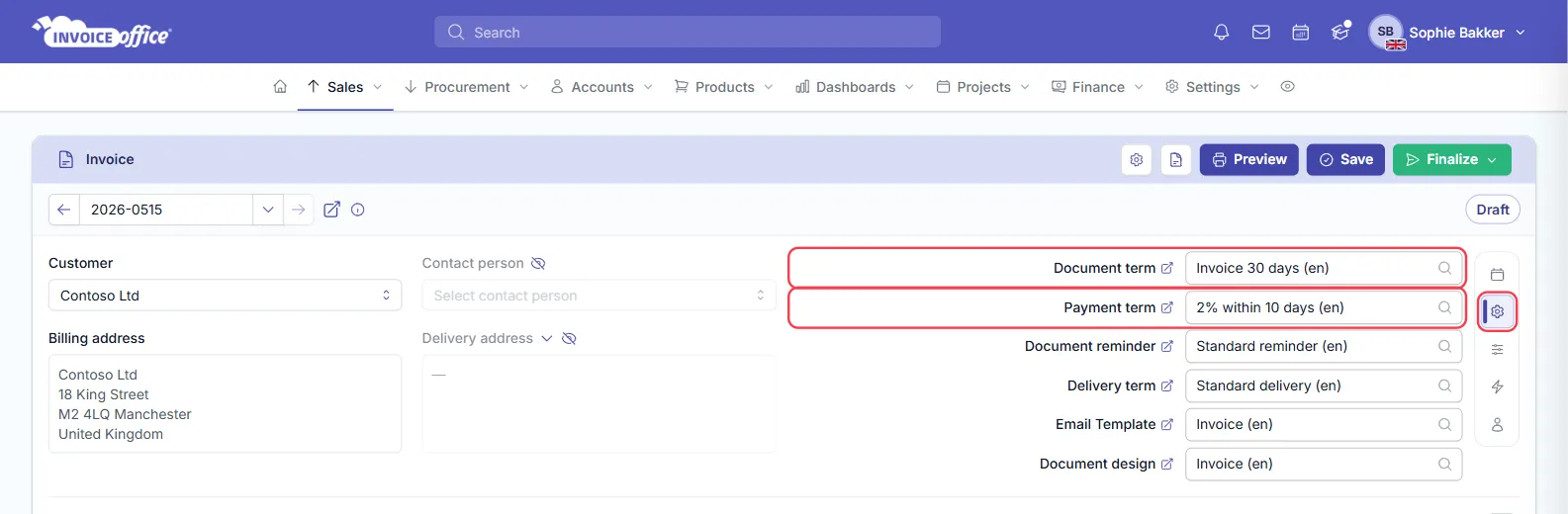
The terms themselves can be changed per invoice too: open the Settings tab (the cog in the panel on the right) and choose another Document term or Payment term. Choosing a document term also resets the expiry date to its number of days and replaces the terms text with that term’s text.
Do not use Payment date as a due date: entering a date there registers the payment on the invoice. When the customer pays, register the payment so the invoice shows as paid.