An internal alert when stock drops below the minimum tells the right colleague in Invoice Office to reorder before a product runs out. You set a Minimum stock on the product, then build an automation with the Product stock alert trigger and a Send internal email notification or Send in-app notification action. This guide covers the minimum stock you need first, the automation itself, the placeholders you can put in the message, and how to activate and check it.
Before you start
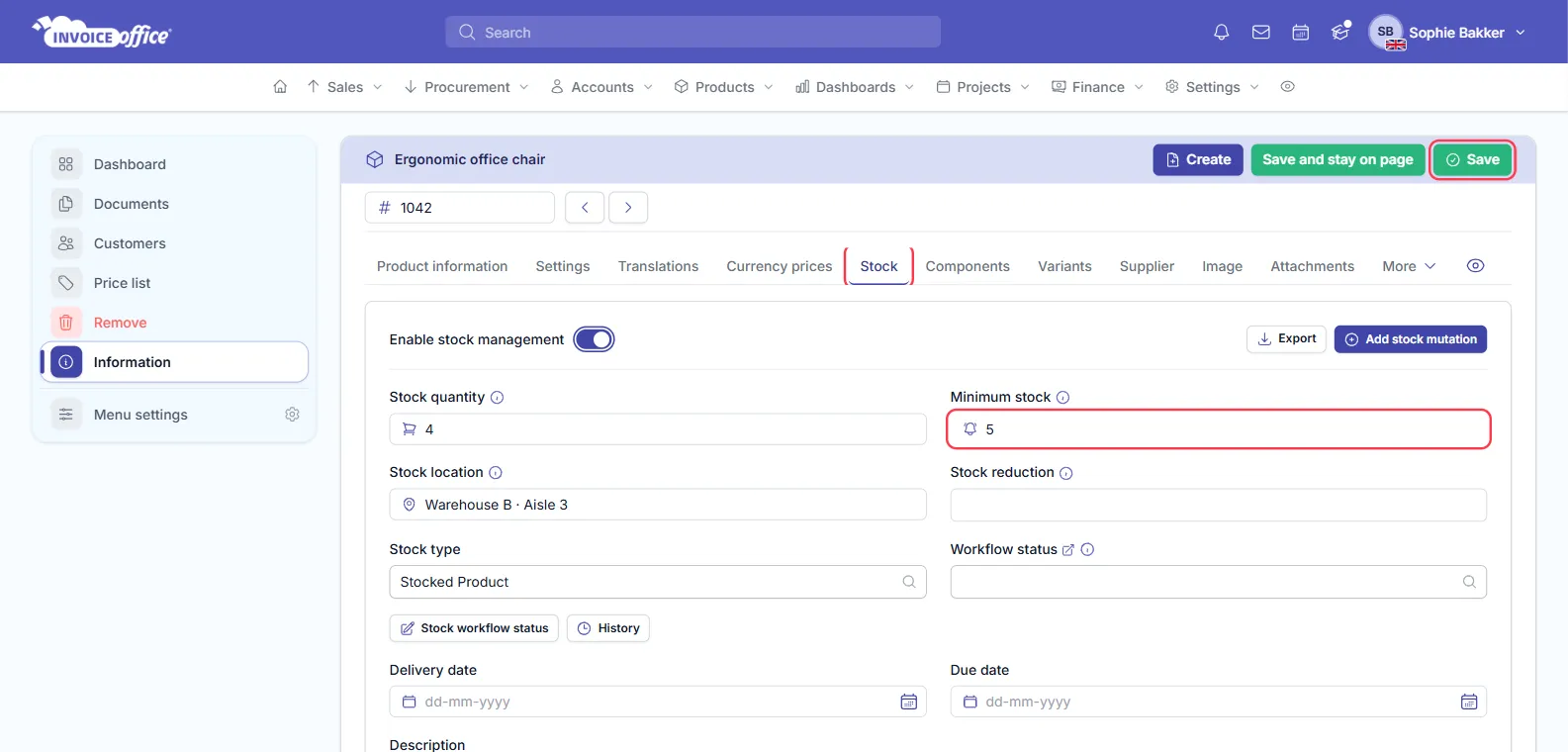
- Set a minimum stock on the product. Open the product from Products → Products (row menu ⋮ → Information), go to the Stock tab, switch on Enable stock management and fill in Minimum stock. Step by step in How to set stock minimum levels and receive low-stock alerts.
- Automations need a Pro licence to run. Without one you can build and save the automation, but its actions are skipped. Automations are managed by company administrators.
What Invoice Office already does without an automation
Every time a product drops below its minimum, Invoice Office already shows the notification Product stock reached on minimum level to the user who created the product, and emails your company email address. The automation is for sending the alert to other people, such as the colleague who orders your stock, or with your own wording.
When the alert is sent
The Product stock alert trigger fires when a document takes stock out of a product, for example when you finalize an invoice, and the stock is then below the product’s minimum stock. With a minimum of 5, it fires when the stock drops to 4.
- It fires again for every document that takes stock out while the product is still below its minimum, until you restock.
- Corrections on the product’s Stock tab, such as Add stock mutation, don’t trigger it.
Step 1: Create the automation and choose the trigger
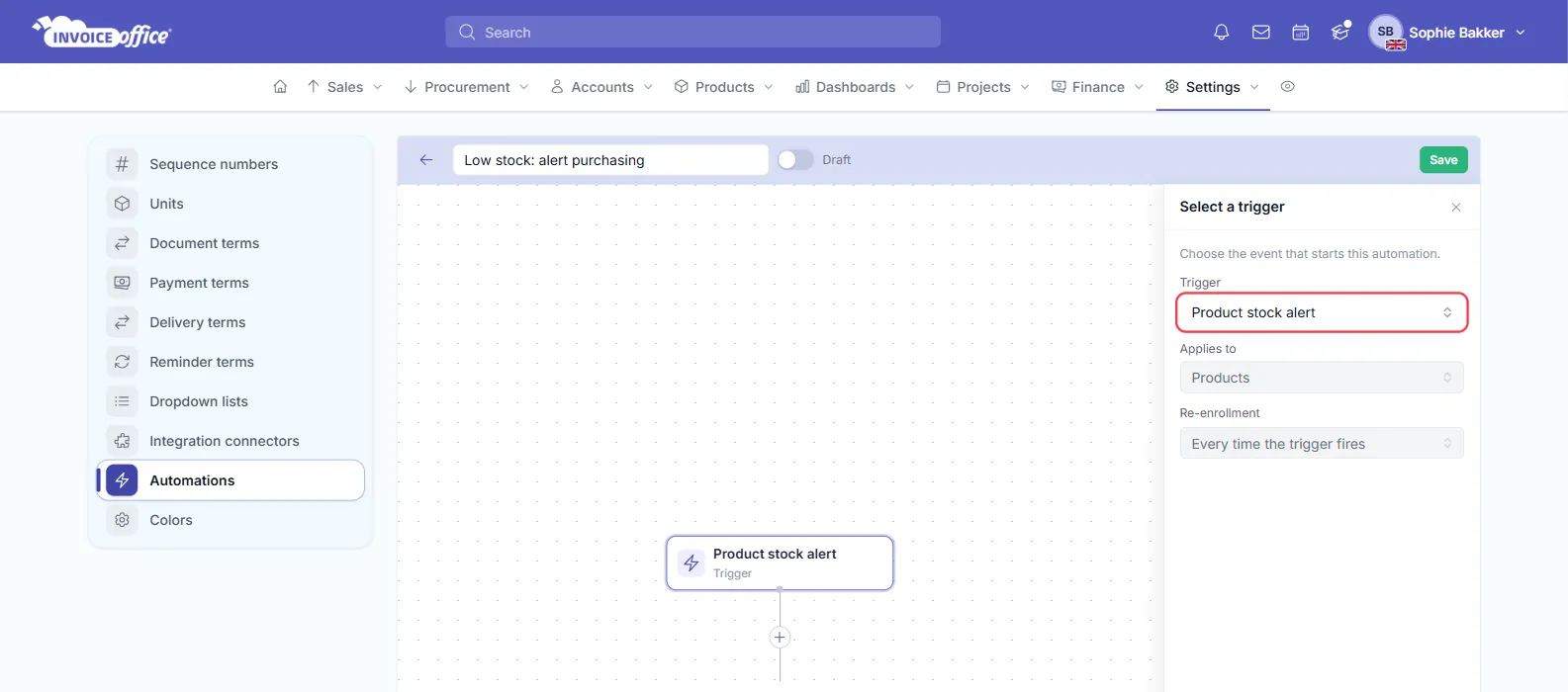
- Go to Settings → Company → Automations and click Create.
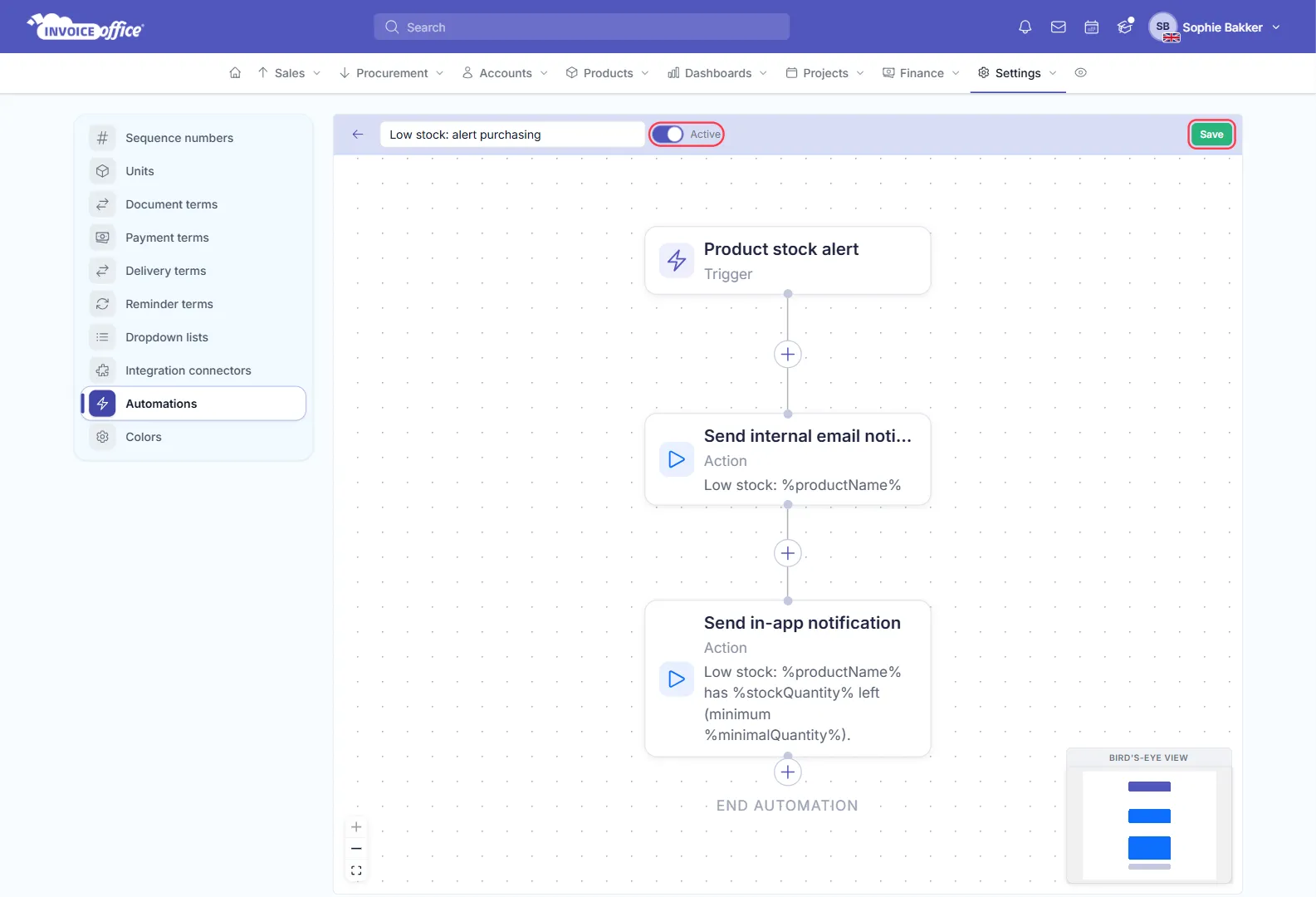
- Give the automation a name, such as
Low stock: alert purchasing. - Click the trigger card and choose Product stock alert under Trigger.
Applies to is set to Products for you, and Re-enrollment is fixed to Every time the trigger fires.
Step 2: Add the internal email
- Click the + under the trigger and choose Action.
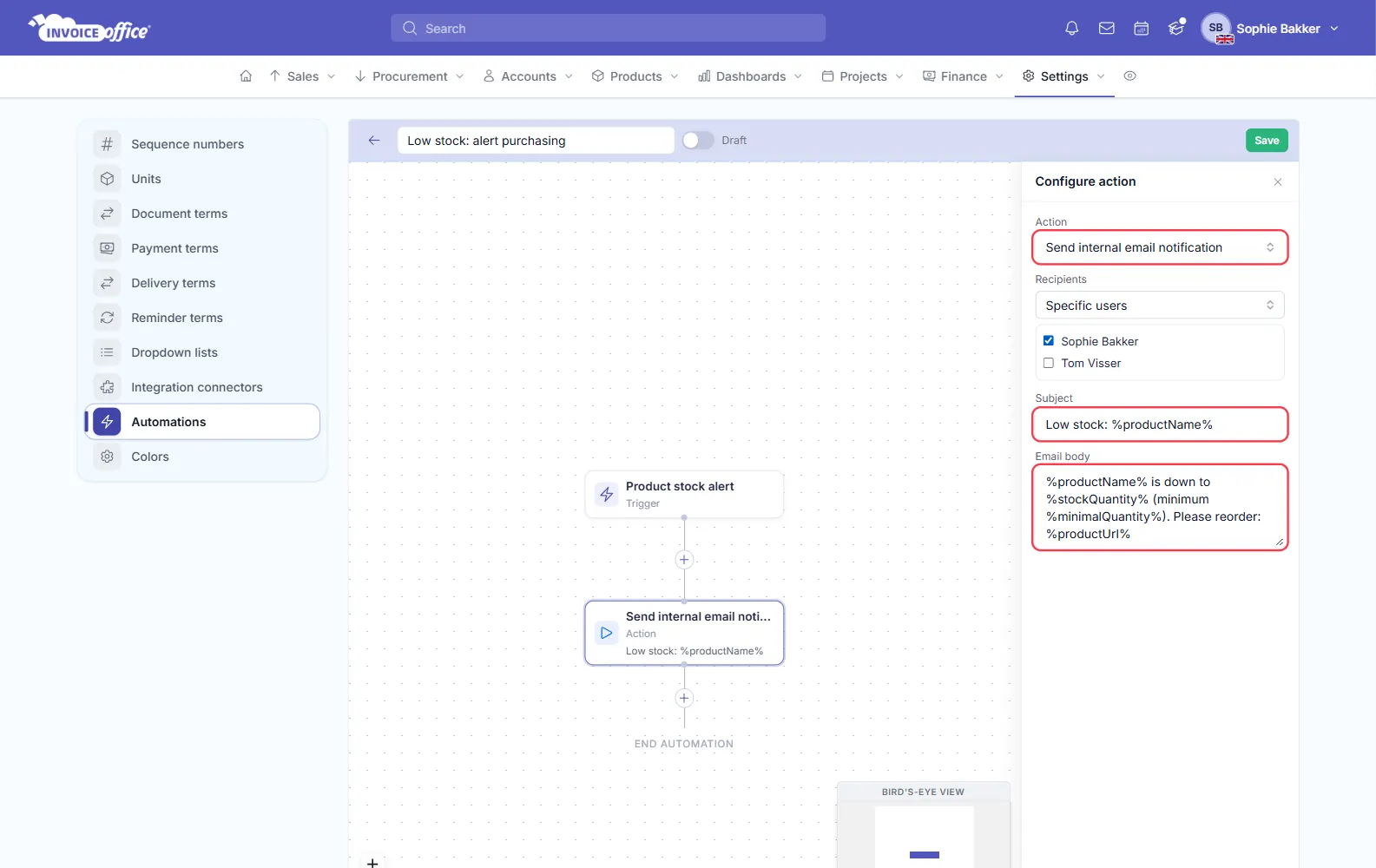
- Under Action, choose Send internal email notification. For this trigger, the editor offers two actions: Send internal email notification and Send in-app notification.
- Under Recipients, choose who gets the email:
- All users: everyone in your company;
- Specific users: tick the colleagues, for example the person who does your purchasing;
- Record owner: the user who created the product.
- Fill in the Subject and the Email body.
You can put these placeholders in the subject and body. Invoice Office replaces them with the product’s details when it sends the email:
| Placeholder | Replaced with |
|---|---|
%productName% | the product’s name |
%stockQuantity% | the stock left after the document |
%minimalQuantity% | the product’s Minimum stock |
%productUrl% | a link to the product in Invoice Office |
For example:
- Subject:
Low stock: %productName% - Email body:
%productName% is down to %stockQuantity% (minimum %minimalQuantity%). Please reorder: %productUrl%
Step 3 (optional): Add an in-app notification
Prefer a message inside Invoice Office as well, or instead of the email?
- Click the + under the email step and choose Action.
- Under Action, choose Send in-app notification.
- Choose the Recipients and type the Message. The same placeholders work here.
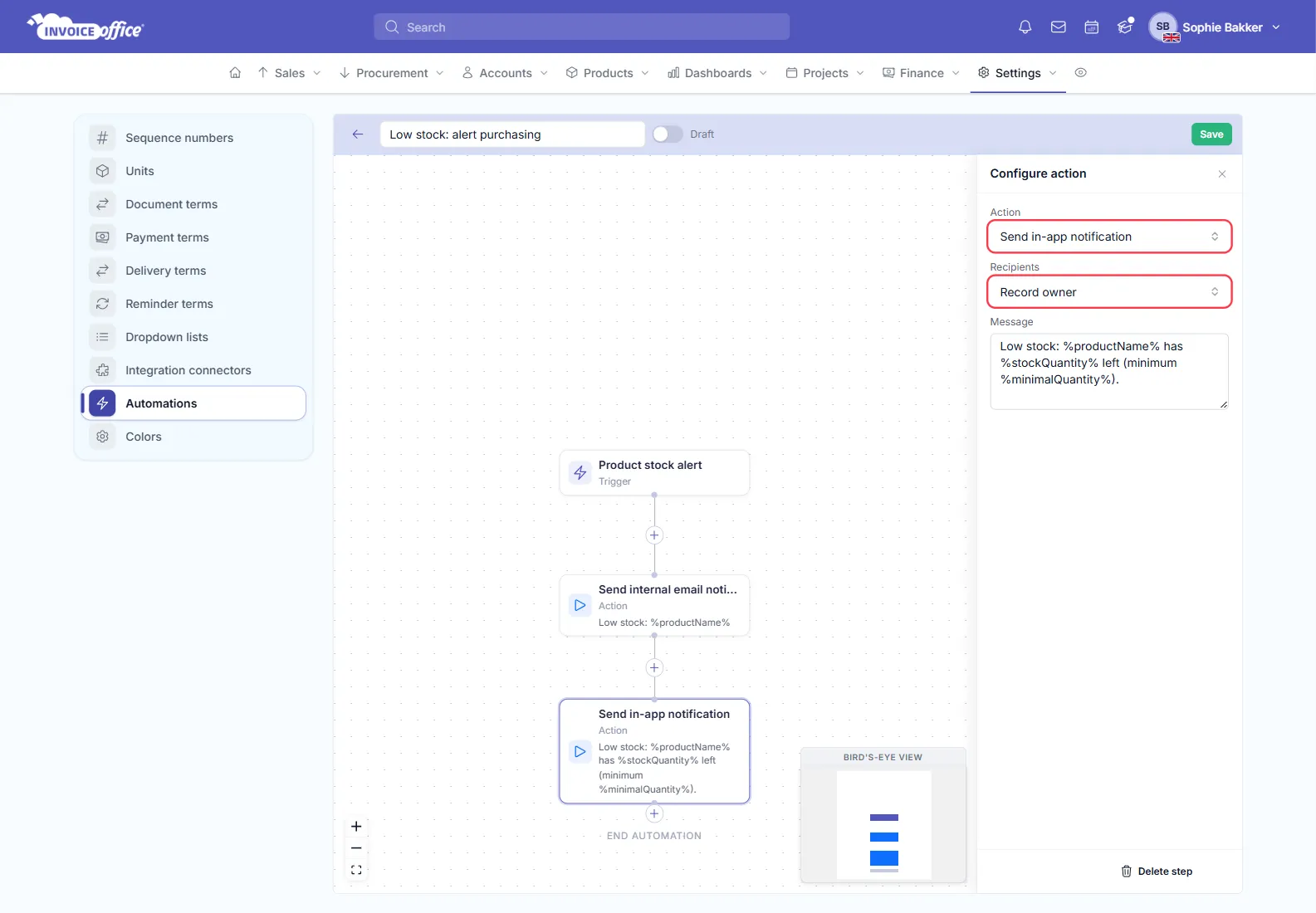
The notification appears under the bell at the top of the app for the recipients you chose.
Step 4: Activate the automation
- Switch the automation on with the switch next to its name. The label changes from Draft to Active. The switch only works once every step is filled in.
- Click Save.
Check that it works
The next time an invoice or other document takes a product below its minimum stock, the alert goes out. To see the runs, open the menu (⋮) on the automation’s row in Settings → Company → Automations and choose History. It shows each run and whether its steps succeeded.
Nothing arrived? Check that:
- the automation is Active and saved, and your company has an active Pro licence;
- the product has Enable stock management on and a Minimum stock filled in;
- the stock really went below the minimum through a document, not through a stock correction;
- the document type reduces stock for that product: see the product’s Stock reduction in How stock management works in Invoice Office.