Barcode scanning in Invoice Office works with any barcode scanner that types like a keyboard — which is what USB and Bluetooth scanners do. You store the product barcode on the product once; after that, scanning it in the product field of an invoice finds the product for you, so you add the line without typing a name or looking anything up. Invoice Office can also print a barcode for each product line on your documents. There is no separate scan screen and nothing to install.
Step 1 — Assign a barcode to a product
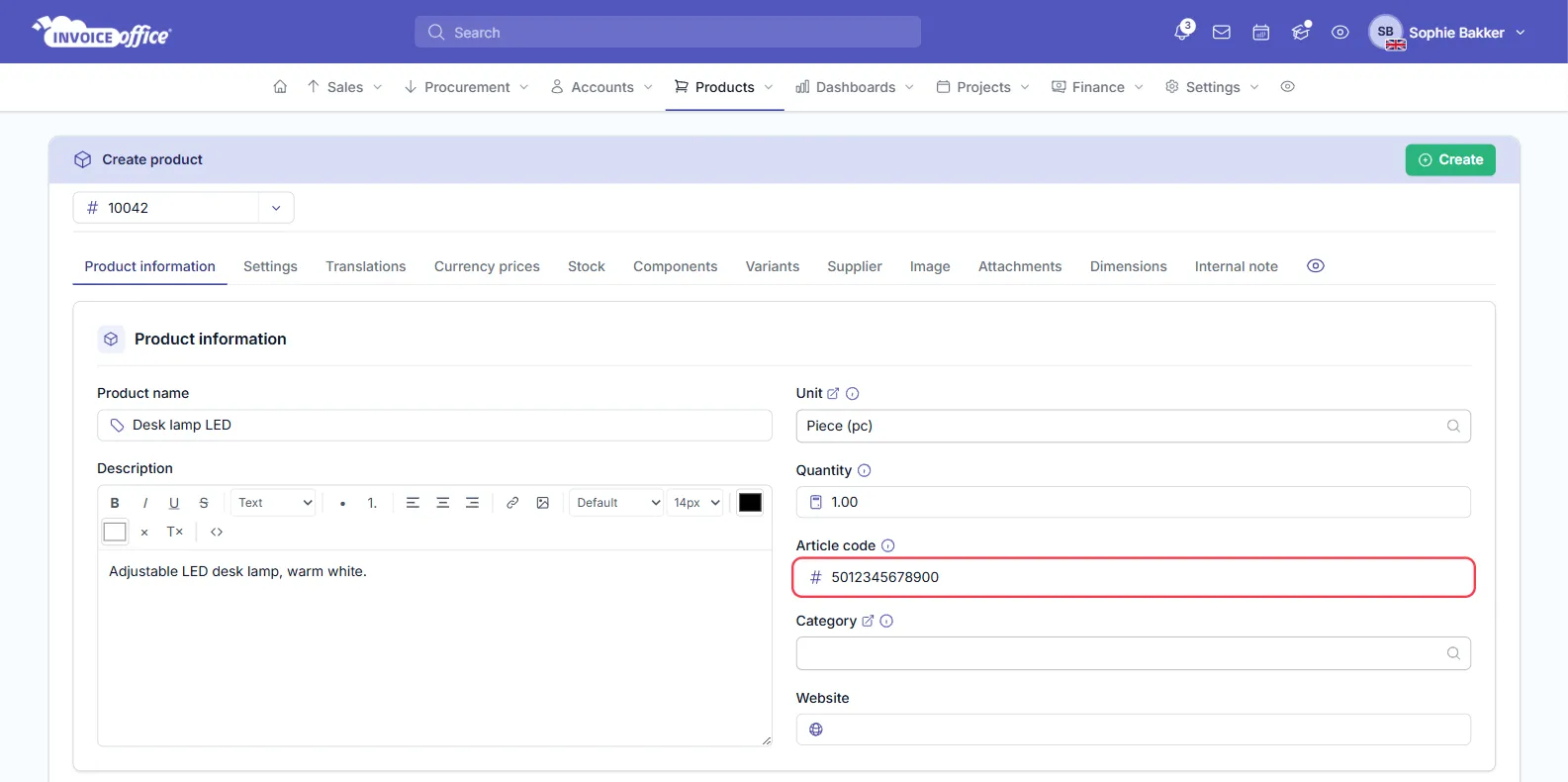
The product search on a document looks at three things: the Product name, the product number and the Article code. So the number under the barcode goes in the Article code.
- Go to Products → Products and open the product, or click Create product.
- On the Product information tab, click in Article code and scan the barcode — or type the number printed under it.
- Click Create for a new product, or Save for an existing one.
To have Invoice Office print a barcode for the product, also fill in its EAN:
- Open the Supplier tab of the product.
- Enter the number in Ean, then click Create or Save.
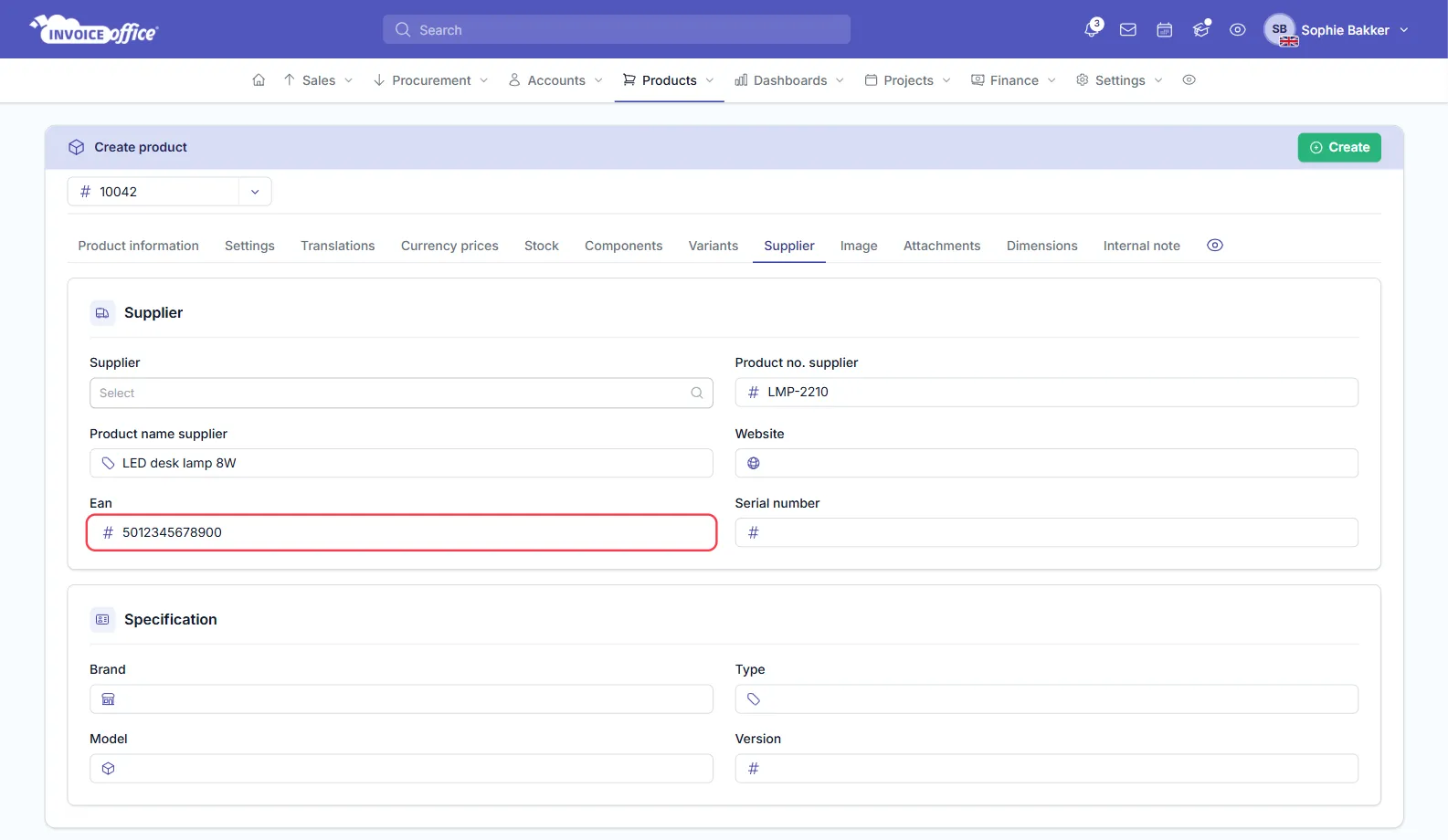
Once the product is saved with an EAN, its Supplier tab shows the barcode drawn from it.
The Ean field is what gets printed; the Article code is what gets found when you scan. Fill in both with the same number if you want to scan the product and print its barcode.
Adding many products at once? When you import products from a file, a column called barcode, EAN or GTIN is matched to the Article code for you. See how to create and manage products.
Step 2 — Scan a barcode to add a product line
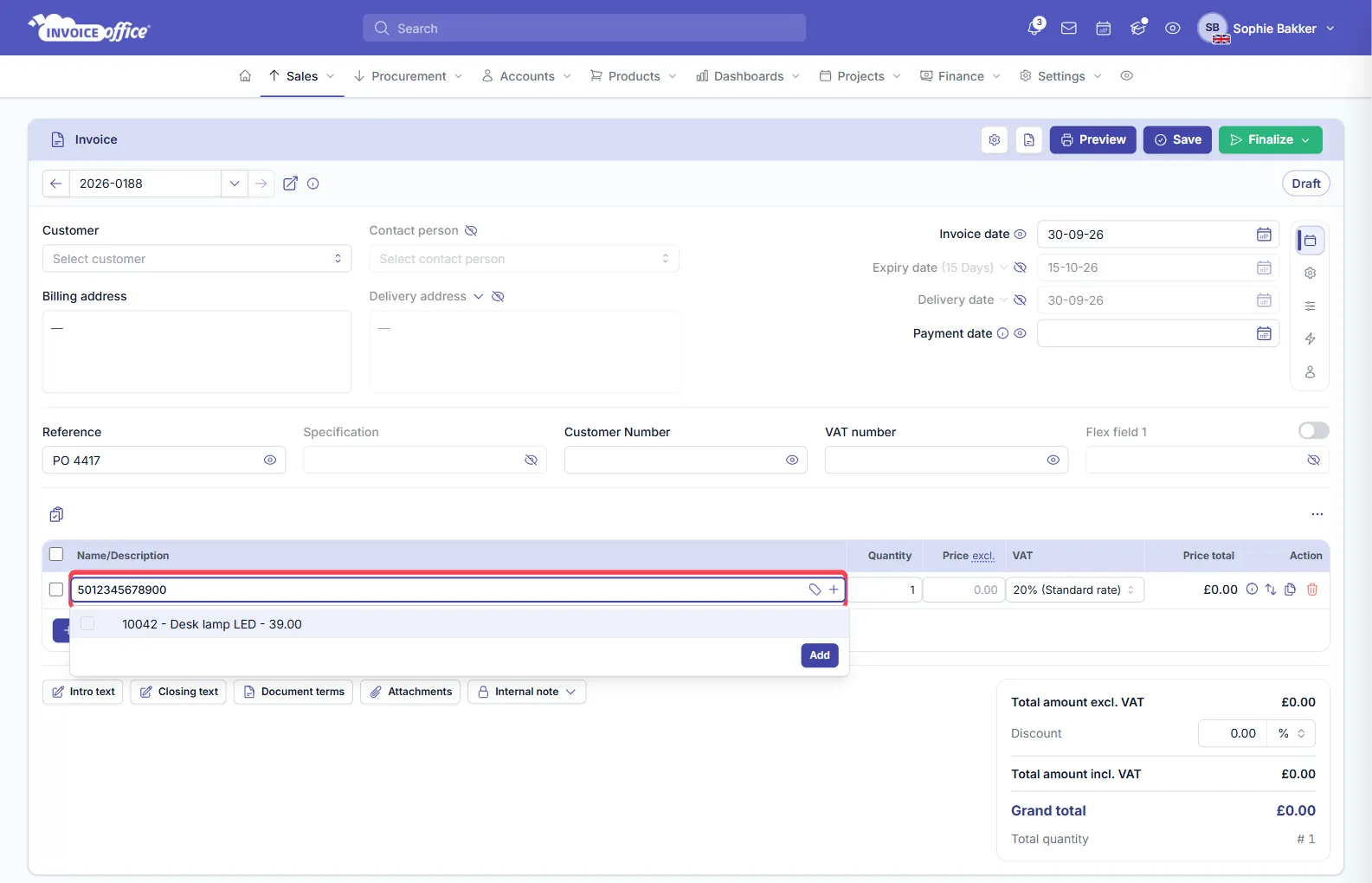
- Open the invoice, or another document, and click in the product field of an empty line — it reads Select Product.
- Scan the barcode. The scanner types the number into the field, and the matching product appears in the list underneath as its product number, name and price.
- Click the product to tick it, then click Add.
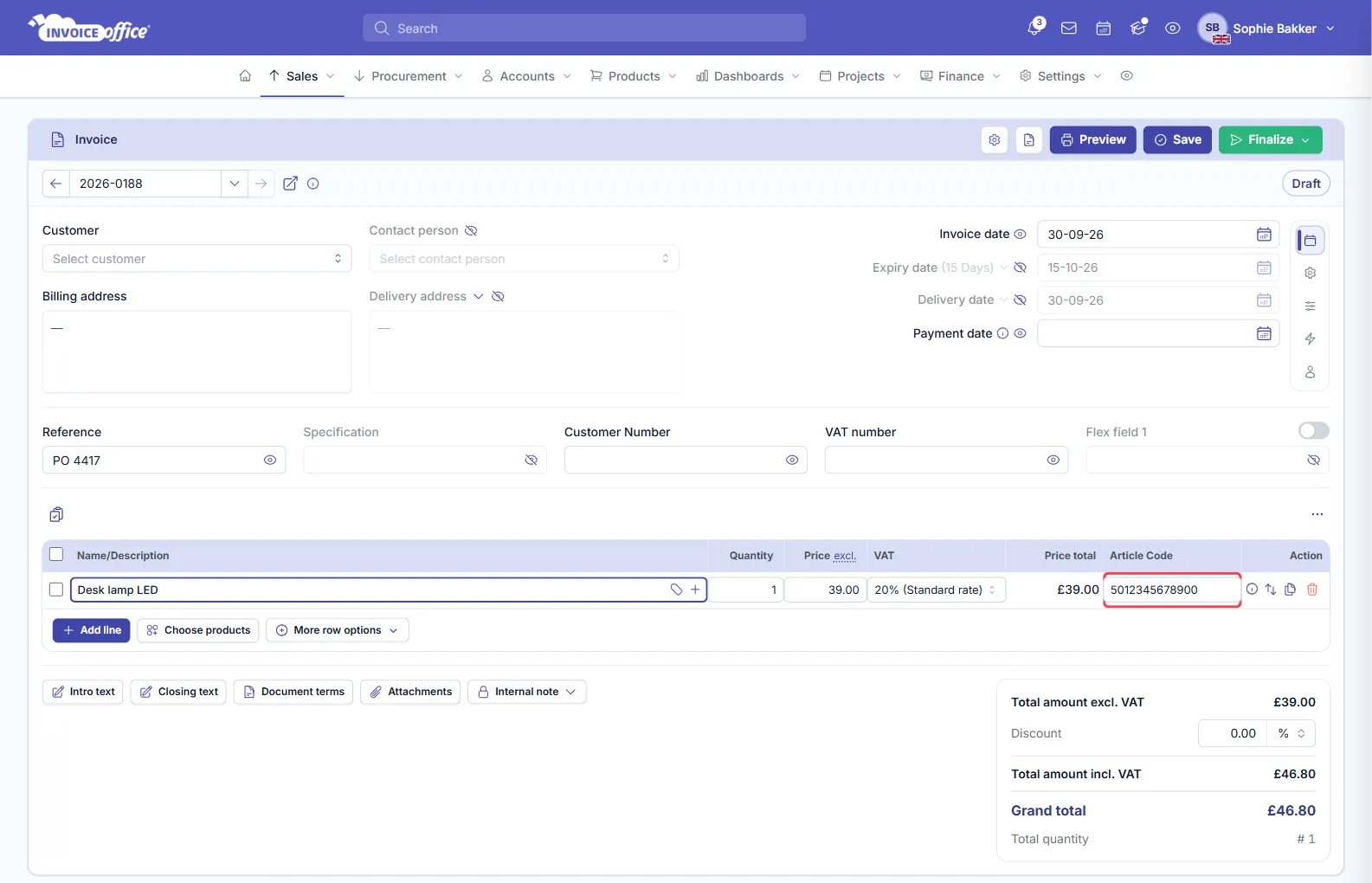
- Click Add line and scan the next product.
The line fills in with the product’s name, price and VAT, exactly as if you had picked it by hand.
If nothing appears after a scan, the number is not in the product’s Article code yet, or the product is inactive — go back to step 1.
Does your scanner send an Enter after each code? Switch that off in the scanner’s settings. Enter closes the list without adding the product, so the line is left with only the number in it. For everything else about the invoice itself, see how to create an invoice.
Step 3 — Show the barcode on your documents
The product table of a document can carry two extra columns: the Article code, and a Bar Code column that prints a scannable barcode for each line.
- On a draft invoice, or another sales document, open the ⋯ button at the top right of the product table and choose Display Columns.
- On the Rows tab, find Article code and Bar Code in the list and switch on the ones you want under Visible.
- Click Close.
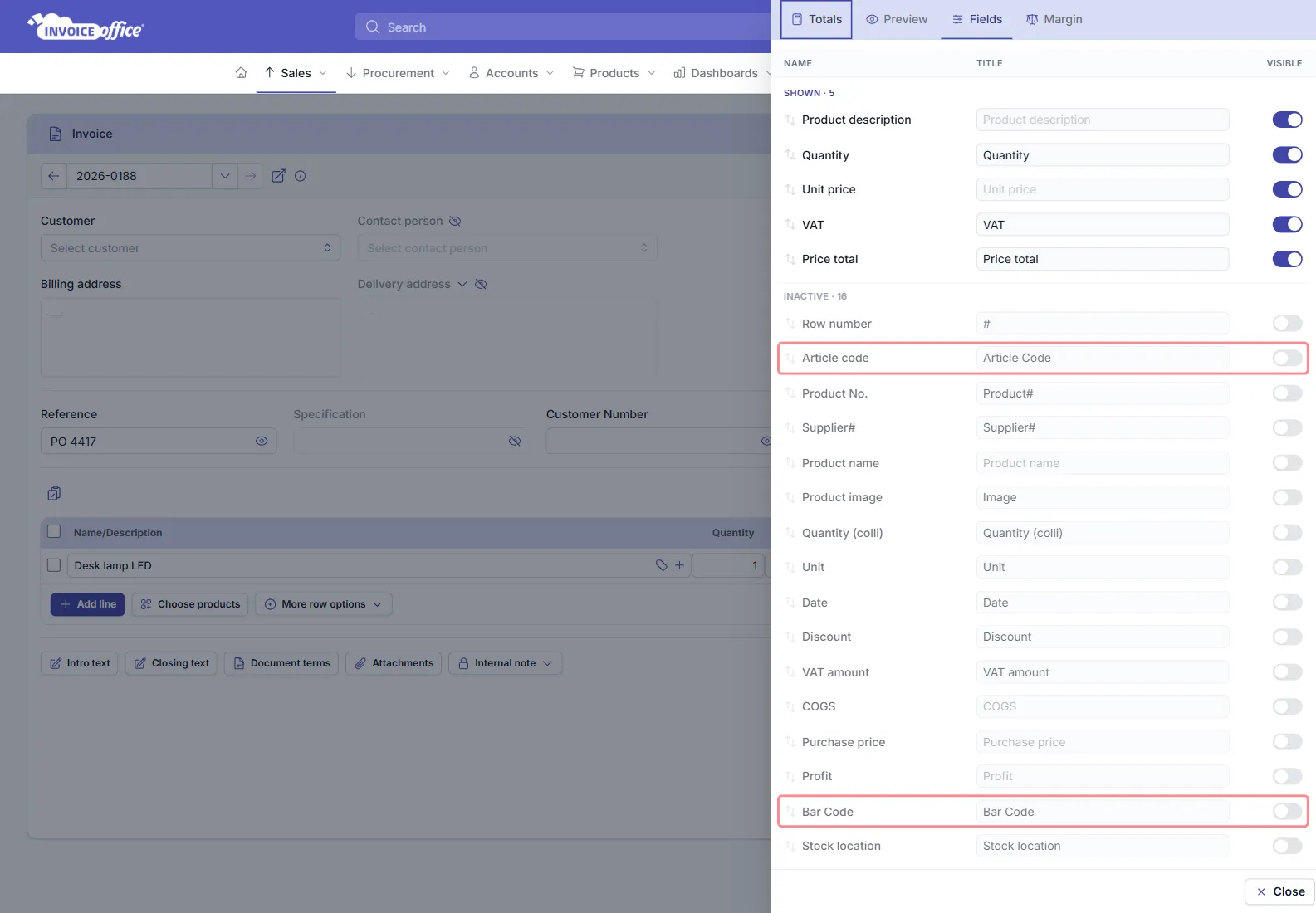
The Bar Code column prints the barcode of the product’s Ean on the document PDF, and needs a Pro license.
Use barcodes with the picklist
The picklist does not have a scan field of its own: you type the quantity you picked on each line, and Done and Open show what has been picked and what is left. It lists each product with its quantity and stock location, so the barcode’s job in the warehouse is to confirm the item in your hand — scan it into a document’s product field as in step 2, or compare it with the Bar Code column printed on the document you are picking for.
See how to use the picklist and how to manage your stocks.
Supported barcode formats
Because the scanner does the reading, Invoice Office accepts whatever your scanner can read and type as text — EAN-13, EAN-8, UPC, Code 128 and, with a 2D scanner, QR codes. What matters is that the text the scanner types matches the product’s Article code, product number or name.
The barcodes Invoice Office prints itself — on the product’s Supplier tab and in the Bar Code column — are Code 128 barcodes of the product’s EAN number.