When a customer has agreed their own payment conditions — 30 days, 15 days, 50% upfront, or an early-payment discount — you can set payment terms per customer in Invoice Office once, on the customer. Every new quote and order confirmation you make for that customer then starts with their terms, and you can still change them on a single document. This guide shows where the settings are, what happens when you create a document and how to override the terms for one quote.
Customer payment conditions: document terms and payment terms
In Invoice Office, a customer’s payment conditions are made of two settings. You set both per customer, separately for Quotes, Order confirmations and Invoices:
- Document terms — the conditions text printed on the document, such as 50% upfront, the rest within 30 days. For quotes and invoices a document term also sets how many days until the quote expires or the invoice is due.
- Payment terms — an early-payment discount, such as 2% if paid within 8 days, with the clause that explains it.
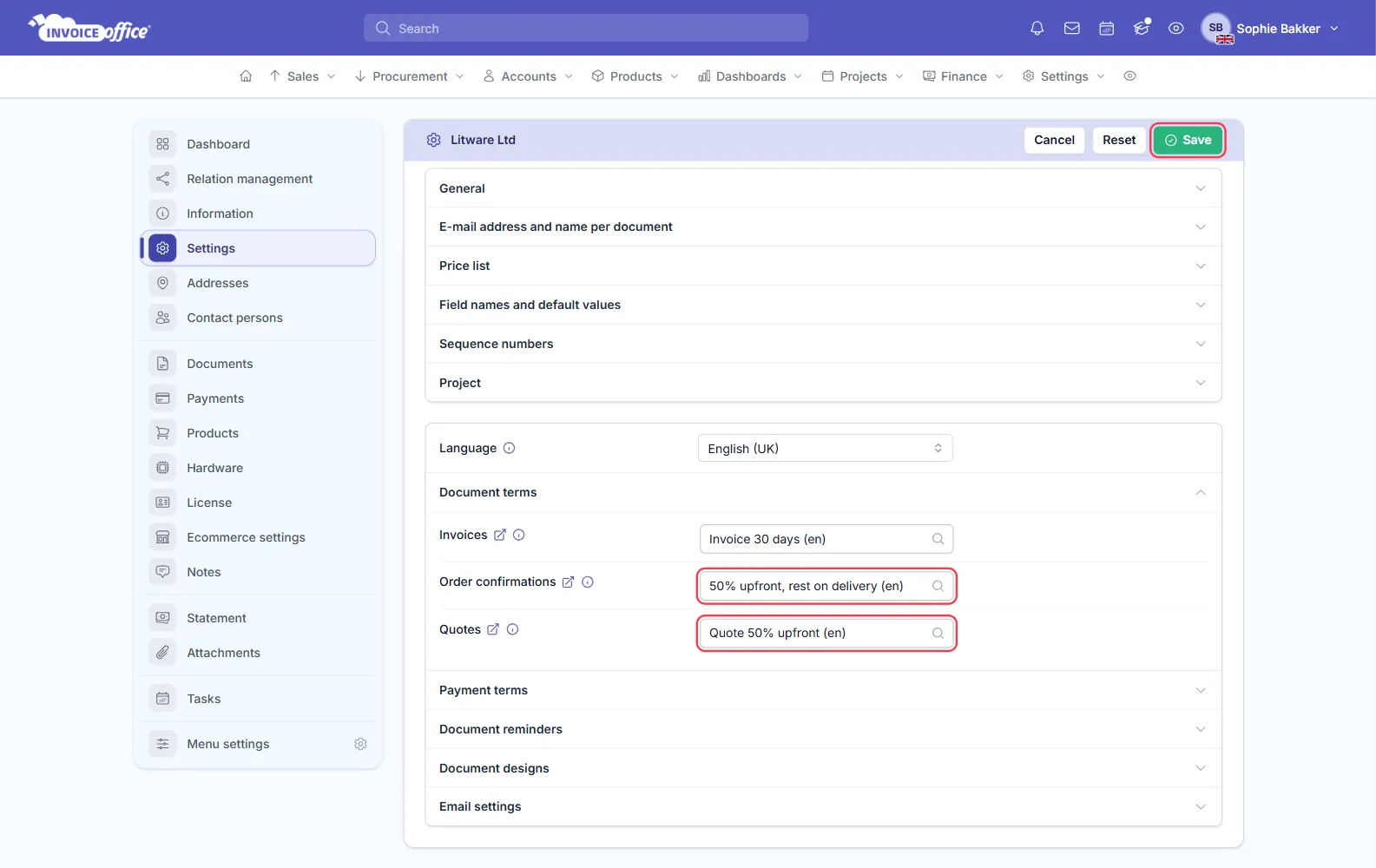
Both are created once under Settings — see how to set up payment terms and how to use document terms. Create a term per document type and language you need, for example a quote term Quote 50% upfront and an order confirmation term 50% upfront, rest on delivery.
Step 1 — Open the customer’s document settings
- Go to Accounts → Customers.
- Open the customer’s Action menu (the ⋮ in the Action column) and choose Settings. The Customer document settings page opens.
- Check the customer’s Language. The term lists only show terms in the saved language — if you change it, click Save first so the lists show terms in the new language.
Step 2 — Choose the customer’s document terms
- Open the Document terms section.
- Under Quotes and Order confirmations, choose the terms for this customer. Set Invoices too if their invoices need other terms.
- Click Save.
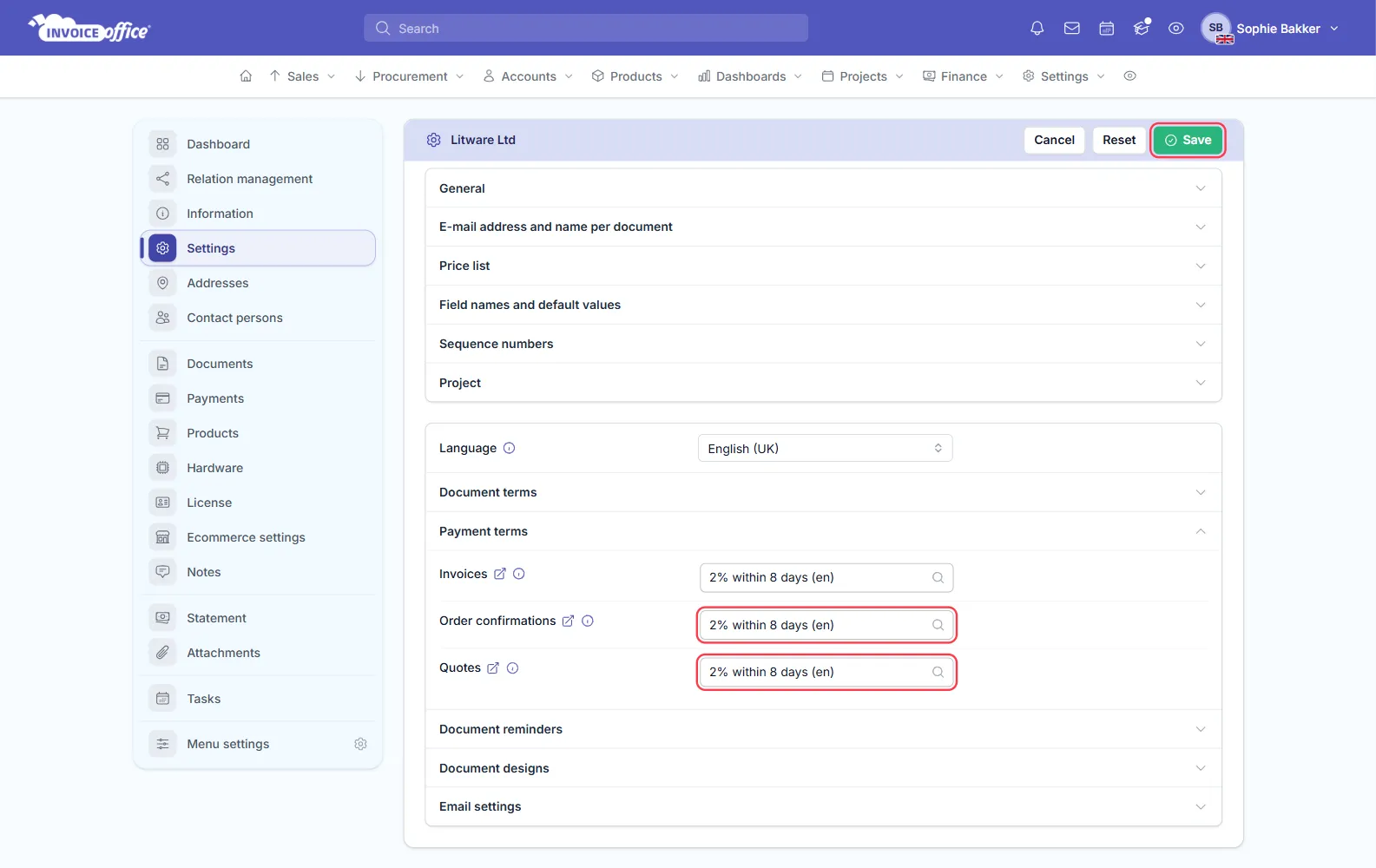
Step 3 — Choose the customer’s payment terms
- Open the Payment terms section.
- Under Quotes and Order confirmations — and Invoices if needed — choose the payment term for this customer.
- Click Save.
Leave a document type empty to use your default terms for that document type and language.
What happens on a new quote or order confirmation
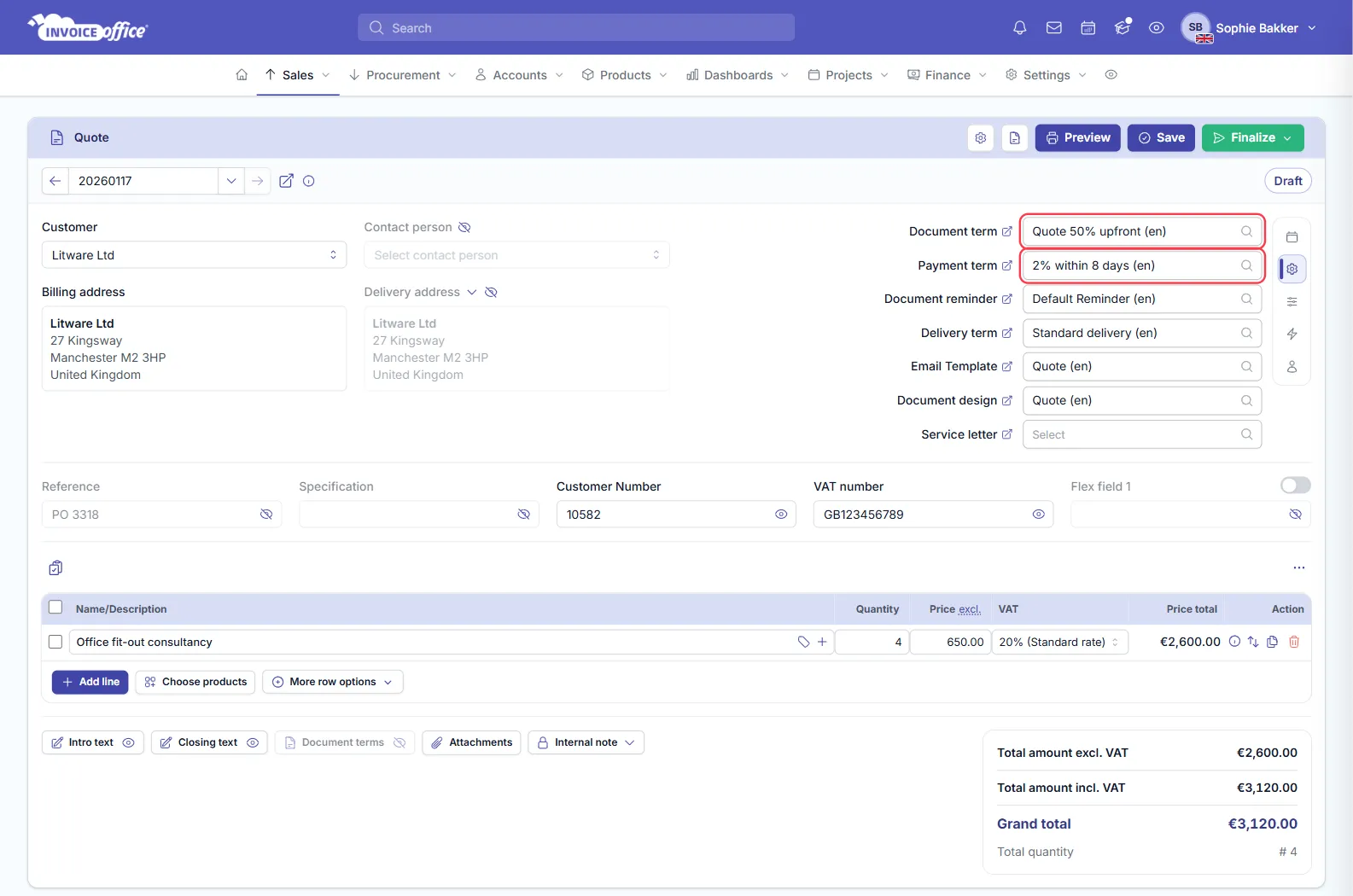
When you select the customer on a new quote or order confirmation — or create the document from the customer — Invoice Office fills in their Document term and Payment term for that document type. You can see them on the Settings tab of the document: the gear icon in the column of icons on the right.
Converting a quote. When you turn a quote into an order confirmation or an invoice, the new document does not pick up the customer’s payment term for that type: it gets your default payment term. The document term does follow the customer: the new document gets the customer’s document term for that type, or your default. To carry the quote’s payment term over instead, switch Payment term on under Settings → Company → Company settings, on the Document copy tab. Check the terms on the new document before you finalise it.
Change the payment terms on one quote or order confirmation
The customer setting is only the starting point. To use other terms on a single quote or order confirmation:
- Open the document and click the gear icon to open the Settings tab.
- Choose another Document term or Payment term.
- Save the document.
This changes only that document; the customer’s settings stay as they are.
What your customer sees
- The document term text is printed in the Document terms & conditions block of the PDF when the term’s Show text on document is switched on. If your document design has that block switched off, switch it on — see how to customize the document layout.
- The payment term shows as a Payment discount line in the totals, with its clause in the terms text, when you have switched on Payment discount for the document’s totals and the term’s Show discount payment discount text.
Asking for an amount upfront? A document term only describes the arrangement. To actually invoice part of a quote first, such as 50%, use partial invoicing — see advance payments and partial invoicing.
For any other information, contact us.