To show the shipping address on a document in Invoice Office, such as a packing note (packing slip) or an invoice, two things have to be in place. The document itself needs a delivery address, switched on. And the document design needs the Shipping Address block switched on, so new documents of that type get the delivery address automatically. If the delivery address is missing from your packing slip, one of the two is usually off.
Step 1 — Add the delivery address on the document
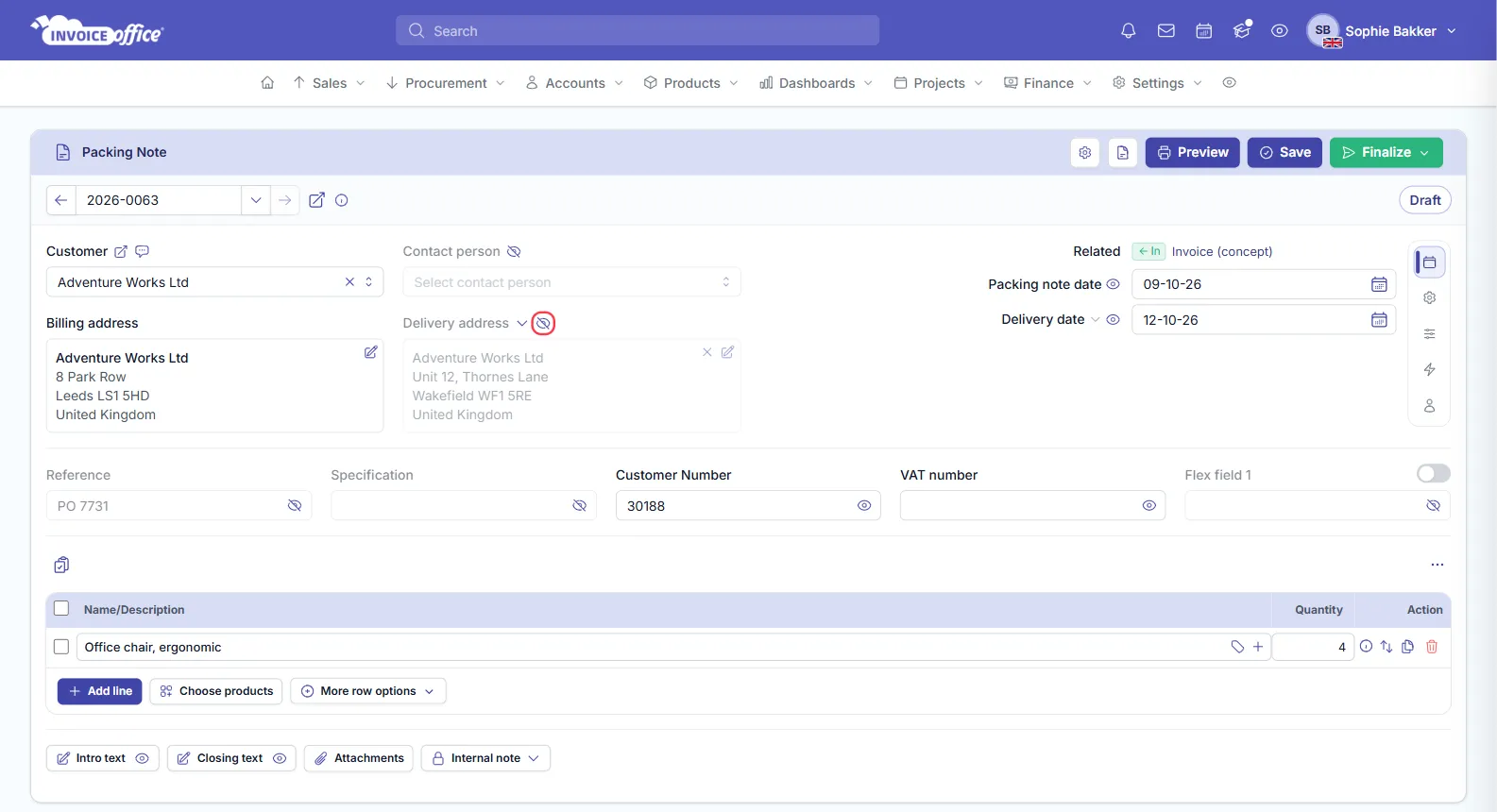
Open a draft document, for example a packing note in Sales → Packing notes. The Delivery address sits next to the Billing address.
-
If Delivery address is greyed out, click the eye icon (Show) next to it. This switches the delivery address on for this document; while it’s greyed out, it isn’t printed.
-
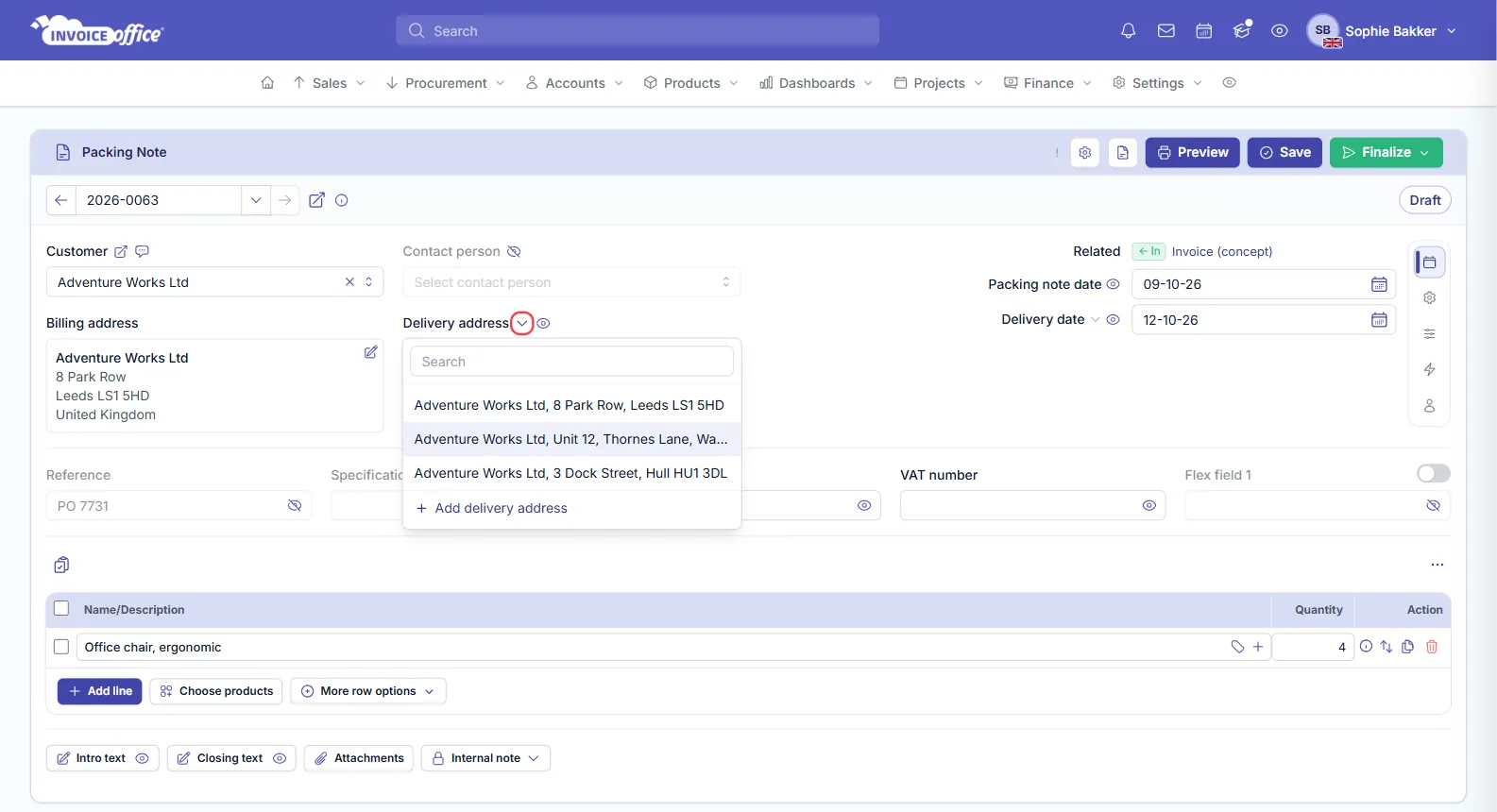
Click the arrow next to Delivery address and choose the address from the customer’s delivery addresses. Not in the list? Click Add delivery address. The pencil edits the selected delivery address in the customer’s saved addresses, and the cross removes it from this document.
-
Click Save, and Preview to check the PDF.
Step 2 — Switch on the Shipping Address block in the document design
- Go to Settings → Document designs and click Action → Open on the design of the document type, for example Packing Note.
- At the top of the editor, switch to Document template. If you don’t see this switch, skip this step; your editor edits the layout directly.
- Under Blocks on the left, switch on Shipping Address. The delivery address appears on the page.
- Click Save. If you switched to Document template in step 2, switch back to Document design and click Save there too: the template saves where the block sits, and the design saves that new documents start with the delivery address switched on.
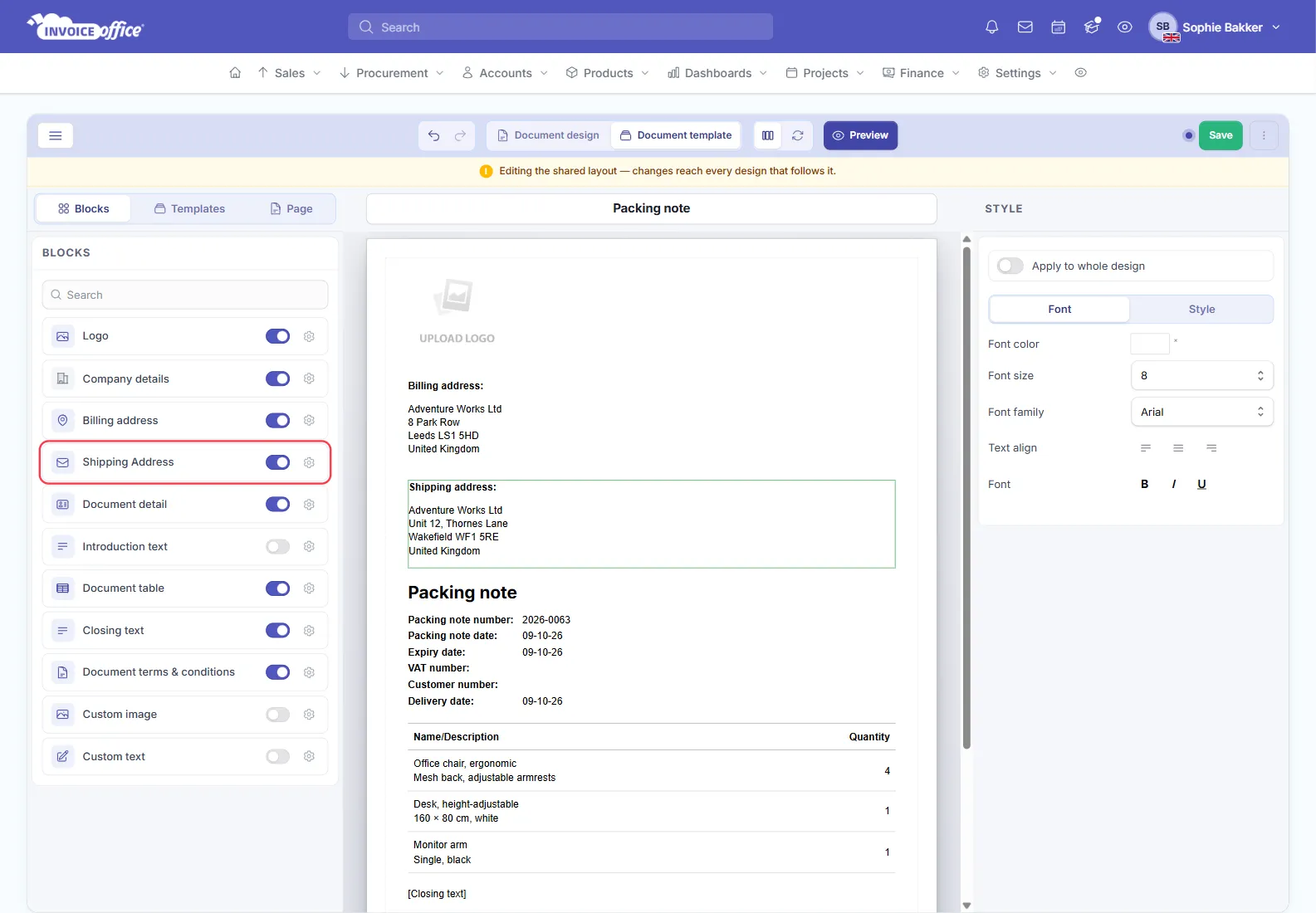
From then on, new documents of that type start with the delivery address switched on, including documents you create from another document, such as an invoice made from a packing note. Documents you created earlier keep the settings they were created with: on a draft, click the eye next to Delivery address (step 1). If the address still doesn’t print, the document was created while the block wasn’t in the design: use Create duplicate in its Action menu, which makes a new draft with the current design. A finalized document can’t be changed.
Each document type has its own design, so switch the block on for every type that needs it: invoice, packing note, order confirmation and so on. To place the delivery address next to the billing address instead of below it, see how to show the delivery address next to the invoice address.
Delivery address still not showing?
- The Delivery address is greyed out on the document. Click the eye next to it.
- No delivery address is chosen. Pick or add one with the arrow next to Delivery address.
- The delivery address is empty. An empty Delivery address prints nothing. Add the address to the customer first: see how to manage customer addresses.
- You changed the design after creating the document. The design only sets the default for new documents. On a draft, click the eye next to Delivery address; if it still doesn’t print, make a duplicate of the document.