You can use multiple tax codes on the same invoice in Invoice Office: every invoice line has its own VAT code, so one invoice can mix rates, for example 21% on equipment and 9% on food. Invoice Office works out the VAT per line and shows a separate VAT total for each rate. This guide shows how to set the VAT code per line, how product defaults fill it in, and how the VAT totals are calculated.
When you need different rates on one invoice
You need more than one VAT code on an invoice whenever the things you sell fall under different rates. Some examples:
- goods at the standard rate together with goods at a reduced rate, such as an espresso machine and coffee beans;
- a service at the standard rate together with an exempt or zero-rated item;
- a delivery to another EU country where some lines are reverse charged.
Which rate applies to what depends on your country’s VAT rules. Your VAT codes, and the rates behind them, are set up under Settings → VAT codes. See how to create a VAT code.
Set the VAT code per invoice line
- Open the invoice and add your lines.
- In the VAT column of a line, click the VAT code to open the list.
- Pick the VAT code for that line. Type in Search… to find one quickly.
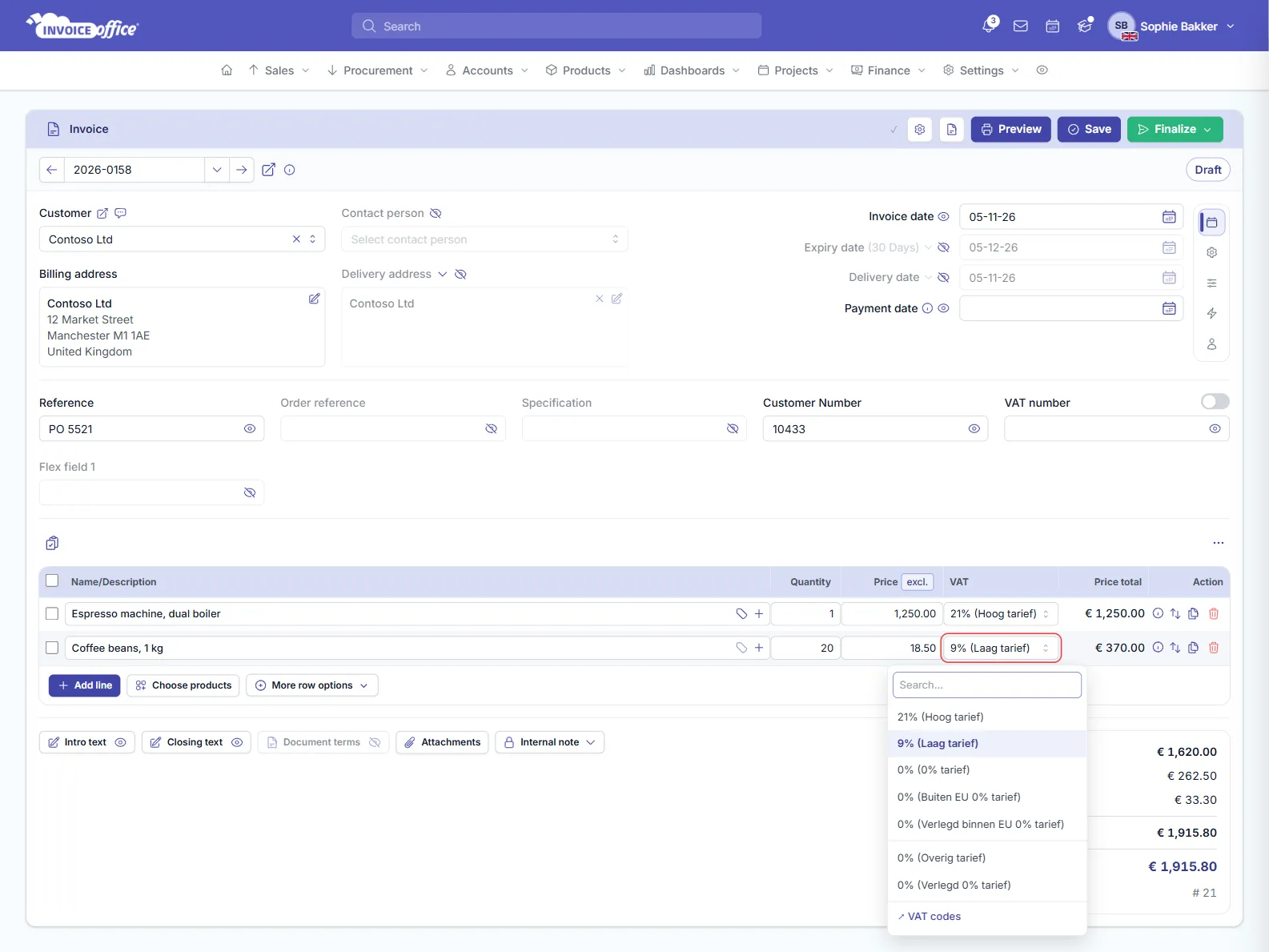
Each line takes one VAT code. To charge two rates on what’s really one item, split it over two lines.
VAT codes at the bottom of the list opens your VAT code settings in a new tab.
Let products fill in the VAT code
You don’t have to pick the code by hand every time. When you add a product to a line, Invoice Office fills in the product’s own VAT code. Set it once on the product, and every invoice line for it gets the right rate.
The customer can override the product:
- A customer with its own VAT code (in the customer’s Settings → General) gets that code on every product line instead of the product’s code.
- On an invoice where VAT is reverse charged, the reverse-charge code is used for every line.
You can still change the code on any single line afterwards.
A product group with mixed rates on one line
A product group can hold products with different VAT codes. With Show product group switched on for the group, it’s added to the invoice as one line instead of one line per product. That line shows Product Group VAT instead of a single VAT code, and the VAT is split over the rates of the products in the group. This is the only way to have several VAT rates on literally one invoice line.
How the VAT totals are calculated
Invoice Office works out the VAT for each line from its price and its VAT code, and adds them up per rate. The totals box shows:
- Total amount excl. VAT: all lines together, without VAT;
- a VAT row for each rate on the invoice, for example VAT 21% and VAT 9%;
- Total amount incl. VAT and the Grand total.
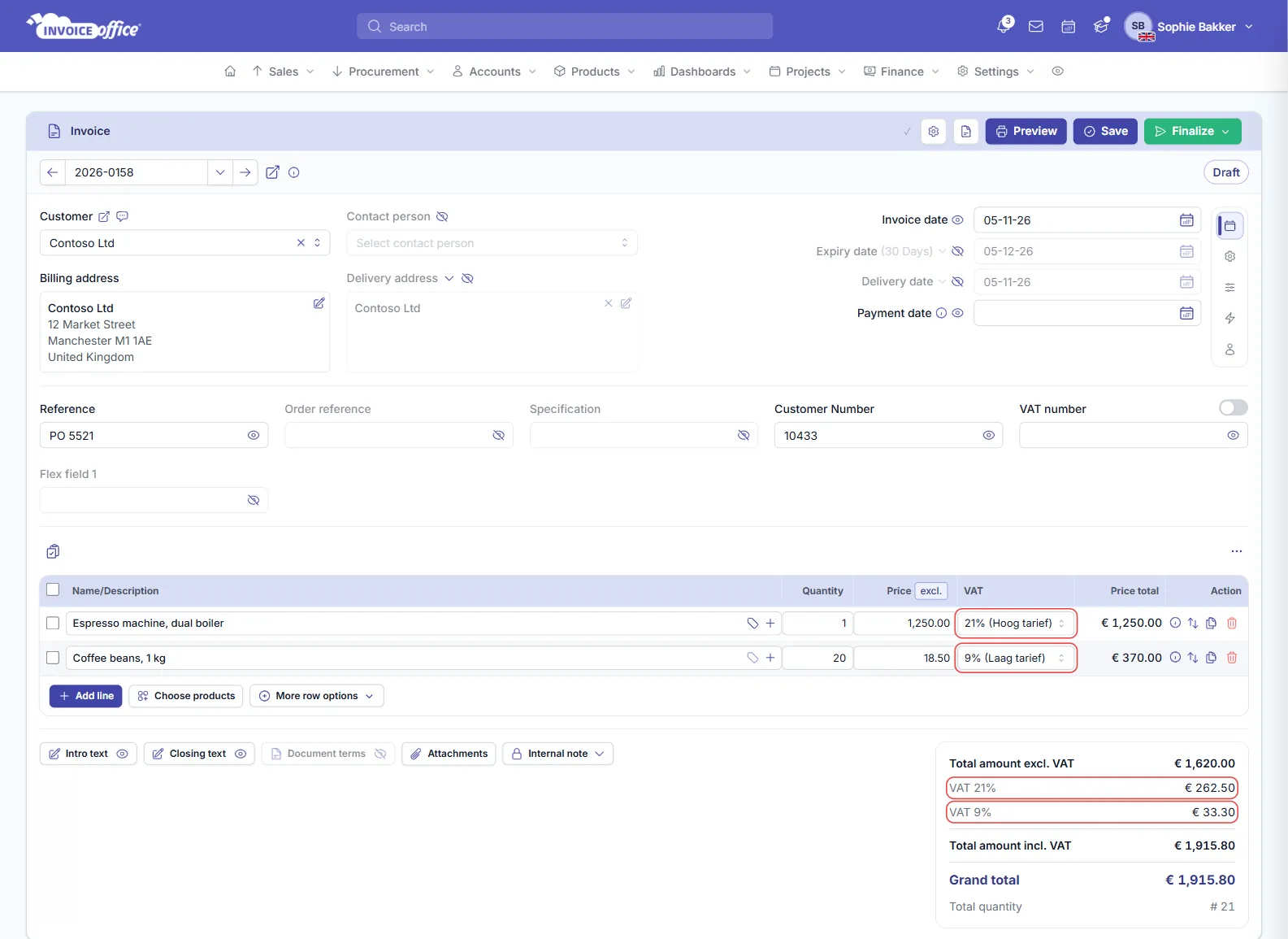
In the example, 21% of 1,250.00 is 262.50 and 9% of 370.00 is 33.30, so the invoice total is 1,620.00 + 295.80 = 1,915.80. The totals update as soon as you change a VAT code on a line.
The same breakdown per VAT rate is used for the invoice PDF and the e-invoice (UBL), and each line’s VAT is booked to the ledger account of its VAT code. That’s how the amounts end up in the right boxes of your VAT return. See how to use the VAT dashboard and VAT return.