Product variants in Invoice Office let you keep an item that comes in different sizes, colours or configurations as one product. You add the options — for example Size with S, M and L, and Colour with Navy and White — and Invoice Office creates a variant for every combination, each with its own sales price, SKU, stock quantity and image.
Variants are part of the Pro license. Without it, the Variants tab shows a message that the feature needs a license.
Before you start: how variants are used
- Variants are kept on the product and are synced with an online store connected through the Shopify integration: variants, their prices and their stock quantities are imported from Shopify and sent back to it.
- On an invoice, quote or other document you add the product itself. There is no separate variant to pick on a document line. If you need to invoice each size or colour separately, create them as separate products.
- The Stock quantity of a variant is the number you enter, or the number your Shopify store sends. Finalizing an invoice changes the stock of the product, not of a variant — see How to manage your stocks.
Step 1 — Open the product’s Variants tab
Go to Products → Products and open the product. In the tabs across the top of the product form — Product information, Settings, Translations, Currency prices, Stock, Components, Variants and more — click Variants.
The tab has two parts: Variants, where you set up the options, and Variant overview, which lists every variant.
Step 2 — Add an option and its values
- Click Add variant.
- Under Variant name, type the name of the option — for example Size or Colour.
- Under Variant values, type the first value, then click Add value for each next one: S, M, L. Drag a value by its arrows to change the order, or click × to remove it.
- Click Save in the dialog.
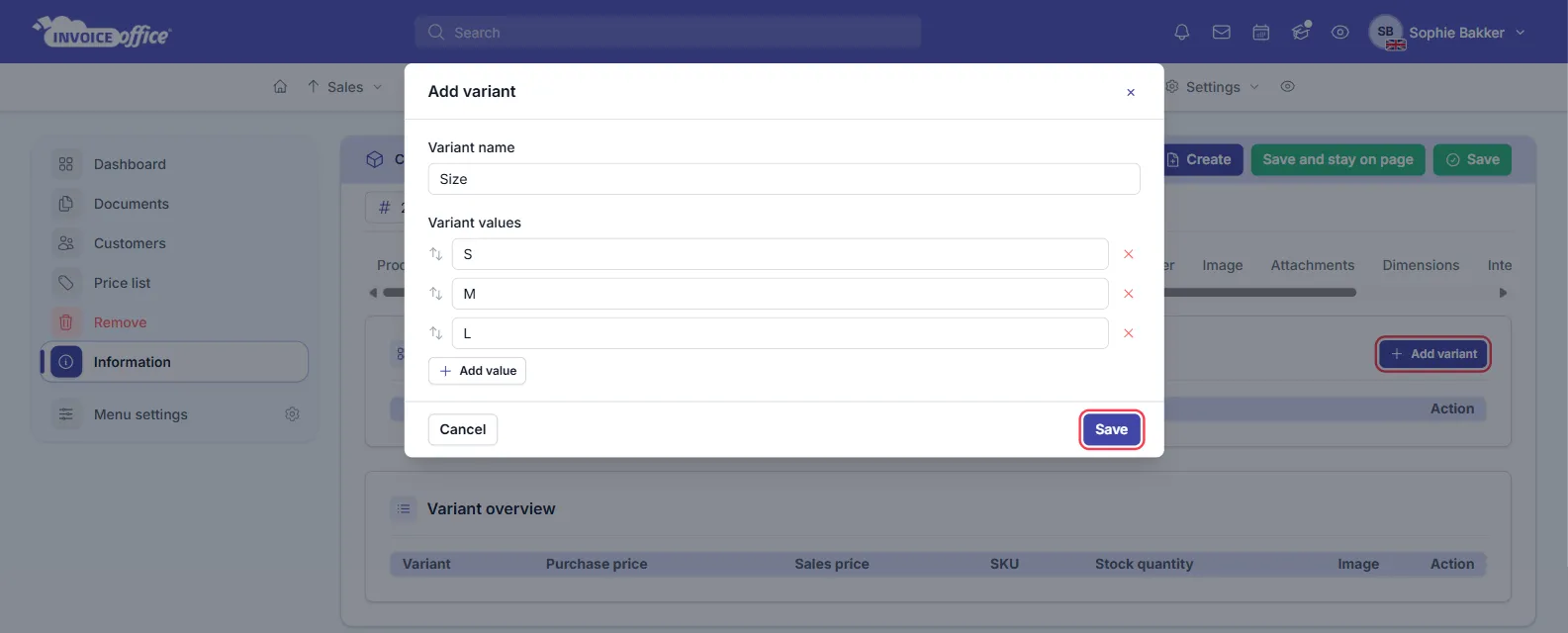
Repeat for a second or third option. A product can have up to 3 options and up to 100 variants. Every option needs at least one value — without one, the dialog asks you to add it.
Step 3 — Fill in price, SKU and stock per variant
The Variant overview now shows one row for every combination — with Size (S, M, L) and Colour (Navy, White) that is six variants, from S / Navy to L / White. For each variant you can fill in:
- Sales price — the price of this variant.
- SKU — its own article code.
- Stock quantity — how many you have of this variant.
- Image — click the upload button to add a picture of this variant.
Purchase price is shown but cannot be edited per variant. With more than one option, Group by above the table groups the rows by one of your options; the number next to it is the number of variants.
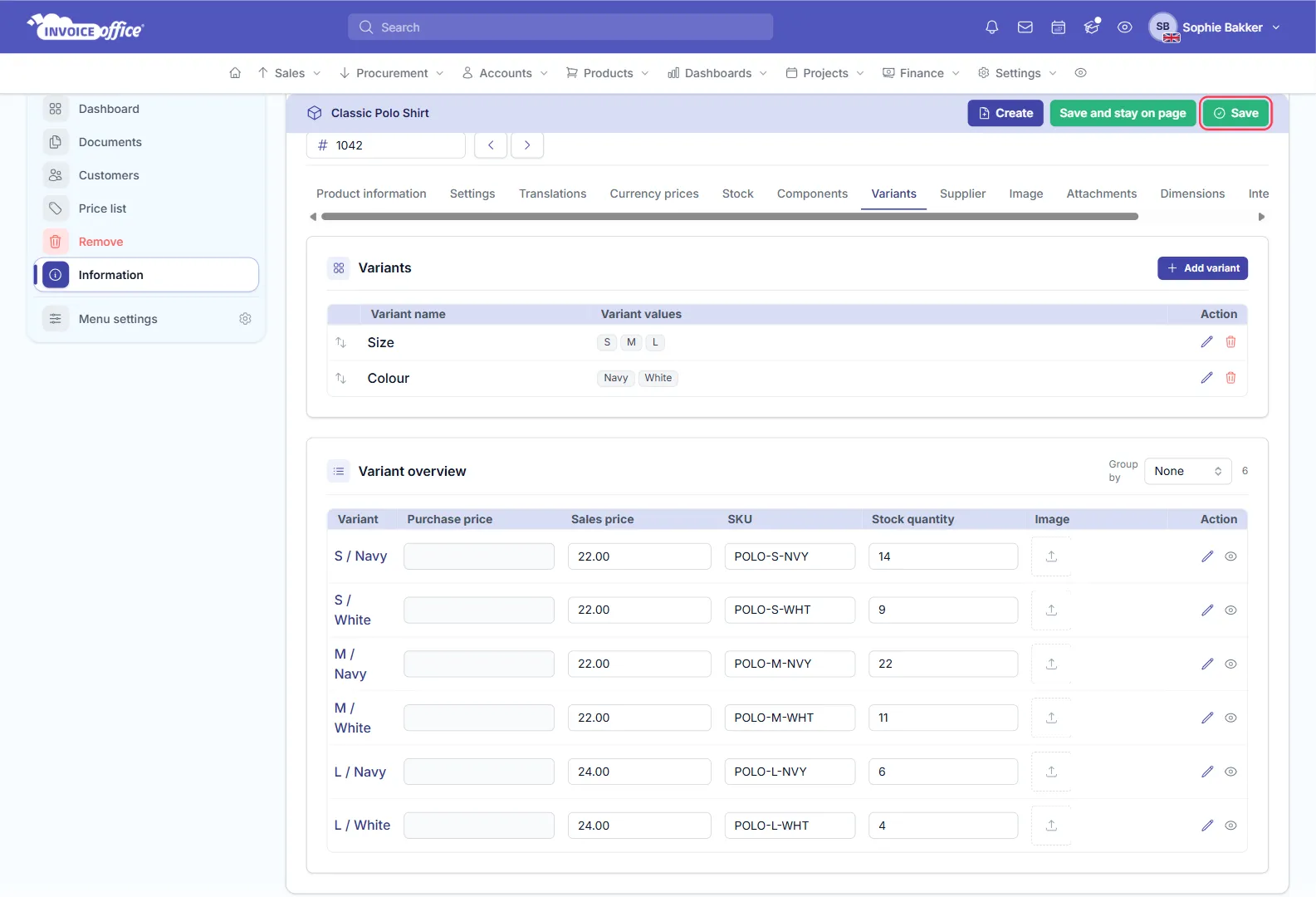
Then click Save (or Save and stay on page) at the top of the product. Nothing on the Variants tab is stored until you save the product.
Step 4 — Add more details to a variant
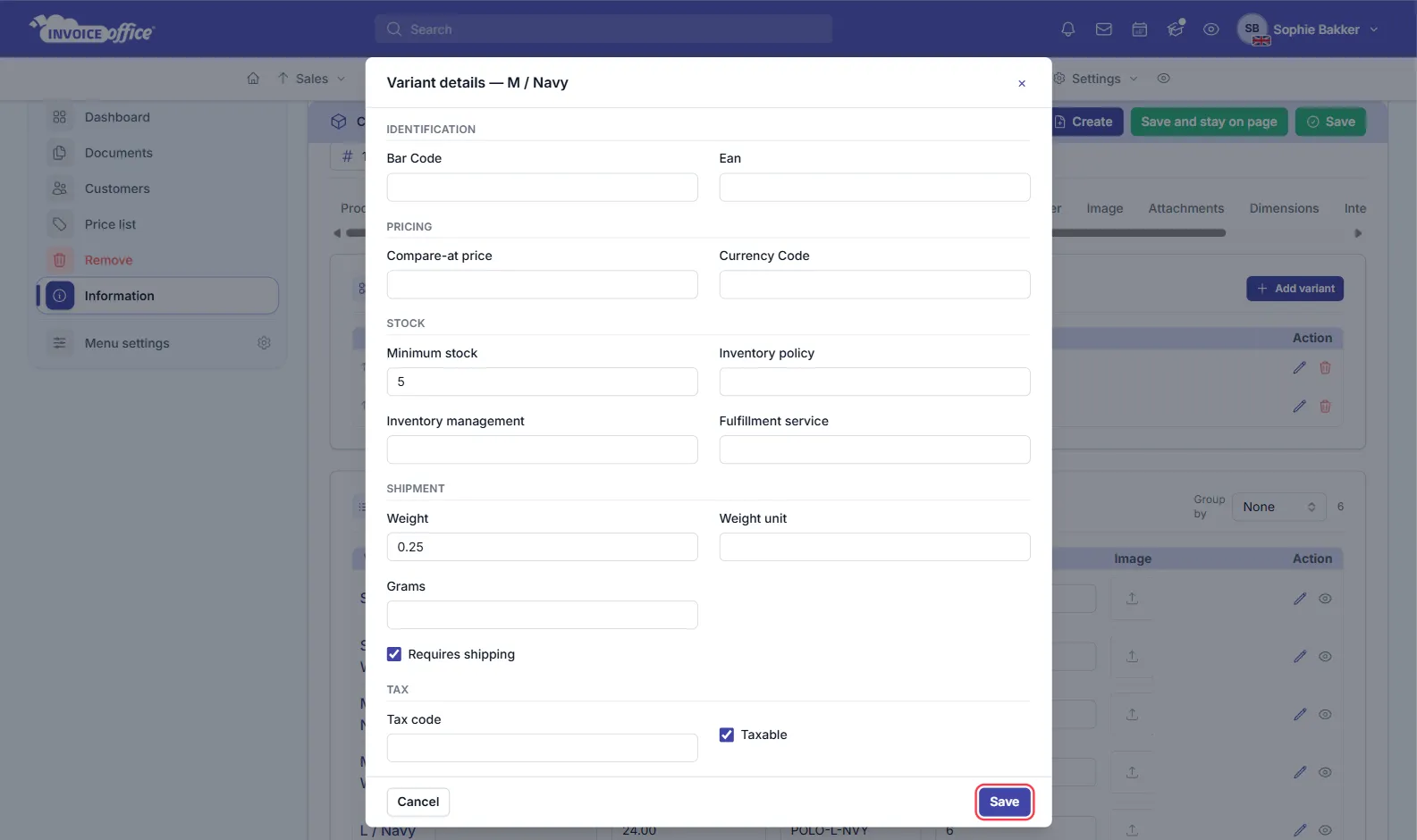
Click a variant’s name, or the pencil icon in its row, to open Variant details. Here you can fill in extra fields for that one variant:
- Identification — Bar Code and Ean.
- Pricing — a Compare-at price and Currency Code.
- Stock — Minimum stock, Inventory policy, Inventory management and Fulfillment service.
- Shipment — Weight, Weight unit, Grams and Requires shipping.
- Tax — Tax code and Taxable.
Click Save in the dialog, then save the product.
Edit or remove variants
- Change a price, SKU or stock quantity — edit it straight in the Variant overview, then save the product.
- Change an option — click the pencil next to the option under Variants to rename it or to add, reorder or remove values. The variant overview is rebuilt; variants you already filled in keep their values.
- Switch one variant off — click the eye icon in its row. The variant stays in the list, greyed out, and you can switch it back on with the same icon. There is no delete button for a single variant.
- Remove an option completely — click the bin next to the option. The variant overview is rebuilt without it: remove Size from the example and six variants become two, Navy and White.
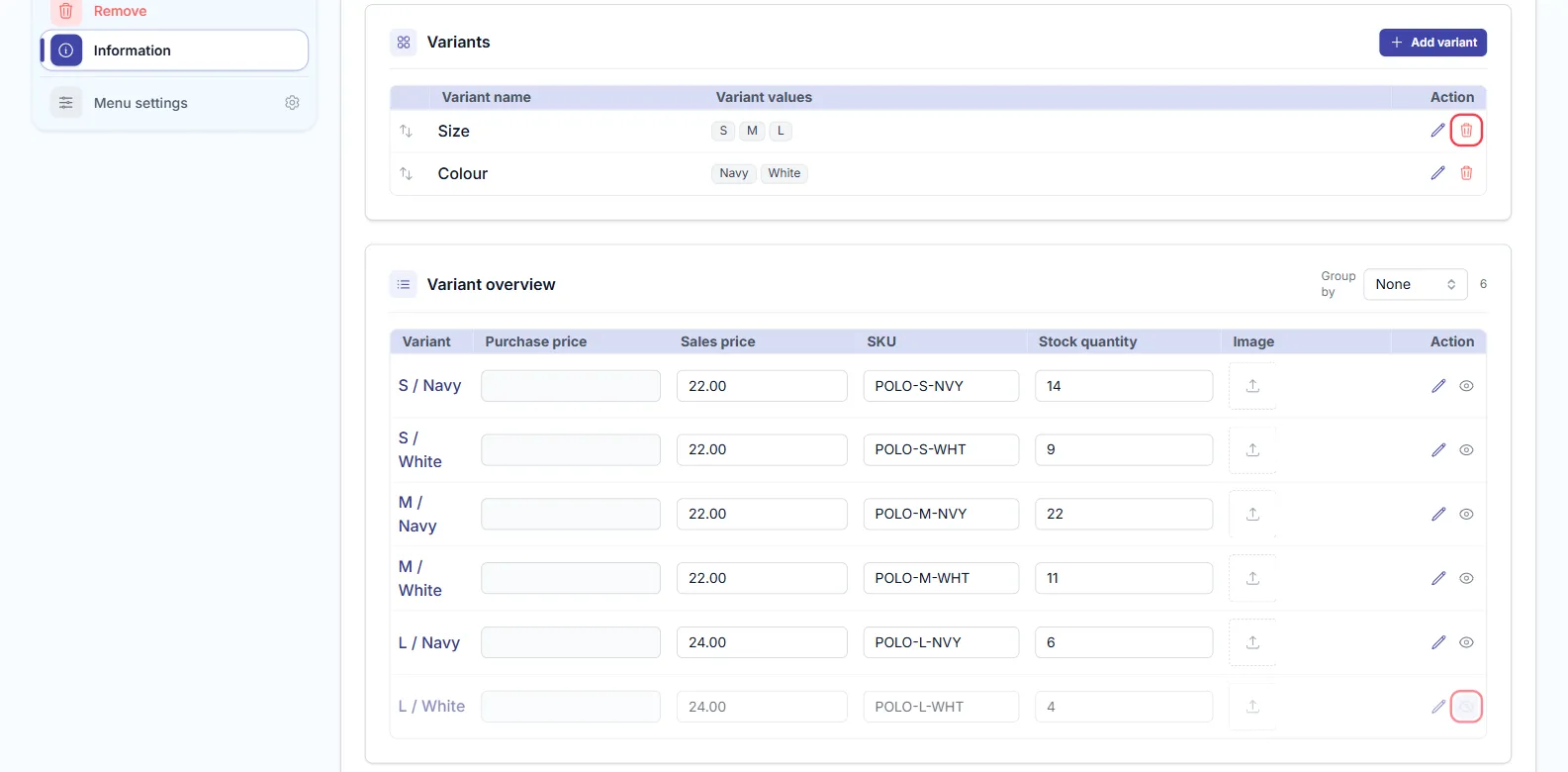
As always, the changes only take effect when you Save the product.