To track stock movements and mutations in Invoice Office, open a product’s Stock tab. Its Stock mutations list is the inventory history of that product: every sale, purchase, return and manual stock adjustment, with the quantity, the date and the document behind it. For all your products at once, use the stock dashboard.
This guide shows how to read the stock mutation log, what each row means, how to add a correction, and how to follow stock movements across your whole range. Stock mutations are part of stock management, which needs a Pro licence.
Step 1 — Open the product’s Stock tab
- Go to Products → Products.
- Click the ⋮ (Action) button at the end of the product’s row and choose Information.
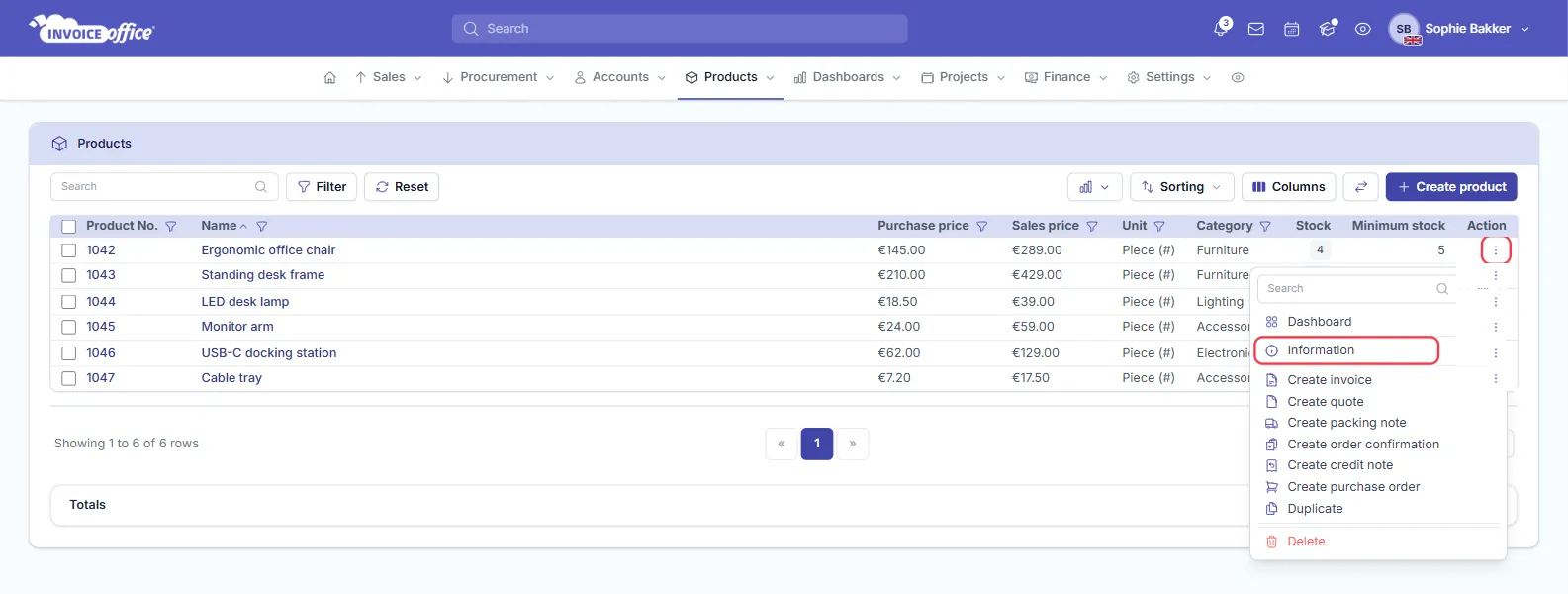
- Open the Stock tab and scroll down to Stock mutations.
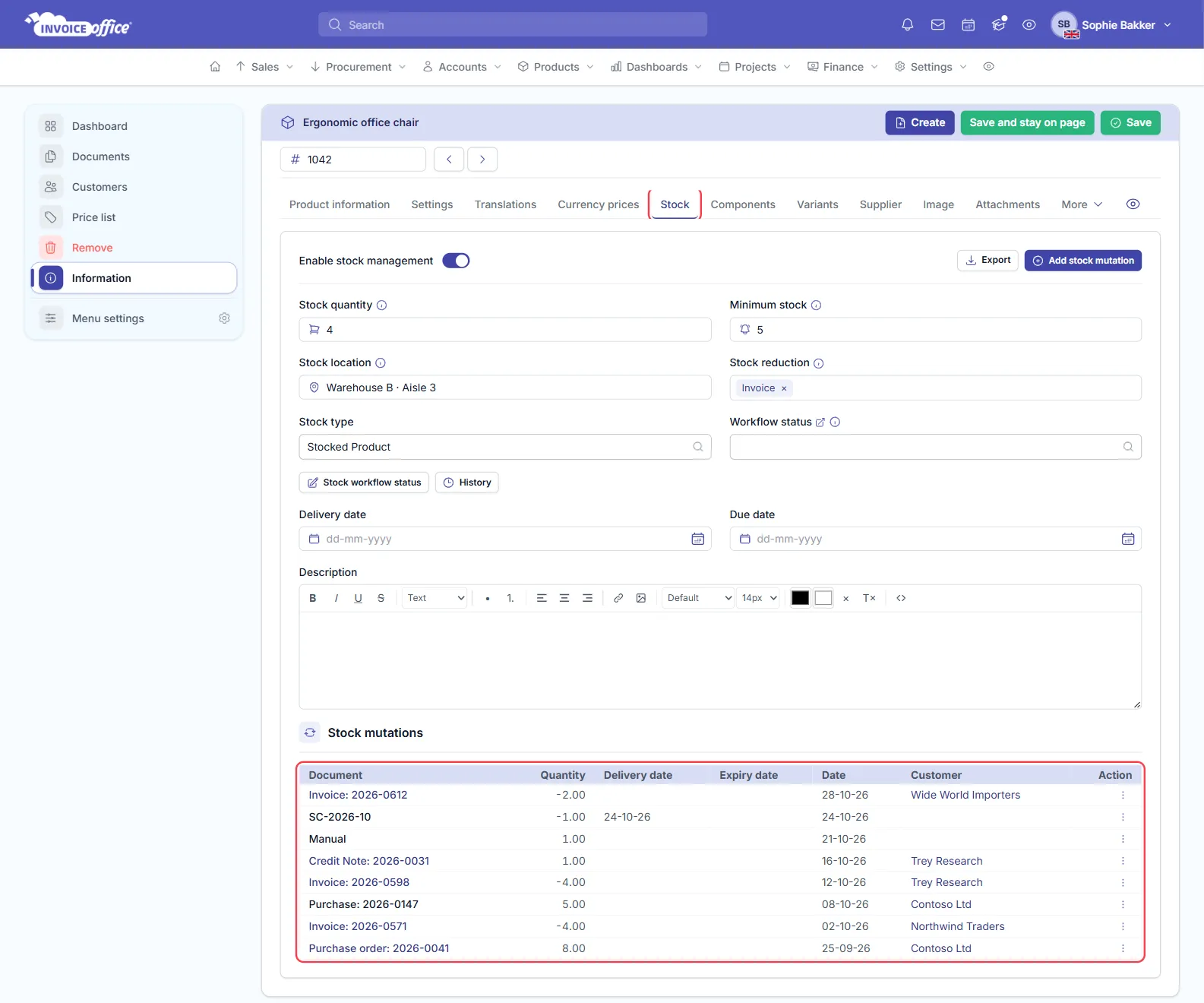
The list starts with the newest change. Click a column heading, except Customer, to sort by it.
Step 2 — Read the stock mutation log
Each row is one change to the stock:
- Document — what caused the change, such as Invoice: 2026-0612. Click it to open the document. A purchase is shown here too, but as plain text.
- Quantity — how much went in or out. A negative number took stock out.
- Delivery date and Expiry date — only filled in if you entered them on a mutation yourself.
- Date — when the change was recorded.
- Customer — the customer on the document, or the supplier on a purchase or purchase order.
What creates a stock mutation
| What happened | Document column | Quantity |
|---|---|---|
| Sale: you finalised an invoice | Invoice: 2026-0612 | Negative |
| Return: you finalised a credit note | Credit Note: 2026-0031 | Positive |
| Purchase: you finalised a purchase from a supplier | Purchase: 2026-0147 | Positive |
| Delivery: you chose Add to stock on a purchase order | Purchase order: 2026-0041 | Positive |
| Correction: you used Add stock mutation | The delivery number you entered | Positive or negative |
| Correction: you changed the Stock quantity and clicked Save | Manual | The difference, up or down |
A sale is only logged for the documents selected under the product’s Stock reduction. If that is Packing note instead of Invoice, you see the packing note here. A concept never appears, because stock only moves when a document is final.
Composite products: the movement appears on the component products, because that is where the stock is taken from. See composite and bundled products.
A product’s first stock quantity is logged too: entering one on a new or duplicated product creates a Manual row.
A row can disappear. If you delete a finalised document, reset it to concept, or choose Undo add to stock on a purchase order, its rows are removed from this list and the stock change is undone. Finalise the document again and a new row appears. The removed rows can still show in the table on the stock dashboard.
Check why the stock is what it is
Add up the Quantity column to explain the stock. In the example above: 8 − 4 + 5 − 4 + 1 + 1 − 1 − 2 = 4, the Stock quantity at the top of the tab. If the number looks wrong, read the list from the top to find the row that doesn’t belong.
Stock that came in through an import has no row, so for imported products the total can differ.
Step 3 — Add a stock adjustment
After a stock count, or when goods are damaged or lost, add a correction so the reason stays on record:
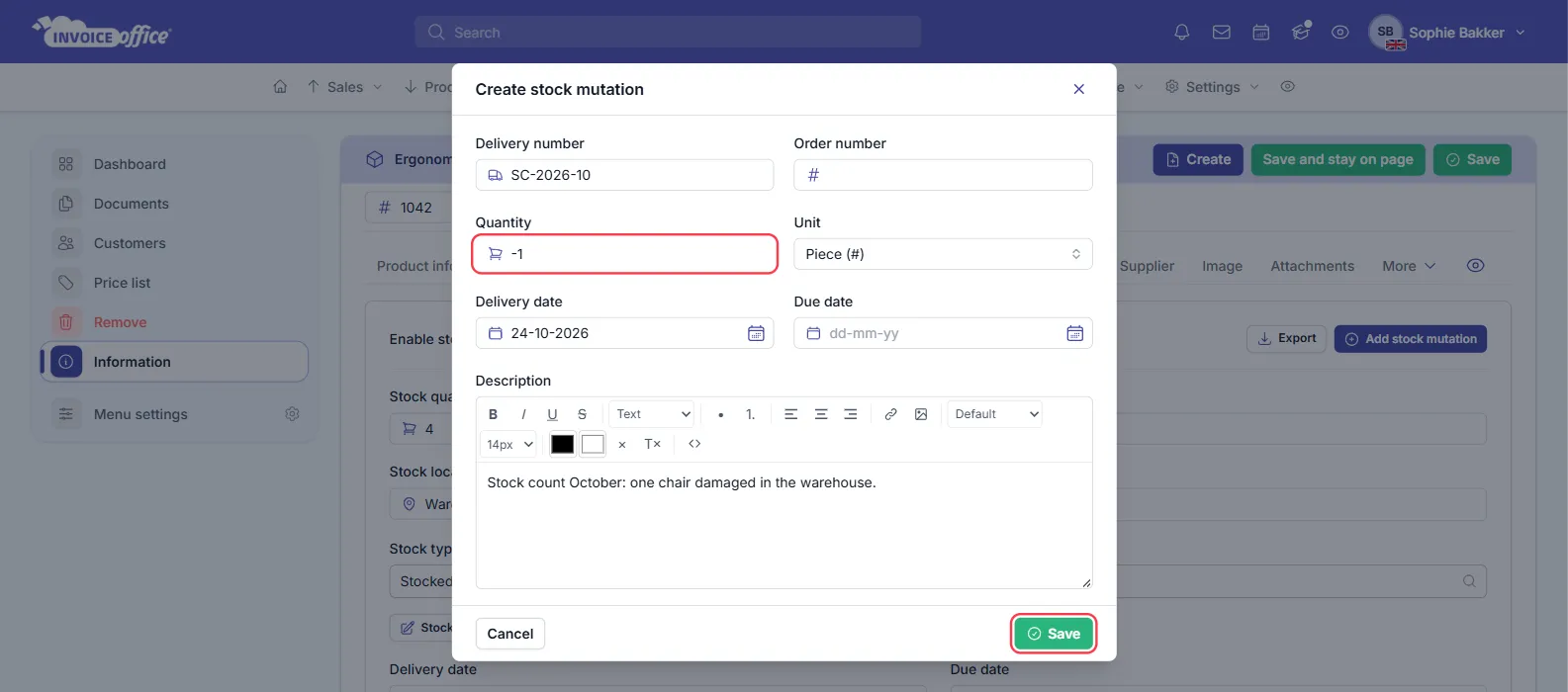
- On the product’s Stock tab, click Add stock mutation.
- Enter a Delivery number. This is the text you see in the Document column, so use something you will recognise, such as the number of your stock count. Without one, the row only says product.
- Enter the Quantity. It is added to the stock, so use a negative number to take stock off.
- Fill in the Order number, Unit, Delivery date, Due date and Description if you want. The Due date appears in the list as Expiry date.
- Click Save.
You can also change the Stock quantity on the tab and click Save. That is quicker, but the row only says Manual, so use Add stock mutation when you want to keep the reason.
Change or remove a mutation
To fix a mistake, click the ⋮ (Action) button at the end of the row:
- Edit — change the mutation. The stock moves by the difference between the old and new quantity.
- Delete — remove the mutation. Its quantity is taken back out of the stock.
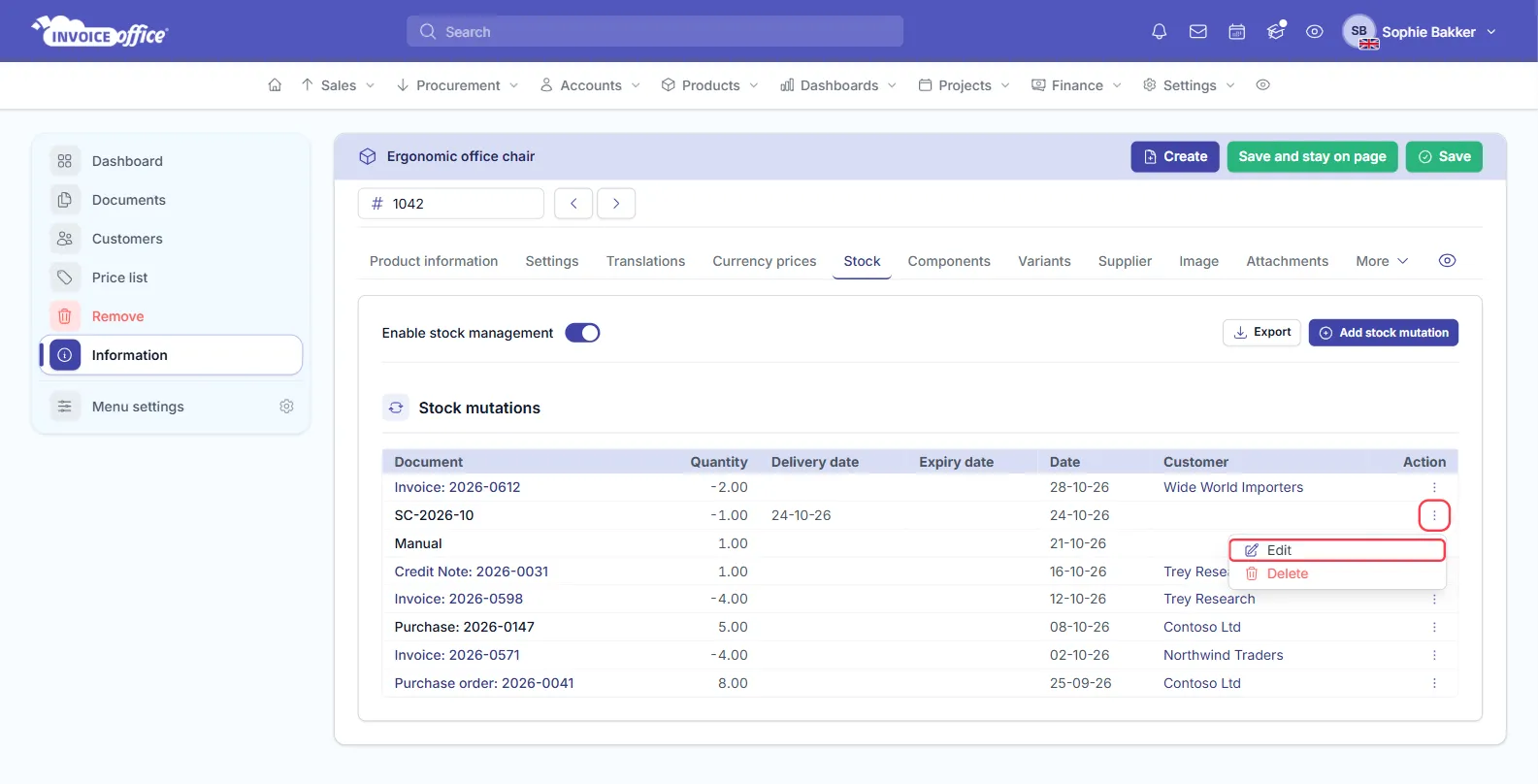
Use this for mutations you added yourself. Editing the row of an invoice changes the stock but not the invoice, so the two no longer match. To correct a sale, use a credit note.
Step 4 — Follow stock movements for all products
Go to Dashboards → Stock to see the movements of all your products. Stock Movement shows per month how much came in (Inbound) and went out (Outbound) for the period you select.
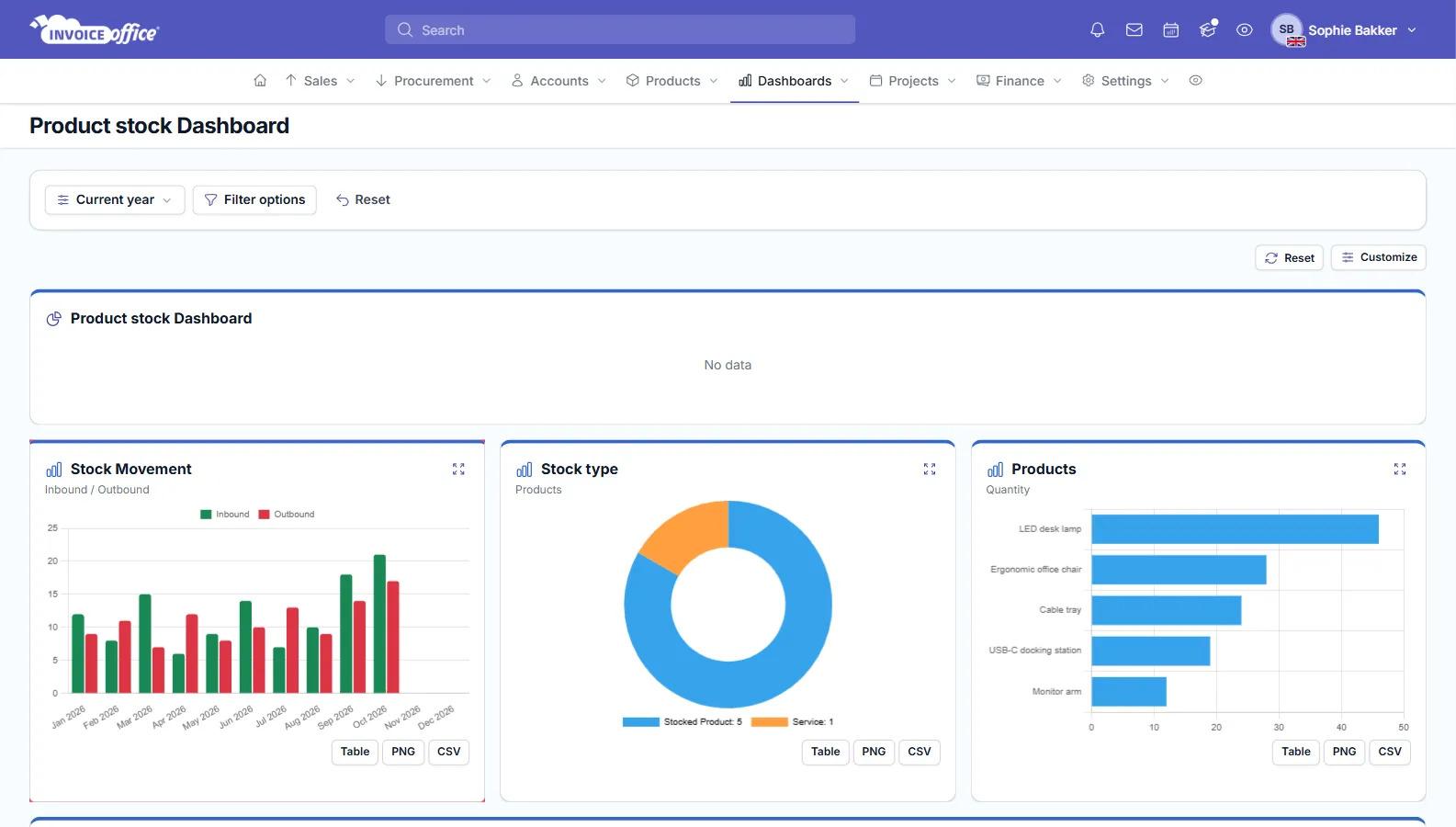
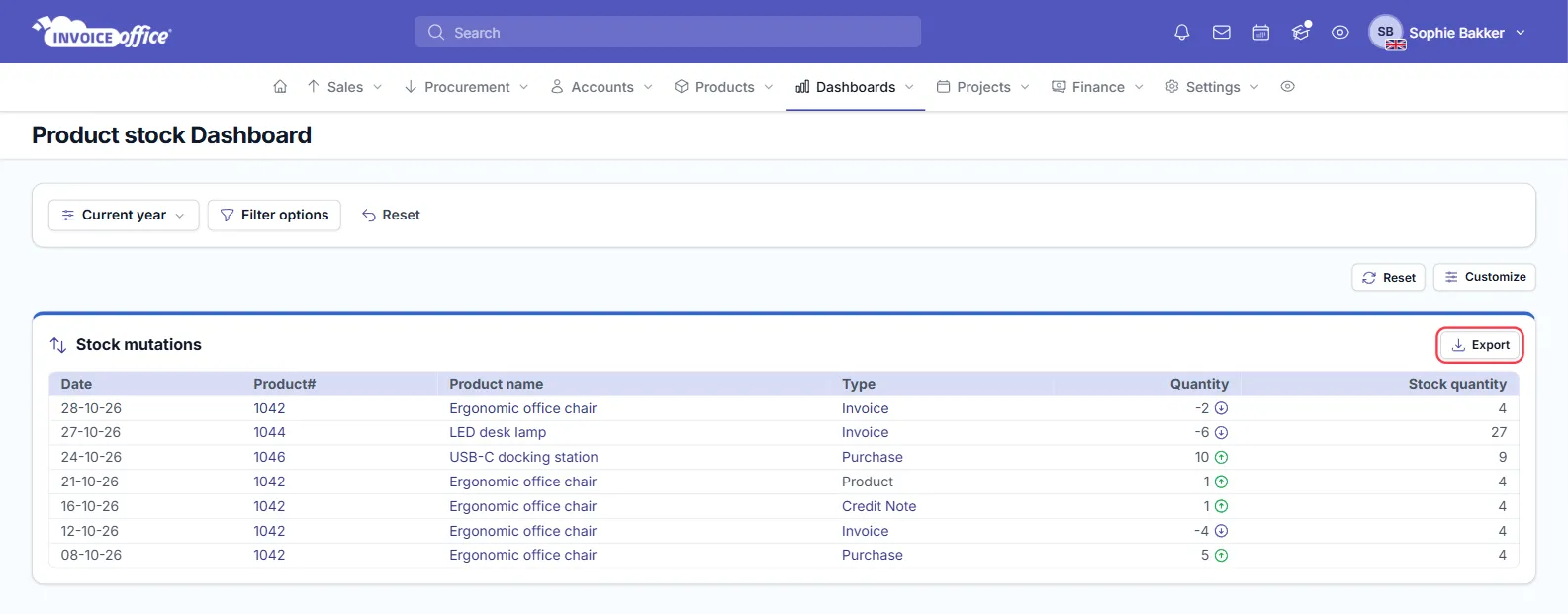
Further down, the Stock mutations table lists the changes of every product: the Date, Product#, Product name, Type, Quantity and Stock quantity.
- Type is the document type. A change you made yourself shows as Product.
- Stock quantity is the product’s stock today, not the stock at the time of that row.
- Filter options lets you choose one product, and Export downloads the table as PDF, Excel or CSV.
Keeping an eye on low stock? See how to set stock minimum levels and receive low-stock alerts.
Any doubts? Contact us and we will help.