To set up One Stop Shop (OSS) VAT for EU digital services in Invoice Office, you create a VAT code for each EU country you sell to, with that country’s rate, and give it to your private customers there. Your invoices then charge the right VAT per destination country, and the OSS VAT stays out of your own country’s VAT return. This guide explains what OSS is and when it applies, how to create the OSS VAT codes, and how the OSS amounts appear on your VAT report.
What OSS is and when it applies
The One Stop Shop is the EU scheme for declaring VAT on sales to consumers (private customers, not businesses) in other EU countries. It covers:
- digital services: electronic services (such as software, apps, streaming and downloads), telecommunication services and radio and TV broadcasting;
- distance sales of goods: goods you send to consumers in another EU country.
How it works, according to the Dutch tax authority (Belastingdienst):
- Up to €10,000 a year in these sales to all other EU countries together, excluding VAT, you may charge your own country’s VAT.
- Above €10,000, you charge the VAT of the customer’s country.
- With OSS, you declare and pay that foreign VAT in one quarterly return in your own country, instead of registering for VAT in every country you sell to.
According to the European Commission, the OSS return is due by the end of the month after each quarter (30 April, 31 July, 31 October and 31 January). It is made out in one currency, generally euros. Businesses established in the EU use the Union scheme. Businesses outside the EU, including UK businesses, use the non-Union scheme for services.
Selling to a business in another EU country with a valid VAT number? Then OSS doesn’t apply: you use the reverse charge. See how to set up the VAT reverse charge.
What Invoice Office does and doesn’t do
Invoice Office has no OSS switch and doesn’t make an OSS return for you. It never picks the rate of the customer’s country by itself. What you can do is:
- create a VAT code per EU country with that country’s rate;
- set that code on your consumer customers in that country, so every invoice to them uses it;
- keep those codes out of your own VAT return.
Invoice Office books all invoice VAT to your VAT payable account and has no OSS report per country. You collect the totals per country for the OSS return yourself (see below), and you or your accountant file the return on your tax authority’s website.
Step 1: Create an OSS VAT code per destination country
Go to Settings → VAT codes (under Finance) and click Create. A window opens with three steps.
VAT code
- Enter a Code and a Description that says what it is, such as
OSS Germany 19%. - Under Type, choose your standard-rate type. Don’t choose the EU reverse-charge type: Invoice Office uses that type to find the code for the reverse charge on business customers.
- Set VAT type to Sales.
- Under Account vat to pay, choose your VAT payable account.
- Click Next.
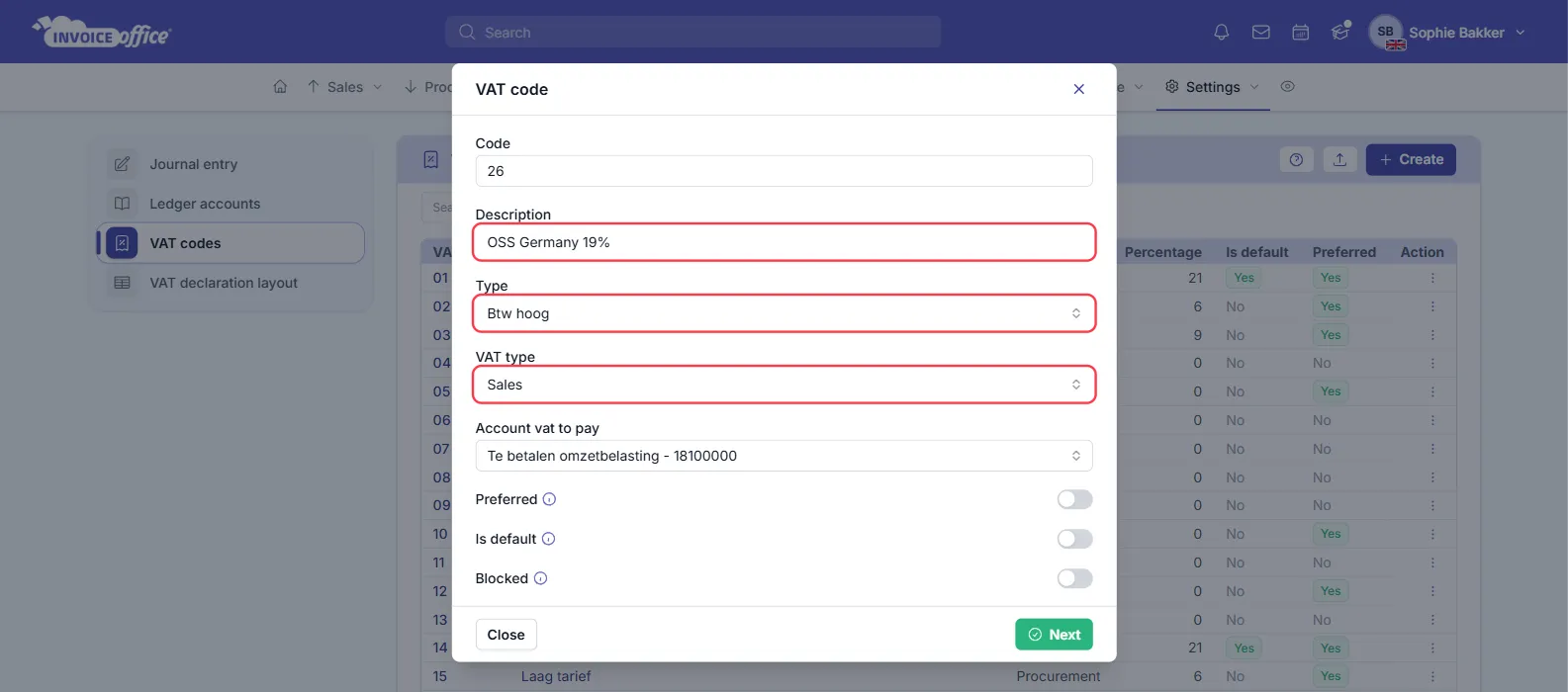
The Type list depends on your company’s country. The example shows a Dutch company, where the standard-rate type is Btw hoog.
Percentage
- Leave Date start on today, or enter the date you start using OSS. Leave End date empty.
- Under VAT country percentage, enter the rate of the destination country. Check the current rate with that country’s tax authority or your accountant first.
- Click Next.
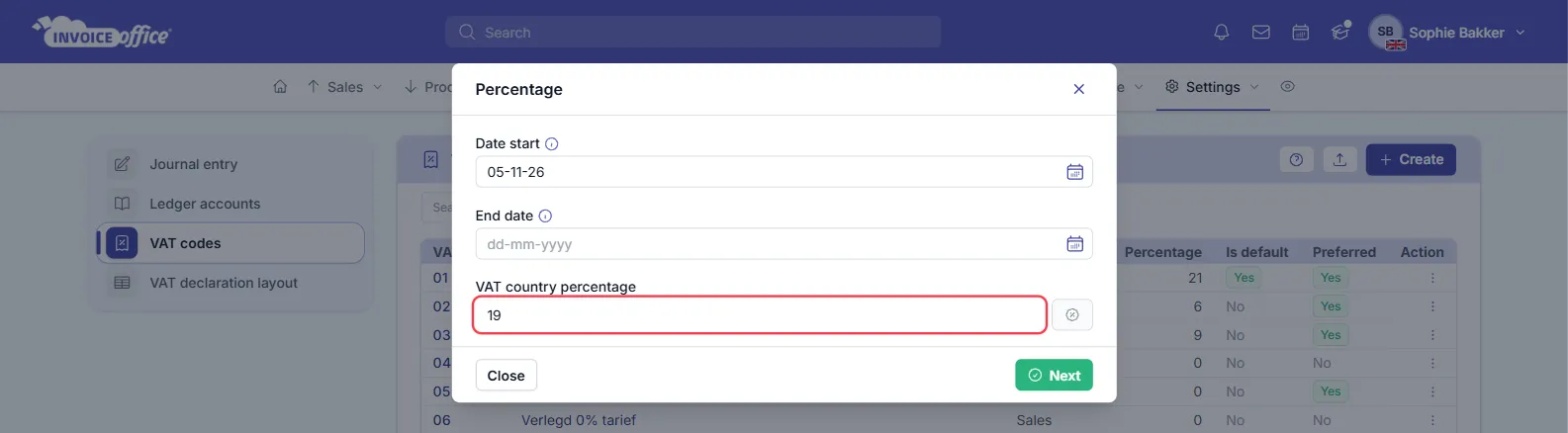
When a country changes its rate, add the new rate to the code with a new start date. See how to change a VAT rate.
VAT declaration
This step links the code to a box of your own VAT return. OSS sales are declared in the OSS return, not in your own country’s return. In the Netherlands, for example, distance sales only go in box 3c if you don’t use the Union scheme (Belastingdienst).
- If your accountant confirms these sales don’t belong in any box of your own return, click Close. The code and its rate are already saved.
- If your accountant names a box, choose it and click Save.

Never link an OSS code to a box for your own standard or reduced rate. Invoice Office would then count the foreign VAT as VAT you owe at home.
Repeat step 1 for every EU country you sell to.
Step 2: Give the code to your consumer customers in that country
- Go to Accounts → Customers and open the customer.
- Click Settings in the side menu.
- Under General, choose the country’s OSS code under VAT code.
- Click Save.
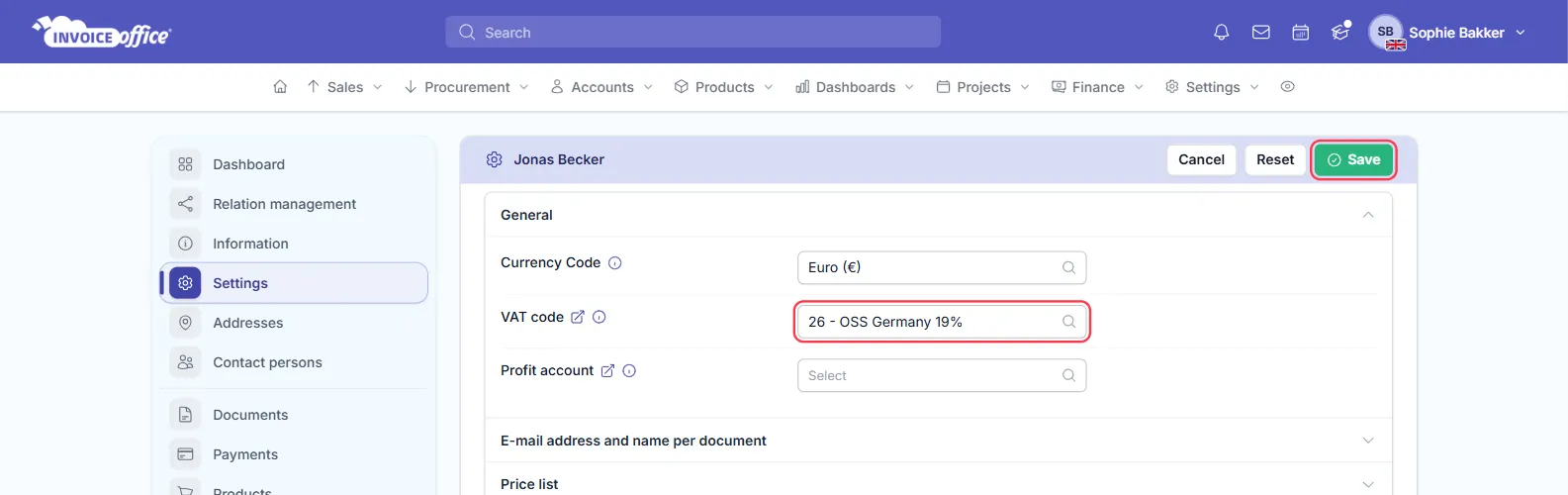
A VAT code in the customer’s settings wins over the product’s VAT code, so every line of every new invoice for this customer uses the OSS rate. It also wins over the automatic reverse charge: without it, a consumer in another EU country could get the reverse charge, because the automatic reverse charge looks at the customer’s country and not at whether they have a VAT number. See why the wrong VAT rate is applied to an invoice.
Is one of your services taxed at a reduced rate in that country? Create a second OSS code for that rate and choose it on that invoice line.
How OSS amounts appear on your VAT report
On the VAT declaration report. Your VAT return report in Finance → Reports → VAT declaration only counts VAT from codes that are linked to a box. An OSS code you didn’t link in step 1 isn’t counted there, so your own return isn’t mixed up with foreign VAT. More about the report in how to use the VAT dashboard and VAT return.
Per country, for your OSS return. Invoice Office has no OSS report per country, and it books the VAT of all your invoices to the same VAT payable account. To collect the figures for a quarter:
- Go to Sales → Invoices and click Filter.
- Under Date range, choose the quarter, and click Apply.
- Click the import/export button (the two arrows next to Columns), choose Export, add the Subtotal and VAT columns, choose Excel and click Export.
- In the spreadsheet, add up the subtotal and VAT of the invoices to your OSS customers per country.
Only finalized invoices and credit notes count towards your VAT, in the period of their date. Your accountant can also collect these totals for you.
Common questions
Do I need OSS for every EU customer? No. It’s only for consumers, and only once your sales to consumers in other EU countries go over €10,000 a year, or if you choose to apply the destination country’s VAT from the start.
Does Invoice Office warn me when I pass €10,000? No. Keep track of your EU consumer sales yourself, or ask your accountant.
Can I send the OSS return from Invoice Office? No. You or your accountant file the return on your tax authority’s OSS portal.