Your outstanding and overdue purchase orders in Invoice Office are all in one list: Procurement → Purchase orders. Each purchase order shows its status, the delivery date you agreed with the supplier and a delivery status that tells you whether the goods have arrived. Sort and filter that list to see which open purchase orders are still waiting for a delivery, which suppliers are late, and how old your open orders are, then export the list to Excel.
What outstanding and overdue mean for a purchase order
Invoice Office tracks two things on a purchase order: its Status and its Delivery status.
Status shows where the document itself is:
- Draft: not finalized yet, so it hasn’t gone to the supplier.
- Finalized (shown as Email sent if you mailed it): the order is final. In the Status filter, finalized orders are split into Finalized, Finalized by mail and Document printend.
Delivery status shows how much of the order you have received:
- Not delivered: nothing has been received yet.
- Partial delivery: some of the ordered quantity is in.
- Full delivery: everything has been received.
So an outstanding purchase order is a finalized order with a delivery status of Not delivered or Partial delivery. It becomes overdue when its Delivery date has passed and it still isn’t fully delivered. Invoice Office has no overdue status for purchase orders. Nothing marks a purchase order as overdue, so you spot overdue ones by their delivery date, as shown below.
Step 1: Open the purchase order overview
- Go to Procurement → Purchase orders.
- Find the Delivery date and Delivery status columns. If you don’t see them, add them with Columns (see Choose the columns in a list).
- Click the Delivery date column header to sort by delivery date, oldest first.
Every finalized order at the top with a delivery date before today and a delivery status of Not delivered or Partial delivery is overdue: the supplier is late. Further down you see the open purchase orders that are still due.
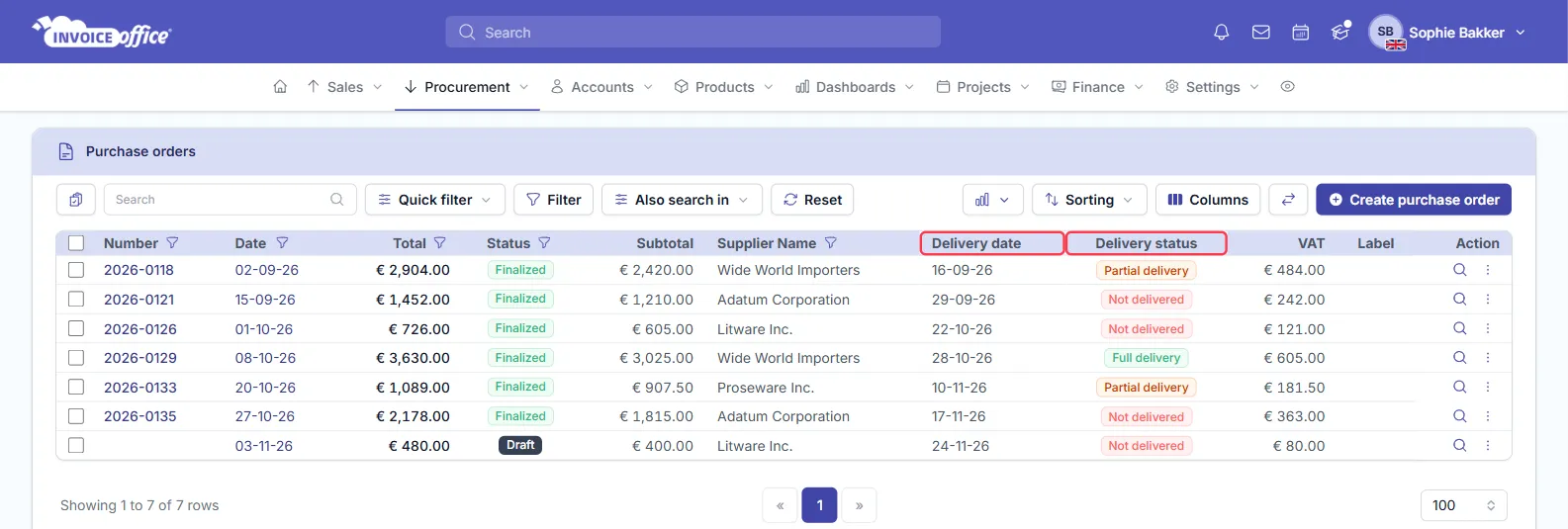
You can also click the Delivery status header to group the orders by delivery status, so the Not delivered and Partial delivery orders sit together.
Step 2: Filter by status, supplier and date
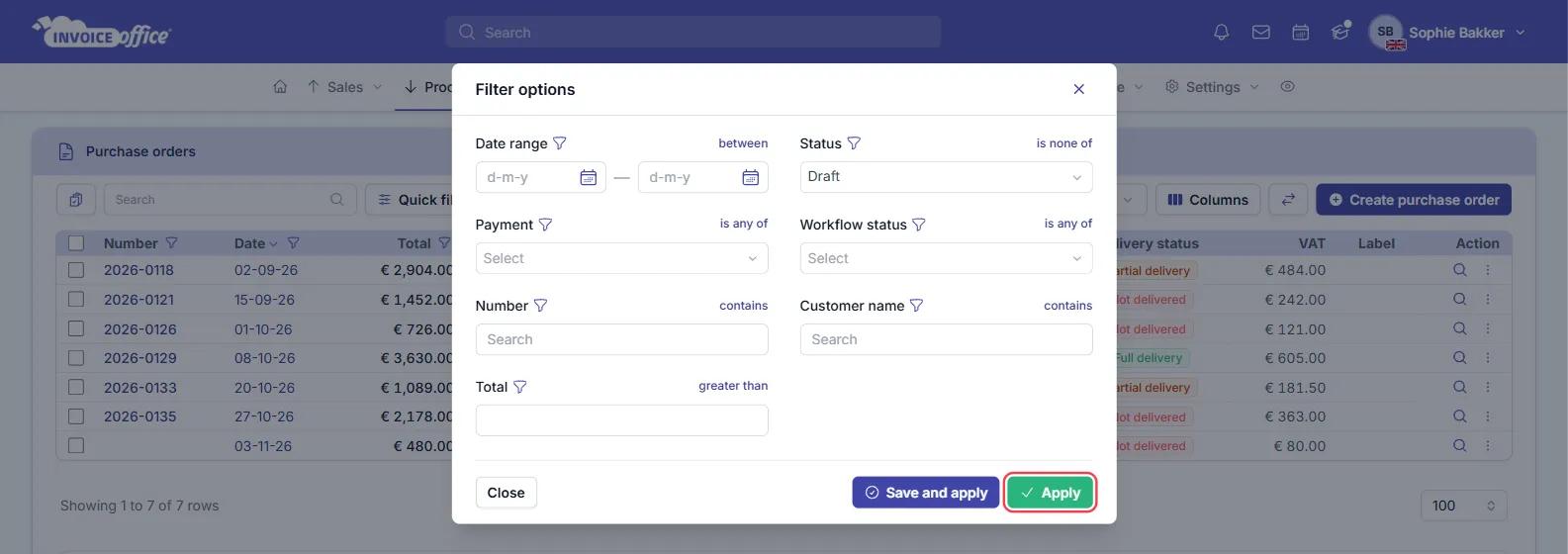
To narrow the list down, click Filter. The Filter options window has, among others:
- Status: switch it to is none of and tick Draft to hide drafts and see only orders that have gone to suppliers. (Ticking only Finalized would leave out orders you emailed or printed.)
- Date range: only purchase orders dated within a period, for example last quarter.
- Number, Customer name and Total: find one order, one supplier’s orders, or only large orders. On purchase orders, Customer name matches the supplier.
Click Apply to filter the list, or Save and apply to give the filter a name and keep it in the Quick filter list for next time.
The Quick filter list next to the search has two delivery filters built in: Partial delivery shows the orders that are only partly in, and Delivered the ones that are complete. Quick filters leave out drafts. If you don’t see them, they have been hidden in your quick filter settings. There is no quick filter for Not delivered; sort by Delivery status for those.
To see one supplier’s orders, you can also use the filter icon next to the Supplier Name column header. More about filtering and sorting in Sort and filter lists.
Step 3: Update the delivery status when goods arrive
The delivery status updates itself as you receive goods. Open the purchase order and choose Action → Add to stock to book what has arrived. Receive part of the order and the status becomes Partial delivery; receive the rest and it becomes Full delivery, so the order drops out of your outstanding list. Booked something by mistake? Undo add to stock in the same menu reverses it.
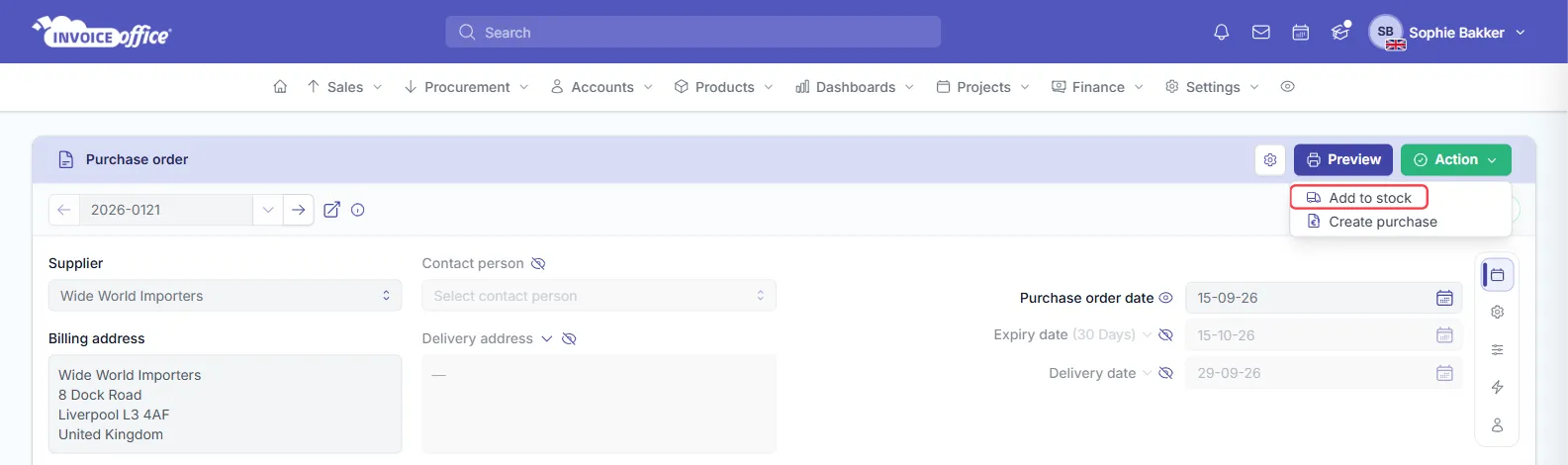
Keep this up to date: an order you received but never booked keeps showing as outstanding. For more about receiving goods and stock, see How stock management works in Invoice Office and How to match a purchase invoice to a purchase order.
See how old your open purchase orders are
For a purchase order aging overview, go to Dashboards → Purchase orders (or click Dashboard on the purchase order list). Besides tiles for Draft, Open and Made final purchase orders, the dashboard has a Purchase orders aging chart. It counts all your draft and finalized purchase orders, including ones already delivered, by how long ago they were dated: 0–30, 31–60, 61–90 and 90+ Days.
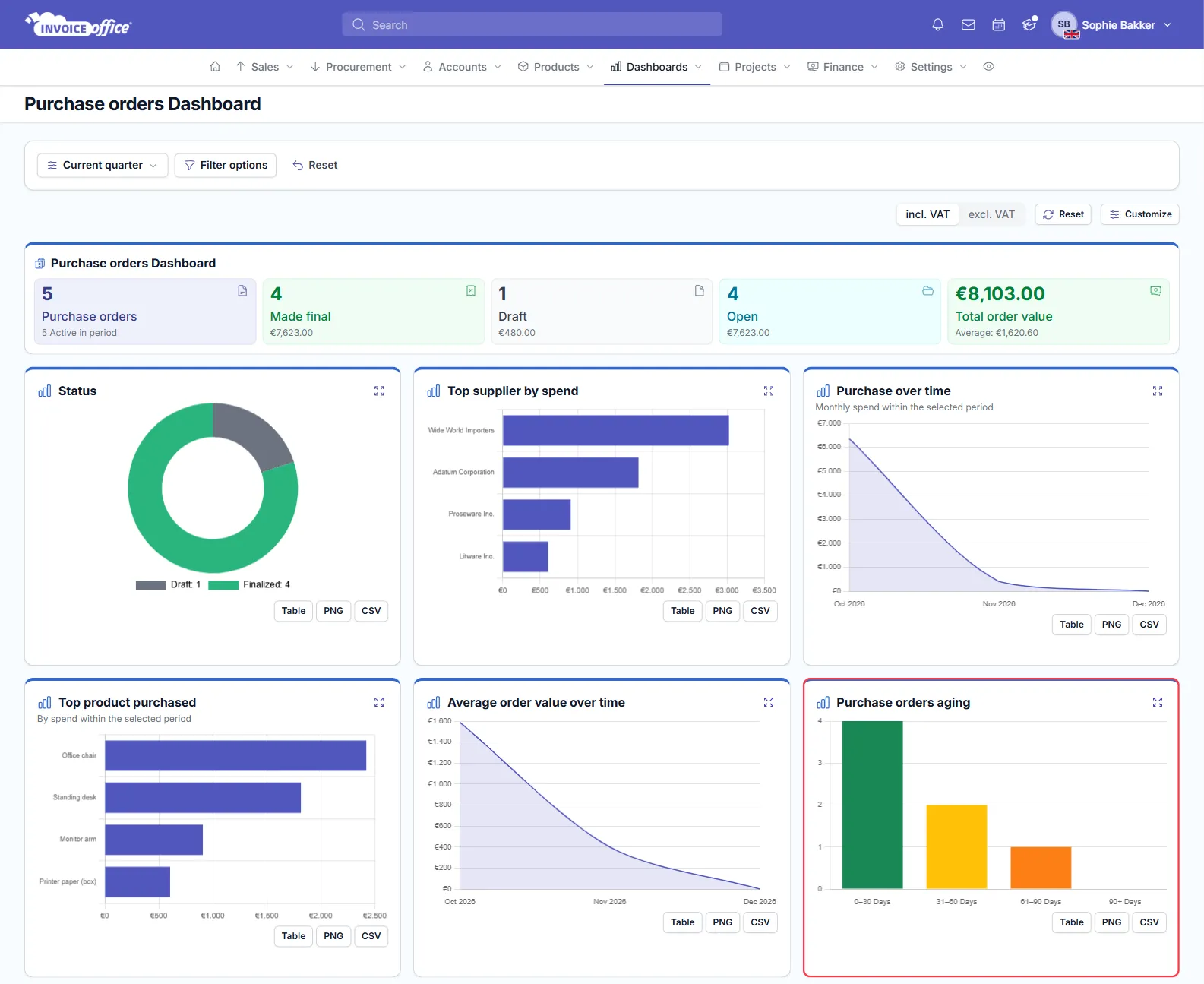
Use Filter options on the dashboard to look at a single supplier. The aging chart groups by the purchase order date, not the delivery date, so use it to spot old orders that may need chasing and the list to check which deliveries are actually late.
Step 4: Export the outstanding purchase order list
- On the purchase order list, set the filters you want.
- Click the import/export button (the two arrows next to Columns) and choose Export.
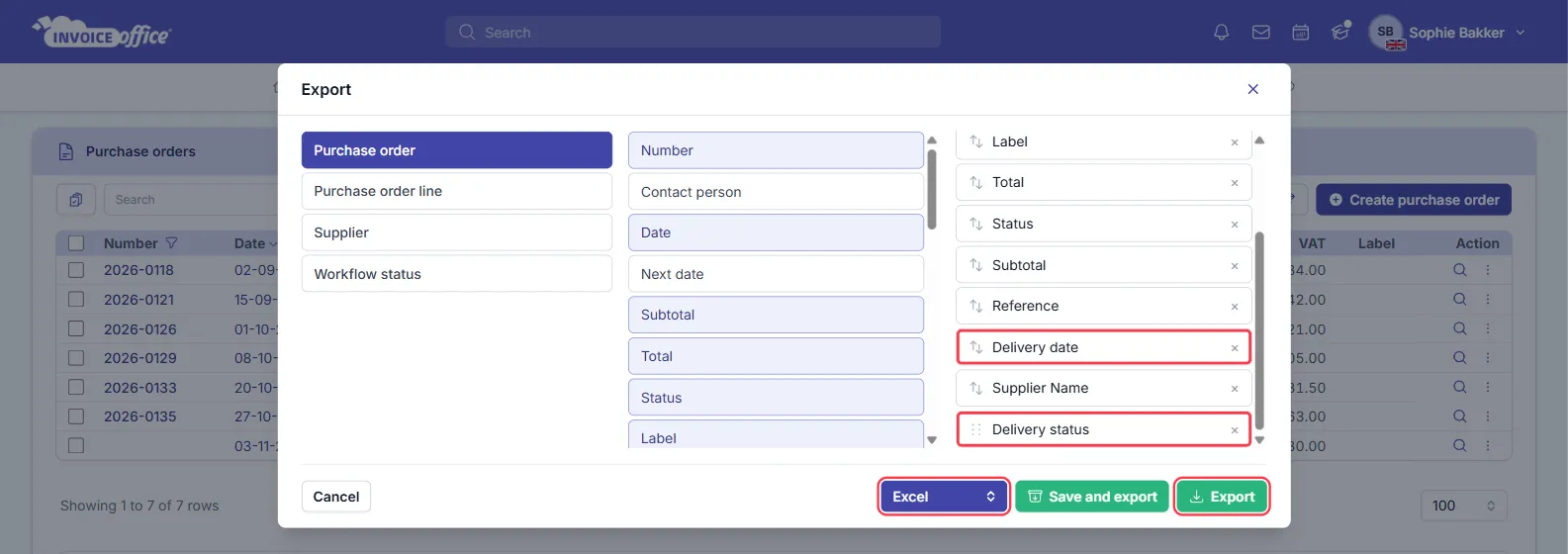
- In the Export window, pick the columns for the file. Add Delivery date and Delivery status so you can see what is outstanding in the spreadsheet.
- Choose Excel in the format list (or CSV or PDF).
- Click Export. Save and export also keeps your column choice for next time.
The export follows the list’s search and filters, but not its sorting. If you tick purchase orders in the list first, only the ticked ones are exported. The file holds at most as many purchase orders as your rows-per-page setting, so narrow the filter or show more rows per page to export more.