The lists in Invoice Office have a Columns button that lets you choose which columns a list shows and in which order. It works the same way on every list: documents, customers, suppliers, products, payments and projects. Add the columns you need, remove the ones you never look at, and put them in your own order. Your choice is saved for your user and for that list, so each list opens the same way next time. Colleagues keep their own layout.
Where you find the Columns button
The Columns button sits in the toolbar above these lists:
| List | Groups in the Columns window |
|---|---|
| Sales documents: invoices, quotes, order confirmations, packing notes, credit notes, payment reminders, proforma invoices, recurring invoices and the other document lists under Sales | The document (for example Quote), its line, Customer and Workflow status |
| Procurement documents: purchases, recurring purchases and purchase orders | The document (for example Purchase), its line and Supplier, plus Workflow status on purchase orders |
| Customers | Customer, Address and Contact |
| Suppliers | Supplier, Address and Contact |
| Customer Contacts | No groups, just one list of contact fields |
| Products | Product and Stock |
| Payments (under Sales and under Procurement) | Payment |
| Projects | Projects |
Each list keeps its own columns. Changing the invoice list doesn’t change the quote list.
Step 1 — Open the Columns window
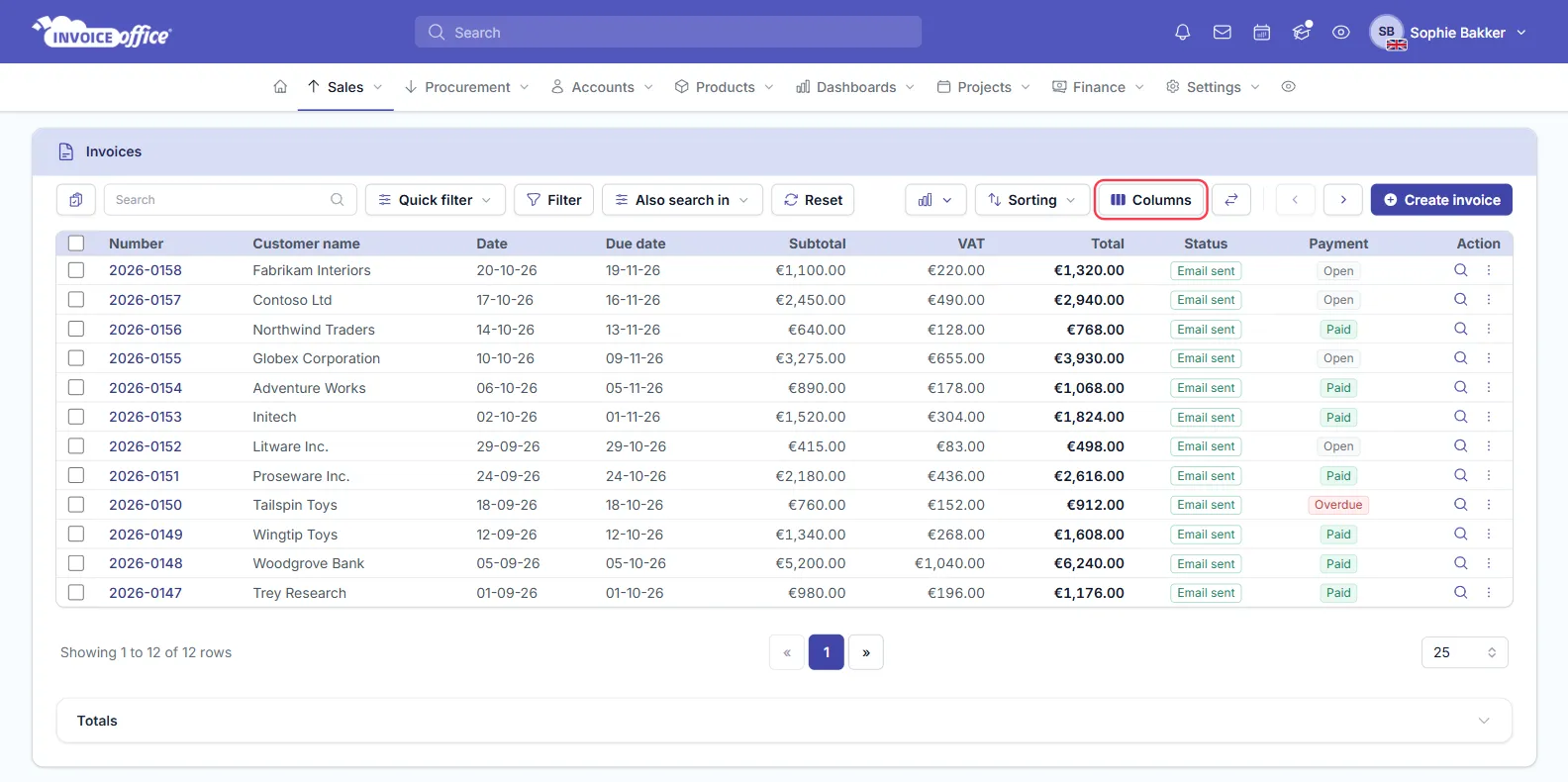
Go to the list you want to change and click Columns in the toolbar above it. The example below is Sales → Invoices. The button sits in the same place on the other lists.
Step 2 — Add, remove and reorder columns
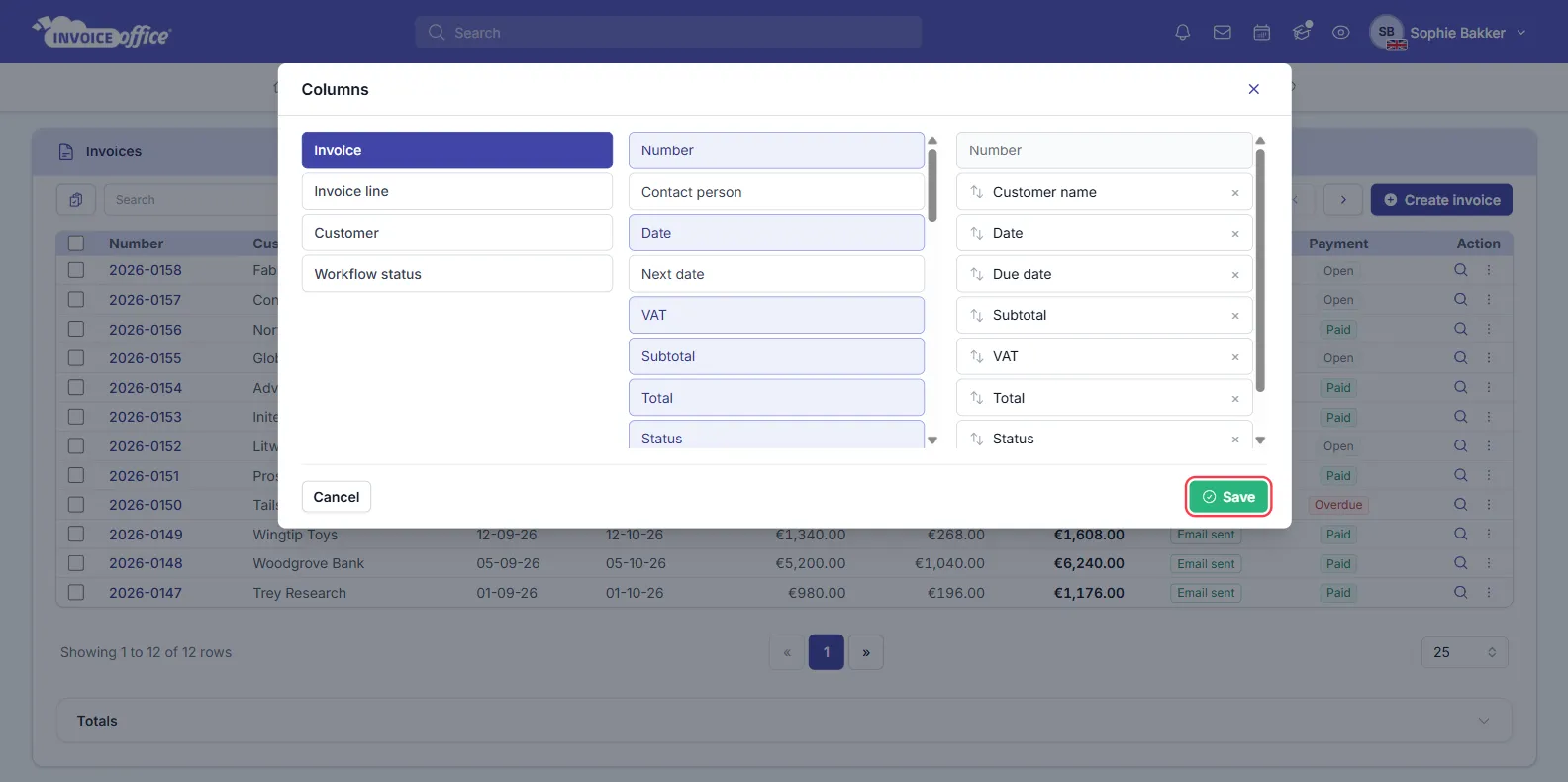
The Columns window has three parts. On Customer Contacts it has two, because there are no groups.
- On the left, the groups of fields for this list (see the table above).
- In the middle, the fields in the selected group. Fields that are already in your list are highlighted. Click any other field to add it as a column.
- On the right, the columns your list shows, from left to right. Drag a column up or down to move it, or click × to remove it. On document, customer, supplier, product and payment lists the number column is always first and can’t be moved or removed.
Step 3 — Save
Click Save. The window closes and the list reloads with your columns in the order you set. Click Cancel to close the window without changing anything.
Tips
- Reorder straight from the list. On document lists (invoices, quotes, purchases and the rest) you can also drag a column heading left or right. The new order is saved the same way. The checkbox, Number and Action columns stay where they are.
- Line columns stack per document. On a document list, fields from the line group (such as Quote line or Purchase line) show every line of that document stacked in one cell, because the list still has one row per document.
- Some fields are for exports only. On document lists the Columns window offers the same fields as the Export window, but a few of them don’t add a column to the list. On the invoice list these are Next date, the Flex fields, Email, Delivery period end, Delivery date, Customer Number, Modified by and one of the two Payment date entries. Use them when you export.
- Your list columns and your export columns are saved separately. Changing the columns here doesn’t change what an export contains, and the other way round.
Download the data in your columns
To get a list as an Excel, CSV or PDF file, use Export in the same toolbar. On most lists it sits under the Import / Export button (the ⇄ icon). There you pick the columns for the file and the format. See Export your data for the full steps. To export customers with their contact persons, see Export customer data as XLS or CSV.
Related articles
- Export your data: download customers, products and documents as Excel, CSV or PDF
- Bulk send or export documents
- Use workflow statuses: add the Workflow status column to follow documents through your own steps
- Manage your stock: add the stock columns to the product list
- Change the default sort order