To track the delivery status of a purchase order in Invoice Office, you book the goods you receive against the order with Add to stock. Invoice Office keeps count per line of what you ordered, what you have received and what is still to come, and shows a delivery status on the order: Not delivered, Partial delivery or Full delivery. This guide covers where to see that status, how to receive a full or partial delivery, and how to see the outstanding quantities on each order.
Before you start
- The purchase order is finalized. You can only receive goods on a finalized purchase order, not on a draft. See how to create a purchase order.
- The lines are stock products. Receiving works for lines with a product that has Enable stock management switched on, on the product’s Stock tab. Lines with free text, or with a product that doesn’t track stock, aren’t counted. Lines with a product group (a product made up of other products) aren’t counted either. A finalized purchase order without any stock lines always shows Not delivered, because there is nothing to receive.
- A Pro licence is needed to receive goods into stock.
The three delivery statuses
| Delivery status | Means |
|---|---|
| Not delivered | nothing has been received yet |
| Partial delivery | some of the ordered quantity is in, and some is still outstanding |
| Full delivery | every stock line has been received in full |
You don’t set the status by hand. Invoice Office works it out from what you receive with Add to stock, and updates it each time you receive goods or undo a receipt.
Step 1: Open the purchase order
- Go to Procurement → Purchase orders and open the order.
- The delivery status is shown at the top right, next to the document status.
- When goods arrive, click Action and choose Add to stock. The option is there as long as something on the order is still outstanding.
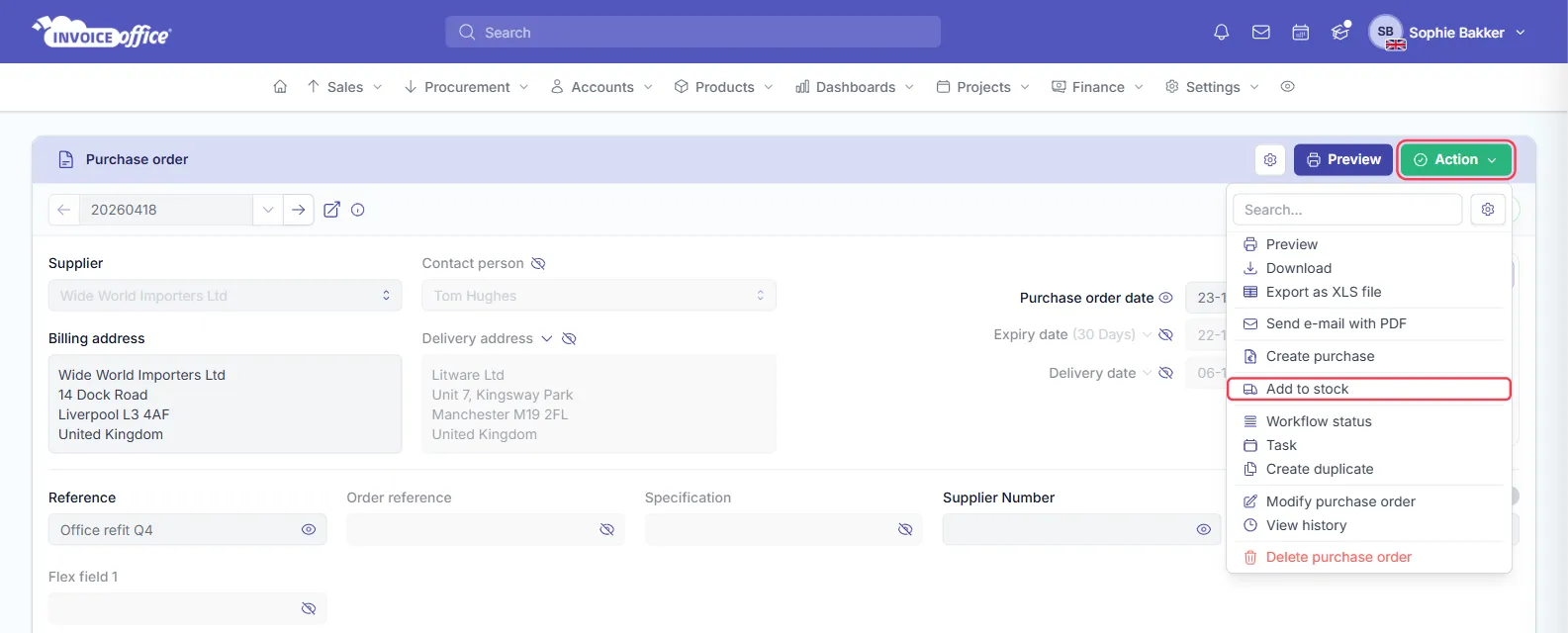
On a finalized purchase order, you can also choose Add to stock in the ⋮ (Action) menu of the order in the Purchase orders list.
Step 2: Receive a full or partial delivery
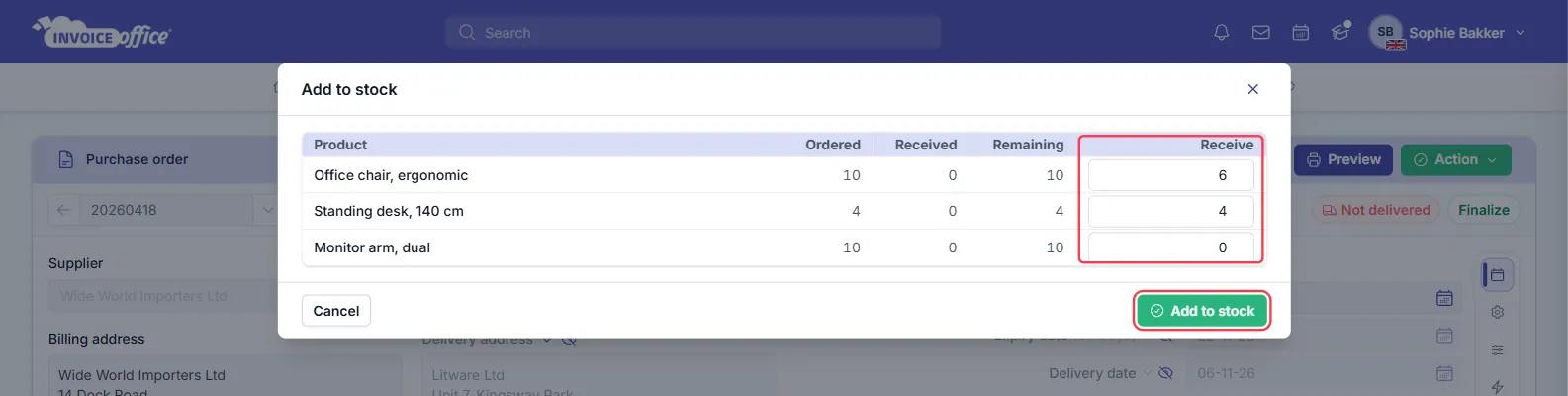
The Add to stock window lists every stock line on the order with these columns:
- Ordered: the quantity on the purchase order;
- Received: what you have already received;
- Remaining: what is still outstanding;
- Receive: the quantity you are receiving now.
Receive is filled in with the remaining quantity of every line, ready for a full delivery.
- Compare the quantities with the packing slip or the goods in front of you.
- For a full delivery, leave the quantities as they are.
- For a partial delivery, change Receive to the quantity that actually arrived. Enter
0for a line that didn’t arrive at all. - Click Add to stock. Invoice Office confirms: Goods received into stock.
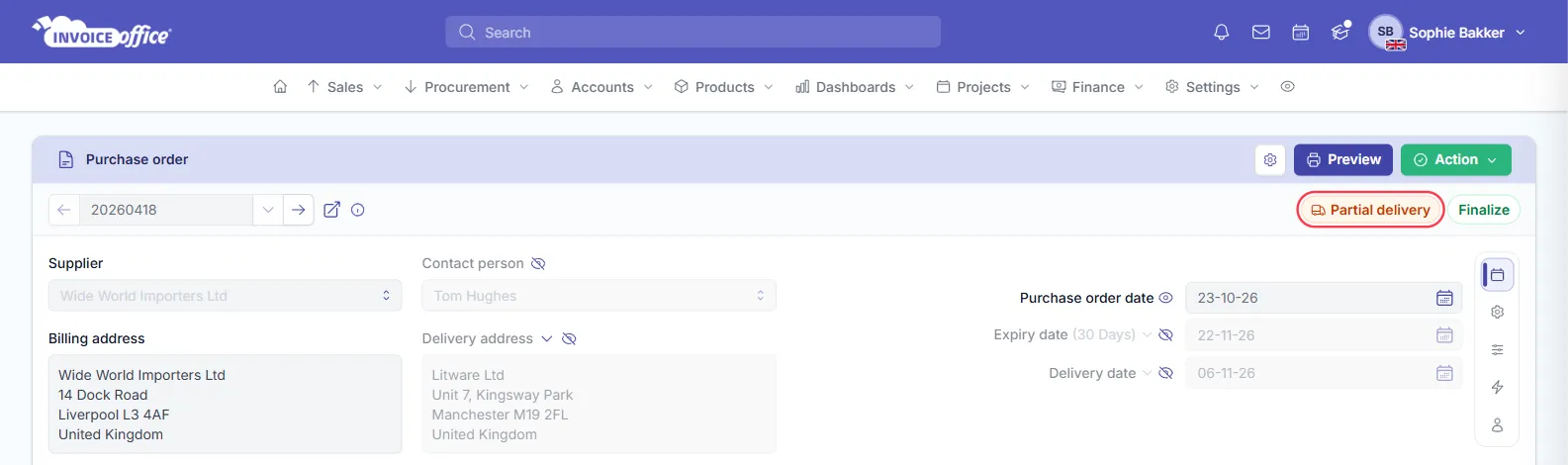
The received quantities are added to the products’ stock, and the delivery status on the order changes. In the example only part of the order arrived, so the status becomes Partial delivery.
You can’t receive more than is outstanding. If you enter a higher quantity, Invoice Office only books the remaining quantity for that line.
Receive selected lines only
When a delivery holds only some products, you can open the window for just those lines:
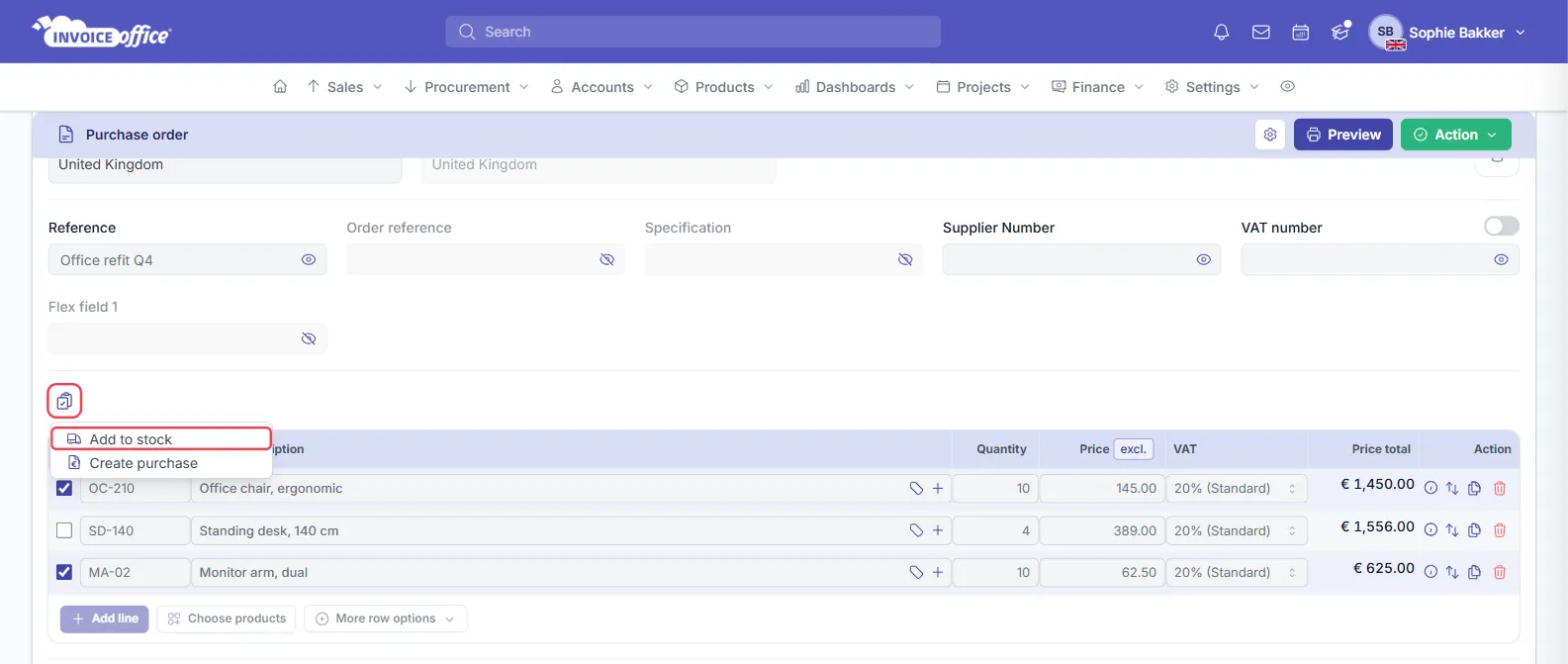
- On the purchase order, tick the lines that arrived.
- Click the line actions icon above the lines and choose Add to stock.
- Check the quantities in Receive and click Add to stock.
Step 3: See the outstanding quantities per purchase order
To see what is still to come on an order, open it and choose Action → Add to stock again. The window shows, per line, what has been Received so far and what is Remaining. A line that has arrived in full shows Fully received instead of a quantity.
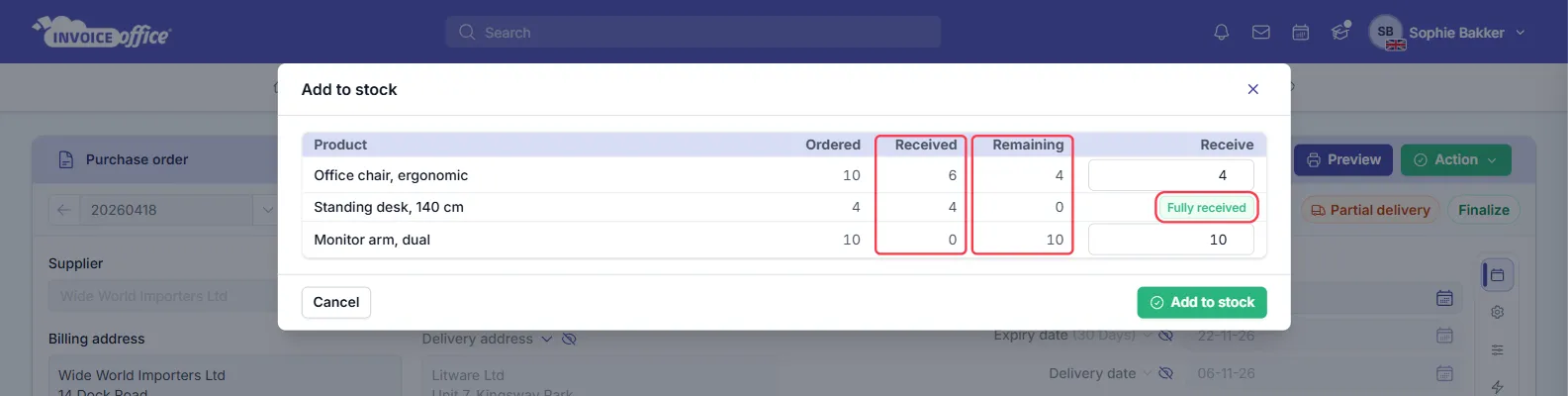
Just looking? Close the window with Cancel: nothing is booked until you click Add to stock. When the rest of the delivery arrives, receive it here in the same way. Once every line is fully received, the status becomes Full delivery and Add to stock disappears from the Action menu.
See the delivery status of all purchase orders
The Purchase orders list has a Delivery status column, so you can see at a glance which orders are still waiting for goods. To show only some of them, open Quick filter and choose Partial delivery for the orders that are partly in, or Delivered for the ones that are complete.
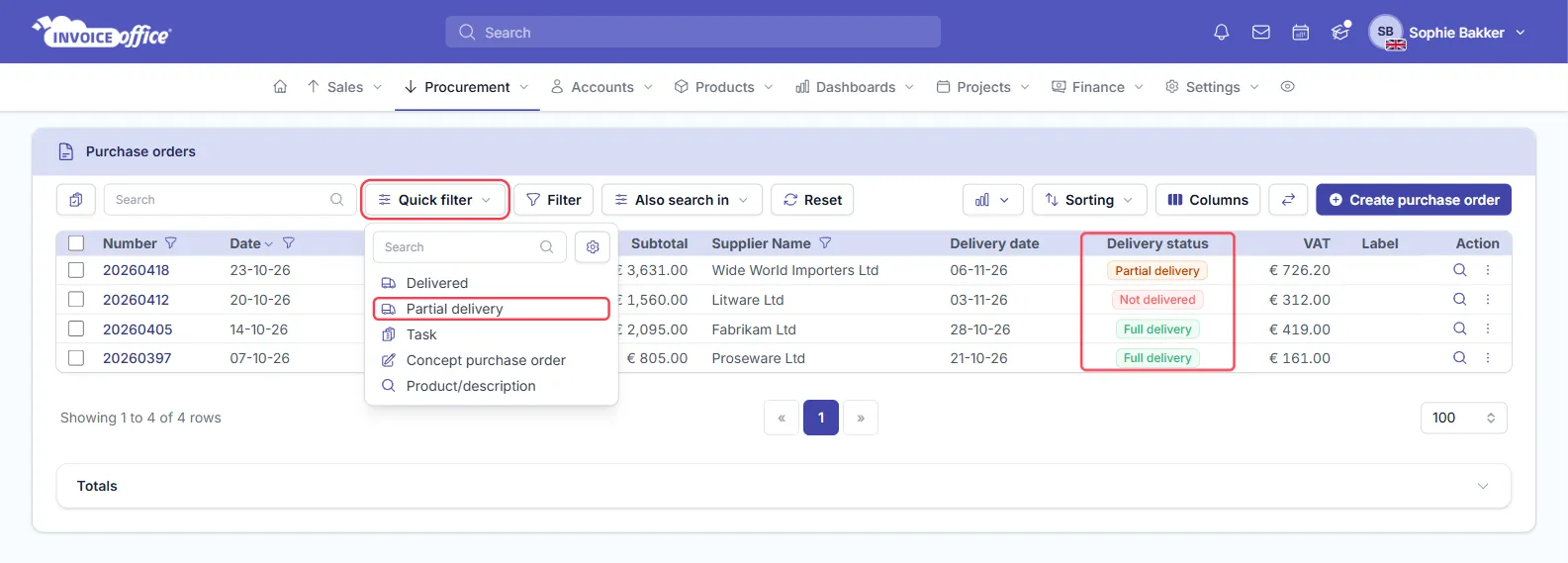
Don’t see these quick filters? Switch them on in your quick filter settings: open Quick filter and click the gear icon. To find late deliveries, sort the list by Delivery date; see How to view outstanding and overdue purchase orders.
Booked something by mistake?
On the purchase order, click Action and choose Undo add to stock, then confirm with Undo add to stock. This reverses all goods receipts on the order at once and takes the quantities back out of stock, so the status returns to Not delivered. Invoice Office confirms: Goods receipts reversed. Then receive the right quantities again.
Match the supplier’s invoice to what you received
When the supplier’s invoice arrives, compare it with the received quantities before you pay. Create the purchase from the purchase order, for the whole order or for the lines that were delivered. See How to match a purchase invoice to a purchase order.