You can sort and filter the lists in Invoice Office to find what you need quickly. Click a column heading to sort the list by number, name, date, amount or status. Click the funnel next to a heading to show only the rows you want. Open Filter to combine several filters at once. This article uses Sales → Invoices as the example. The other lists work the same way, with their own columns.
Where you can sort and filter
| List | Sort by clicking a heading | Funnel on the headings | Filter window | Quick filter |
|---|---|---|---|---|
| Sales documents: invoices, quotes, order confirmations, packing notes, credit notes, payment reminders, proforma invoices, recurring invoices, purchase orders | Yes | Yes | Yes | Yes |
| Purchases and recurring purchases | Yes | Yes | Yes | No |
| Customers and Suppliers | Yes | Yes | Yes | Once you save a filter |
| Products | Yes | Yes | Yes | Once you save a filter |
| Payments and Projects | Yes | No | Yes | No |
A heading only shows when that column is in your list. If you want to sort or filter on a column you don’t see, add it first with Columns. See Choose the columns in a list.
Sort a list
Click the name of a column heading to sort the list by that column:
- Click the heading once. The list is sorted from low to high: A to Z, oldest to newest, or the lowest number or amount first.
- Click the same heading again to reverse it: Z to A, newest to oldest, or the highest first.
A small arrow next to the heading shows which column the list is sorted by and in which direction. In the example below, a click on Customer name puts the invoices in alphabetical order by customer.
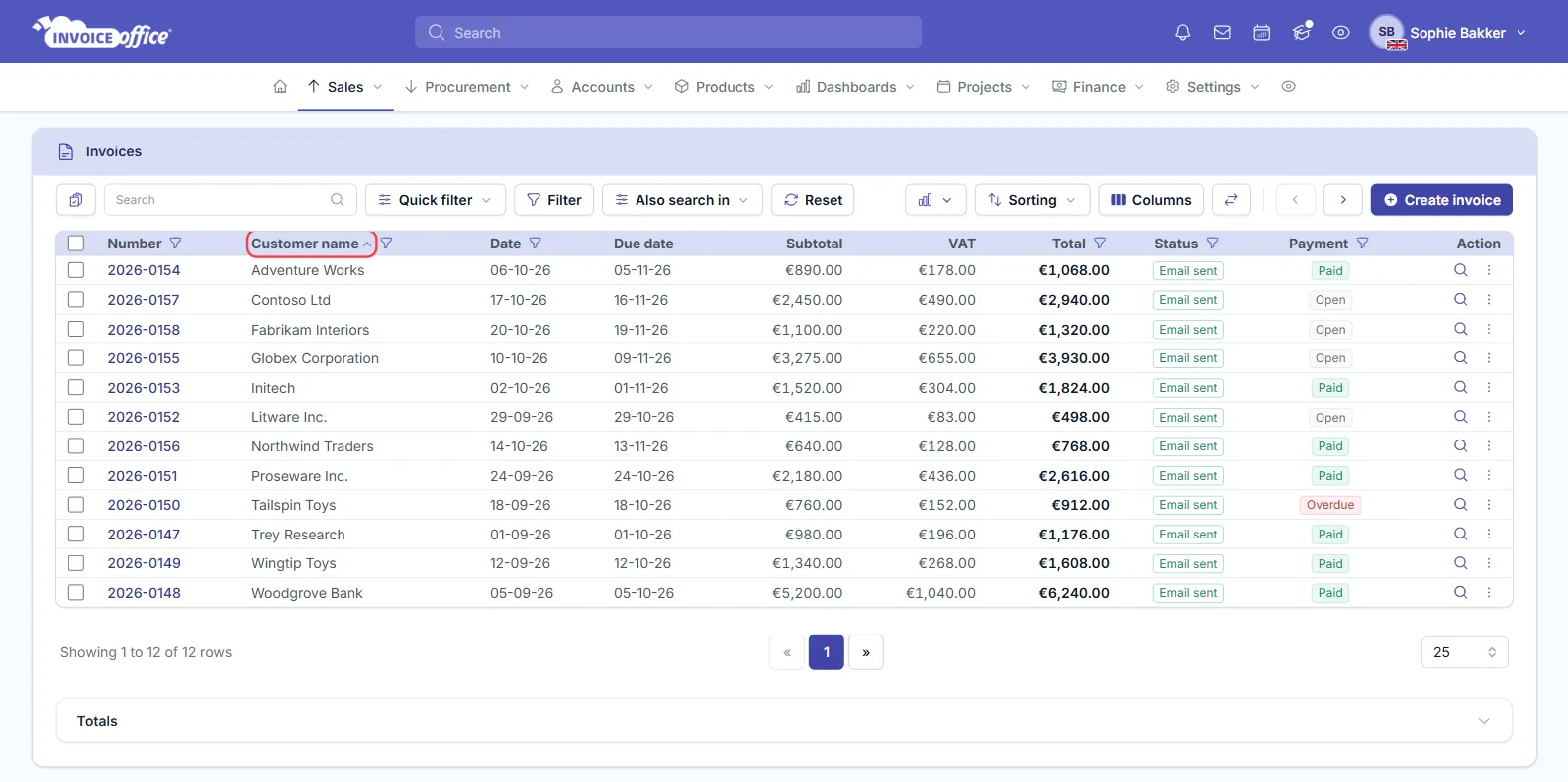
What you can sort by depends on the heading you click.
Sort by number
Click Number to put documents in order of their document number, for example to find your latest invoice or to check that no number is missing. On Purchases you can also click Invoice number, the supplier’s own invoice number. On Products the heading is Product No.
Sort by name
Click Customer name, Supplier Name or Contact person on a document list, or Name on customers, suppliers and products, to sort alphabetically. On customers and suppliers you can also sort by City, Email and Phone office. On Projects click Project name or Customer.
Sort by date
Click Date to sort documents by their document date. Depending on the list and your columns, you can also sort by Due date, Delivery date, Payment date, Created on and Modified on. On Payments click Payment date or Date created. Click twice to see the newest first.
Sort by amount or price
Click Subtotal or Total to sort documents by amount, for example to see your largest invoices first (click twice). On Products click Purchase price or Sales price, and on Payments click Invoice amount or Paid.
Sort by status or label
Click Status to group documents by their status, Workflow status to group them by your own workflow steps, or Label to group them by label. On Products you can sort by Unit and Category.
Headings you can’t sort by
A few headings aren’t links and do nothing when you click them, such as VAT, Reference, Related, Payment, Approval Status and Action. Use a filter on these columns instead, where one is available.
Sort from the toolbar, and your default order
You can also sort from the toolbar: click Sorting, choose A-Z or Z-A, and pick a column under Sort by.
On invoices, quotes and the other document lists, the order you choose is saved as your Sort documents by setting (for the columns that setting offers), so the list keeps opening in that order. To set a default for customers, suppliers and products too, see How to change the default sort order for lists.
Filter a list with the funnel on a heading
Next to many column headings is a small funnel icon. Click it to filter the list on that column, so it shows only the rows you want:
- Click the funnel next to the heading, for example Customer name.
- Choose how to match, for example contains.
- Type or pick what you’re looking for, for example
Toys. - Click Apply.
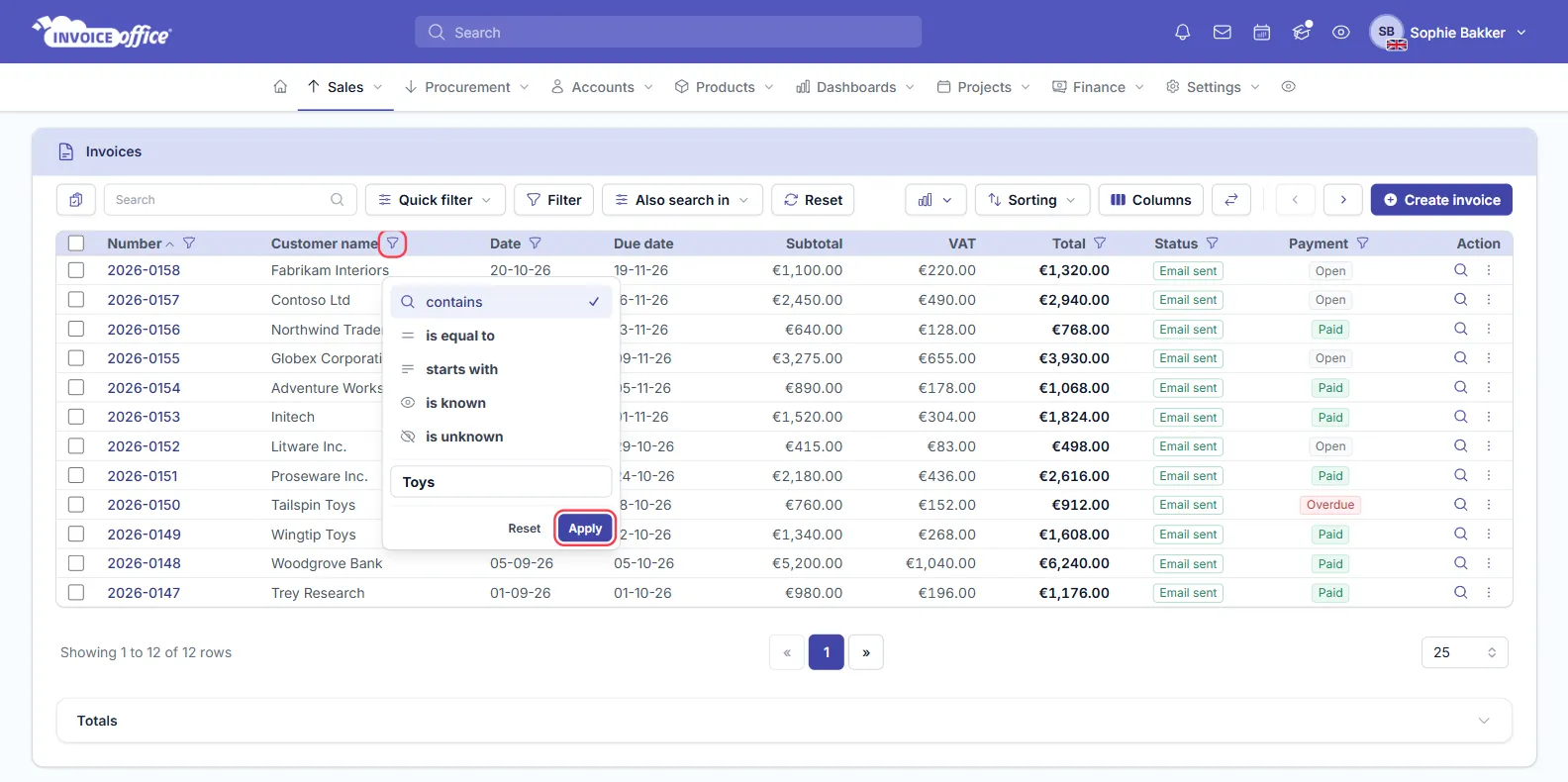
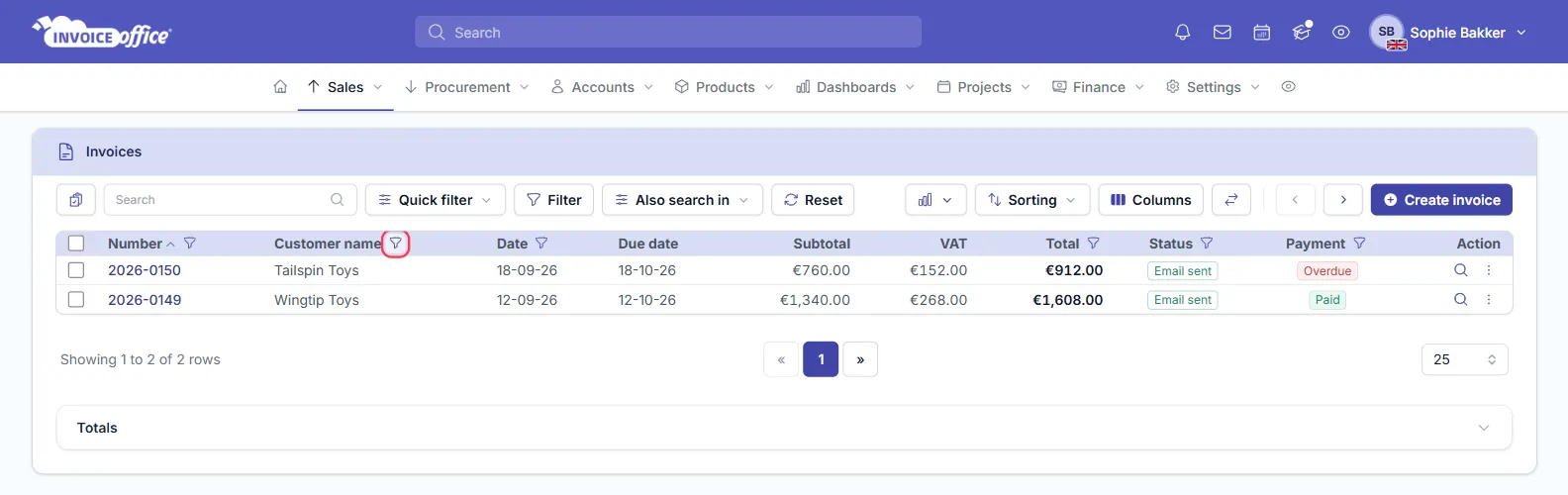
The list now shows only the matching rows: here, the two invoices for customers whose name contains “Toys”. To show all rows again, open the same funnel and click Reset, or click Reset in the toolbar.
Each funnel offers the options that fit its column.
Filter by number or name
On Number, Customer name and the other text columns:
- contains: the text appears anywhere, for example
Toysfinds Tailspin Toys and Wingtip Toys. - is equal to: an exact match, for example one invoice number.
- starts with: the value begins with what you type, for example
2026-for this year’s numbers. - is known: the field has a value.
- is unknown: the field is empty.
Filter by date
On Date:
- is: one day.
- before or after: everything before or after a day.
- between: a period, for example from 01-10-26 to 31-10-26 for October.
- is known or is unknown: the date is filled in or empty.
Filter by amount
On Total:
- greater than or less than: for example all invoices over €1,000.00.
- is equal to: one exact amount.
- between: a range of amounts.
- is known or is unknown.
Filter by status or payment
On Status, Payment and Workflow status, pick one or more values from the list, such as Open, Expired or Paid under Payment:
- is any of: shows the rows that have one of the values you picked.
- is none of: hides the rows with those values.
- On Workflow status you can also choose is known or is unknown: a workflow status is set, or not.
Which headings have a funnel
| List | Headings with a funnel |
|---|---|
| Invoices and other sales documents | Number, Customer name, Date, Total, Status, Payment, Workflow status |
| Purchases | Invoice number, Supplier Name, Date, Total, Status |
| Customers | Number, Name, City, Phone office, Email, Label |
| Suppliers | Number, Name, City, Email |
| Products | Product No., Name, Purchase price, Sales price, Unit, Category |
A column filter and the matching field in the Filter window are the same filter, so a filter set in one shows in the other.
Combine filters in the Filter window
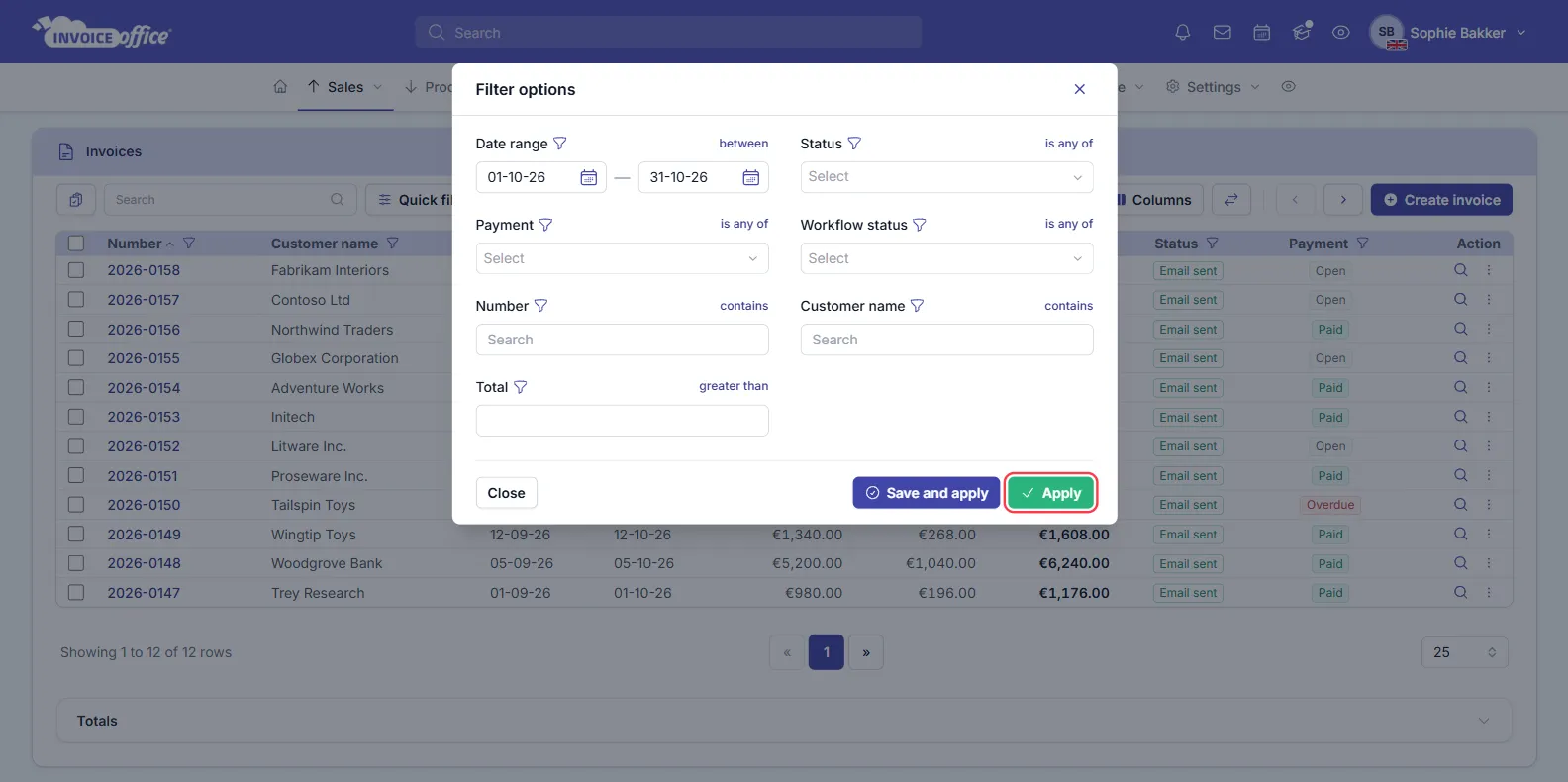
To filter on several things at once, click Filter in the toolbar. The Filter options window opens with a field for each filter. On invoices these are Date range, Status, Payment, Workflow status, Number, Customer name and Total, with the same options as the funnels above.
- Fill in the fields you need, for example a Date range from 01-10-26 to 31-10-26 and Payment is any of Open.
- To change how a field matches, click the funnel icon next to the field name and pick another option. The current choice, such as between, is any of or contains, shows in blue on the right.
- Click Apply. The list shows only the rows that match all the fields you filled in.
Save a filter you use often
Click Save and apply instead of Apply, give the filter a name and click Save and apply again. The saved filter appears at the bottom of the Quick filter menu, so next time you can apply it in one click. To remove a saved filter, click the trash icon next to its name in that menu. Saving filters isn’t available on Purchases and Recurring purchases.
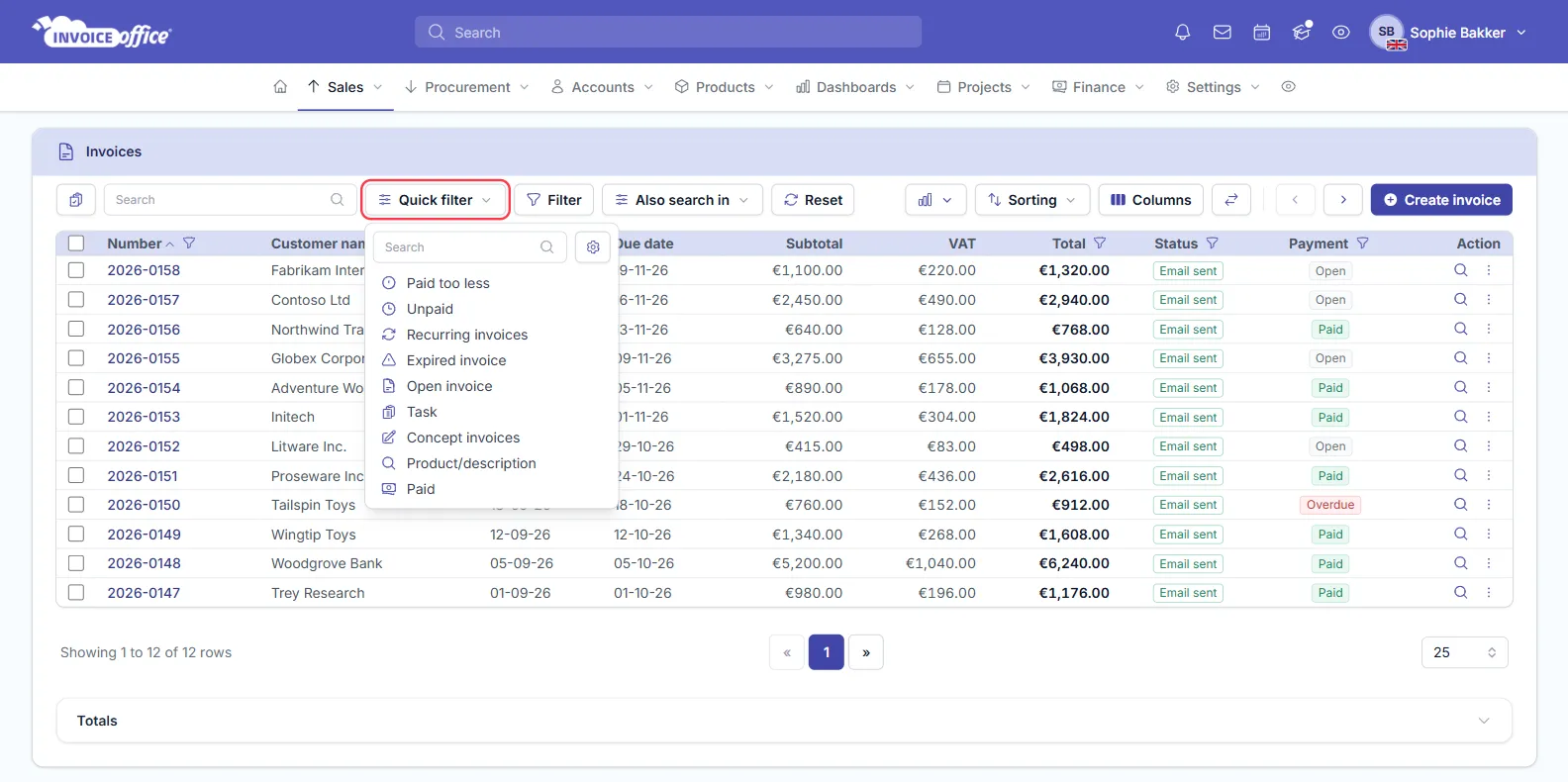
Use a quick filter
Quick filter in the toolbar holds ready-made filters for the list you’re on. For invoices these include Unpaid, Expired invoice, Open invoice, Concept invoices and Paid. Click one to apply it. Your saved filters are listed below them, and the search box at the top finds a filter by name.
Choose which quick filters you see
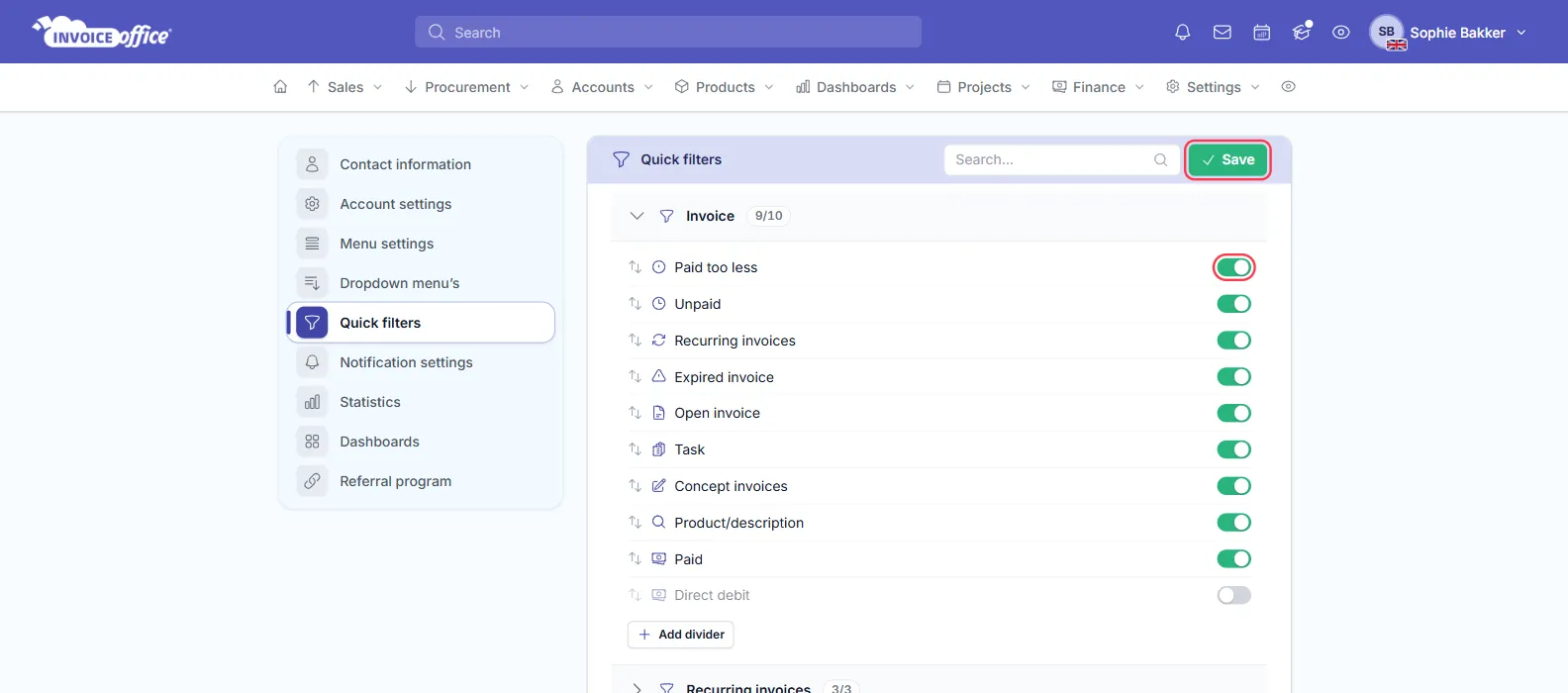
Click the cog next to the search box in the Quick filter menu. You can also click your profile picture (or name) at the top right, choose Account settings and open Quick filters in the left menu. For each document type you can:
- switch a quick filter on or off,
- drag it by its ↑↓ handle into a different position,
- click Add divider to put a line between groups of filters.
Click Save at the top right when you’re done.
Search, and search in more fields
The Search box at the top left searches the list as you type. On a document list it looks in the number, customer or supplier name, reference, specification, contact person, label, workflow status and total.
To search further, open Also search in and tick Task or Document lines. With Document lines ticked, an invoice also shows up when one of its product lines matches. A number on the button shows how many extra fields are ticked. Also search in is on the sales document lists and purchase orders.
Clear all filters
Click Reset in the toolbar to clear the search, the quick filter and every filter in one go. It also unticks the Also search in boxes. The sort order stays as it is.
Related articles
- How to change the default sort order for lists
- Choose the columns in a list: add the columns you want to sort and filter on
- Export your data: filter a list first and the export follows it
- Use workflow statuses
- Bulk send or export documents