To set decimal places per unit in Invoice Office, you change the Decimals value of that unit under Settings → Units. There is no single decimal setting for all quantities: every unit has its own. Kilograms can show three decimals (2.125 kg), hours two (7.50 hr) and pieces none (12 pcs), all on the same invoice.
Open your unit settings
Go to Settings → Units. The table lists every unit you can use on a document line, one row each. Decimals says how many decimal places that unit’s quantities are shown to, and Example next to it previews the result on the number 42.12345.
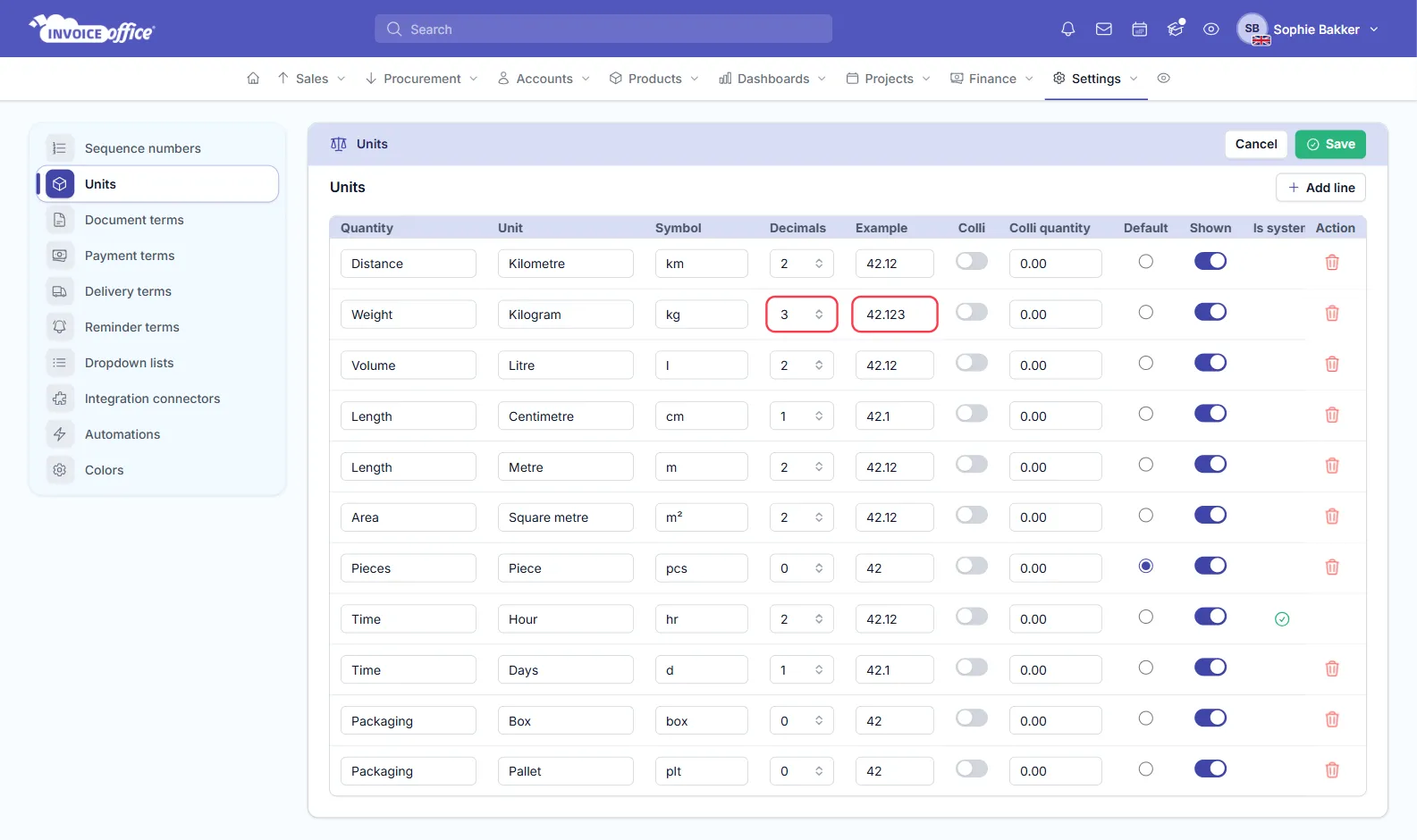
Change the decimals of a unit
- Find the unit’s row.
- Pick a number in Decimals — anything from 0 to 5. Example shows how a quantity will read.
- Click Save in the top right of the card.
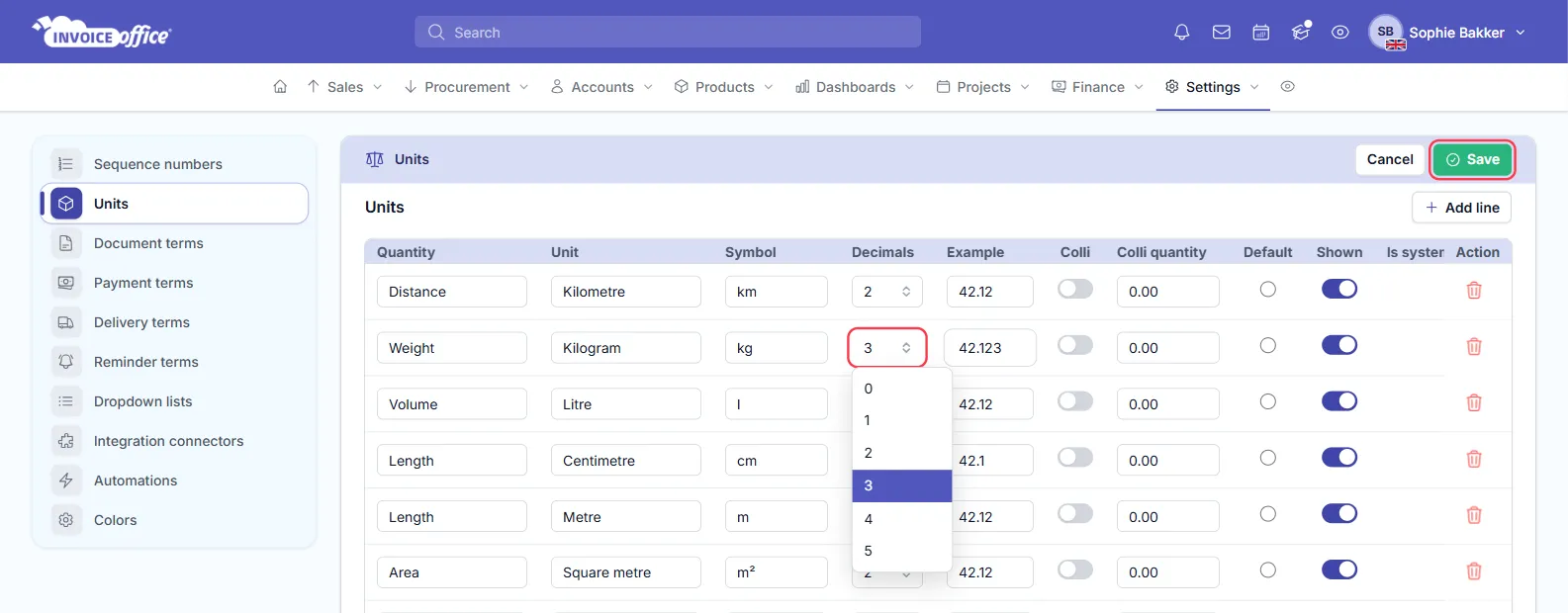
Choose the precision the unit actually needs:
| Unit | Sensible decimals | Reads as |
|---|---|---|
| Piece, box, pallet | 0 | 12 |
| Hour, day | 2 | 7.50 |
| Metre, square metre | 2 | 3.25 |
| Kilogram, litre | 3 | 2.125 |
You can add a unit of your own the same way, with its own decimals — see How to add your own units.
Lines without a unit
A document line that has no unit uses the decimals of your Default unit — the row with the Default button selected in the same table. If no unit is set as default, such lines show two decimals.
Existing and new document lines
Each document line keeps the decimals of its unit as they were when the line was saved. So after you change a unit:
- New lines — and lines on a draft you open and save again — use the new number of decimals.
- Documents you have already finalized or sent keep the decimals they were created with, so their PDF does not change afterwards.
“I set 2 decimals but I see 4”
Quantities and prices have separate settings, which is the usual cause of this surprise.
- Quantities follow the unit’s Decimals under Settings → Units. A unit set to 4 shows 1.2500, whatever your price setting is.
- Prices follow Price number of decimals, on the Finance tab of Company settings (in the menu under your name).
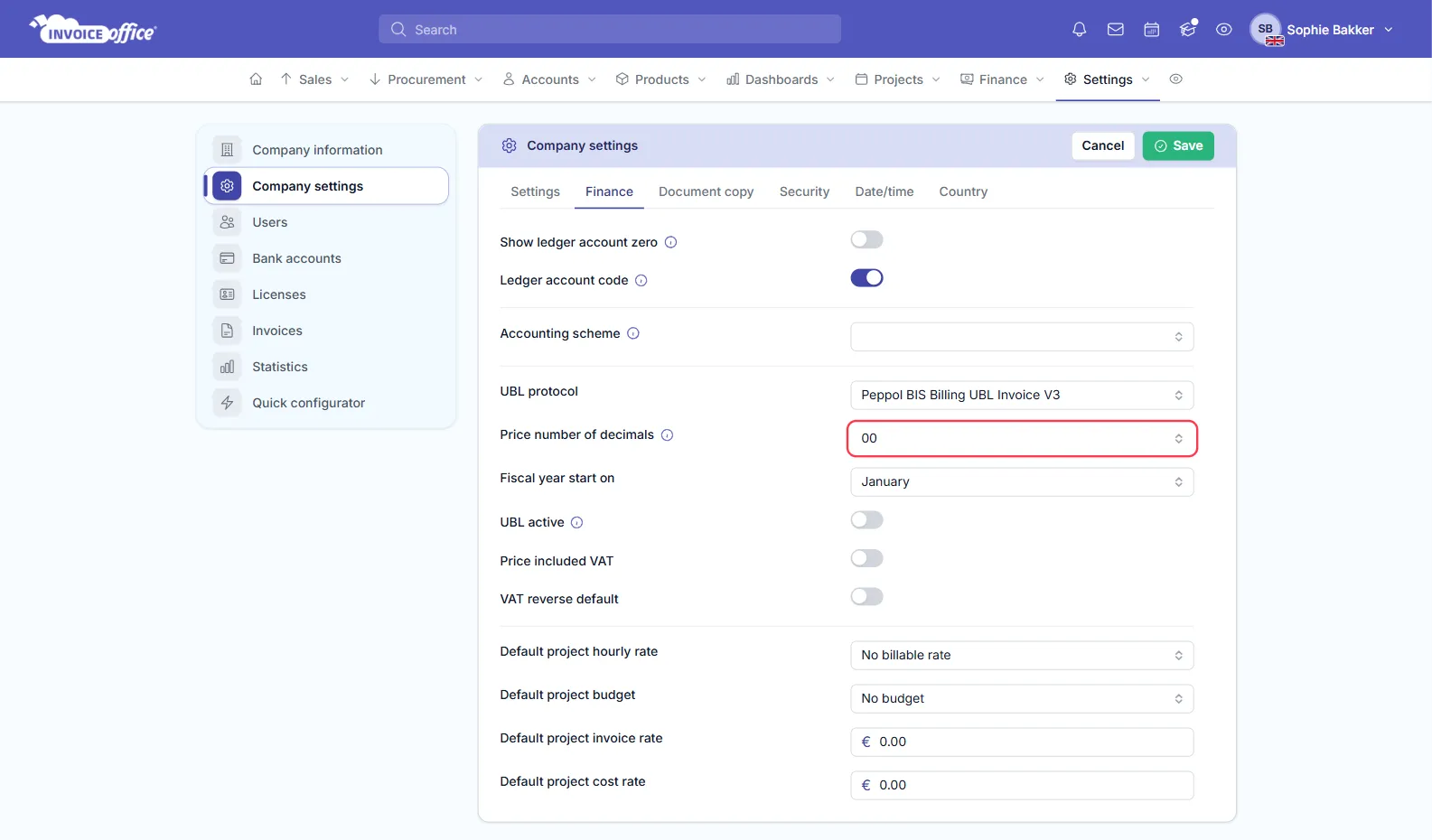
So if prices are set to two decimals but quantities still show four, open Settings → Units and lower the Decimals of the unit on that line. If the line has no unit, check which unit is your Default.
The unit itself is set on the product, so every line created from that product carries the same unit and the same decimals — see Creating and managing products.