When an email is not delivered — a bounce, or a message in spam — in Invoice Office, the document itself tells you what happened: its status shows whether the email was delivered, opened, refused by the receiving mail server or reported as spam. This guide shows where to check that status, the usual causes of a bounced or spammed invoice email, and how to fix them and send it again.
Step 1 — Check the email status of the document
Open the list of the document type, for example Sales → Invoices. In the Status column, a sent document shows an Email sent badge with an envelope next to it. The colour tells you how the email did:
| Badge and icon | What it means |
|---|---|
| Green envelope | Sent successfully — the receiving mail server accepted the email. While it says Sending, Invoice Office’s mail service has accepted it but delivery isn’t confirmed yet. |
| Blue eye | Receiver has opened the e-mail (or Receiver has clicked the e-mail). The badge itself stays green. |
| Gray envelope | Sent, but delivery isn’t confirmed yet — Email send, Offered to send or Email has been deferred (the receiving server asked to retry). |
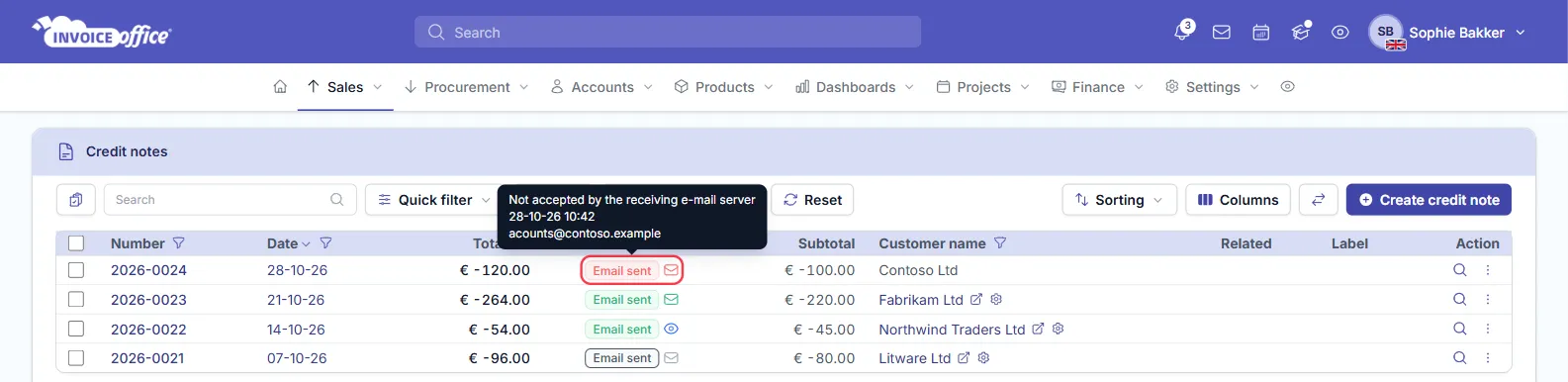
| Red envelope | Not delivered: Not accepted by the receiving e-mail server (bounced or dropped), or Receiver has reported the e-mail as spam. |
| Blue envelope | Sent through your own email server. Invoice Office can’t see what happens after that, so there is no delivery status. |
Hover over the badge to see the latest status, the date and time, and the email address it was sent to.
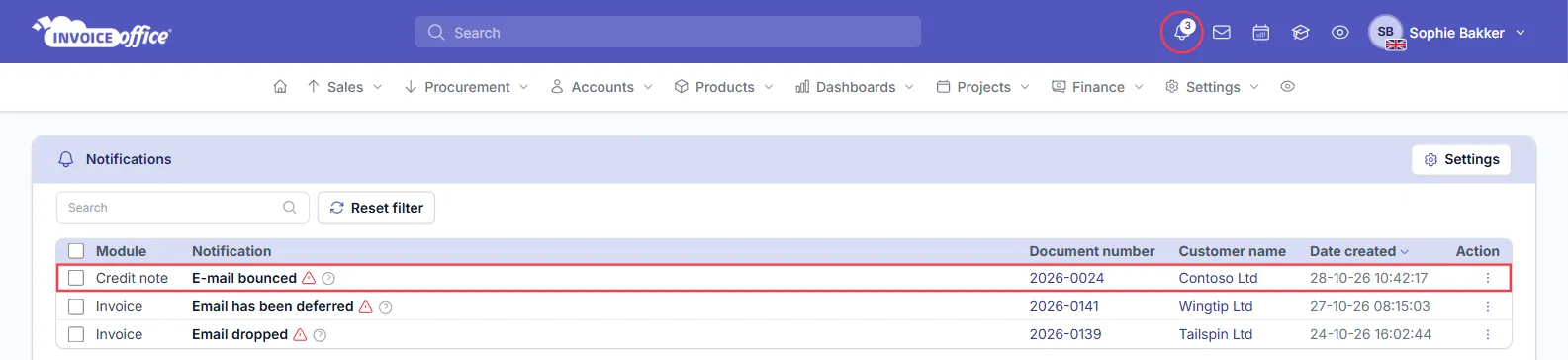
If Invoice Office sent the email, a bounce also creates a notification for the user who created the document — E-mail bounced or Email dropped. A delay shows as Email has been deferred. Click the bell at the top of the screen to open Notifications: each line shows the document number and customer, and the info icon next to the notification explains what it means.
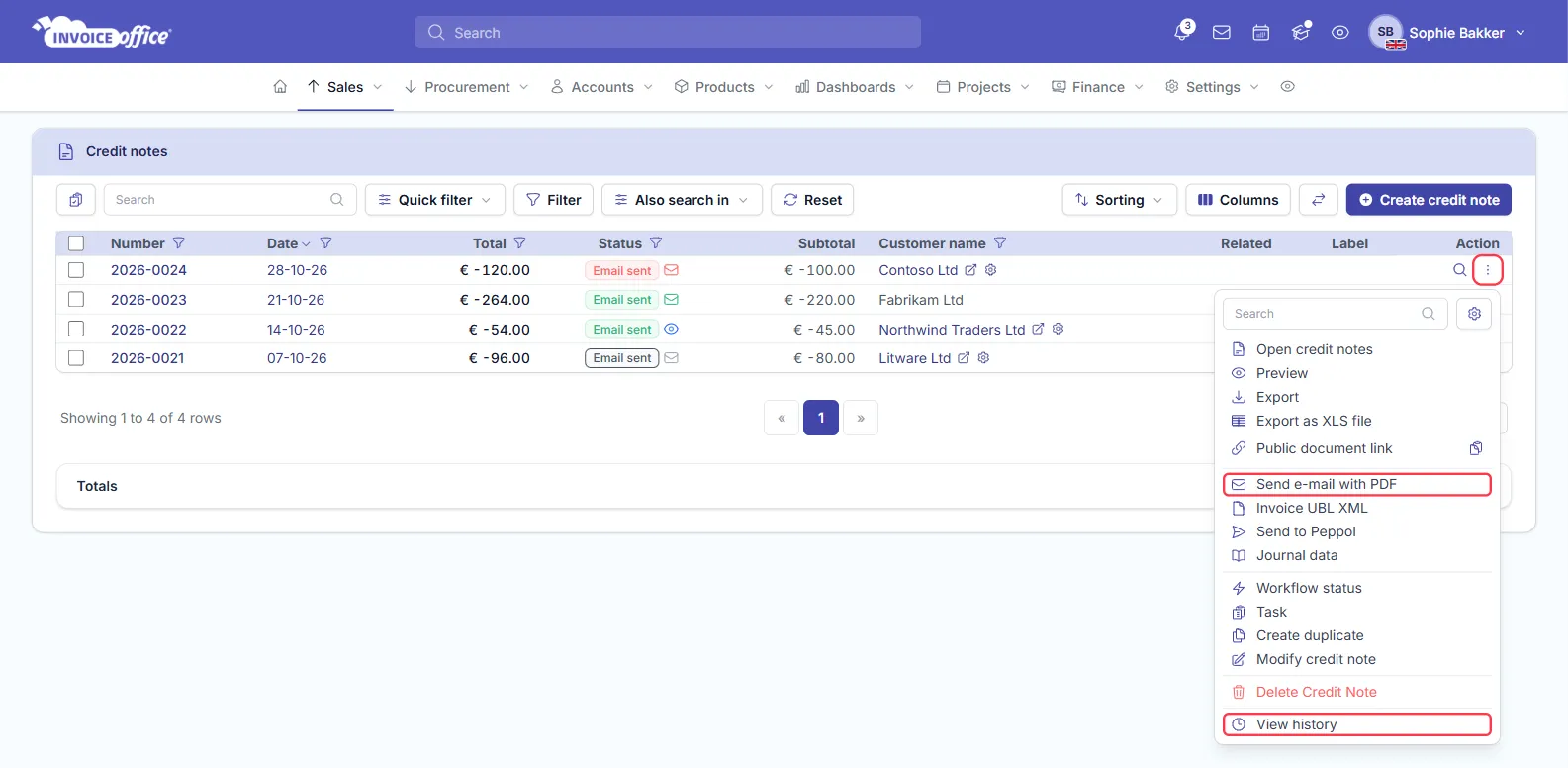
For every step, open the document’s Action menu and choose View history: the timeline lists each email event with its date and the address it went to.
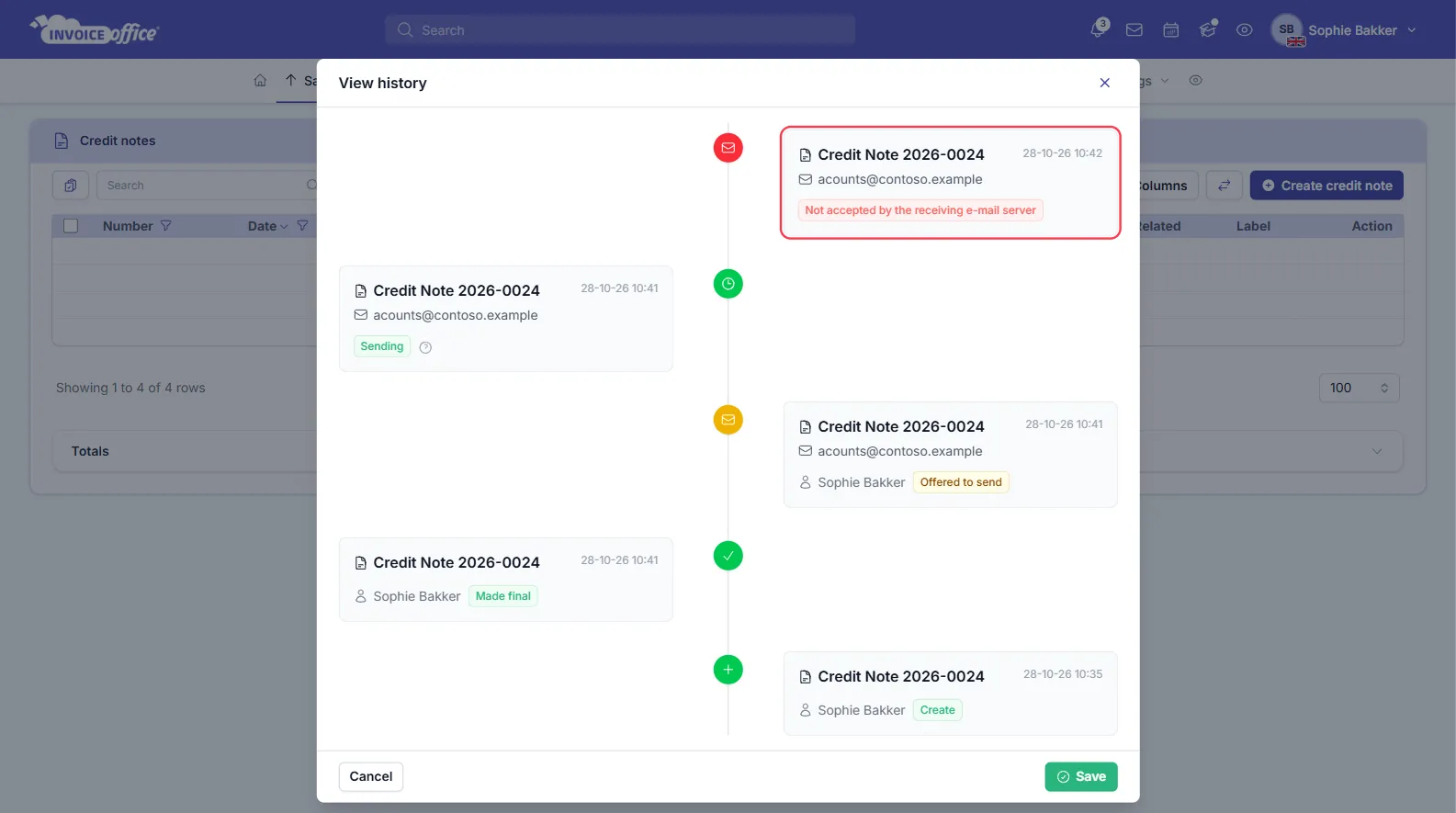
If the Status column isn’t in your list, add it with Columns in the list toolbar. See how the email status icon works for more on the icons.
Step 2 — Find the cause
The email address is wrong
The most common cause of a bounce. Hover over the badge and compare the address with the one your customer gave you — a typo, an old address or a mailbox that no longer exists is refused by the receiving server. Correct the email address on the customer (Accounts → Customers). The send window may still show the address stored on the document, so check and correct the To field on the General tab before you send again (see step 3).
You’re on the free plan
Without a paid licence, Invoice Office sends document emails to your own account email address, not to the customer. If your customer never receives anything, check your own inbox — and upgrade to send to customers.
The email lands in spam
Receiving servers check whether the sender is allowed to send for the domain in the From address. Two situations make spam more likely:
-
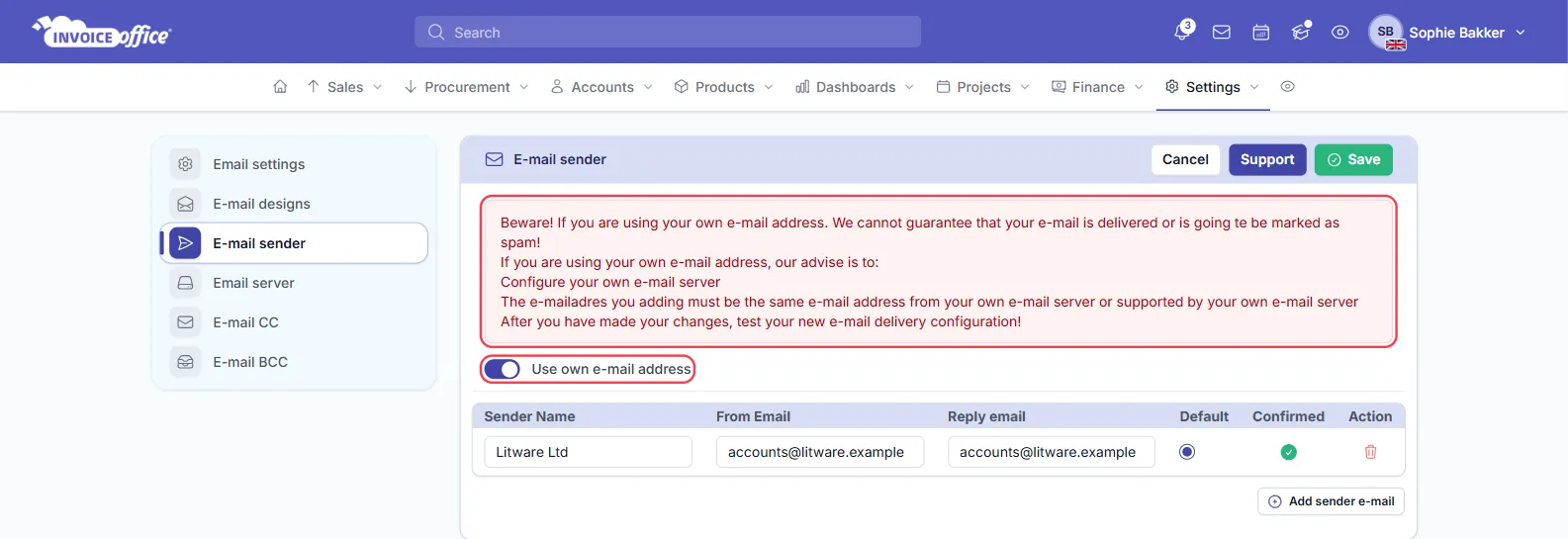
Your own address, sent from Invoice Office’s servers. If you put your own address under Settings → E-mail sender without your own email server, the email still leaves from Invoice Office’s mail servers. The E-mail sender page warns about this whenever Use own e-mail address is switched on: delivery can’t be guaranteed and the email may be marked as spam. It advises you to configure your own email server and use an address that belongs to it — see how to configure a custom SMTP email server, or use Gmail / Google Workspace or Outlook / Office 365.
-
Your domain’s SPF and DKIM records. These DNS records tell receiving servers which mail servers may send for your domain. Invoice Office doesn’t manage them: they are set at your domain or email provider. When you send through your own server, ask your provider or IT contact to check that SPF and DKIM are set up for the server you connected.
If a customer marked your email as spam (Receiver has reported the e-mail as spam), send the document to them another way or ask them to add your address to their safe senders.
Your own email server refuses the email
With your own server connected, Invoice Office hands the email to that server. If it fails there, the cause is in your server settings — the host, port, encryption, user name or password, or a From Email that differs from the address you log in to the server with. Check the settings under Settings → Email server and use the Test button on that page. If your server refuses the email, the send window shows an error and the document isn’t marked Email sent. Bounces that come back later arrive in your own mailbox, not in Invoice Office.
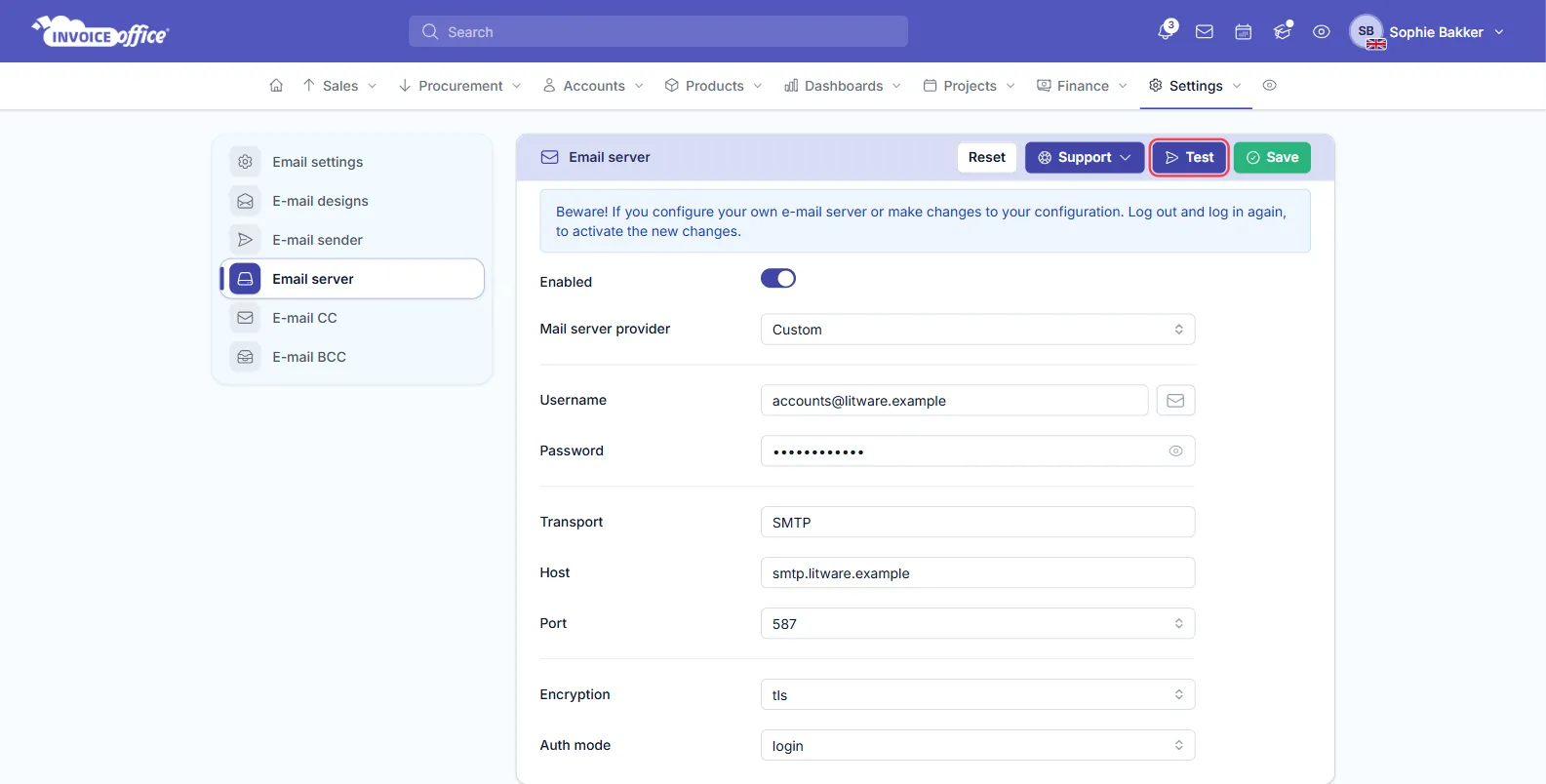
Your account’s own email address must also be confirmed before Invoice Office lets you send documents.
Step 3 — Send it again
Once the cause is fixed, open the document, click Action and choose Send e-mail with PDF.
- On the General tab, check the recipient’s address in To before you send.
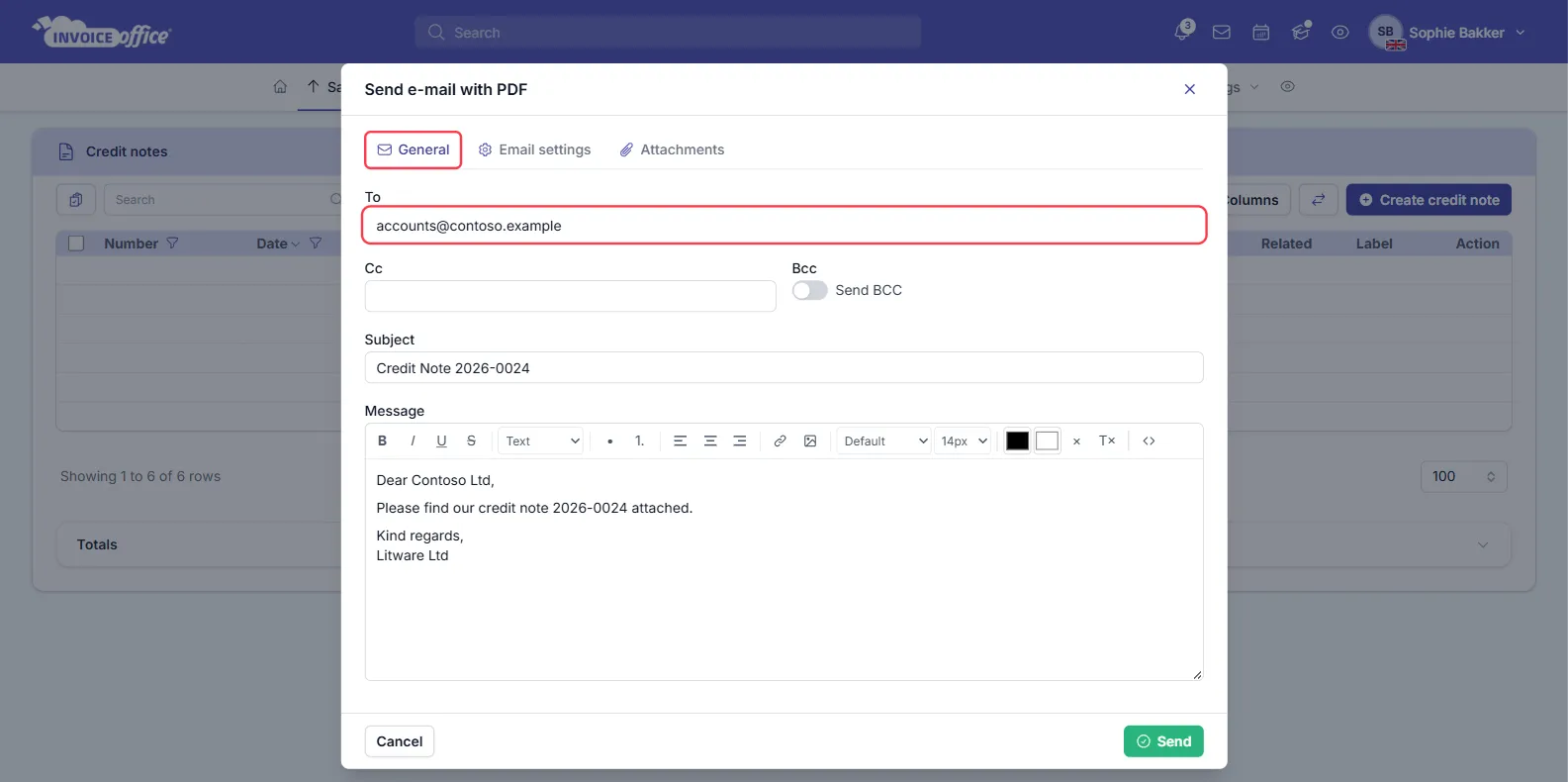
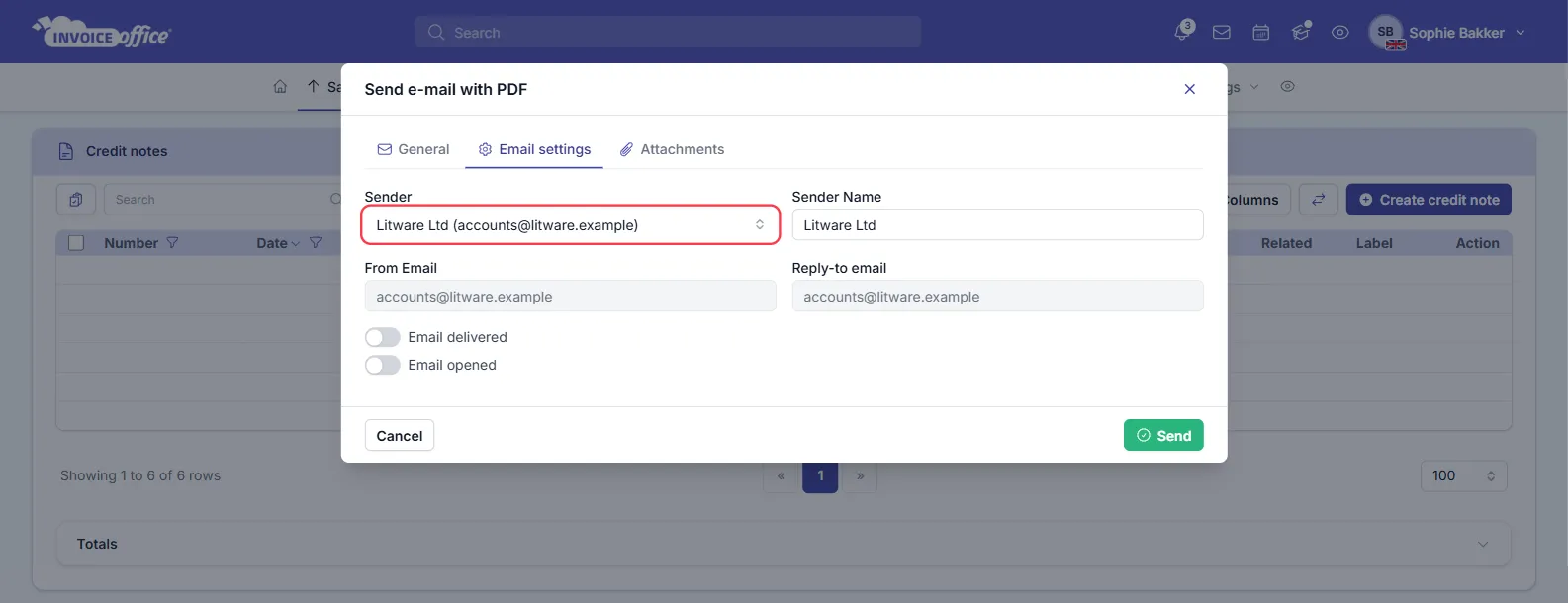
- On the Email settings tab, you can pick another Sender — one of the senders you added and confirmed under Settings → E-mail sender. This list appears when Use own e-mail address is switched on there and you have a paid licence.