Your dashboards in Invoice Office are made of cards: tiles with key figures, charts and short lists. You can decide which cards you see, put them in your own order and make them bigger or smaller. This works the same way on the home page, on most dashboards under Dashboards and Finance, and on the dashboard of a single customer, supplier, product or project. Look for the Customize and Reset buttons at the top right of the dashboard.
This article uses the home page as the example.
Where you can customize, and which cards you can choose
Every dashboard below has a Customize button. Open it to choose which of the cards listed here you want to see. Some dashboards only show when your licence includes that part of Invoice Office, such as E-commerce, Peppol, Stock or Customer license.
Home page
| Dashboard | Where | Cards you can show or hide |
|---|---|---|
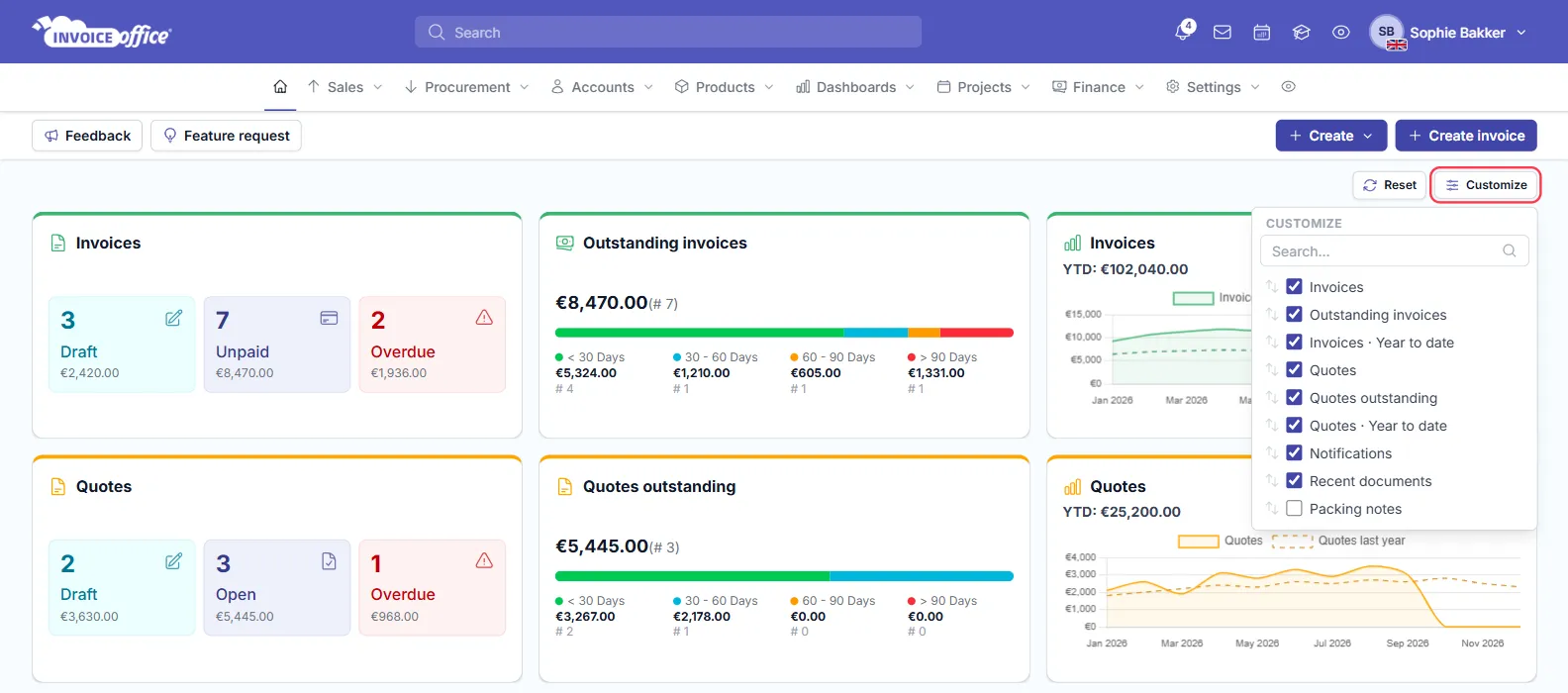
| Home page | The house icon at the start of the menu bar | Invoices, Outstanding invoices, Invoices · Year to date, Quotes, Quotes outstanding, Quotes · Year to date, Notifications, Recent documents, Packing notes |
Sales dashboards (Dashboards menu)
| Dashboard | Cards you can show or hide |
|---|---|
| Invoices | Invoices, Reminders, Credit notes, Payments, Outstanding invoices, Outstanding invoices · Amount, AR Aging Summary, Top 10 unpaid invoices, Unpaid invoices amount (Top 10 Customers), Invoices · Year to date, Unpaid invoices, Paid vs unpaid invoices, Top customers by revenue, Payments (Quantity), Payments (Amount), Invoices · Reports |
| Quotes | Quotes, Status, Document status, Quotes · Year to date |
| Order Confirmation | Order Confirmation, Workflow status, Stock readiness, Products blocking shipment, Order confirmation - aging |
| Recurring invoices | Scheduled this month, Last 30 days, Expiring soon, Paused, Active, Total value, Top recurring by value, Upcoming schedule, Created history, Cycle distribution, Status overview, Forecast, Customers, Recent documents |
| Customers | Customers, Top customers by revenue, Monthly revenue trend, Customer concentration, Outstanding invoices, Outstanding per customer, Payment status, Top customers by invoice count, Top products sold, Product breakdown, Invoice breakdown |
| E-commerce | Invoices, Credit notes, Customers, Products, Average sales price, Average Purchase Price, Quantity · Products, Revenue by month |
| Peppol (outbound) | Peppol, Outbound (for the chosen period), Outbound, Customers |
Procurement dashboards (Dashboards menu)
| Dashboard | Cards you can show or hide |
|---|---|
| Procurement | Purchases, Total spend, Payments, Purchases outstanding, Purchases outstanding · Amount, AP aging Summary, Top 10 unpaid invoices, Unpaid bills amount, Purchases · Year to date, Unpaid bills, Paid vs unpaid invoices, Top supplier by spend, Payment status (Quantity), Payment status (Amount), Invoices |
| Purchase orders | Purchase orders, Status, Top supplier by spend, Purchase over time, Top product purchased, Average order value over time, Purchase orders aging |
| Recurring purchases | Scheduled this month, Last 30 days, Expiring soon, Paused, Active, Total value, Top recurring by value, Upcoming schedule, Created history, Cycle distribution, Status overview, Forecast, Suppliers, Recent documents |
| Suppliers | Suppliers, Top supplier by spend, Monthly spend trend, Supplier concentration, Overdue purchase, Payment status, Top supplier by purchase count, Top product purchased, Product breakdown, Purchase breakdown |
| Peppol (inbound) | Peppol, Inbound (for the chosen period), Inbound, Suppliers |
Product dashboards (Dashboards menu)
| Dashboard | Cards you can show or hide |
|---|---|
| Products | Products, Top products by revenue, Top products by quantity, Top products by profit, Monthly revenue & cost trend, Product category mix, Product concentration, Quantity and revenue per product |
| Stock | Product stock Dashboard, Stock Movement, Stock type, Products, Product stock, Stock mutations |
| Picklist | Wave Picklist, Picklist |
| Customer license | Total, Active, Expiring soon, Expired, Licenses Issued Over Time, Licenses by Type, Licenses by Version, Customer license |
Project dashboards (Dashboards menu)
| Dashboard | Cards you can show or hide |
|---|---|
| Projects | Totals, Budget, Invoice summary, Hours, Projects, Employee Hours, Invoices, Purchases, Profit & loss |
| Timesheets | Hours, Hours · Dashboard |
| Tasks | Status, Tasks, Tasks · Employee |
Finance dashboards (Dashboards and Finance menus)
| Dashboard | Cards you can show or hide |
|---|---|
| Finance | Revenue, Cost, Profit, Profit margin, Revenue · YTD, Cost · YTD, Cumulative revenue, Cumulative cost, Cost · Categories, Revenue · Overview, Breakdown of cost, Revenue · Cost · Profit, Revenue · Cost · Profit margin, Three year trend |
| Ledger account | Debit, Credit, Net Movement, Transactions, Document, Name, Transactions · Reports |
| Profit & loss | Revenue, Cost, Profit, Profit margin, Revenue · Overview, Revenue (this year), Breakdown of cost, Cost (this year), Revenue · Cost · Profit, Revenue · Cost · Profit margin, Three year trend, Profit and loss, Revenue per income category |
| Bank statement | Transactions, Match status, Debit / credit breakdown, Cash flow over time, Net cash flow over time, Top counterparties, Top counterparties · Reports |
| VAT declaration | VAT tax, Input tax, Tax to pay, Deadline, VAT declaration |
| Balance | Debit, Credit, Balance |
The dashboard of one customer, supplier or product
Open a customer, supplier or product and go to its dashboard. The layout you choose here is used for every customer, every supplier or every product.
| Dashboard | Cards you can show or hide |
|---|---|
| A customer | Invoices, Quotes, Credit notes, Reminders, Payments, Documents, Open items, Tasks, Notes, Projects, DSO, Location |
| A supplier | Purchases, Purchase order, Credit notes, Documents, Tasks, Payment status, Payments, Notes, DSO |
| A product | Sales, Purchase, Customers, Documents, Revenue, Profit & loss, Attachments, Price list, Stock, Stock allocations |
The dashboard of a single project has a Customize button too.
Calendar, Backorder, Hardware and API usage have no Customize button: their layout is fixed.
Show or hide charts and tiles
- Click Customize at the top right of the dashboard.
- Tick a card to show it, or untick it to hide it. On the home page you can for example add Packing notes, which is hidden by default (it’s only listed if you work with packing notes).
- Looking for a card? Type part of its name in the Search box at the top of the list.
The dashboard changes straight away.
Change the order of the cards
There are two ways to move a card:
- On the dashboard: point at a card. A small ↑↓ handle appears at the top centre of the card. Drag the handle and drop the card where you want it. The other cards move aside to make room.
- In the Customize menu: drag a card’s row up or down by the ↑↓ grip in front of it. The dashboard follows the new order.
Make a card bigger or smaller
Point at a card and drag its bottom-right corner. Drag outwards to make the card wider or taller, for example to give a chart more room, or inwards to make it smaller. Some list cards, such as Notifications and Recent documents on the home page, have a fixed size.
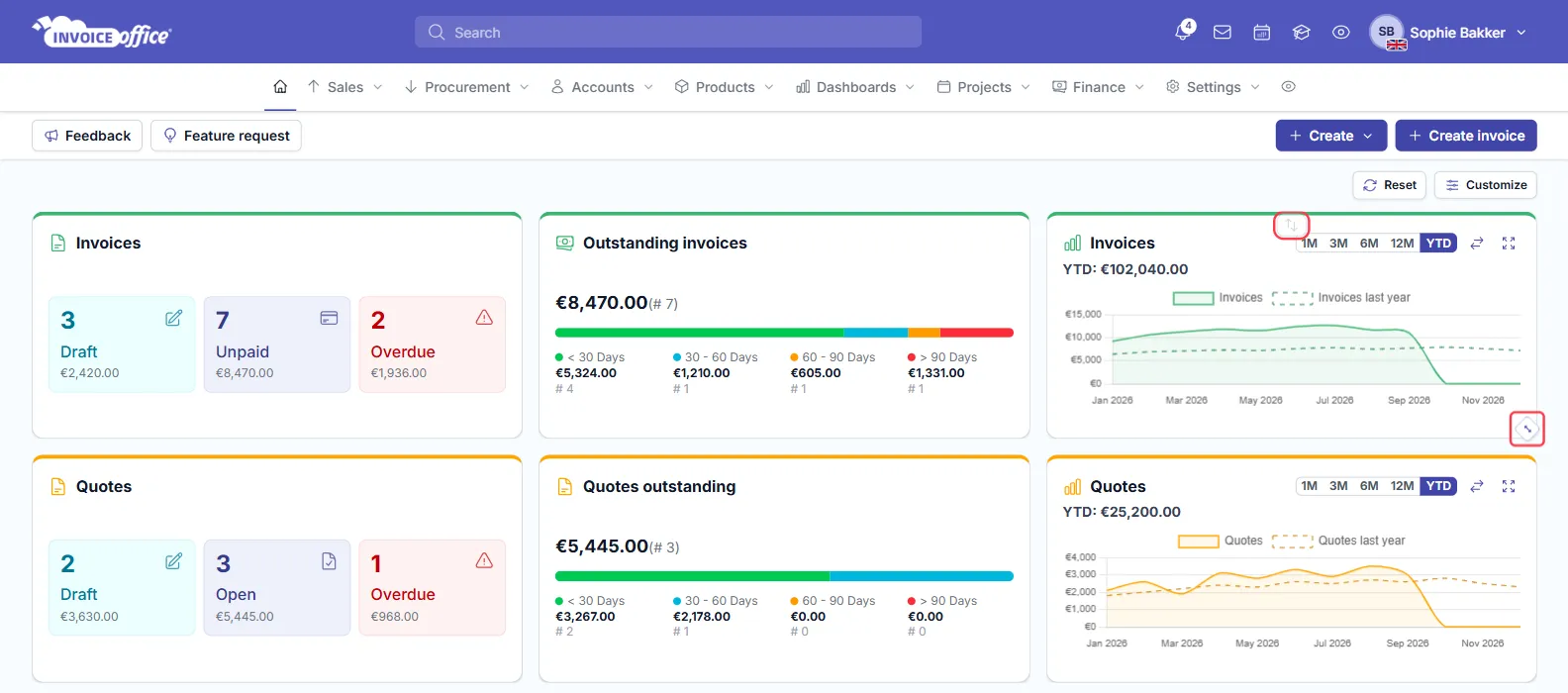
On a narrower screen, such as a phone or tablet, the cards stack below each other automatically. Moving and resizing cards only works on a wider screen.
Go back to the standard layout
Click Reset next to Customize. The dashboard goes back to its standard cards, order and sizes.
Where your layout is saved
Your layout doesn’t change what your colleagues see. Where it’s saved depends on the dashboard:
- Saved with your user, so it’s the same on every computer: the Invoices, Quotes, Customers, Suppliers, Projects and Timesheets dashboards, and the dashboard of a single customer, supplier or product.
- Saved in your browser: the home page and the other dashboards. If you use another computer or browser, or clear your browser data, these dashboards show the standard layout again. If several people use the same browser, they share this layout.