The menu bar at the top of every page in Invoice Office holds the sections Sales, Procurement, Accounts, Products, Dashboards, Projects, Finance and Settings. You can choose which of these you see, put them in the order you work in, and hide single links inside a section, such as Proforma invoices if you never use them. Your menu is set per user: changing it doesn’t change the menu of your colleagues.
Open the menu settings
Click the eye icon at the right end of the menu bar, after the last section (normally Settings). On a smaller screen the menu bar is replaced by a Menu button: use Account settings → Menu settings instead, as described below.
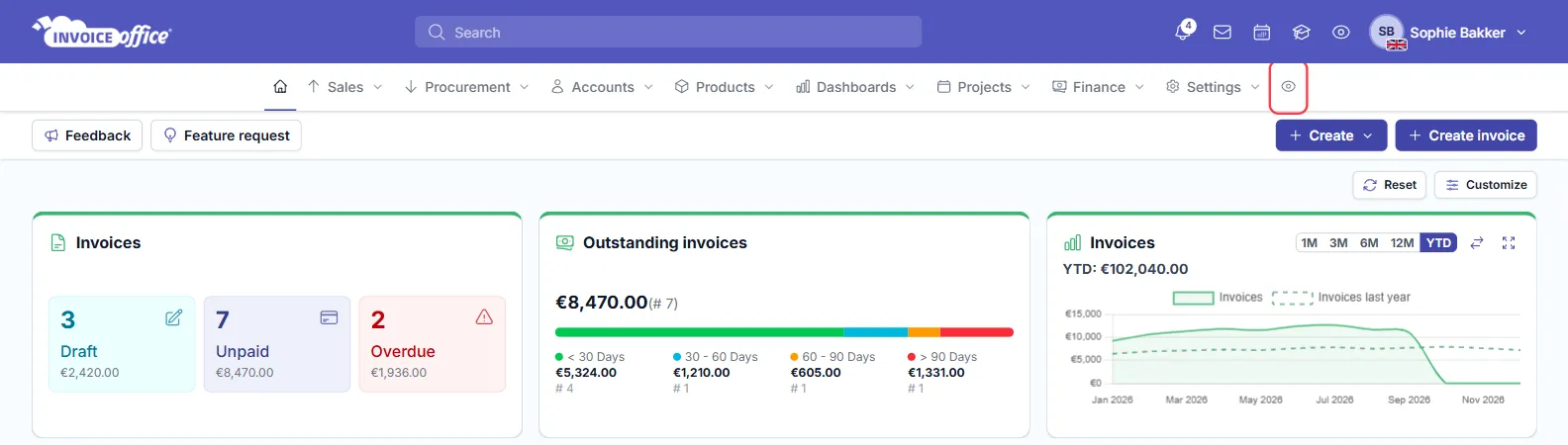
You can also click your profile picture (or name) at the top right, choose Account settings and open Menu settings in the left menu.
Don’t confuse it with the eye icon in the purple bar at the top. That one is Stealth mode, which is something else.
Show or hide a whole section
On the Menu settings page, each section of the menu bar has its own row with a switch on the right. Turn the switch off to hide that section from your menu bar, and on to show it again.
Show or hide single links in a section
- Click the name of a section, for example Sales, to open it.
- You’ll see every link in that section, grouped the same way as in the menu: for Sales these are Invoices, Orders, Payments and Correspondence.
- Turn off the switch next to a link you don’t use, for example Proforma invoices.
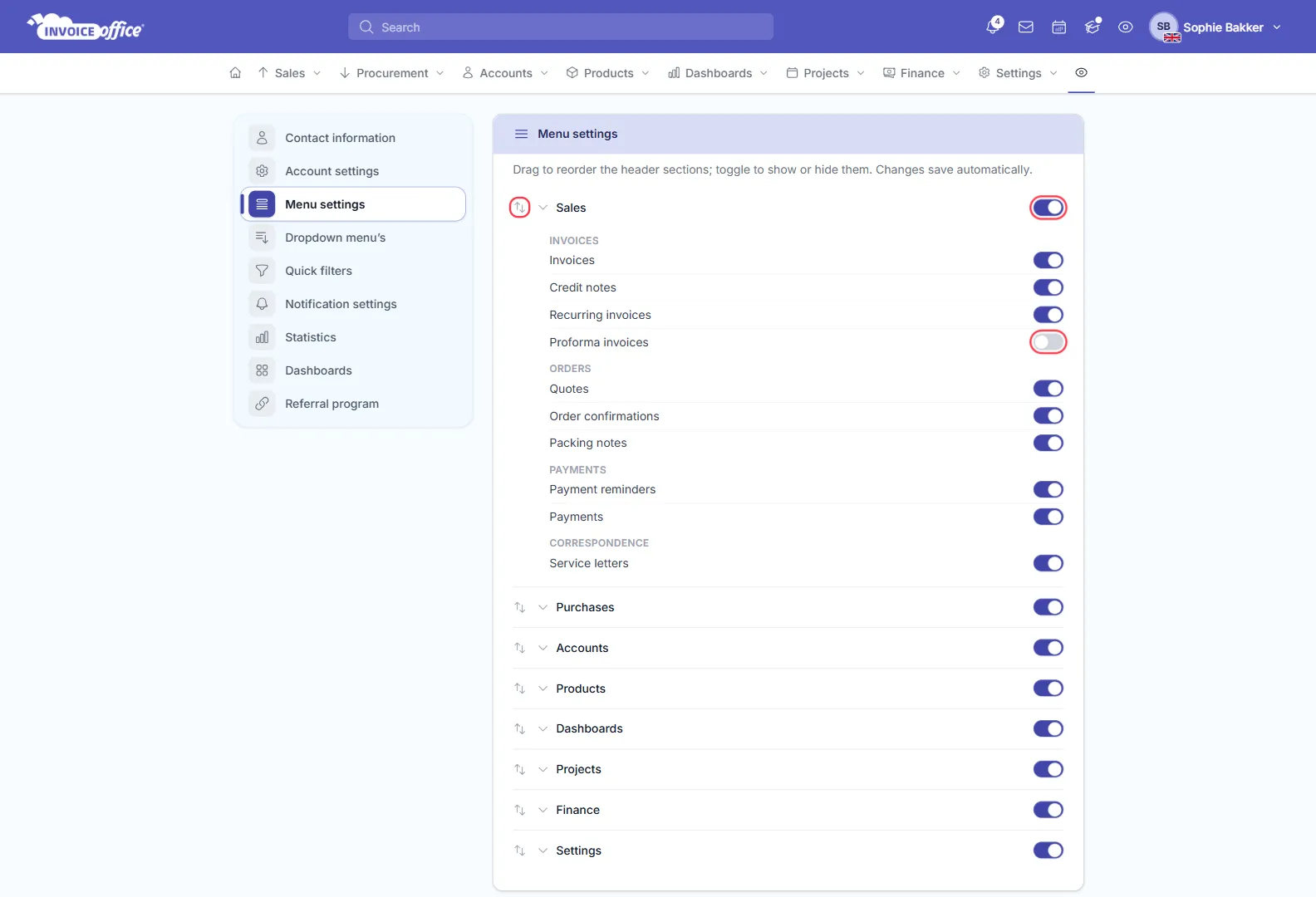
Hiding a link only removes it from your menu. The page itself still works and can still be opened from elsewhere in Invoice Office, for example from a link on a dashboard or a document.
Change the order of the sections
Drag a section by its ↑↓ handle on the left and drop it where you want it. The menu bar follows the same order, from left to right. On a wide screen, where the full menu bar is shown, you can also drag a section straight in the menu bar itself to a new position.
Your changes save automatically
There is no Save button: every switch and every drag is saved straight away and the menu bar updates right away.
Good to know:
- On this page the section for purchases is called Purchases. In the menu bar it shows as Procurement.
- The home icon at the start of the menu bar is always there.
- At least one section has to stay switched on.
- Which sections you see also depends on your licence and your user rights.
Related articles
- Customize your dashboards: show, hide, move and resize the cards on your dashboards
- Sort and filter lists: including how to choose which quick filters you see
- Choose the columns in a list
- How to change the default sort order for lists