Is your invoice marked overdue after a payment was registered in Invoice Office? Then the payment did not cover that invoice in full. Invoice Office only sets an invoice to Paid when the payments registered against that invoice add up to its total, to the cent. If the payment was smaller than the total, or was registered against a different invoice, the invoice keeps an amount unpaid — and so it still looks overdue. This article explains how the overdue status works, how to check the two usual causes, and how to correct the payment.
How an invoice becomes overdue
A finalized invoice starts as Open. Once its due date has passed and it is still Open, Invoice Office sets it to Expired — the overdue status — in a check that runs every night. The due date comes from the invoice’s payment terms; see how to set up payment terms.
When you register a payment, Invoice Office compares everything registered against the invoice with the invoice total and sets the payment status for you:
- Paid — the payments cover the total exactly, or you wrote the difference off.
- Partial Payment — less than the total has been paid. The invoice still has an amount unpaid.
- Overpaid — more than the total has been paid.
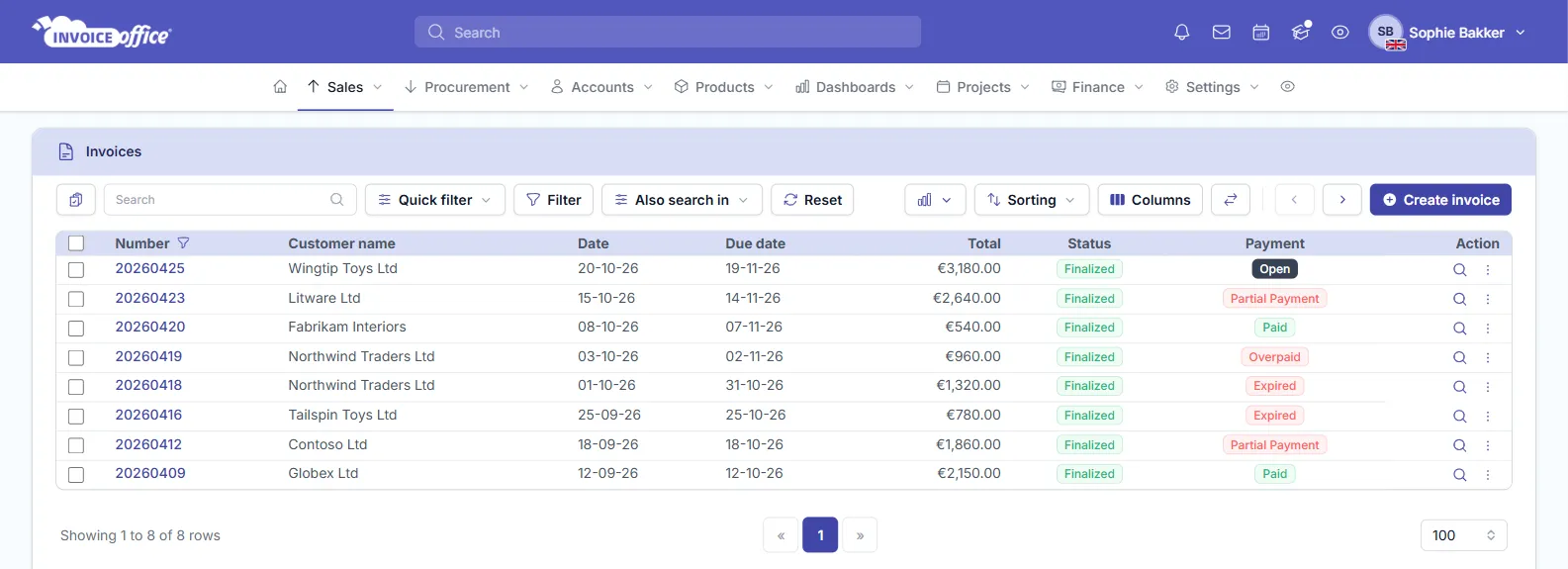
The Partial Payment and Overpaid badges in the Payment column are red — the same colour as Expired — so at a glance a part-paid invoice still looks overdue in the invoices list. Only Paid turns green.
Cause 1 — the payment is less than the invoice total (partial payment)
This is the most common reason. The customer paid a little less than the invoice — bank charges, a payment-provider fee, a rounded amount, a discount they took themselves — or paid in instalments, and the payment was registered for exactly what came in.
To check:
-
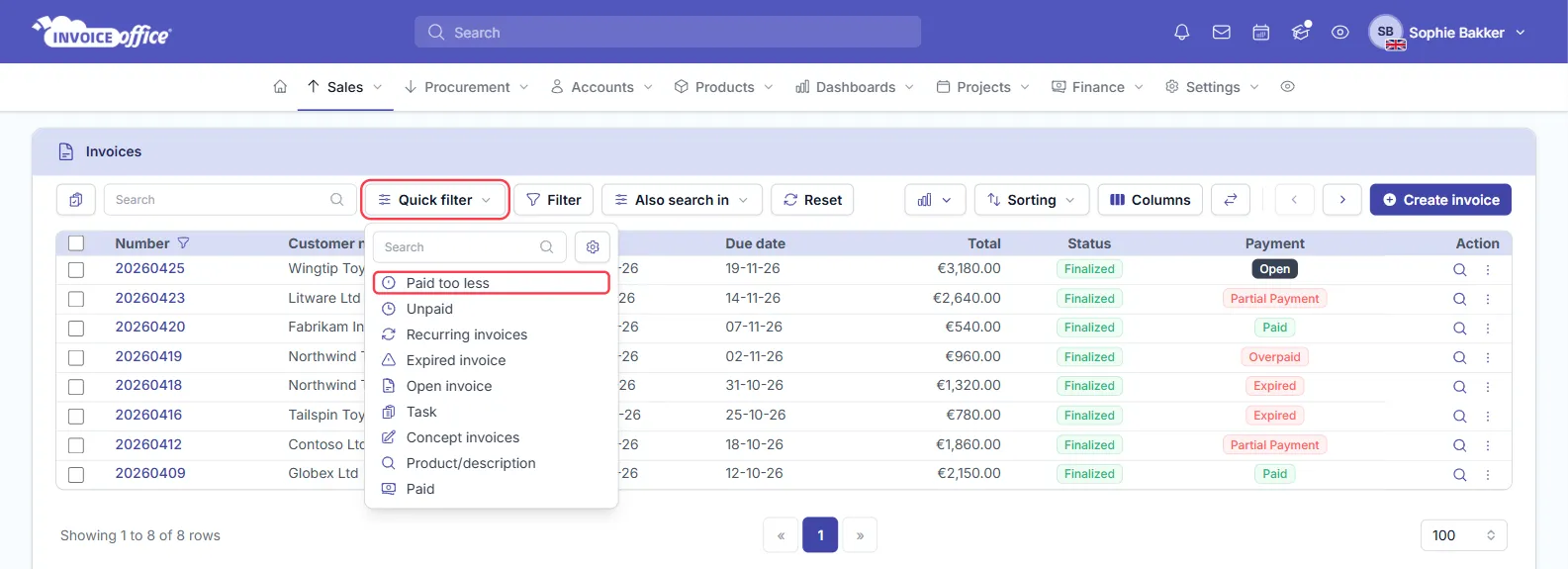
Go to Sales → Invoices and find the invoice. Its Payment column reads Partial Payment. You can also open Quick filter above the list and choose Paid too less to see every part-paid invoice at once.
-
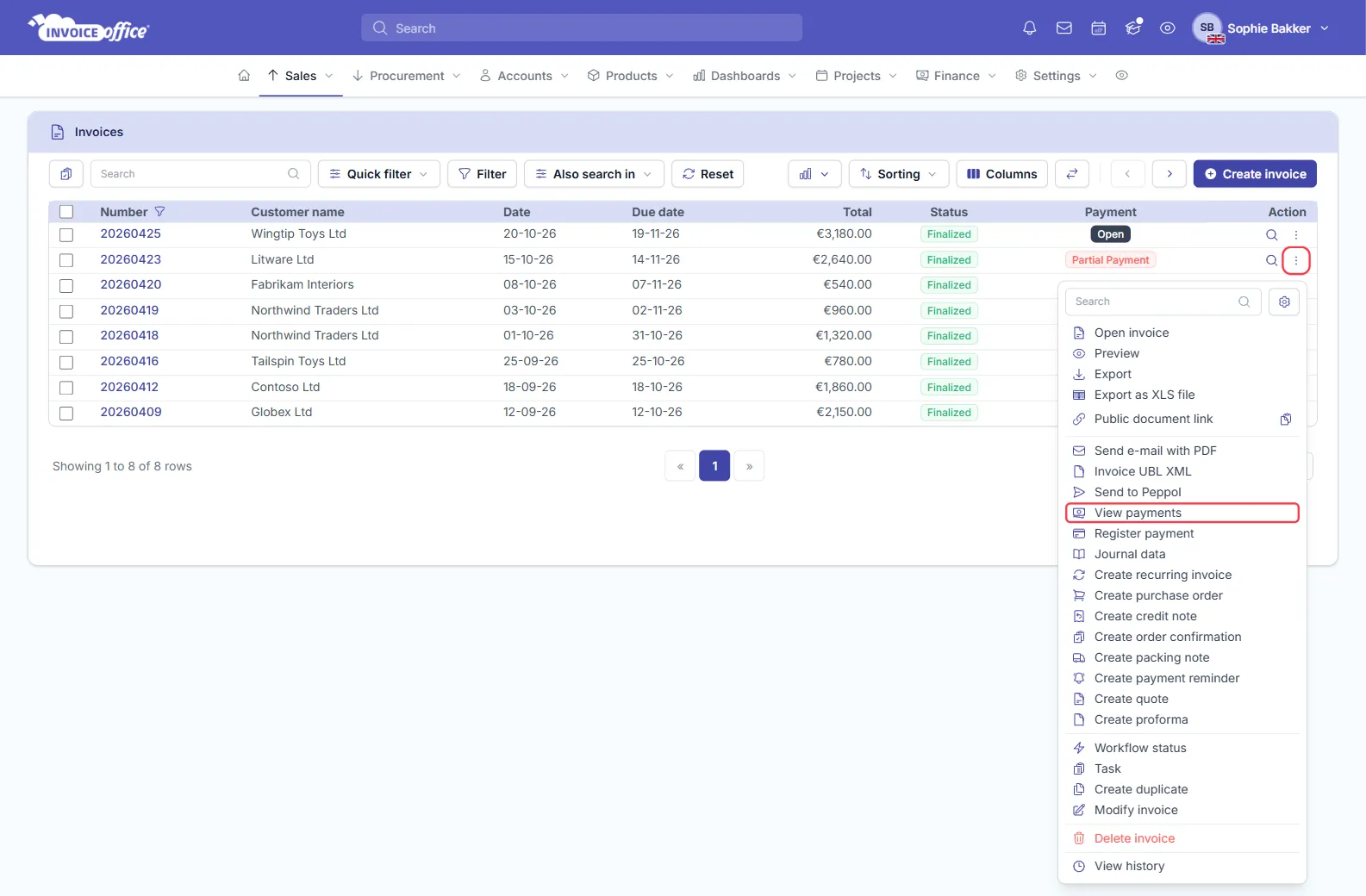
Open the invoice’s ⋮ Action menu and choose View payments to see what has been registered.
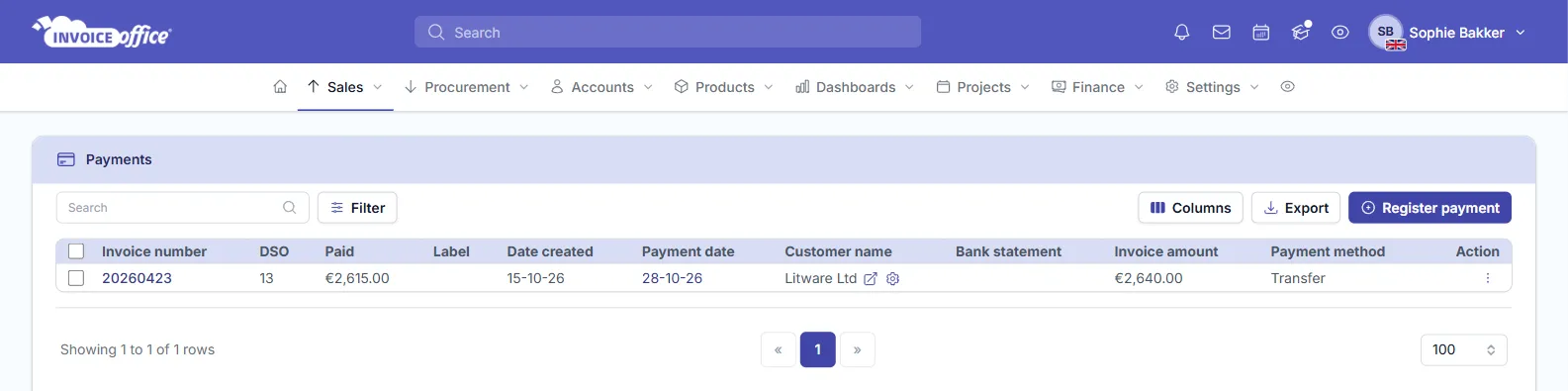
The payments page then lists only that invoice’s payments: here one payment of €2,615.00 in the Paid column against an Invoice amount of €2,640.00.
-
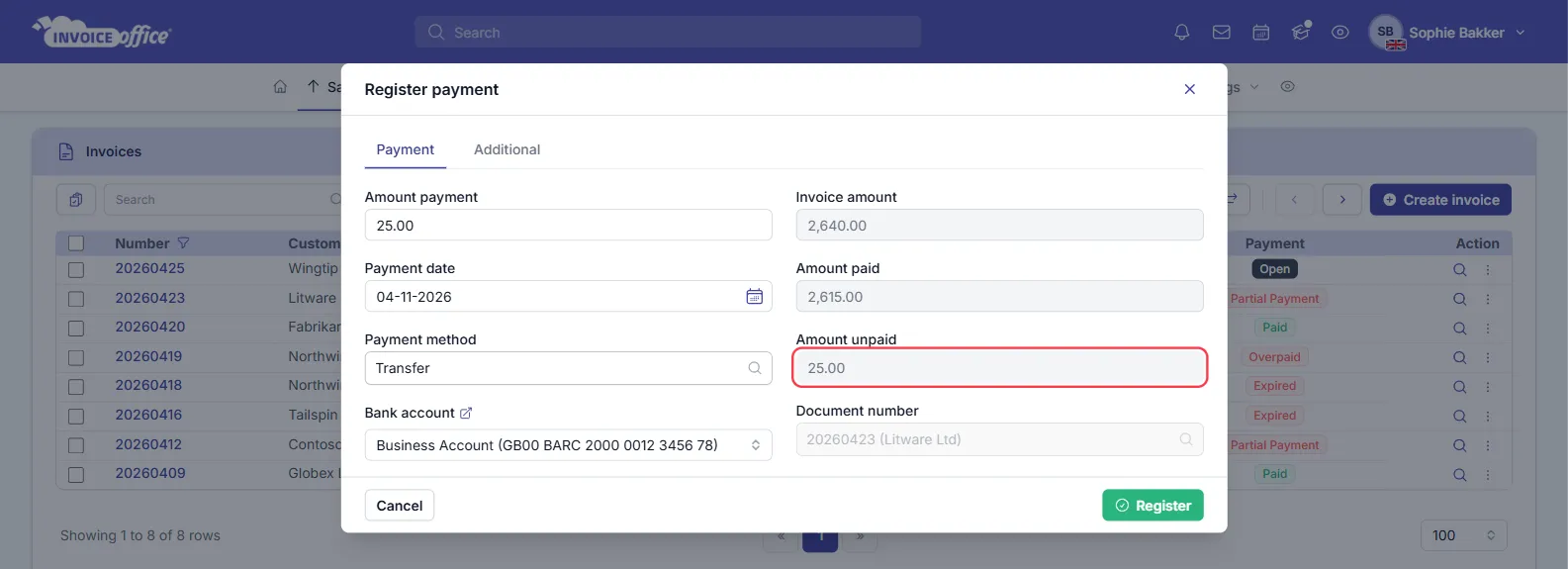
Or choose Register payment and look at the reference fields on the right of the form: Invoice amount, Amount paid and Amount unpaid. If Amount unpaid is not zero, the invoice is not fully paid yet. Close the form with Cancel if you only wanted to check.
Cause 2 — the payment is registered on the wrong invoice
A payment always belongs to one document. If it was registered against another invoice — a different invoice for the same customer, an older invoice with a similar number, or a payment matched from a bank statement to the wrong document — that other invoice is set to Paid (or Overpaid), and the invoice the customer actually paid stays Expired.
To check:
-
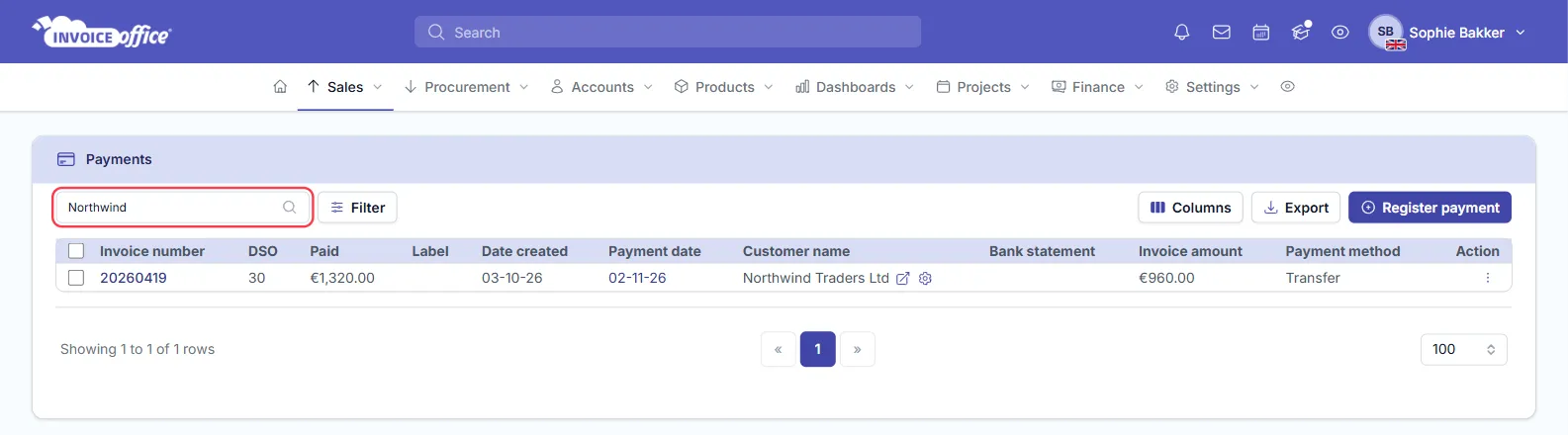
Go to Sales → Payments. Type the customer’s name in Search, and look at the Invoice number the payment is registered on. Compare Paid with Invoice amount: a payment of €1,320.00 on an invoice of €960.00 belongs to a different invoice.
-
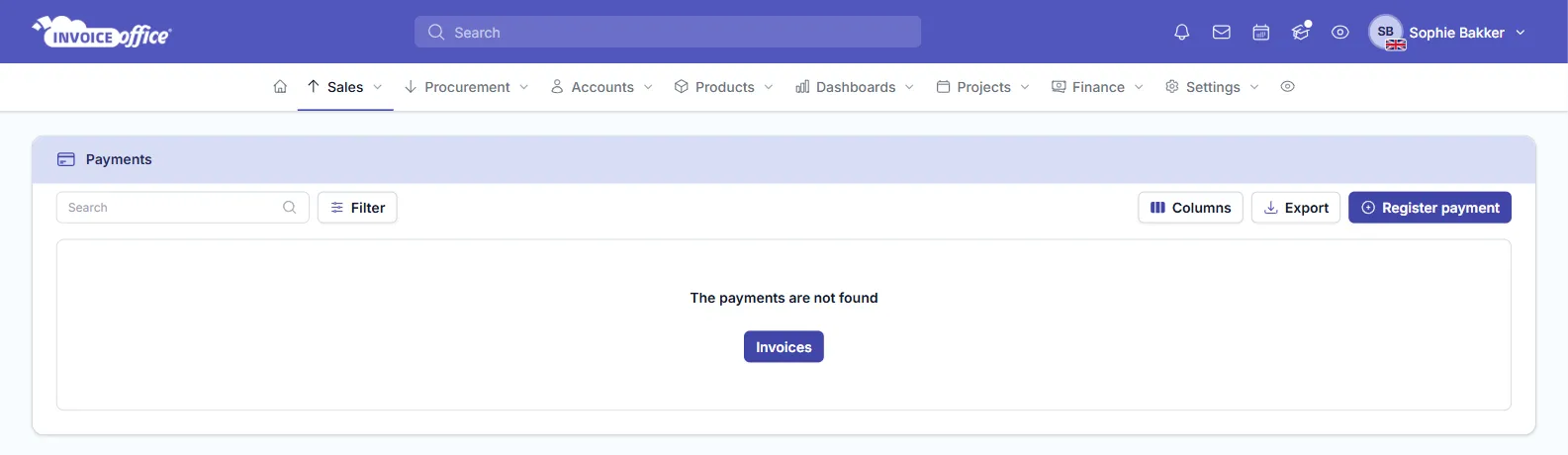
Or open View payments on the overdue invoice: if the payment you expected is not listed there, it was registered somewhere else — or not at all. An invoice without payments shows The payments are not found.
-
Look out for a neighbouring invoice of the same customer that shows Overpaid: that is often where the payment landed. In the list at the top of this article, Northwind Traders Ltd’s invoice 20260419 is Overpaid while their invoice 20260418 is still Expired.
How to fix a partial payment
Pick the option that matches what actually happened:
-
The customer will pay the rest. Leave the invoice as it is. When the remaining amount comes in, choose Register payment again: the Amount payment is filled in with the amount still unpaid. Register it and the invoice turns Paid.
-
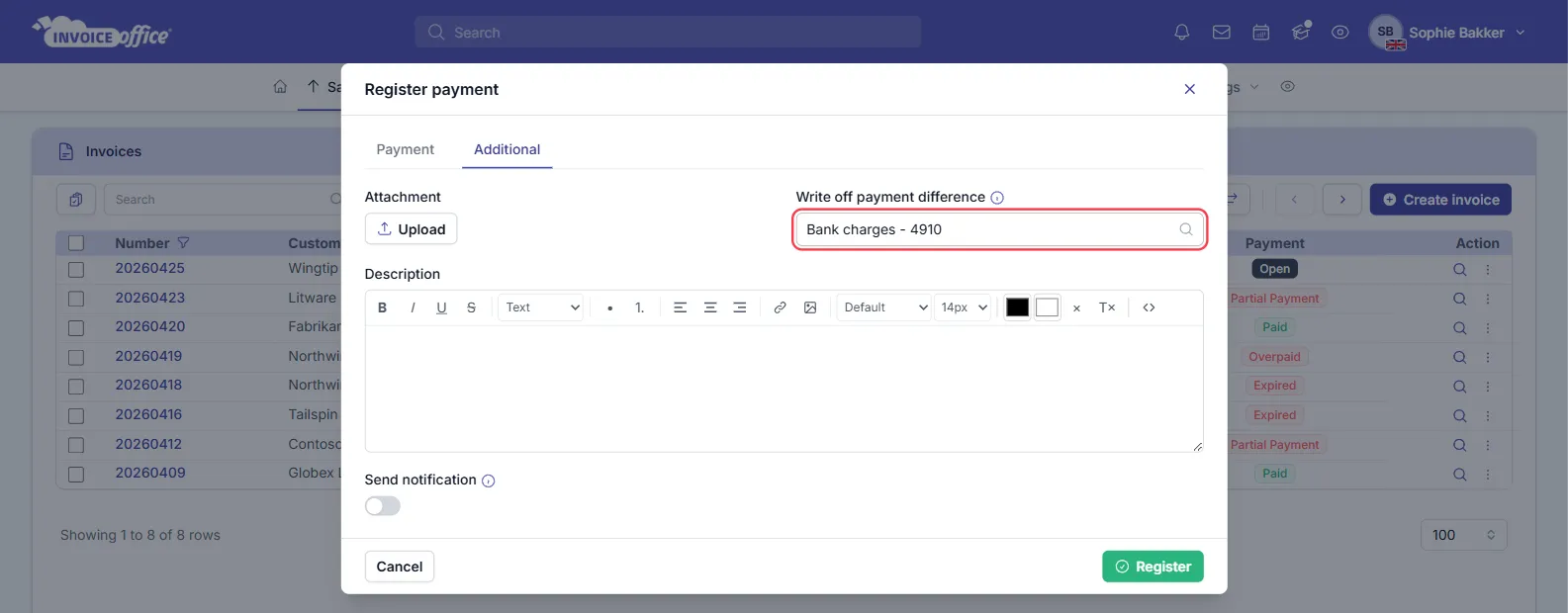
The customer will not pay the rest — for example the difference is bank charges or payment-provider costs. Write the difference off while you register the payment that came in short: enter the amount you actually received in Amount payment, then on the Additional tab pick a cost account under Write off payment difference. The difference is booked to that account and the invoice is settled as Paid.
If you already registered the short payment without a write-off, Modify payment cannot add one. Remove that payment (see How to fix a payment on the wrong invoice, step 1) and register it again with the write-off.
-
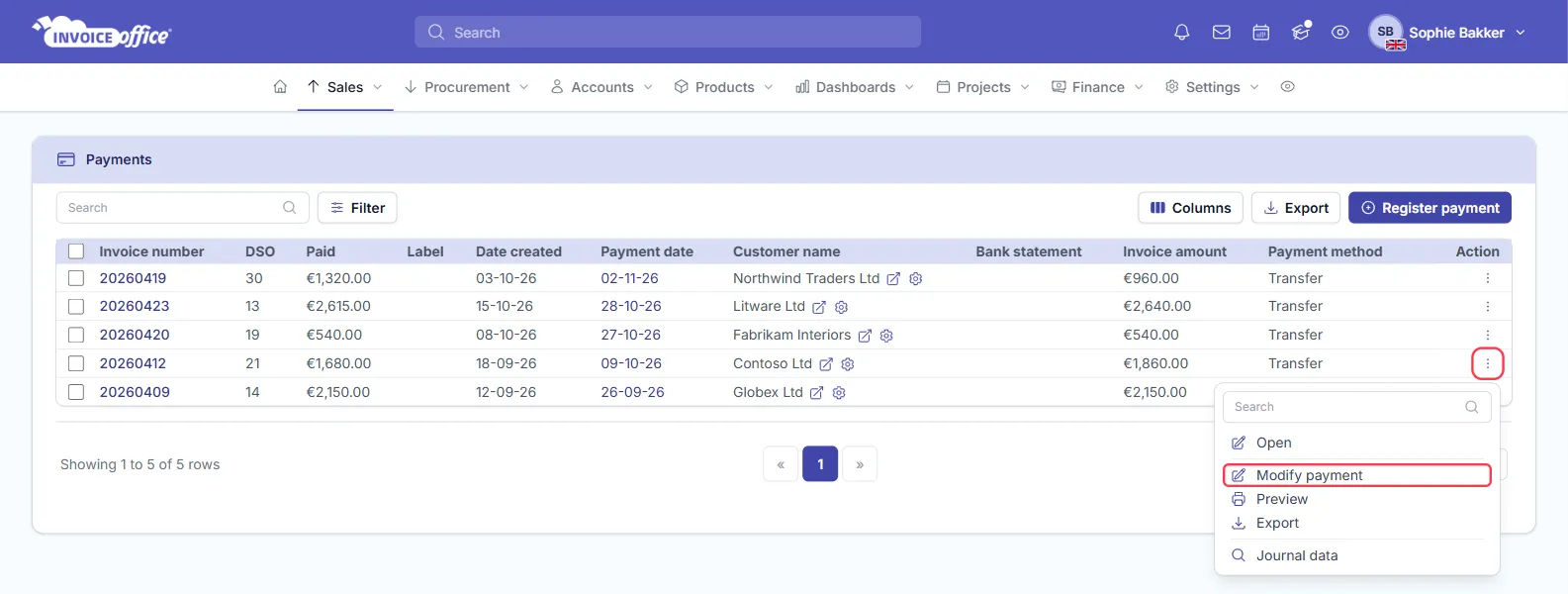
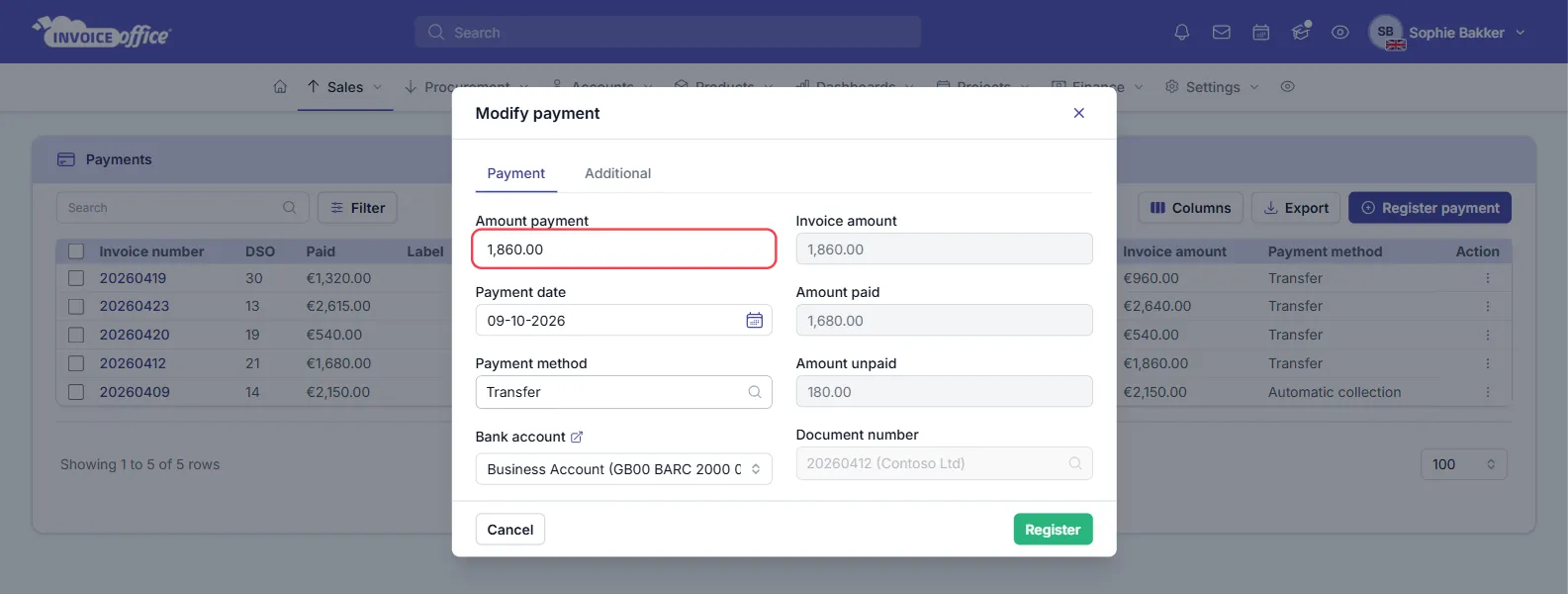
The registered amount itself was typed wrong — for example €1,680.00 was entered for a payment of €1,860.00. Correct the payment instead of adding a new one: go to Sales → Payments (or View payments on the invoice), open the ⋮ Action menu in the payment’s row and choose Modify payment.
Change the Amount payment and click Register. Invoice Office recalculates the status of the invoice and rewrites the journal entries for that payment.
Write off payment difference is only offered when you register a payment, not when you modify one.
How to fix a payment on the wrong invoice
A registered payment cannot be moved to another document — Modify payment lets you change the amount, date, payment method and bank account, but not the invoice it belongs to. So:
-
Go to Sales → Payments, tick the checkbox in front of the misapplied payment and click Remove in the bar that appears above the list. Confirm. The payment’s ⋮ Action menu has no delete option — removing a payment always goes through the checkbox.
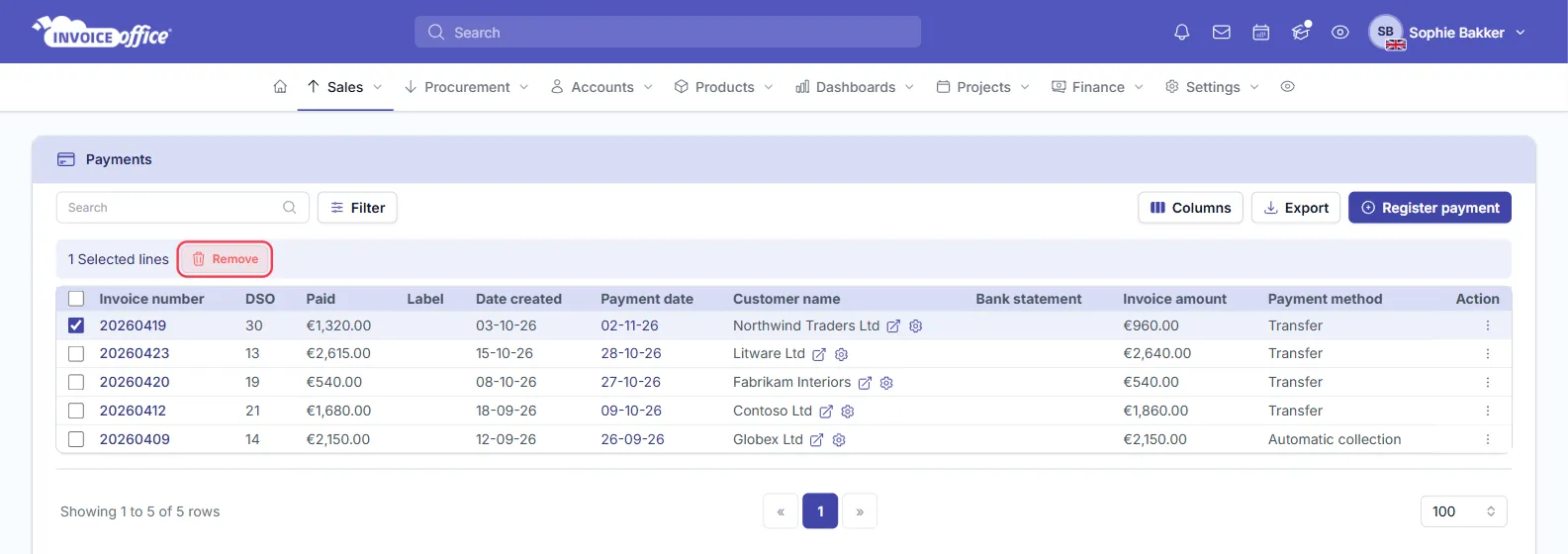
The invoice the payment was wrongly registered on is recalculated: its Amount unpaid goes back up, and it shows Partial Payment (not Open) until it is paid in full.
-
Go to Sales → Invoices, open the ⋮ Action menu of the invoice the customer actually paid and choose Register payment (see the menu in Cause 1). Enter the amount and the real Payment date, and click Register.
The correct invoice turns Paid, and your journal follows both changes. If the payment came from a bank statement line, removing the payment also removes the link to that line — match the line to the right invoice again; see importing and reconciling bank statements.
Still overdue?
- Is the invoice finalized? Only finalized invoices show a status in the Payment column — a concept invoice shows none, even if a payment was registered on it. See why your documents say Draft/concept.
- About to chase the customer? Check View payments on the invoice first, so you don’t send a payment reminder for an invoice that was in fact paid. See how to create a payment reminder.
- Check the totals once more. The amount is compared to the cent: a payment of 1,319.99 against an invoice of 1,320.00 is still a Partial Payment.