Working with multiple currencies in Invoice Office comes down to three settings: your own company currency, a currency per customer, and the currency on each document. Set a customer’s currency once and every invoice you create for them is in it — US dollars for a customer in New York, euros for one in Amsterdam — while your own currency stays the default for everyone else. This guide covers where each currency is set, how exchange rates work, how to create a foreign currency invoice and register its payment, and how foreign amounts show up in your lists and reports.
Set your company currency
Your company currency is the default for every new document. It is one of the things you choose when you set up your company details.
- Go to Settings → Company → Company settings and open the Country tab.
- Choose your Currency Code.
- Decide how amounts are written:
- Currency format — the symbol before the amount ($345) or after it (345$).
- Show currency symbol — print the symbol with amounts, or leave it out.
- Decimal symbol and Thousand sign — a comma or a dot.
- Click Save.
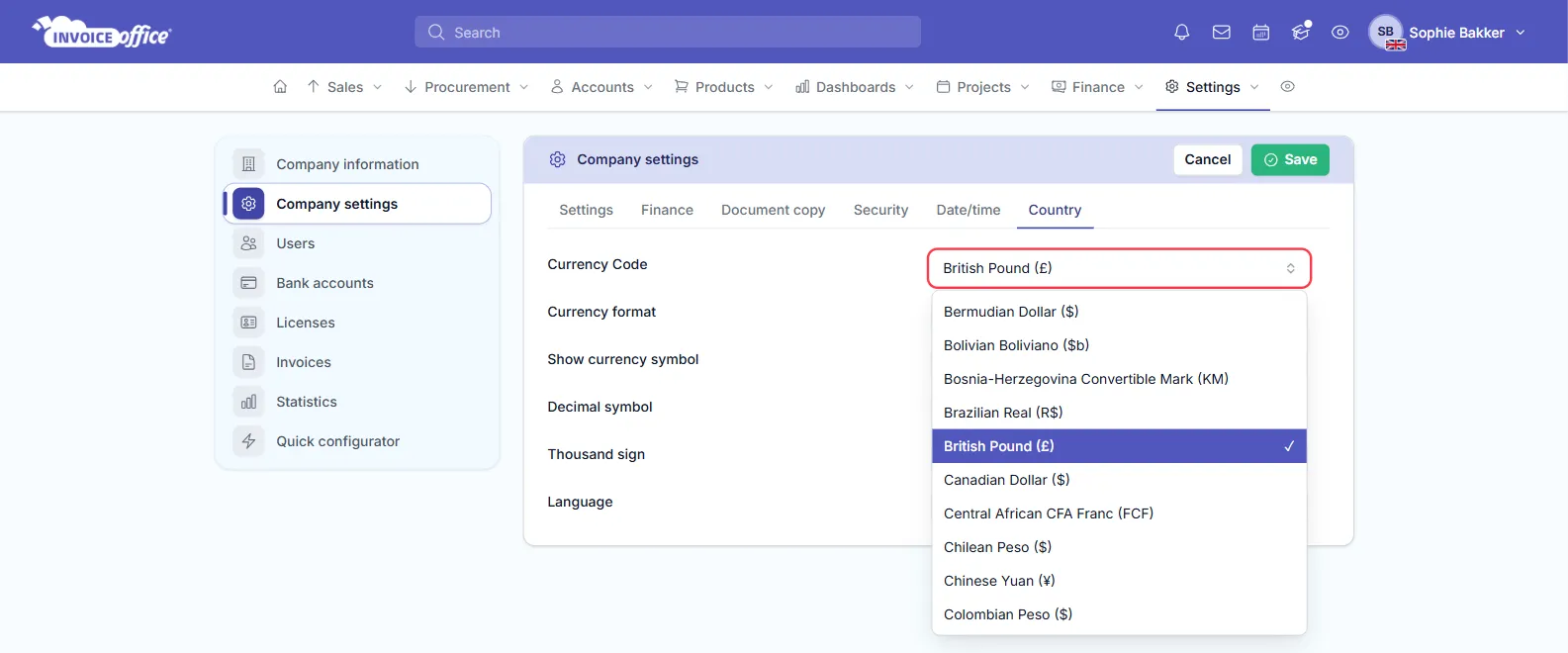
There is no separate list of currencies to switch on: every currency in the Currency Code list is available on customers and documents straight away, shown by name and symbol — for example US Dollar ($).
Give a customer their own currency
Set the currency on the customer once, so nobody has to remember who is billed in what.
- Go to Accounts → Customers and open the customer.
- In the menu on the left, click Settings.
- Under General, choose the customer’s Currency Code.
- Click Save.
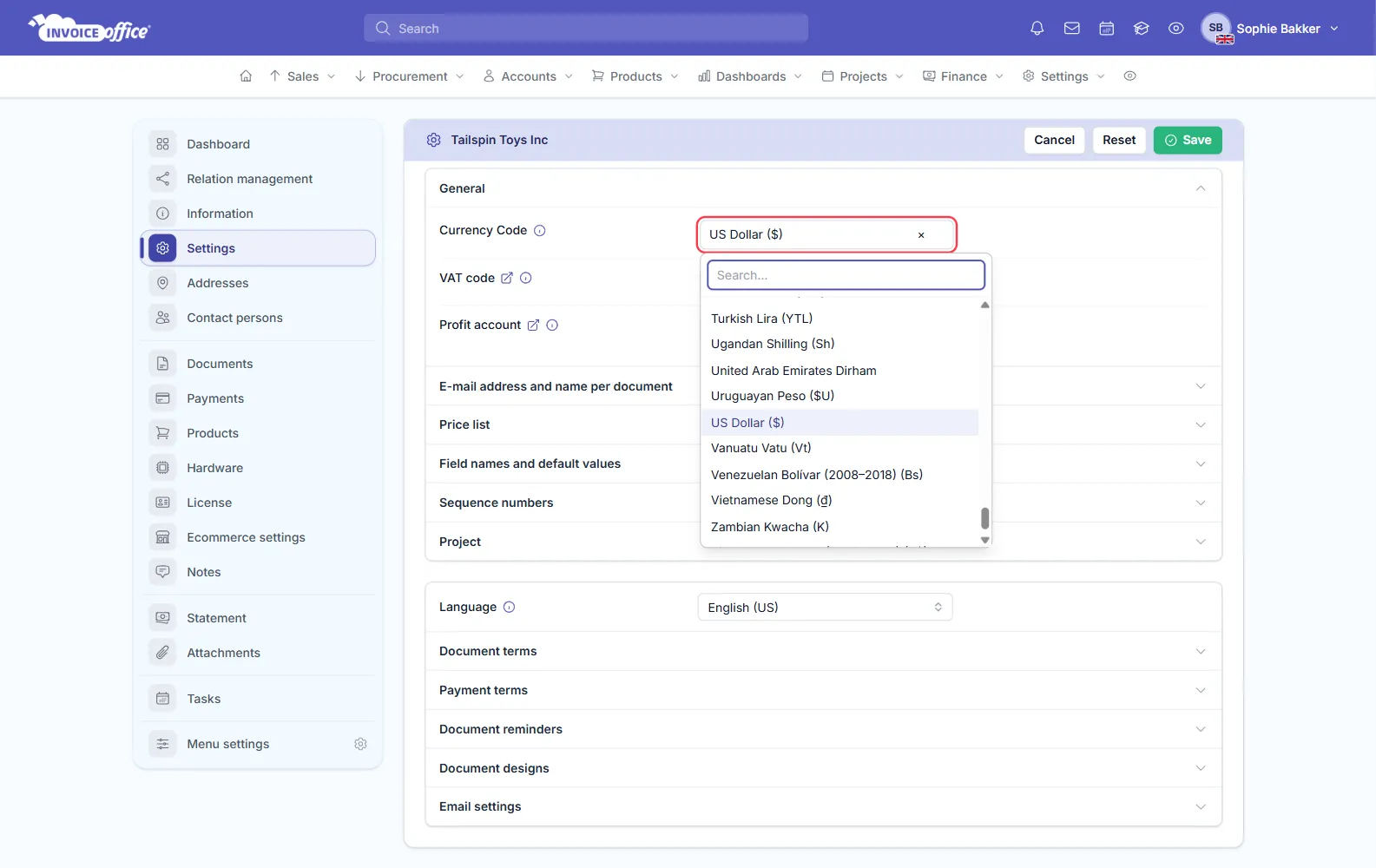
The currency is not on the form you fill in when you create a customer — set it on the customer’s Settings page once they have been created.
How exchange rates work
Invoice Office does not keep a table of exchange rates for you to fill in. What happens to the prices on a document when its currency changes depends on the Google currency converter:
- Switched on — changing the currency of a document looks up the exchange rate and converts the unit price of every product line on it. The totals are recalculated in the new currency.
- Switched off — only the currency symbol changes. The prices stay the numbers they were, so you enter the amounts in the foreign currency yourself.
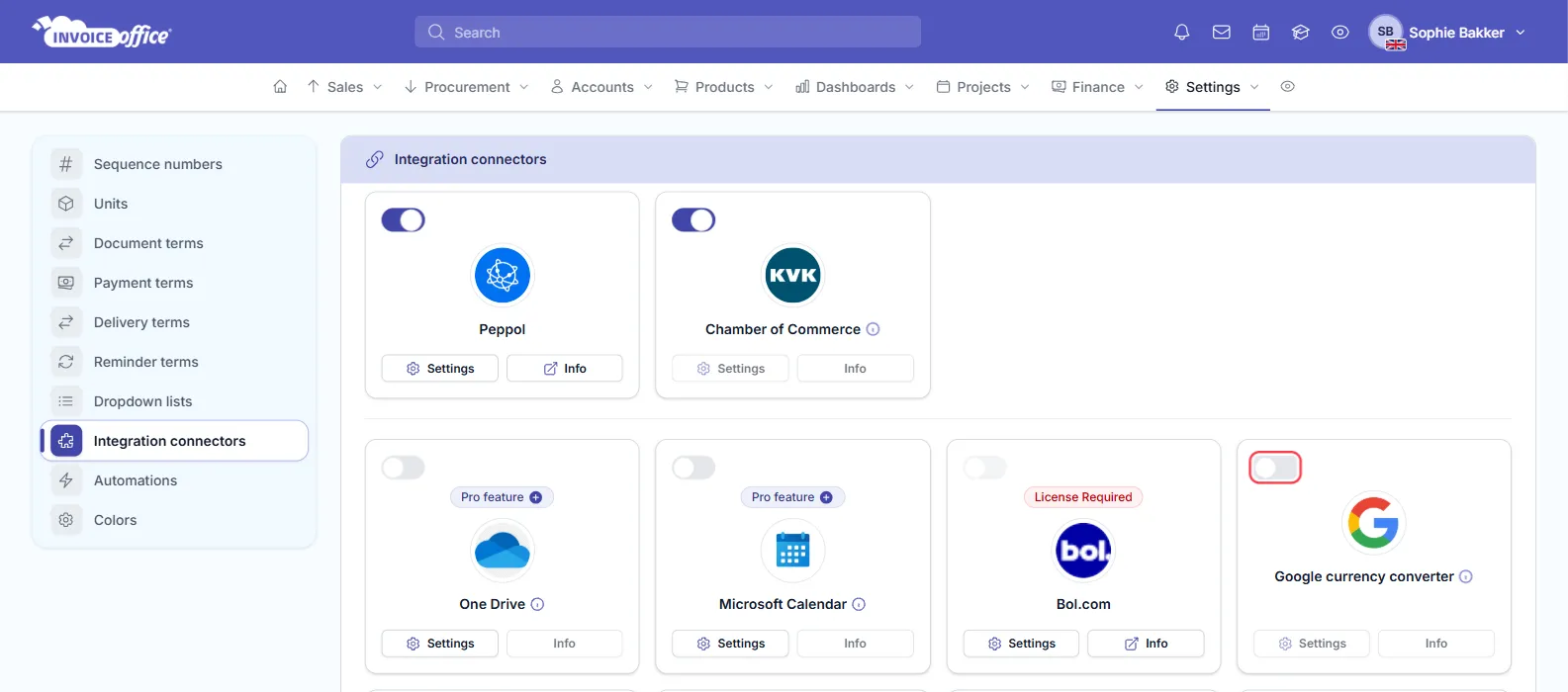
To switch it on, go to Settings → Company → Integration connectors and turn on the switch on the Google currency converter card. It is a free connector.
Set your own price per currency instead
A converted price is whatever the day’s rate produces. If you would rather charge a round amount in each market, give the product its own sale price per currency on the Currency prices tab of the product — see creating and managing products. When you add that product to an invoice in that currency, your own price is used.
A product without a price in the invoice’s currency brings in its normal sale price as it is, not converted. Check those lines before you finalize.
Create an invoice in a foreign currency
- Go to Sales → Invoices and create a new invoice — the full steps are in create an invoice.
- Choose the Customer. If the customer has a Currency Code, the invoice switches to that currency.
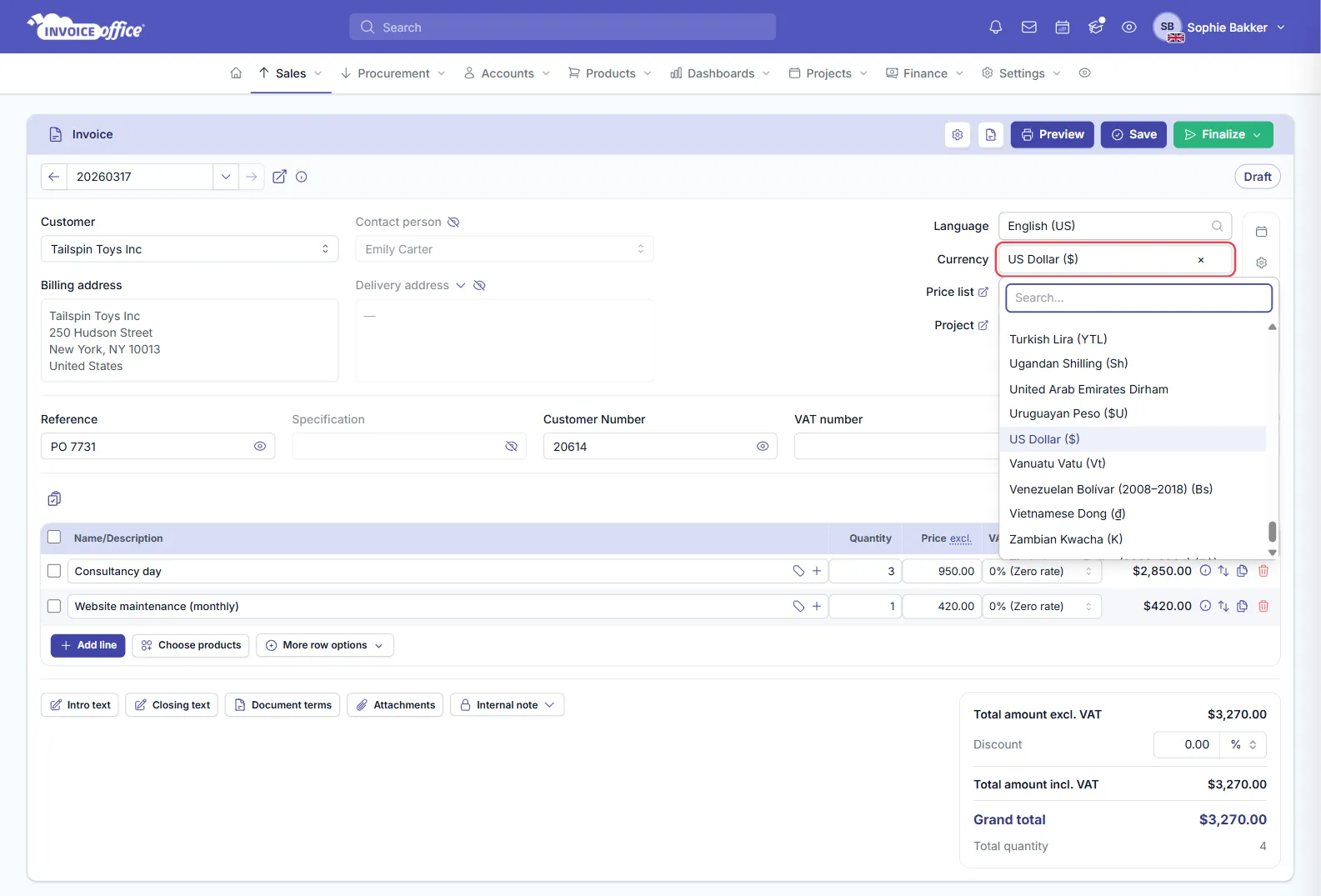
- To check or change the currency, open the third tab in the icon bar on the right of the invoice (the sliders icon). It holds Language, Currency, Price list and Project. Pick the Currency you want to invoice in.
- Add your product lines and check the prices and totals.
- Save the invoice, or Finalize it when it is ready to send.
The order matters when the converter is on: choosing the currency after you have added lines converts those lines, while lines you add after the currency is set come in at the product’s price for that currency — or its normal price, unconverted, if it has none.
If you pick a Price list in a different currency from the invoice, Invoice Office does not apply its prices and tells you so. Use a price list in the same currency as the invoice.
Register a payment in a foreign currency
A payment is registered in the currency of the invoice it belongs to — there is no currency or exchange rate to choose on the payment form.
- Open the finalized invoice’s Action menu and choose Register payment.
- Amount payment is filled in with the amount still unpaid, in the invoice’s currency. Enter the amount the customer paid in that currency, not the amount that arrived in your bank after conversion. The amounts on the form are shown without a currency symbol.
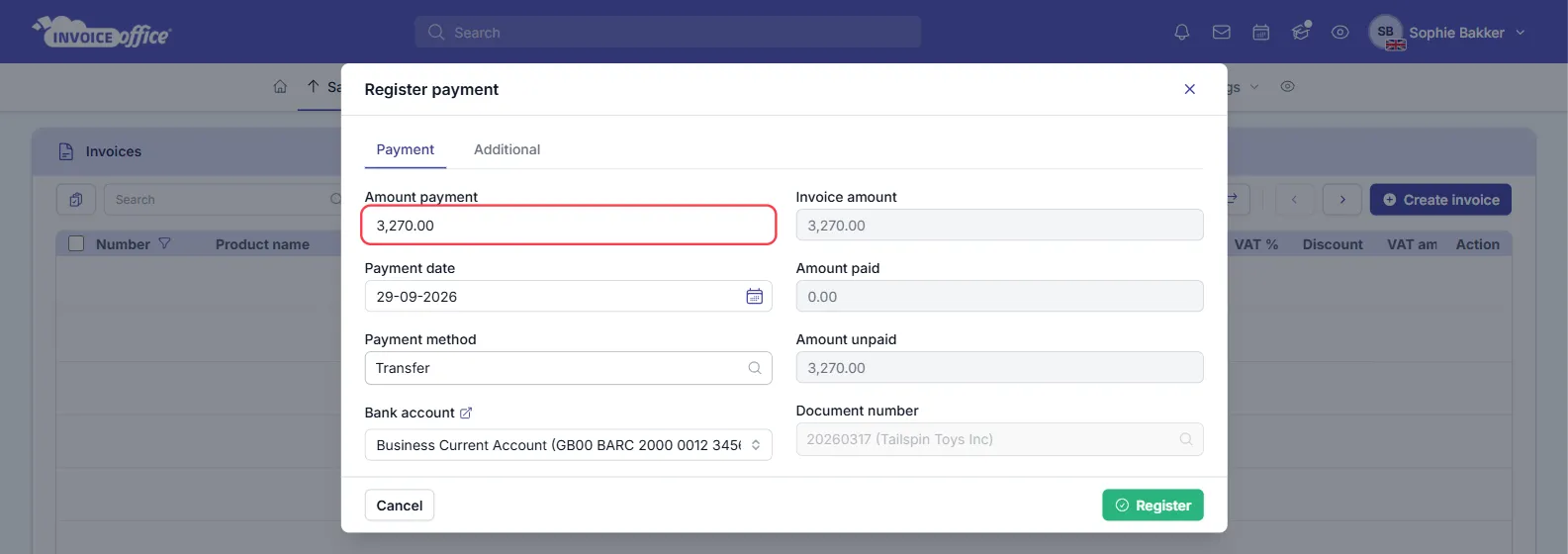
- Set the Payment date, Payment method and Bank account, and click Register.
If the customer paid the full invoice but conversion or bank charges mean a small difference remains, use Write off difference on the Additional tab to book it to a cost account. Everything else about payments — part payments, modifying or deleting one — works as described in how to register or modify a payment.
See currencies in your lists and reports
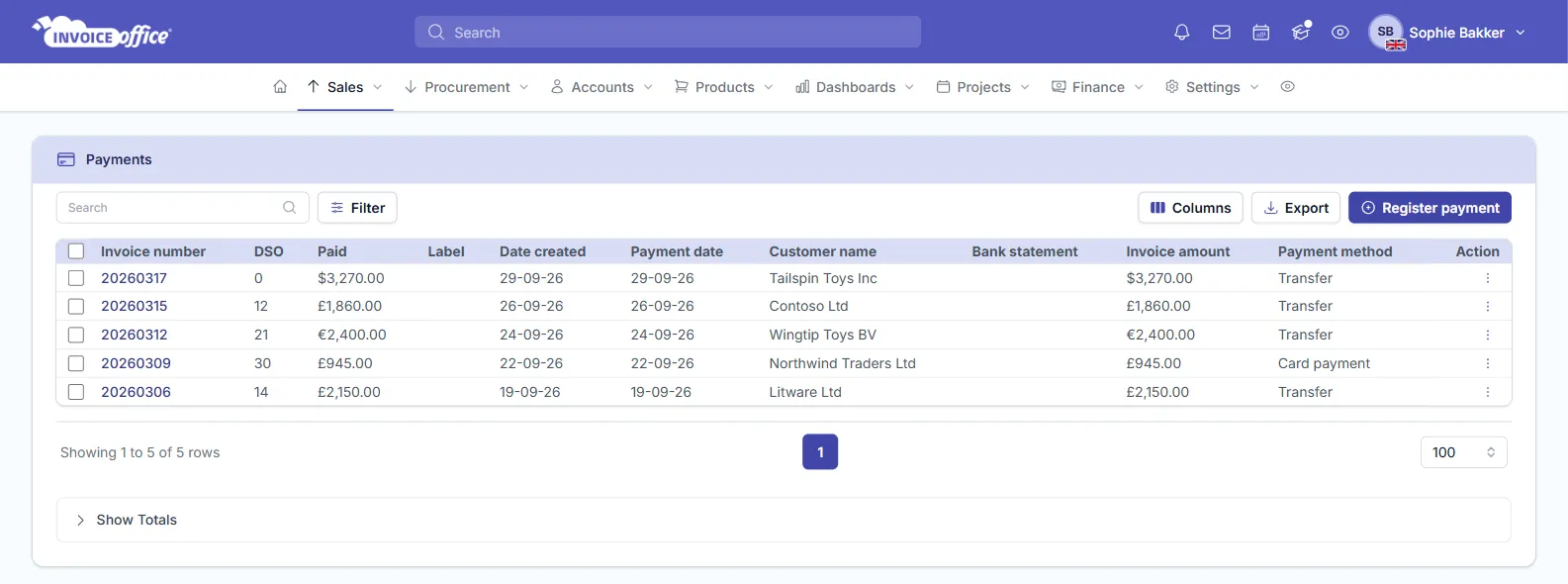
- Invoice and payment lists — Sales → Invoices and Sales → Payments show every amount in the document’s own currency, with its symbol, so a dollar invoice reads as dollars.
- Dashboards and financial reports — the finance dashboard, Profit & loss and the other reports add up amounts as they are on the documents and show them with your company currency symbol. Foreign amounts are not converted to your company currency first, so if you invoice often in another currency, keep that in mind when you read the totals.