To change the invoice language in Invoice Office, pick a different Language on the document itself — an invoice, quote, order confirmation or any other sales document. If a customer should always receive their documents in one language, set that language once on the customer and every new document for them starts in it. This guide covers both invoice language settings, lists the languages you can choose, and explains what the language does and does not change on the document.
Change the language of one document
- Open the invoice, quote or order confirmation — or create a new one from Sales.
- In the icon bar on the right of the document, open the Price list tab (the third icon). It holds Language, Currency and Price list (and Project on invoices, if you use projects).
- Pick the language from the Language list.
- Click Save. A document that has already been saved is also saved automatically after a change.
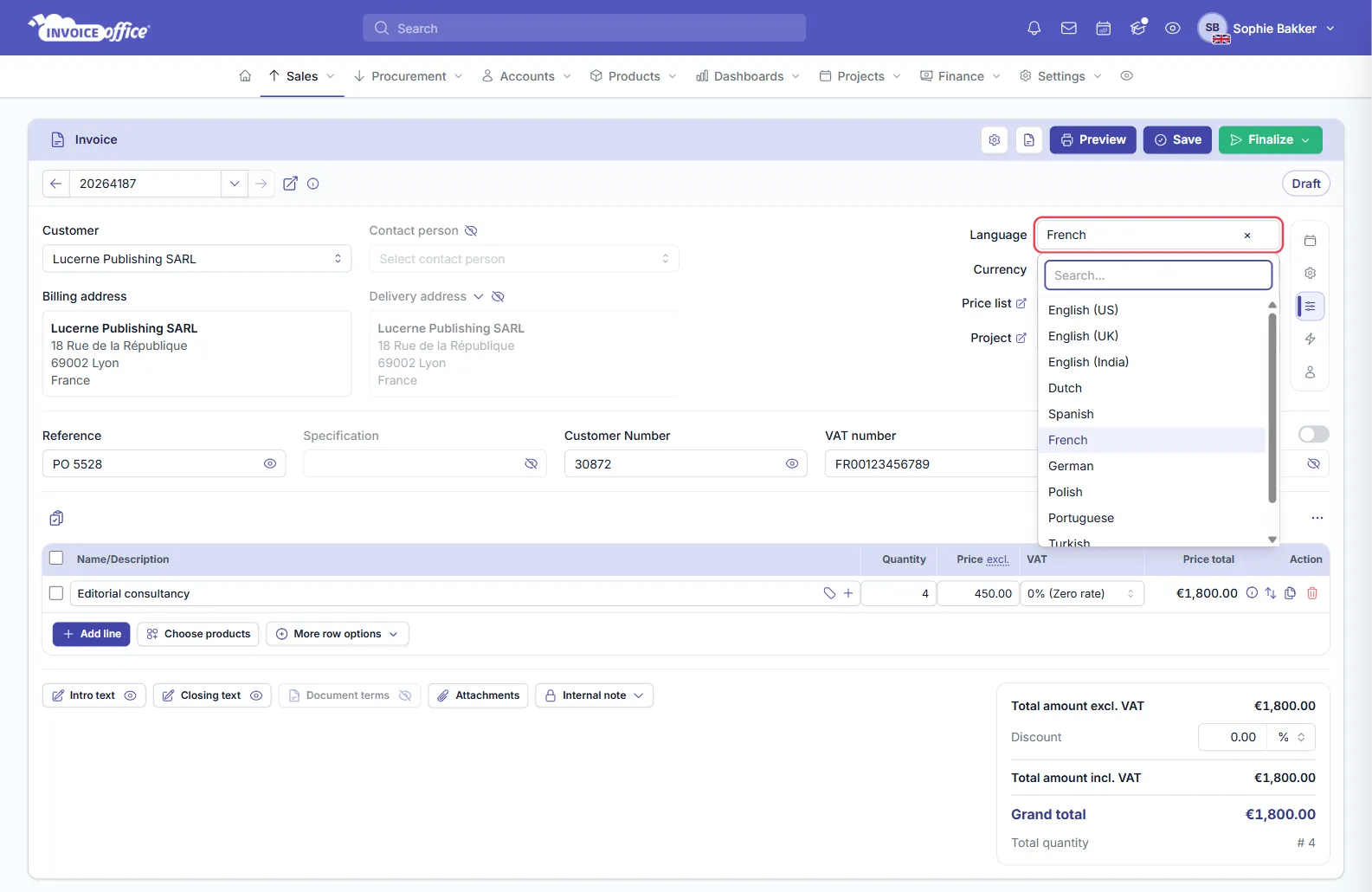
The language can only be changed while the document is still a concept. Once it is finalised the document is read-only, so set the language before you finalise.
What switches with the language
As soon as you pick a new language, Invoice Office swaps everything that is stored per language for the version in that language:
- the Document design — the layout, labels and column headings printed on the document;
- the Document term, Payment term, Delivery term and Email Template, where you have one in that language — and on invoices and quotes the Document reminder too;
- the name and description of product lines, when the product has a translation in that language (see creating and managing products).
You can check the result on the Settings tab (the gear icon) of the same icon bar.
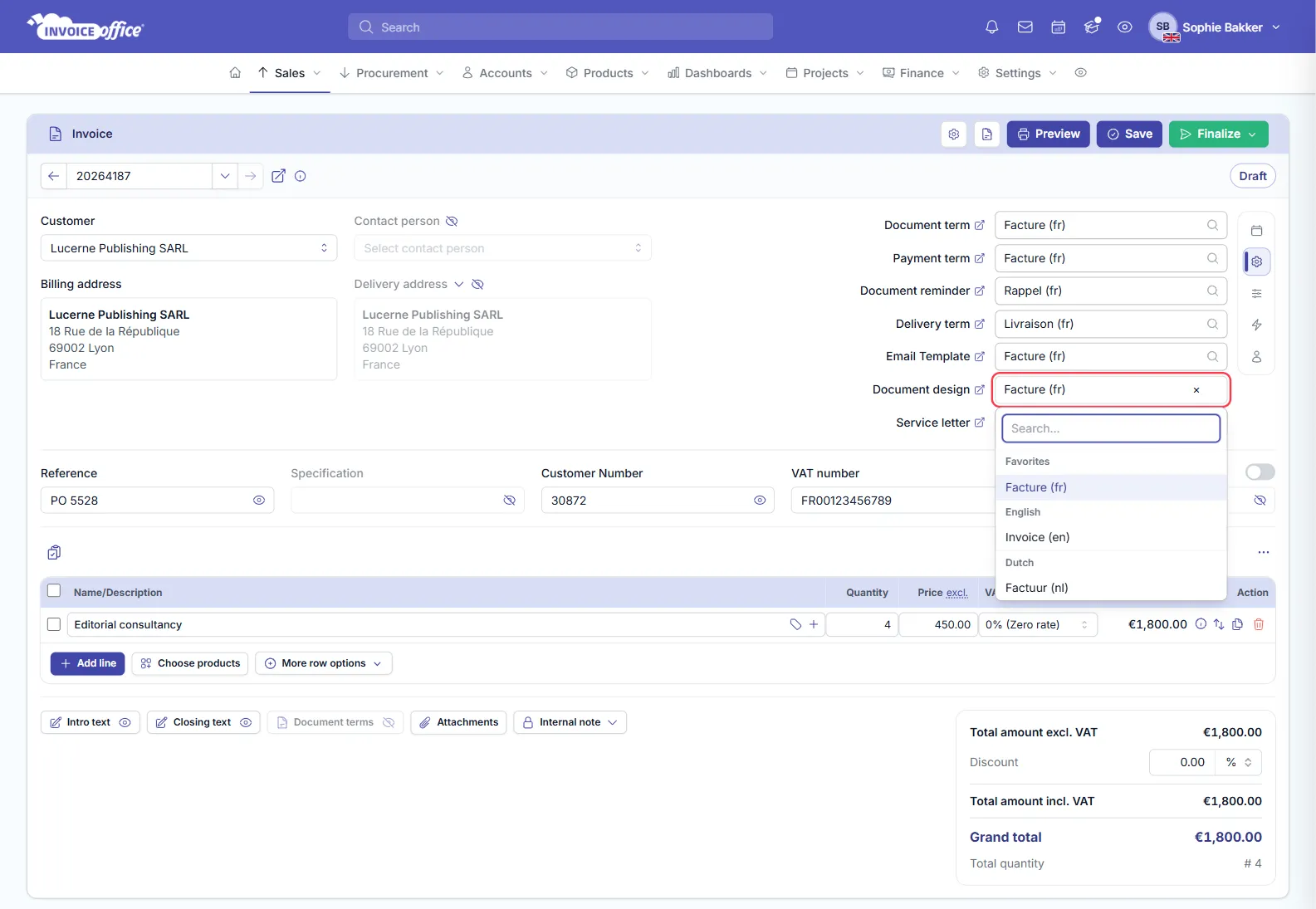
If a type has nothing in the new language — no delivery term in French, say — the current one stays selected, so it is worth glancing over this tab after a switch.
How the document design language relates to the document language
Document designs are held per language: each design belongs to one document type and one language, and you manage them under Settings → Documents → Document designs with the language selector at the top (see create and manage your document design templates).
The two settings follow each other:
- Change the document language and the design switches to one of your designs in that language. If the current design is already in that language, it stays.
- Pick a design in another language from the Document design list and the document language switches to match.
The Document design list shows the designs in the document’s current language first, under Favorites, followed by the other languages, each under its own heading. If a language has no design yet, create one first — otherwise there is no layout or wording to switch to. To reword a label in one language without touching the others, see how to change a label name.
Set a default language per customer
Set the language once on the customer and every new document you create for them starts in it.
- Go to Accounts → Customers and find the customer.
- Open their Action menu and choose Settings. The Customer document settings page opens.
- Choose a Language in the panel above Document terms, Payment terms, Document reminders, Document designs and Email settings. The info icon reads Apply this language to the settings below.
- Click Save.
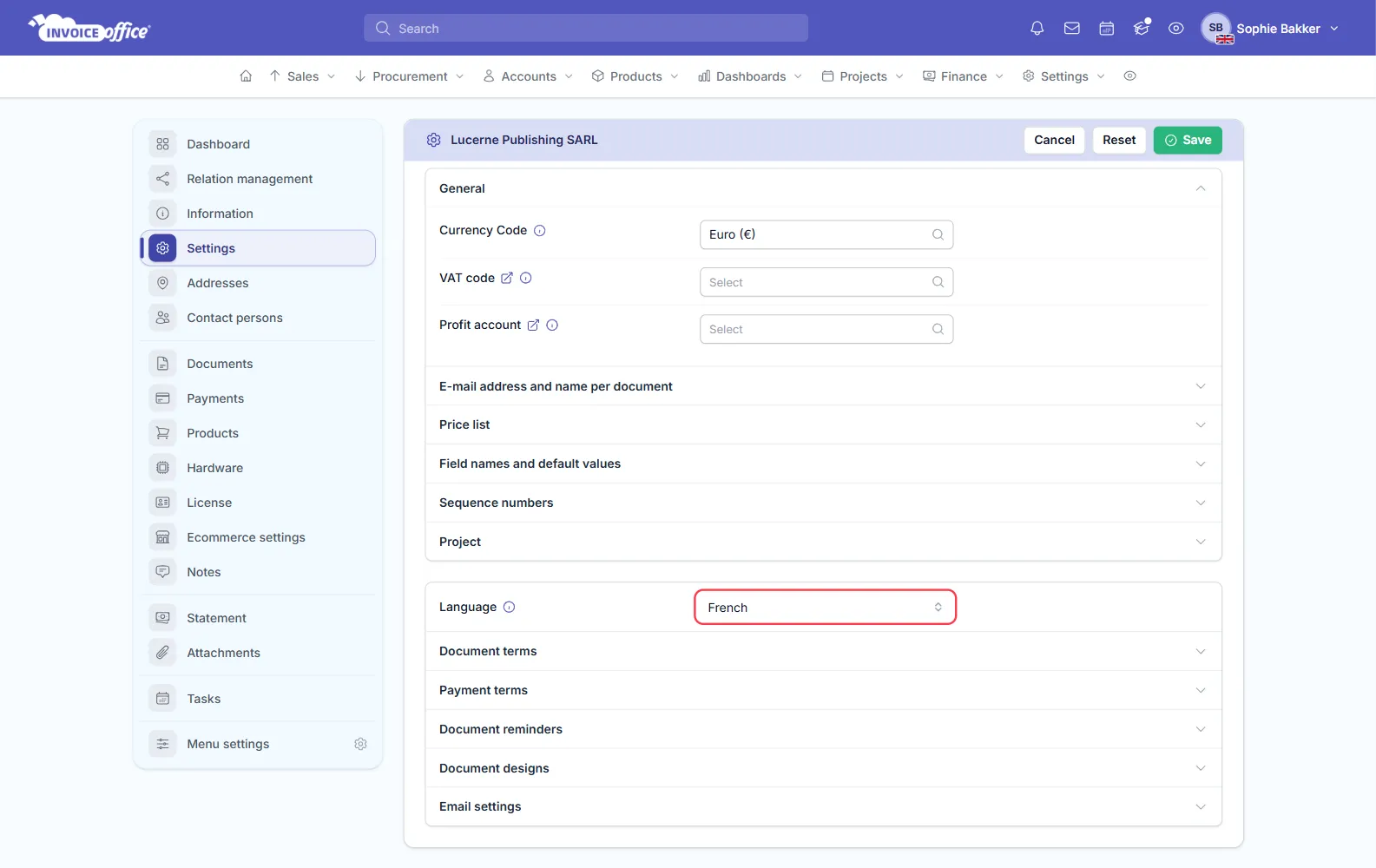
When you select that customer on a new invoice, quote or order confirmation, the document language is set to theirs and the matching design, terms and email template follow. You can still change the language on a single document as described above — the customer setting is only the starting point.
If a customer has no language set, a new document starts in your own language: the Language on the Country tab of your Account settings (in the menu under your name), or, if you have not set one, the Language on the Country tab of Settings → Company → Company settings. See set up your company details.
The same customer settings page is also where you give a customer their own design — see choose a design template per customer.
Which languages are available
You can choose from:
- English (US), English (UK) and English (India)
- Dutch
- Spanish
- French
- German
- Polish
- Portuguese
- Turkish
- Ukrainian
The same list is used for the document, the customer, your company and your own account, so a customer can receive documents in a language you do not work in yourself. More on this in multi-language invoicing and the FAQ which countries and languages are supported.
What the language changes on the document — and what it does not
Changes with the language:
- Labels and column headings — taken from the document design for that language. Where the design has no wording of its own, Invoice Office uses its standard translation in the document’s language.
- Terms, reminder text and the email template, where you have a version in that language.
- Product names and descriptions, where a translation exists.
Does not change with the language:
- Date format — this follows your Date Format setting, not the language.
- Number and currency format — the decimal symbol, thousand sign and currency are set separately, so you can bill a French customer in euros or in pounds. See how to manage multiple currencies.
- Country names already in the address. They are written in the language that applies when you select the customer, and changing the language afterwards does not rewrite them.
- VAT legal text already on the document. The legal text of a VAT code is fetched in the document’s language when you choose that VAT code on a line, and it is not replaced when you change the language afterwards. Set the language first, then add your lines. See how can I change the VAT for setting legal texts per language.
Your own screen does not change either: the editor stays in the language you work in, and only the document your customer receives is in theirs.
For any other information, contact us.