Is the wrong VAT rate applied to an invoice in Invoice Office? Then one of the settings the VAT comes from is off. Invoice Office doesn’t guess a percentage: every invoice line carries a VAT code, and that code comes from the product, from the customer’s settings, or from the customer’s country. This article shows the order in which Invoice Office picks the code, how to check each source — the product, the customer and the reverse charge — and how to correct an invoice that already has the wrong rate.
How Invoice Office picks the VAT rate on a line
When you choose a customer on an invoice and add products, each line gets its VAT code in this order:
- A VAT code in the customer’s settings. If the customer has one, every line uses it, whatever the products say.
- The customer’s country — only if your own company is in an EU country. A customer whose billing address is in another EU country gets your Reverse charge within EU code (0%) on every line. A customer outside the EU gets your Outside EU code (0%) on every line.
- The product’s VAT code. For a customer in your own country, a line added from a product takes the VAT code set on that product.
A line you type without a product keeps the line’s default VAT code. Whichever code a line gets, you can always change it on the line by hand.
Check the VAT code on the product
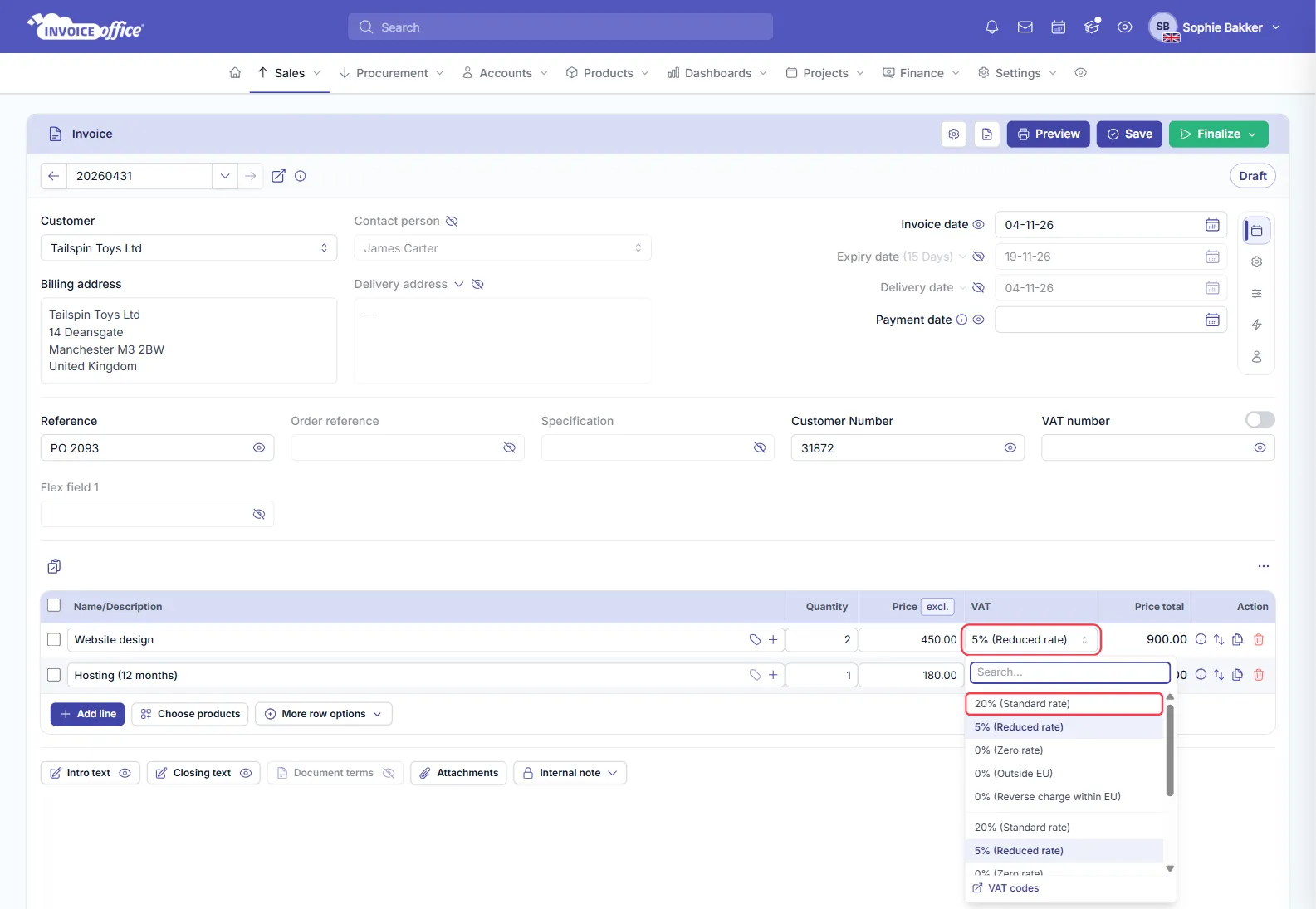
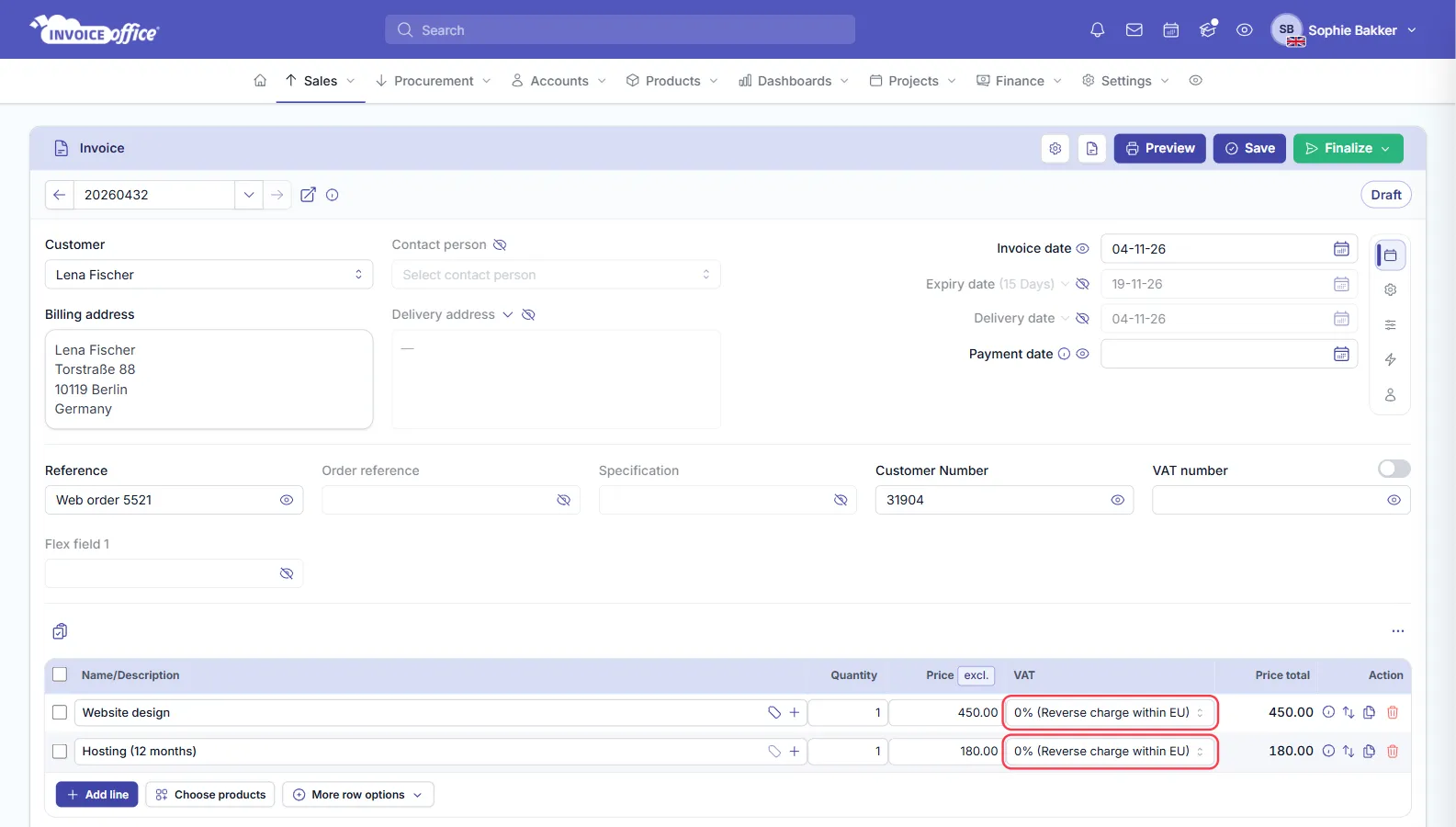
If a product always comes out at the wrong rate — like Website design at 5% instead of 20% above — the product carries the wrong VAT code.
- Go to Products → Products and open the product.
- On the Product information tab, scroll to Price.
- Check the VAT field under Sales price. Pick the right code.
- Click Save.
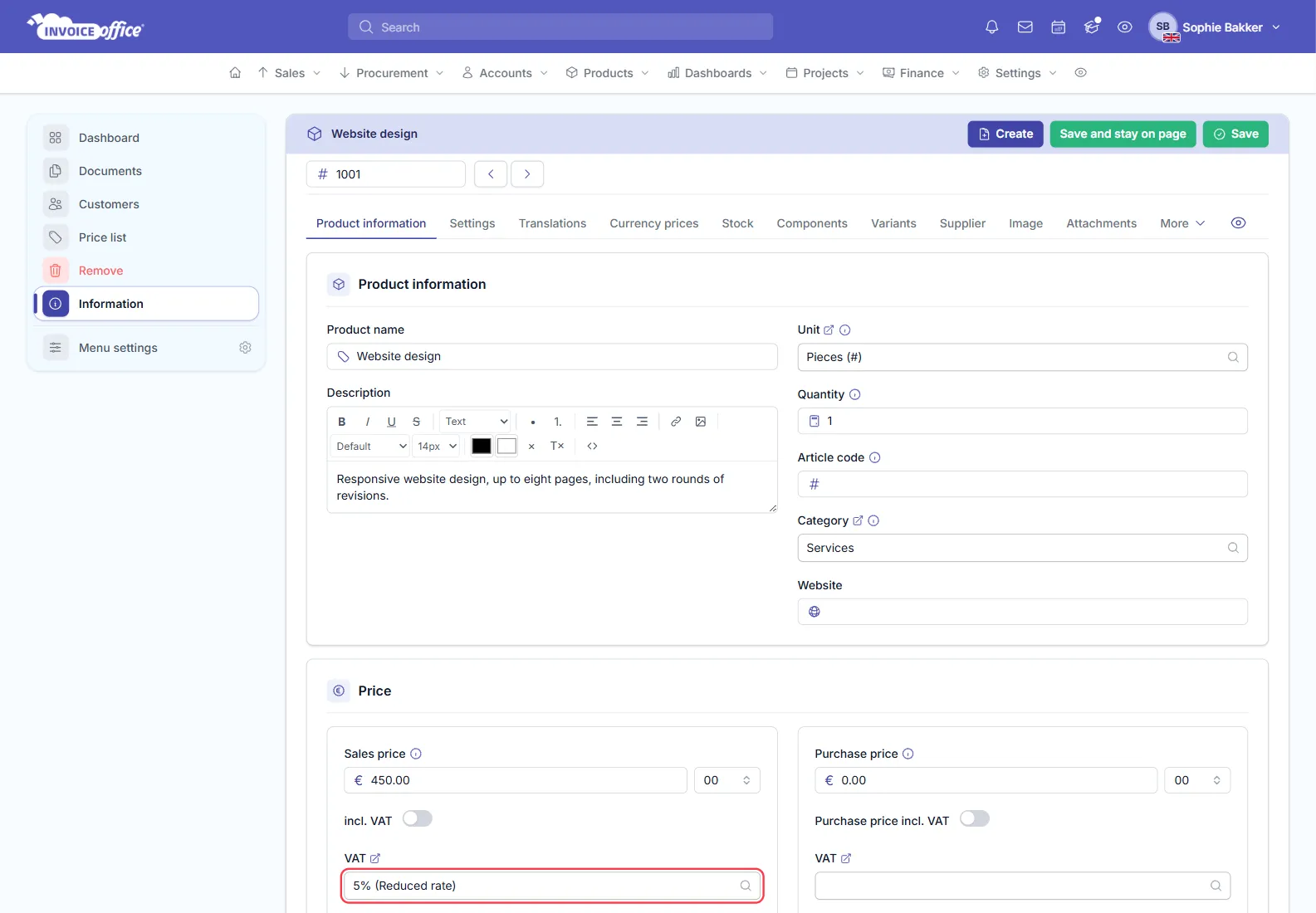
If the VAT field is empty, lines from this product keep the line’s default code. The VAT field under Purchase price is the code for purchases, not for your invoices. More on product settings in creating and managing products.
Check for a VAT code on the customer
A VAT code in the customer’s settings wins over every product. That’s useful for a customer who is always treated differently — but an old or wrong code here puts every line of every invoice for that customer on the wrong rate.
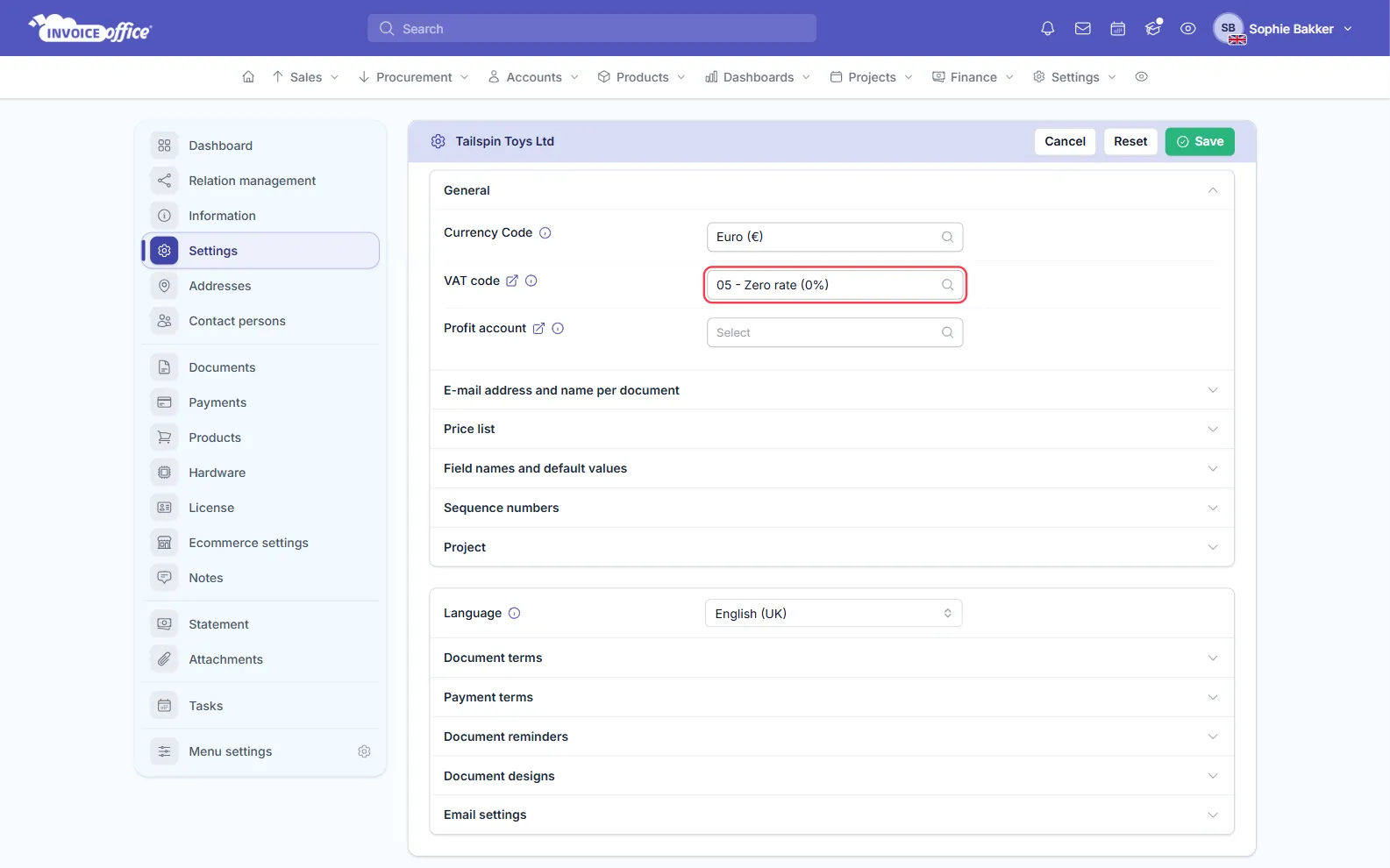
- Go to Accounts → Customers and open the customer.
- Click Settings.
- Under General, look at VAT code.
- Clear it to let the products and the customer’s country decide again, or pick the code this customer must always get. Click Save.
Check the customer’s country — business or private customer
For a company in an EU country, the customer’s billing address country decides whether the reverse charge or the outside-EU code applies. If the customer has no billing address, the delivery address country is used, and if there’s none, your own country.
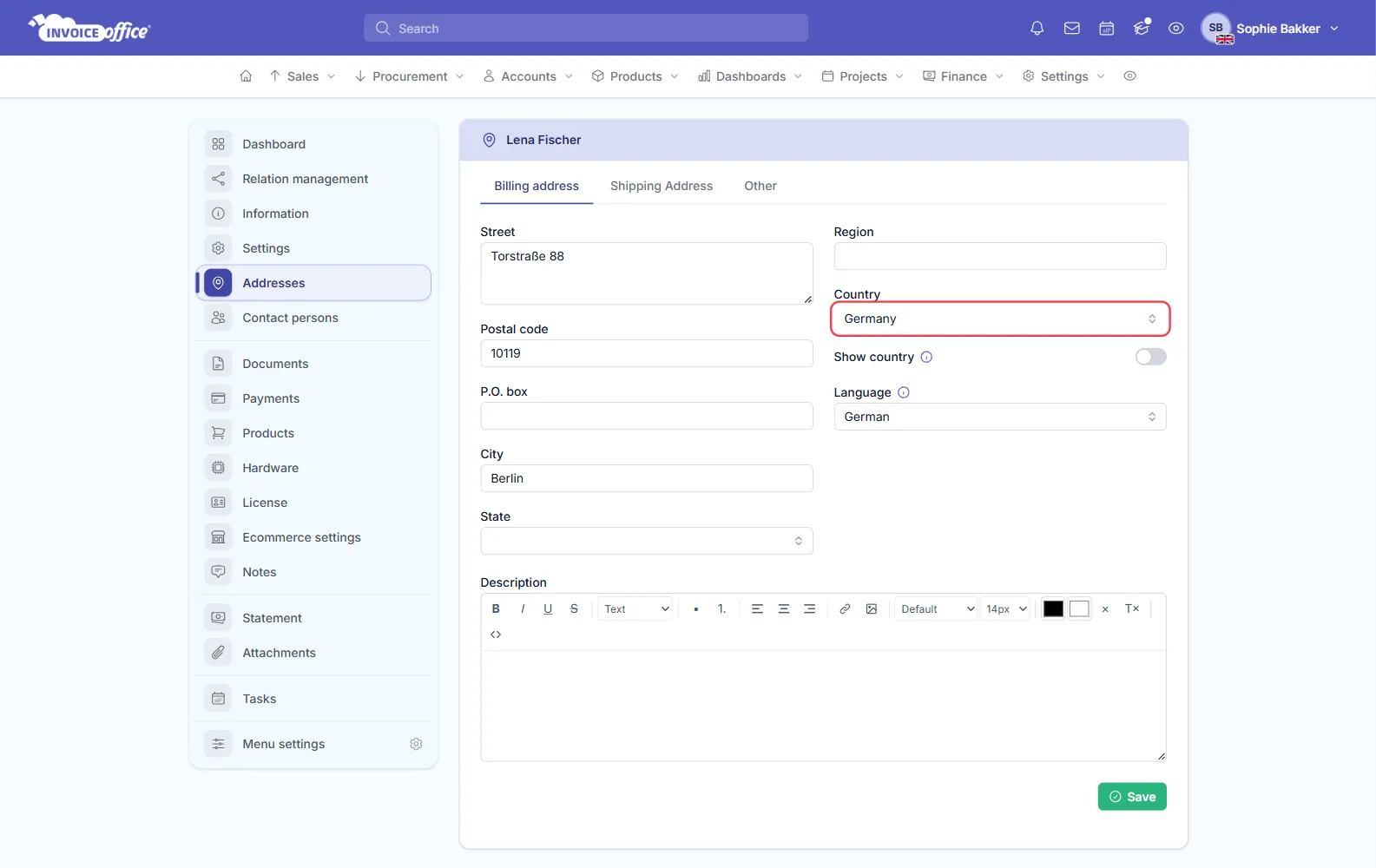
- Go to Accounts → Customers, open the customer and click Addresses.
- On the Billing address tab, check Country. A wrong country here gives the wrong VAT on every invoice — a UK customer saved as Germany is reverse-charged at 0%, for example.
- Correct it and click Save.
Invoice Office doesn’t tell business customers from private customers. It has no business or private setting on a customer and doesn’t check the VAT number when it applies the reverse charge. So a private customer in another EU country is reverse-charged at 0% too, while consumers normally have to be charged VAT.
To charge VAT to a private customer abroad, set the code they must get in their settings, as in Check for a VAT code on the customer. That code then wins over the reverse charge on every invoice. Before you rely on the reverse charge for a business customer, check their VAT number; see what a VAT number is and how to check it.
Check the reverse charge and OSS
The reverse charge covers the whole invoice. It is a document-wide code: once it applies, every line gets it, and lines you add later take it too. You can’t reverse-charge one line and charge VAT on another on the same invoice.
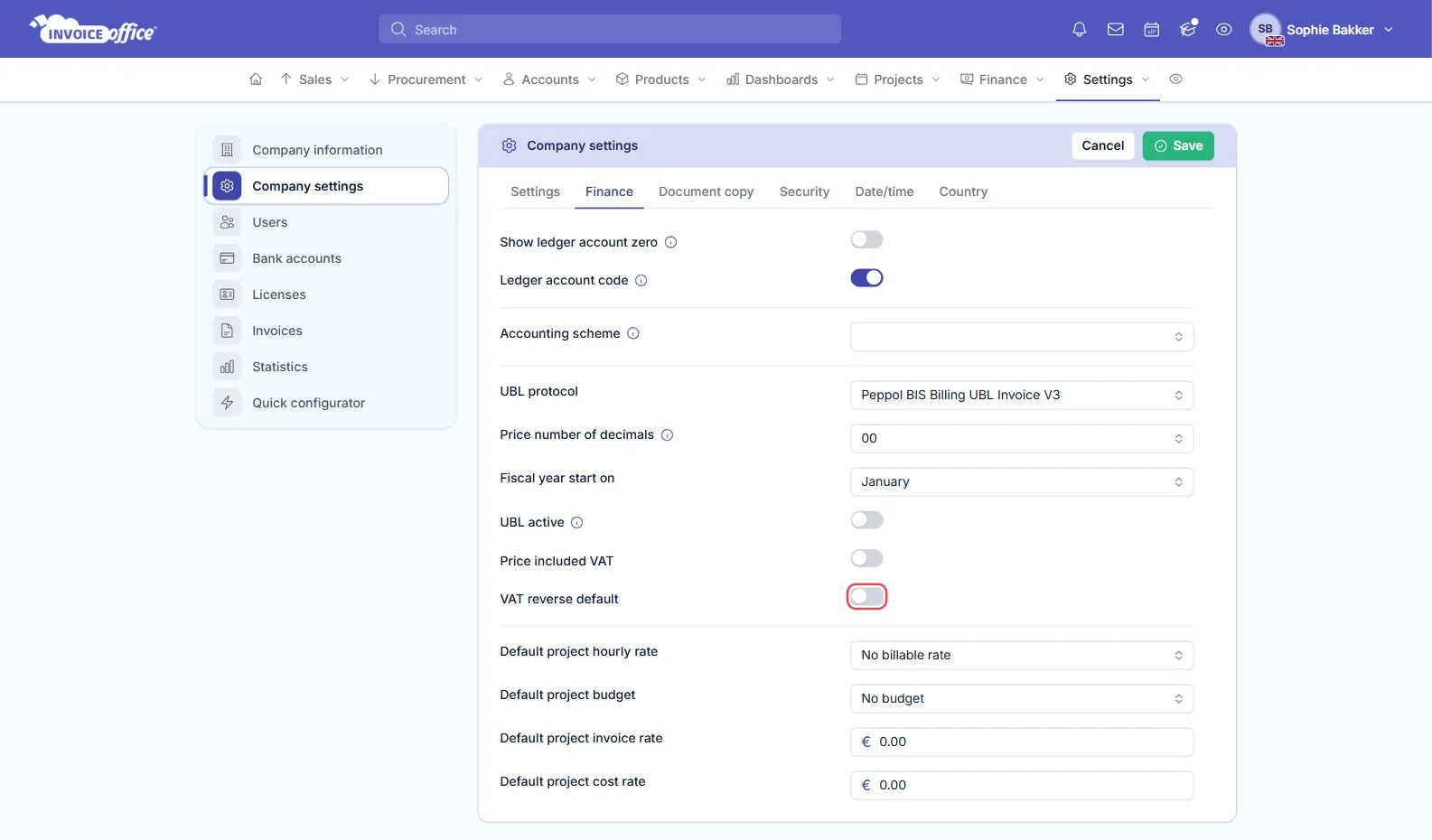
VAT reverse default under Settings → Company settings → Finance switches the automatic reverse charge on for documents that come in through the API and connected webshops and apps. In the invoice editor and in imports, a customer in another EU country is reverse-charged whatever this switch says; use a VAT code on the customer to override it.
If the reverse charge doesn’t kick in for a business customer in another EU country, the reverse-charge VAT code itself may be blocked or set up wrongly; see how to set up the VAT reverse charge.
Invoice Office has no OSS (One-Stop Shop) setting. It never charges the VAT rate of the customer’s country automatically, and its VAT return doesn’t produce an OSS return. If you’re registered for OSS and sell to private customers in other EU countries, create a VAT code with that country’s rate, set it in those customers’ settings, and file your OSS return outside Invoice Office.
Check the rate on the VAT code itself
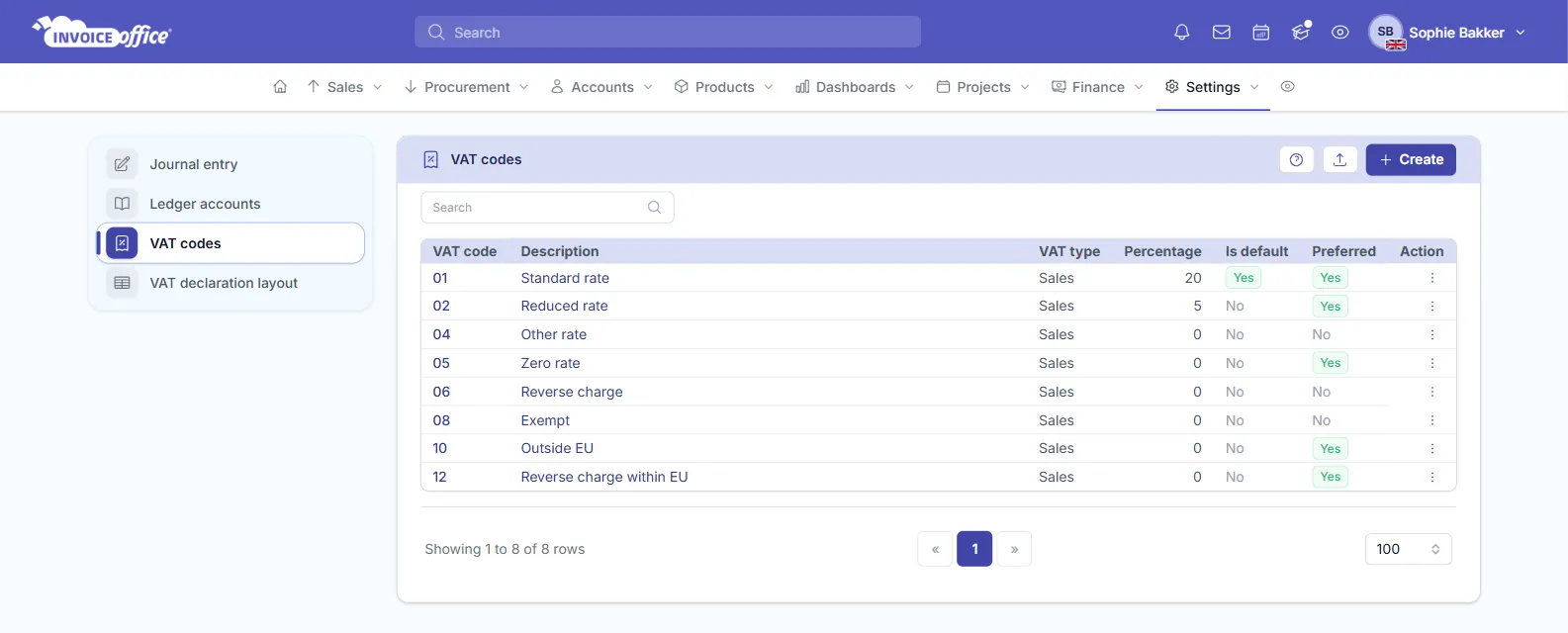
If a line has the right code but the percentage is wrong, the code’s rate is out of date. Go to Settings → VAT codes and check the Percentage of the code.
A new rate added in advance doesn’t switch over by itself on its start date; see how to change a VAT rate.
Fix an invoice that already has the wrong rate
Changing a product, a customer or a VAT code doesn’t change invoices you’ve already made. Changing the customer on an invoice with several lines doesn’t reset the lines either, unless the new customer has a VAT code of their own or falls under the reverse charge or outside-EU rule.
- Draft invoice: click the VAT cell on each wrong line and pick the right code, as in the picture at the top of this article. The totals follow. See how can I change the VAT?.
- Finalized invoice: correct it with a credit note and send a new invoice with the right VAT; see create a credit note.