Handling VAT reverse charge purchases in Invoice Office comes down to one thing: the right VAT code on the purchase lines. When a business in another EU country invoices you without VAT, you account for that VAT yourself — the reverse charge mechanism. Invoice Office does this with its reverse-charge VAT codes for purchases: it calculates the VAT, books it both as VAT to pay and as VAT to claim, and reports it in the right boxes of your VAT return. This article explains when the reverse charge applies, how to set up the codes, how to record the purchase and how the debit and credit entries come out.
When the reverse charge applies to a purchase
The reverse charge applies when your company is VAT-registered in an EU country and you buy from a business in another EU country:
- Goods delivered from another EU country — an intra-community purchase (acquisition) of goods.
- Services from a business in another EU country — for most business-to-business services.
The supplier’s invoice then shows no VAT and usually says reverse charge (or VAT reverse charged), with both your VAT numbers. Instead of paying VAT to the supplier, you self-assess it: you declare the VAT as due on your VAT return and, if you may deduct it, claim the same amount back as input tax in the same return. On balance you usually pay nothing, but both amounts must be on the return.
It does not apply to a supplier in your own country, who charges you normal VAT, or to a supplier outside the EU, where import rules apply instead. Check your own situation with your accountant; what a VAT number is and how to check it helps you confirm the supplier is a VAT-registered business.
Check the reverse-charge VAT codes for purchases
Go to Settings → VAT codes. Next to the reverse-charge code for sales, your list has reverse-charge codes with the VAT type Procurement: one at the standard rate, one at the reduced rate and one at 0%.
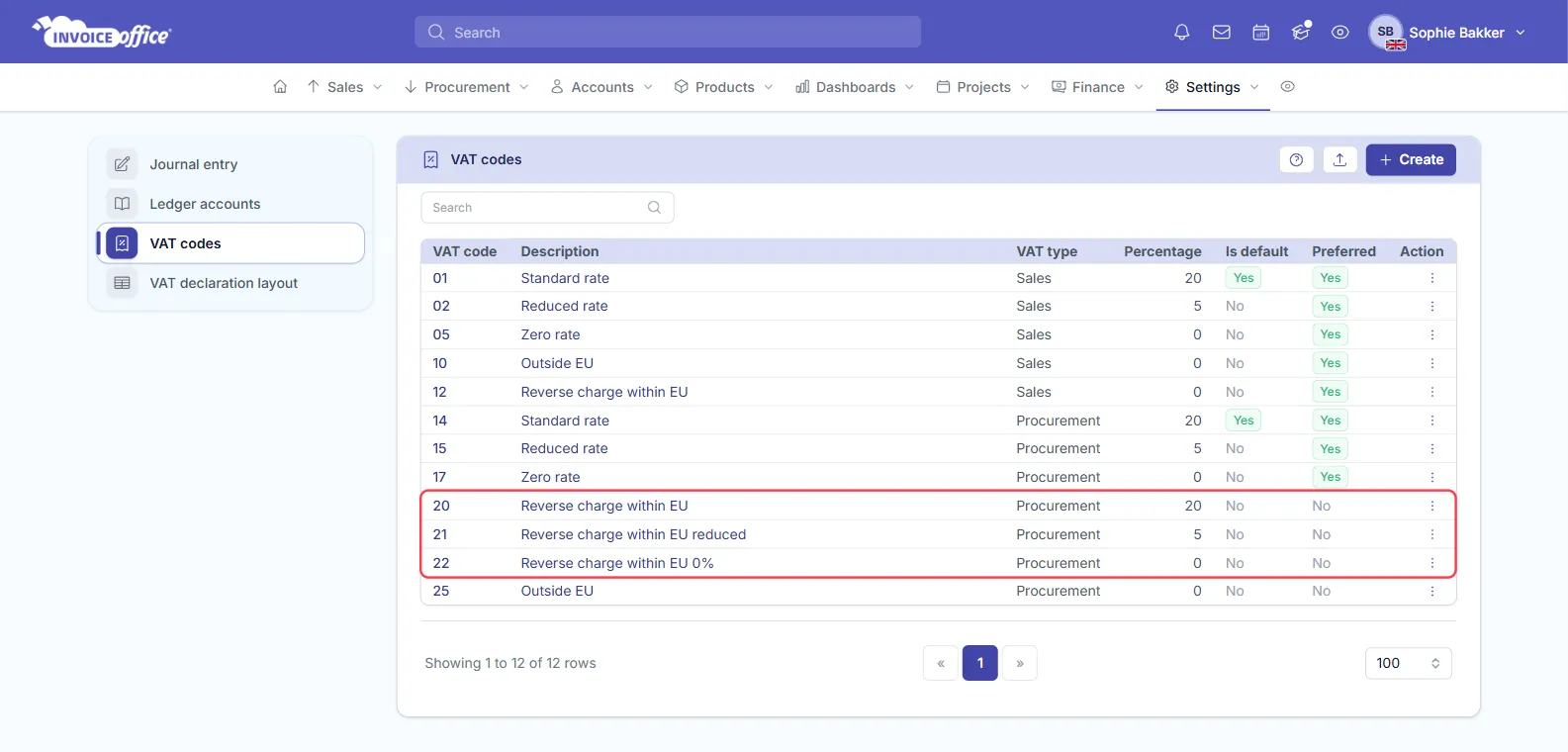
Unlike the sales code, which is 0%, a purchase reverse-charge code carries the real rate. That is the rate Invoice Office uses to calculate the VAT you self-assess.
Open the code from its Action menu and check, in the VAT code section:
- Type is the EU reverse charge from your country’s list. This is what tells Invoice Office to book the VAT as reverse-charged. A code with the right percentage but a different Type is booked as ordinary VAT that you paid to the supplier.
- VAT type is Procurement (or Both), so the code is offered on purchases.
- Account vat to claim is your input-VAT account.
- Blocked is off.
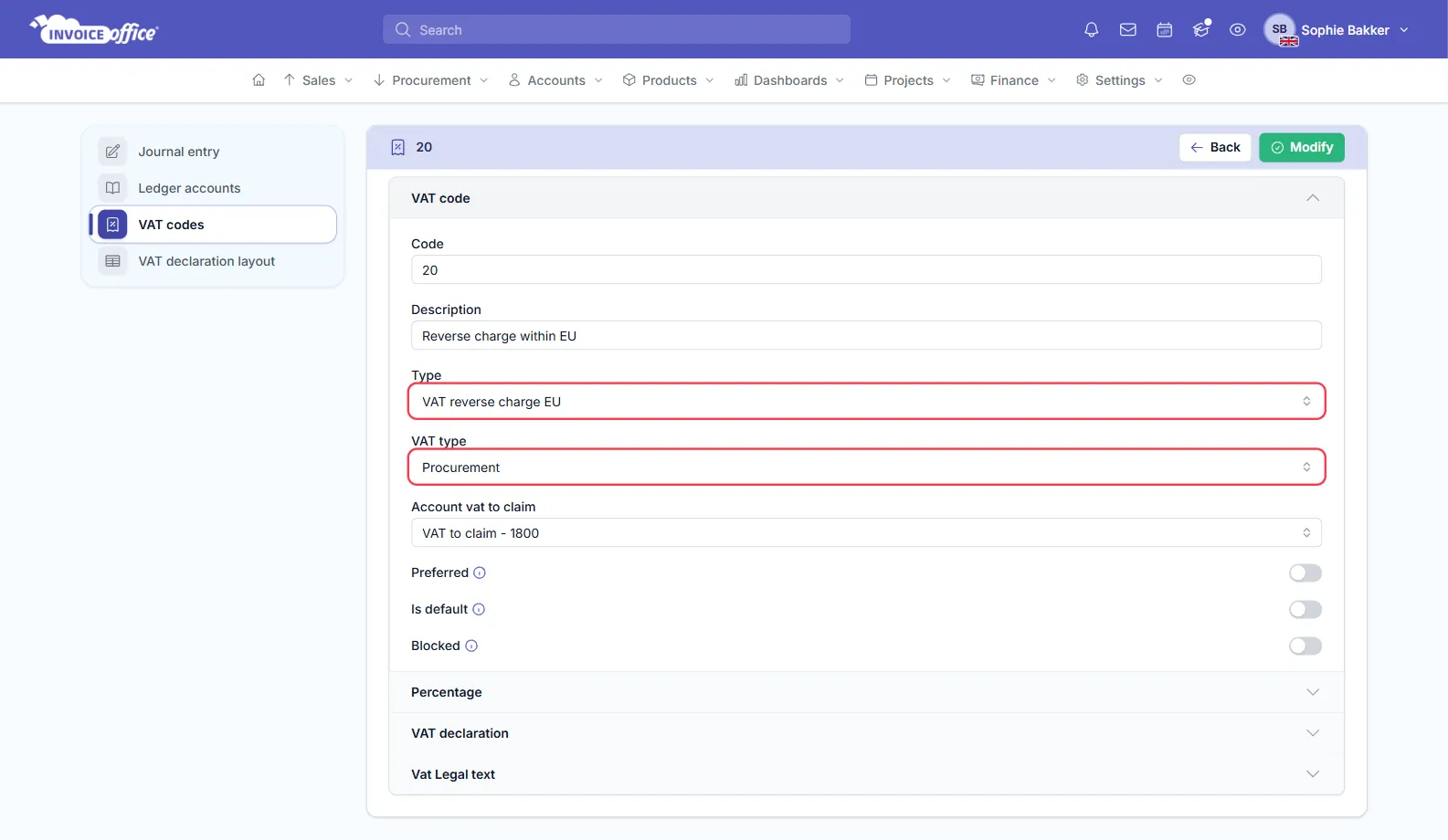
Check the rate under Percentage. If the code is missing or you need another rate, create a VAT code with the same Type and VAT type. Click Modify to save a change.
Link the code to your VAT return boxes
Open the VAT declaration section of the same code. A reverse-charge purchase code belongs in two boxes of your VAT return: the box for VAT due on purchases from other EU countries, and the box for input tax. In the Dutch VAT return, for example, these are boxes 4b and 5b. Use Add to link a missing box.
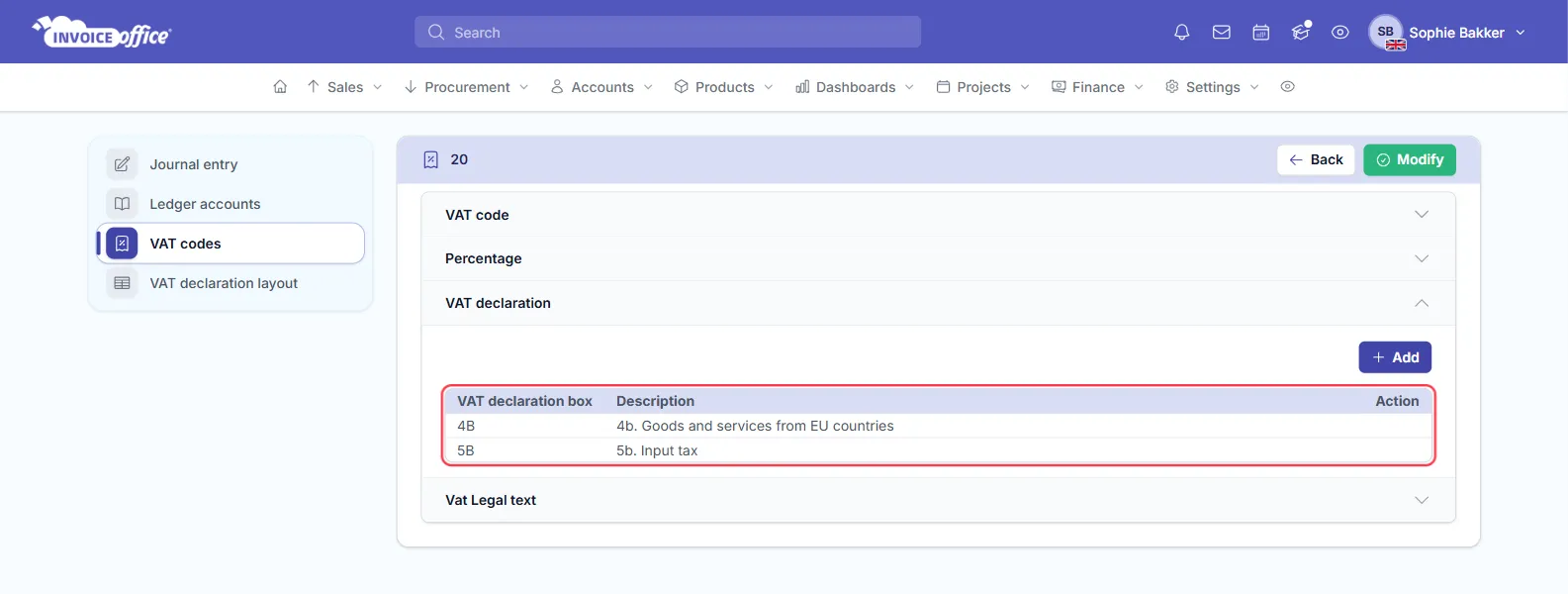
A code that isn’t linked to a box is left out of the VAT return report altogether.
Record a purchase from an EU supplier
- Go to Procurement → Purchases and click Create purchase.
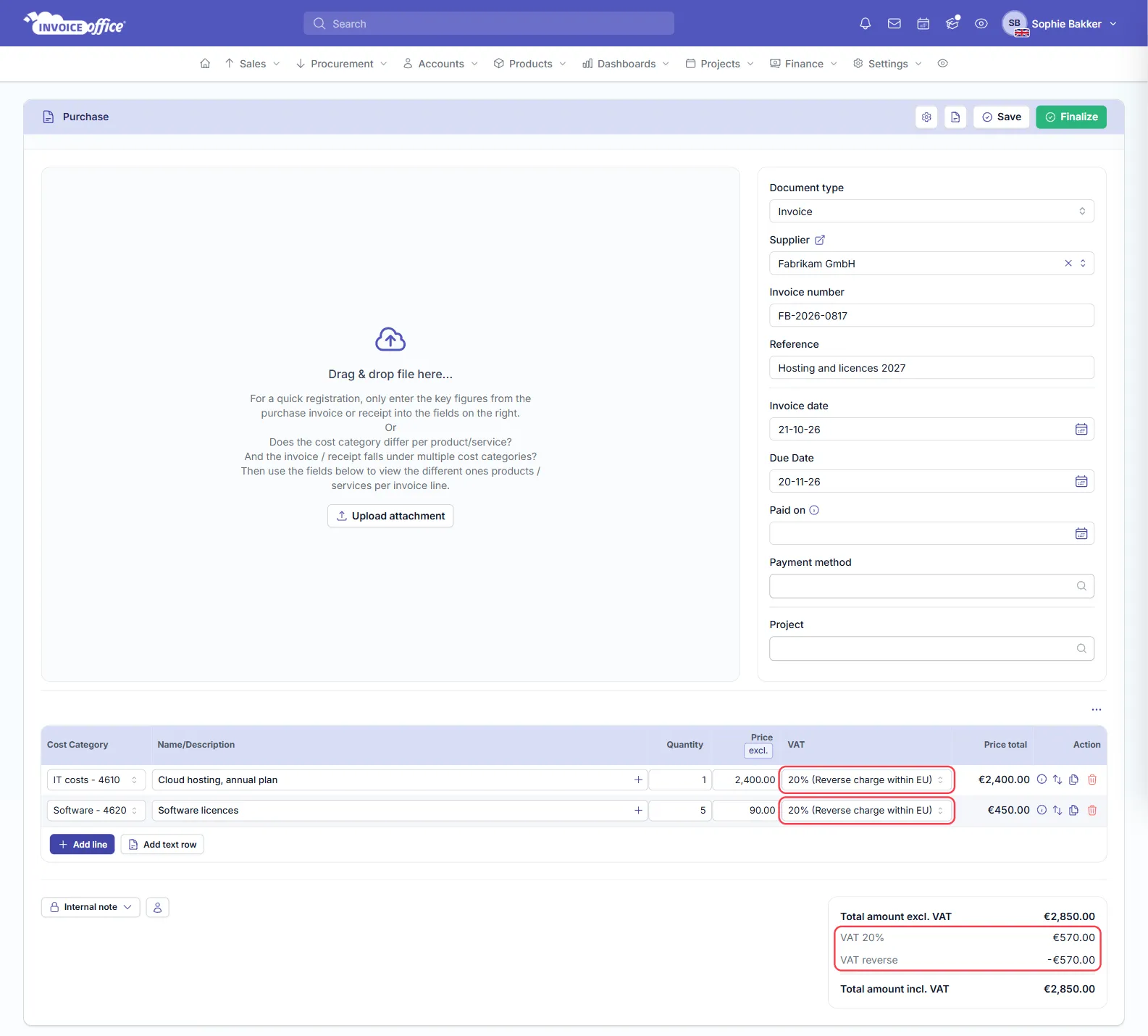
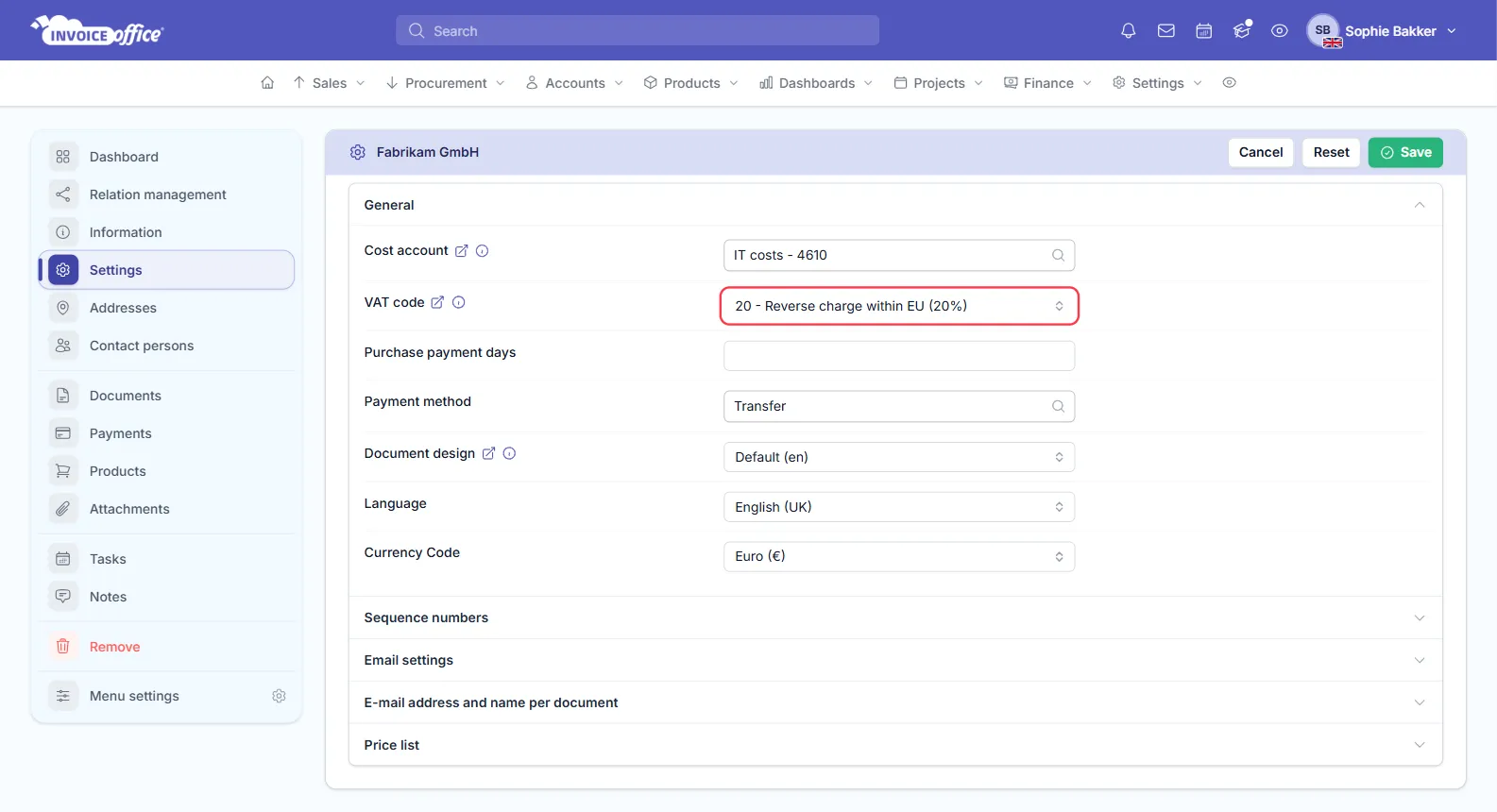
- Choose the Supplier. If your company is in an EU country and the supplier’s billing address is in a different EU country, Invoice Office gives the lines your reverse-charge purchase code automatically: the one marked Is default, or else the unblocked one with the highest rate. A supplier in your own country gets your normal VAT.
- Check the VAT cell on each line. For goods at a reduced rate, pick the reduced reverse-charge code instead.
- Enter the amounts from the supplier’s invoice. The totals show the calculated VAT and a VAT reverse line that takes it off again, so Total amount incl. VAT equals what you pay the supplier.
- Click Finalize. Only finalized purchases are booked to your ledger and counted on your VAT return.
If a supplier should always get the reverse-charge code — or always a different one — set it once in the supplier’s settings: go to Accounts → Suppliers, open the supplier, click Settings and choose the VAT code under General. A VAT code set there wins over the supplier’s country.
How the debit and credit entries are booked
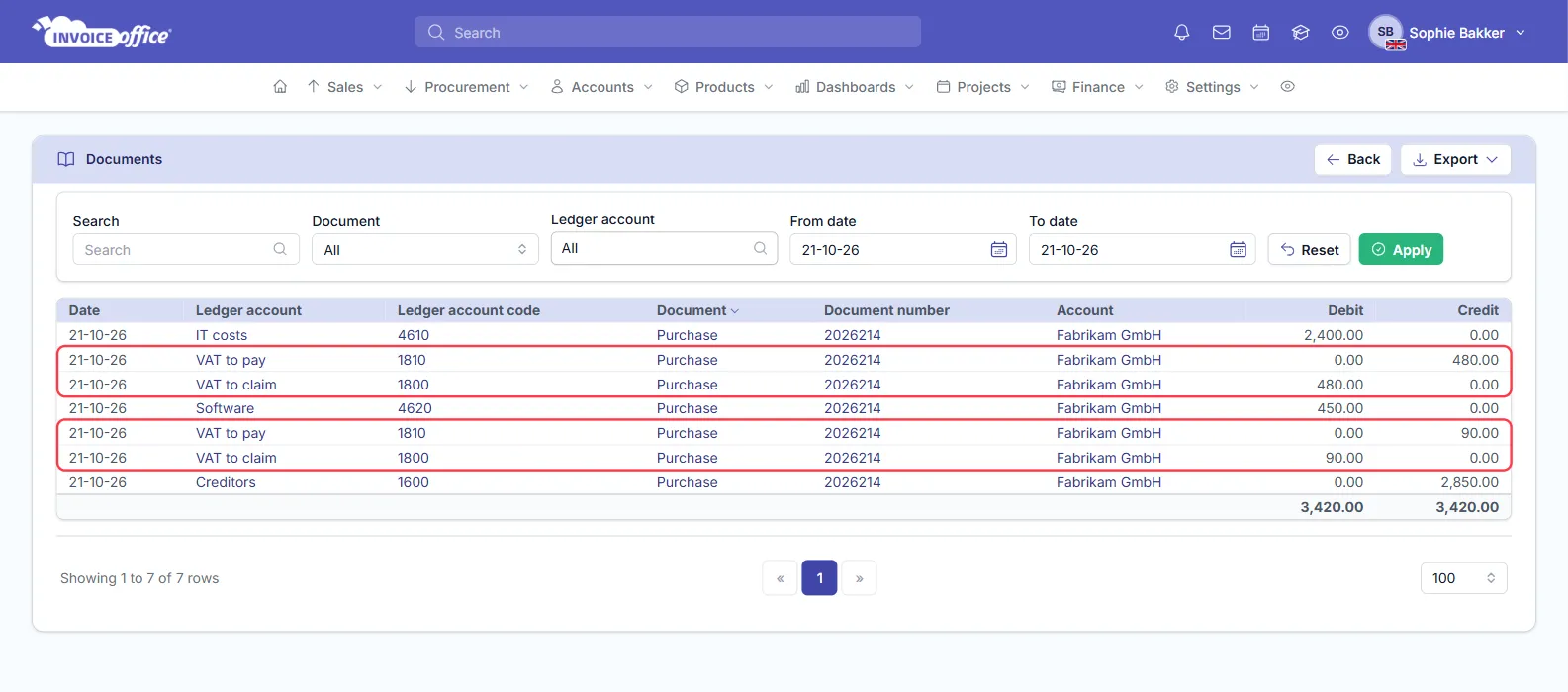
When you finalize the purchase, Invoice Office books each line like this:
| Entry | Debit | Credit |
|---|---|---|
| Cost account of the line | Net amount | |
| VAT to claim (input VAT) | Calculated VAT | |
| VAT to pay | Calculated VAT | |
| Creditors (the supplier) | Net amount |
The VAT to claim and the VAT to pay are the same amount, so they cancel each other out, and the supplier is owed only the net amount. To see the entries, open the purchase’s Action menu in Procurement → Purchases and choose Journal data.
How the reverse charge appears on the VAT return
Go to Finance and, under Reports, choose VAT declaration, then pick the period. The purchase shows up twice:
- In the box for purchases from EU countries — here 4b — with the net amount under Amount (excluding VAT) and the self-assessed VAT under VAT tax. That VAT is part of the VAT you owe.
- In the input tax box — here 5b — with the same VAT, which you claim back.
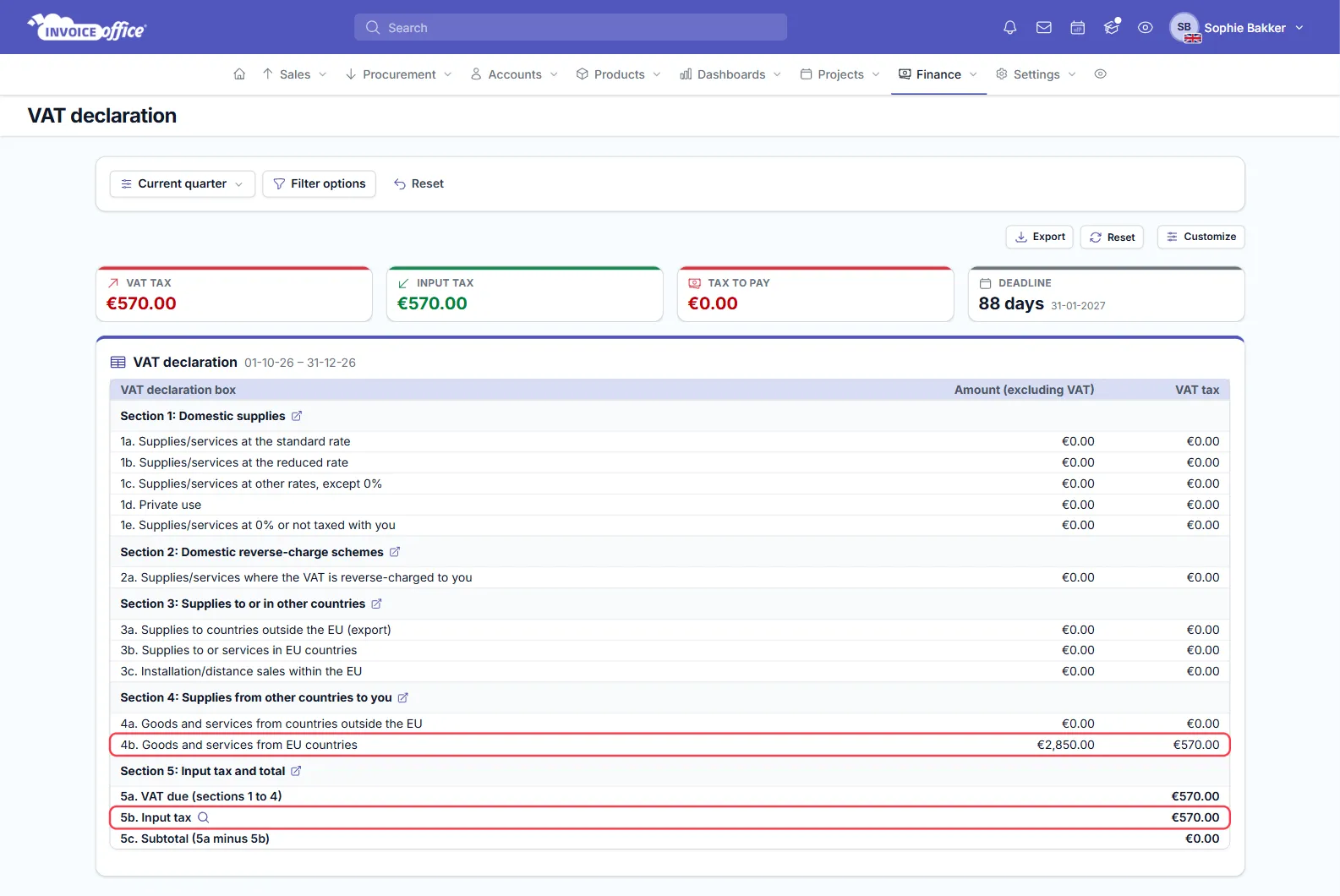
So a purchase on its own adds nothing to Tax to pay. Invoice Office books the full VAT as input tax; if you may only deduct part of your input VAT, ask your accountant how to correct it. More on reading and exporting the report in use the VAT dashboard and prepare a VAT return.
If the reverse charge doesn’t come out right
- The purchase adds VAT to the total. A normal VAT code is on the lines. Check the supplier’s billing address country and any VAT code in the supplier’s settings, then pick the reverse-charge code on the lines. See why the wrong VAT rate is applied.
- There’s no VAT reverse line in the totals. The code on the lines doesn’t have the EU reverse charge Type, or its rate is 0%. A 0% code books no VAT to pay or to claim.
- The purchase is missing from the VAT return. It is still a draft, its date falls in another period, or the code isn’t linked to a VAT declaration box.