Composite (bundled) products in Invoice Office let you sell one product while the stock comes off the parts it is made of. You list those parts on the product’s Components tab, and when the composite product is invoiced, Invoice Office deducts the stock of each component instead of the composite itself.
When to use a composite product
Use one whenever what you sell is not what you keep in stock:
- Sell in metres, stock in millimetres. You sell conveyor belt per metre, but you keep the belting on rolls counted in millimetres. One metre sold takes 1,000 mm off the roll.
- Sell a kit, stock the parts. A starter set made of three separate items you also sell on their own.
- Sell a finished product, stock the materials. A made-to-measure curtain cut from fabric and fitted with hooks.
A composite product holds no stock of its own: its stock is its components. If you only want to group lines on a document — show one name for several products — use a product group instead.
Before you start
- Create the components as products first. Each component is an ordinary product of its own, so it can be searched and picked.
- Switch on stock management for each component. On the component’s Stock tab, turn on Enable stock management and choose the Stock reduction document — see How to manage your stocks.
- Make sure the unit exists. Stocking in millimetres needs a Millimetre unit under Settings → Units — see How to add your own units.
Open the Components tab
- Go to Products → Products and click Create product — or open an existing product.
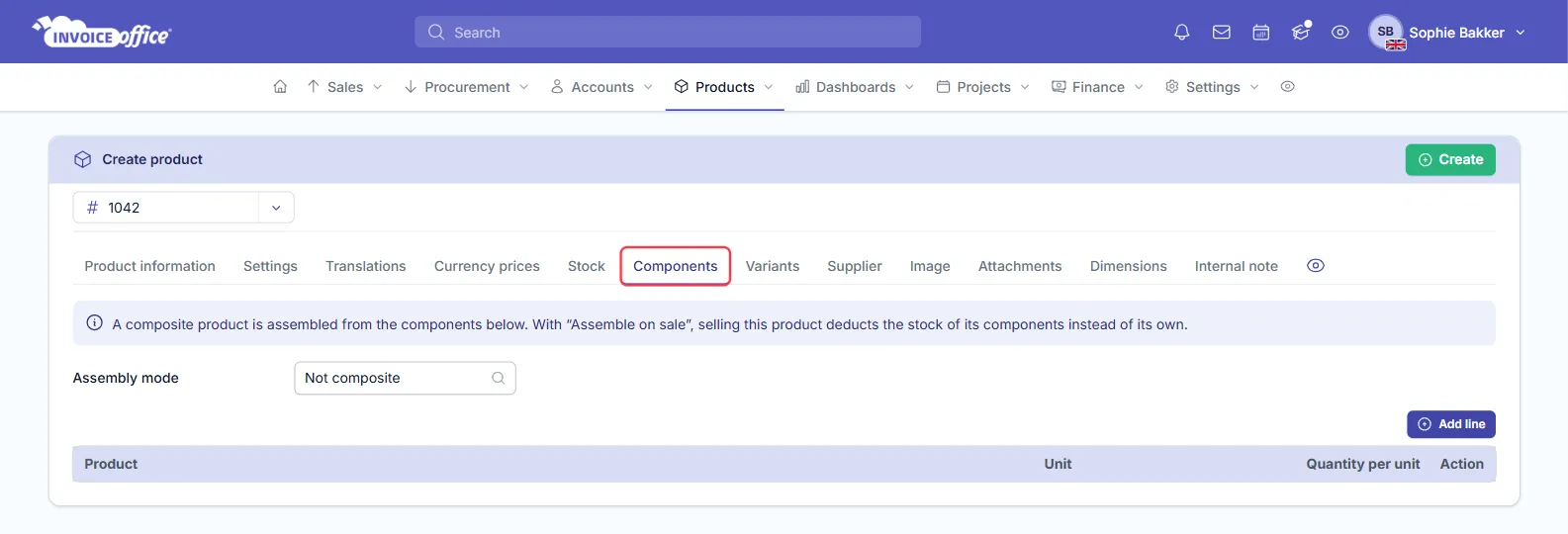
- Open the Components tab, between Stock and Variants.
Add the components
- Set Assembly mode to Assemble on sale. A new product starts as Not composite.
- Click Add line for each component.
- In Product, type to search and pick the component.
- Unit fills in from the component’s own unit. You can change it.
- In Quantity per unit, enter how much of the component one unit of this product uses — for one metre of belt, 1,000 mm of belting and 2 lacing clips.
- Fill in the rest of the product as usual and click Create (or Save on an existing product).
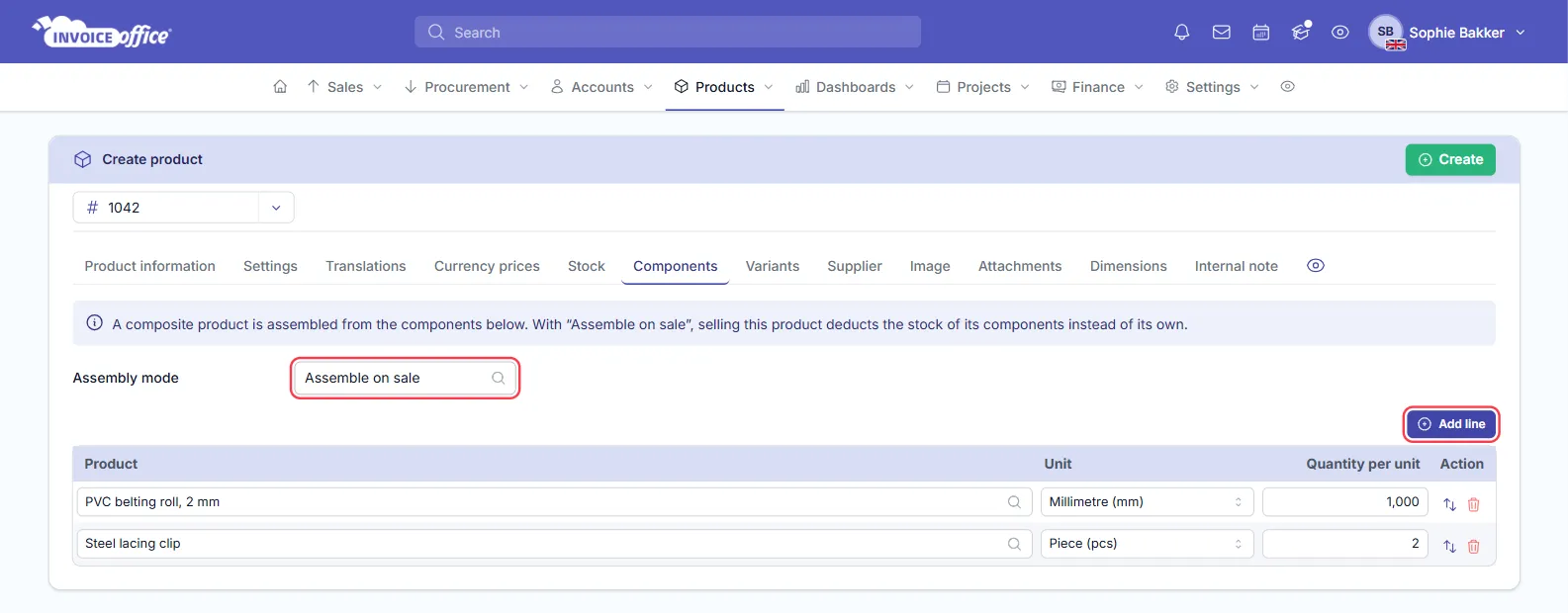
Quantity per unit takes as many decimals as the unit allows, so a component measured in a three-decimal unit can be entered as 0.125 — see Set the number of decimal places per unit. The arrows on each line change the order and the bin removes a component. A product cannot be a component of itself.
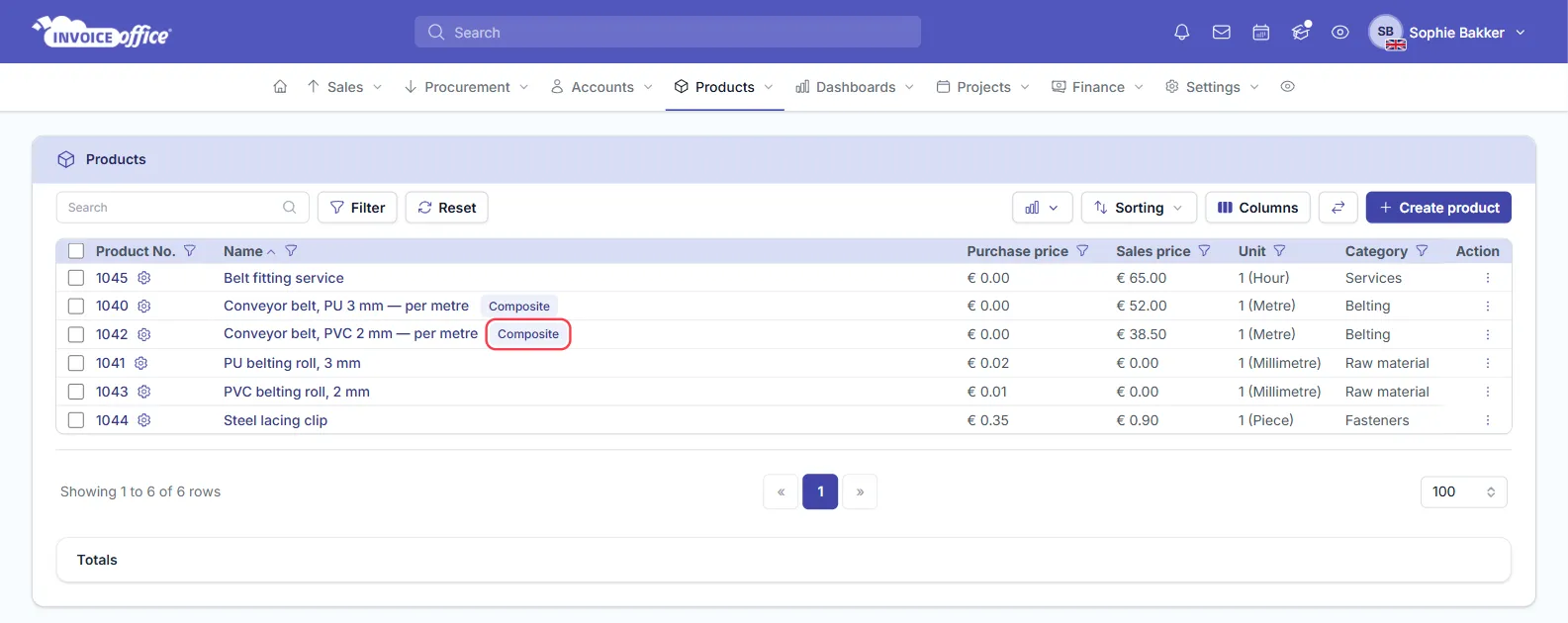
Once saved, the product carries a Composite label next to its name in the products list.
How stock is deducted
When you invoice a composite product, each component’s stock goes down by the invoiced quantity × its Quantity per unit. Invoice 3.5 m of the conveyor belt above and Invoice Office deducts:
| Component | Quantity per unit | Deducted |
|---|---|---|
| PVC belting roll, 2 mm | 1,000 mm | 3.5 × 1,000 = 3,500 mm |
| Steel lacing clip | 2 pcs | 3.5 × 2 = 7 pcs |
A few rules decide when that happens:
- Each component follows its own stock settings. Stock only moves for components with stock management switched on, and only when the document is of the type set in that component’s Stock reduction — the invoice, or for instance the packing note if goods leave before you invoice.
- The composite’s own stock does not move. Leave stock management off on the composite product.
- A credit note puts the components back in stock.
- Components can be composite too. Invoice Office follows the chain down to the products that are actually stocked.
- Low-stock warnings come from the components. Set a Minimum stock on each component to be notified when it runs low.
Every movement appears under Stock mutations on the component’s Stock tab, so you can see which document took what.