A payment link on an invoice — a betaallink — lets your customer pay online straight from the invoice or the email it came with. In Invoice Office the payment link is created by Mollie: once your Mollie account is connected, every invoice you finalise gets its own link for the invoice amount, your customer pays with the method they prefer, and the invoice is marked as paid for you. This guide explains how it works from start to finish — what you set up, what your customer sees and what happens after they pay.
What you need
- A Mollie account. Mollie handles the payment itself. You choose which payment methods to offer in your Mollie dashboard.
- A Pro licence. The Mollie payment link is a Pro feature in Invoice Office.
- The Mollie connector switched on. Under Settings → Company → Integration connectors, open the Mollie payment link card, switch it Active and enter your API-key and Profile-key. The step-by-step setup — where to find both keys and how to set the link text — is in integrate your Mollie payment link.
How the payment link gets onto your invoice
There is nothing to do per invoice. While the connector is Active, the Payment link is switched on for every new invoice and recurring invoice. You can see — and switch off — the setting for one invoice:
In the invoice, click the ⋯ button on the product table, choose Display Columns and open Totals — Payment link is in the SHOWN list with its switch on.
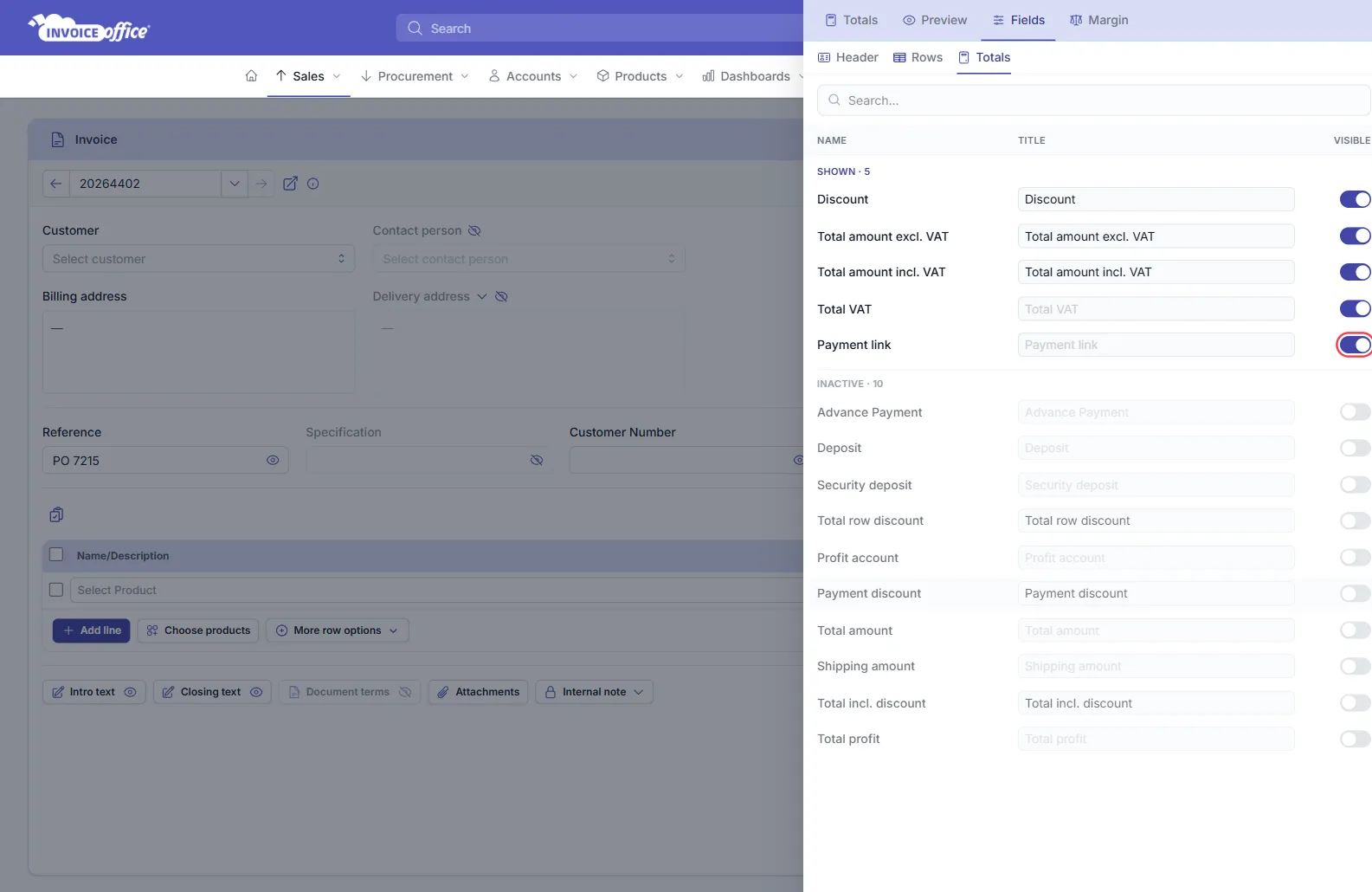
When you finalise the invoice, Invoice Office asks Mollie for a payment link for the invoice total. A concept invoice has no working link yet; its PDF shows the link text as a placeholder, which becomes a clickable link once you finalise. Payment links are made for invoices only — not for quotes, order confirmations, credit notes or proforma invoices.
What your customer sees
Your customer can pay the invoice online from three places:
- The email. The link is added to the invoice email, with the link text you set in the connector, such as Click here to pay the invoice directly with iDeal. If your email template has no place for it, the link is added at the end of the message.
- The invoice PDF. The link is printed in the Document terms & conditions block of the PDF. If that block is switched off in your document design, the link is printed with the closing text instead. With Add QR code switched on in the connector, a QR code is printed next to it, so a paper invoice can be paid from a phone.
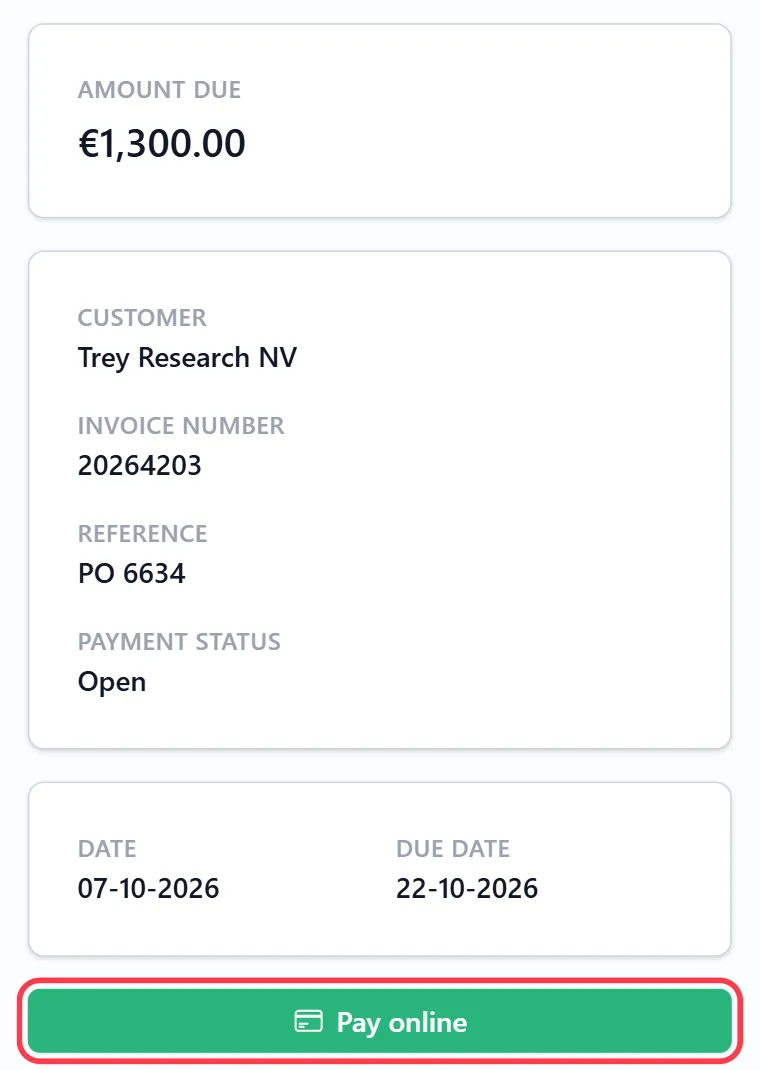
- The online invoice. The public link to the invoice opens a page with the amount due and a Pay online button.
Supported payment methods
Invoice Office does not limit the payment methods: your customer sees the ones you have switched on in your Mollie account. Mollie offers, among others, iDEAL, Bancontact, credit cards such as Visa and Mastercard, Apple Pay, PayPal and SEPA bank transfer (Mollie). The default link text mentions iDEAL; change it in the connector if you offer other methods.
What happens after your customer pays
When your customer pays the full amount, Mollie lets Invoice Office know and the payment is registered automatically:
- a payment for the invoice amount is added to the invoice, with Mollie as the payment method and the date the customer paid;
- the invoice’s payment status changes to Paid, so it no longer counts as outstanding and gets no payment reminders;
- the payment is booked to your bank ledger account.
You do not need to register anything yourself. A few cases are handled differently:
- Only a payment of the full invoice amount is registered automatically. If an invoice was already partly paid and your customer pays the rest with Pay online, register that payment yourself, as in how to register a payment.
- Failed, cancelled or expired payments change nothing; the invoice stays open.
- A refund or chargeback in Mollie creates a concept credit note for the invoice, for you to check and finalise.
If Mollie could not create a link — for example because the API key has expired — you get a Mollie link failure notification. The invoice is still finalised and sent, just without a payment link.
Mollie transaction fees
Payment links are included in the Pro licence; Invoice Office adds no fee per payment. Mollie charges a fee per successful transaction, which depends on the payment method; there is no monthly fee for online payments. See Mollie’s pricing for the current rates. The fee is settled between you and Mollie and does not change the amount on your invoice.
Other ways to get paid
- Direct debit — collect the amount from your customer’s account yourself: see use direct debit.
- Advance payments — ask for part of the amount up front: see advance payments and partial invoicing.
- Bank transfer — print your bank details on the invoice: see add your bank account details to invoices.
For any other information, contact us.