Flex fields in Invoice Office are extra fields on your invoices, quotes, order confirmations, packing notes, credit notes and other sales documents, and on purchase orders, for information that has no field of its own — a project code, a cost centre, a contract number, a shipping method. Each of these documents has five flex text fields and one flex select field with a dropdown list of your own values. You choose which ones print on the document, give them your own names, and can have them filled in for you with a default value.
The flex fields on a document
These are the flex fields:
- Flex field 1 to Flex field 5 — free text: type anything.
- Flex select field 1 — a dropdown: you pick one value from a list you set up yourself (see Set up the flex select field).
There are no other field types, such as a date or number field. For a date or an amount, use a flex text field. Purchases and recurring purchases have no flex fields.
On the document form, Flex field 1 sits in the first row of document information, next to Reference, Specification, Customer Number and VAT number. Flex field 2 to 5 and Flex select field 1 are on a second row that is closed when the document opens. Click the switch at the top right of that row (Additional fields) to open it.
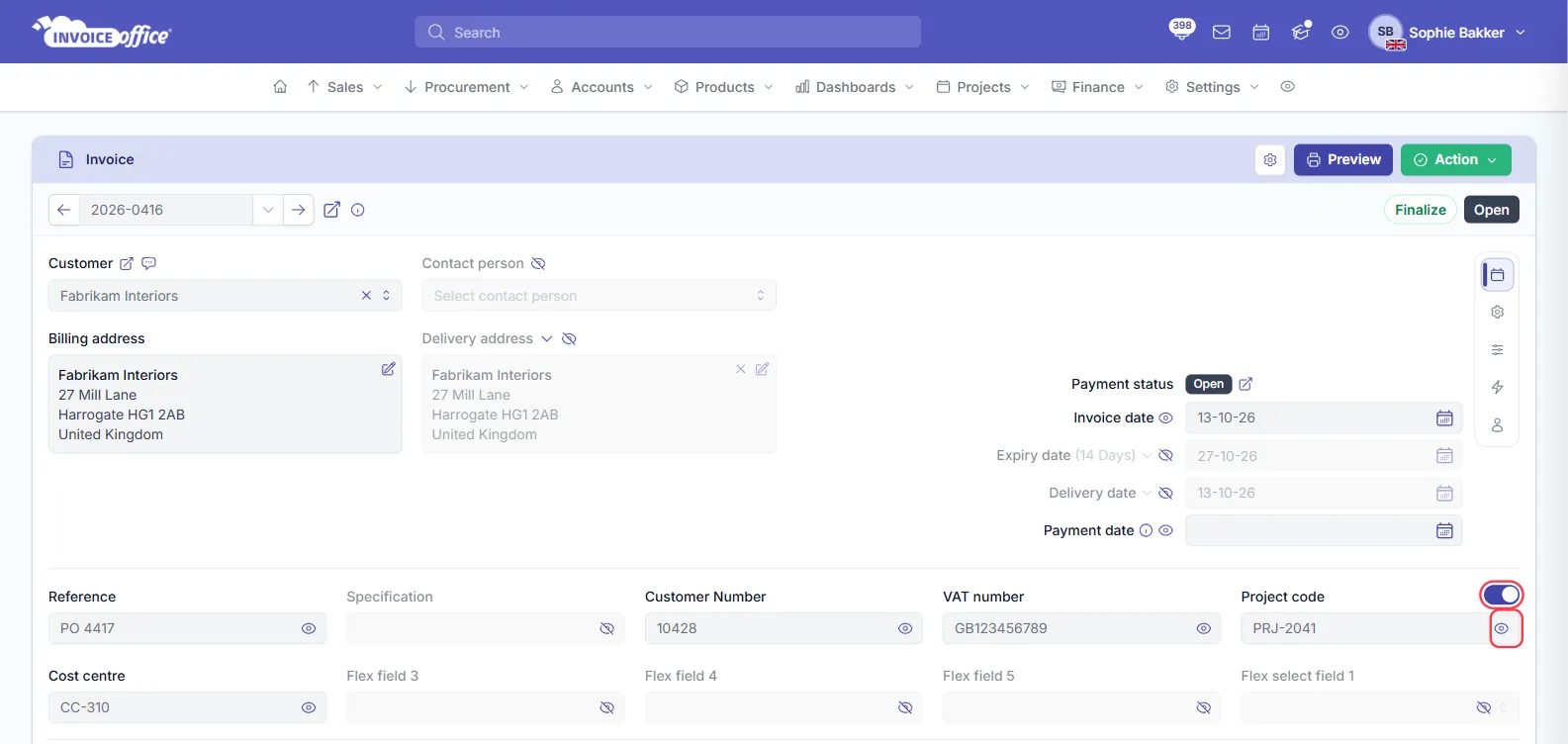
Show a flex field on the document
A flex field only prints on the document — the PDF you send — when it is switched on. Switched off, it is greyed out on the form and you cannot type in it.
On one document, click the eye icon inside the field: Show switches it on, Hide switches it off. You can also switch flex fields on and off in the document’s Fields panel, on the Header tab.
On every new document, open your document design, click the Document detail block, open Content, and switch on the flex fields you want. Every document created with that design then starts with those flex fields switched on. More about the design editor is in How to customize the document layout.
Switched on, Flex field 1 to 5 print in the Document detail block of the document, with their name and the value you typed. A flex field without a value is left off.
Rename a flex field and give it a default value
“Flex field 1” means nothing to your customer, so give each flex field you use a name that does — for example Project code or Cost centre.
In your document design, open Field names and values and type the new name in the Field name column next to the flex field. The flex fields also have Show default value and Field default value (for Flex field 1 to 5): switch it on and type a value, and every new document made with this design starts with that value already filled in. You can still change it on the document. The steps are in How to change the label name.
Flex fields are a Pro feature in the document design: without a Pro licence they cannot be switched on there.
Set up the flex select field
Flex select field 1 offers the values of one of your dropdown lists.
-
Go to Settings → Dropdown lists and click Create.
-
Fill in:
- Code — the name of the list. Give every value of the same list the same code.
- Name and Value — the Value is what you pick on the document.
- Language — the language of the documents the value is for.
- Position — the order of the values in the dropdown.
-
Click Create, and repeat for each value of the list. Code and Position are already filled in from the last value you created.
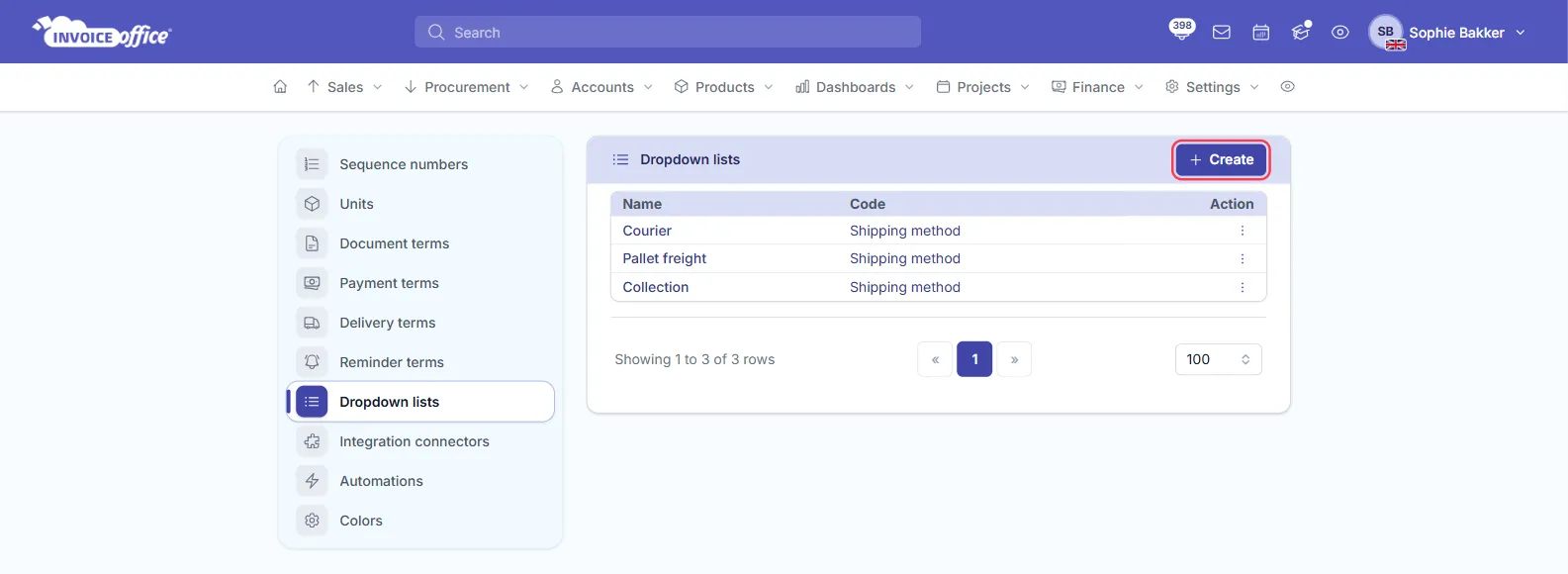
-
In your document design, click the Document detail block, open Content, and click the gear icon next to Flex select field 1 to choose the list’s code.
On a document, the dropdown shows the values with that code in the document’s language.
Default field values per customer (packing notes)
For packing notes, you can set field names and default values per customer, so every packing note for that customer is filled in for you.
- Go to Accounts → Customers, open the customer and click Settings in the menu on the left.
- Open Field names and default values.
- Under Packing Note, for each field you want to fill:
- type a Name — required: a row without a name is ignored;
- switch on Show default value and type the Field default value.
- Click Save.
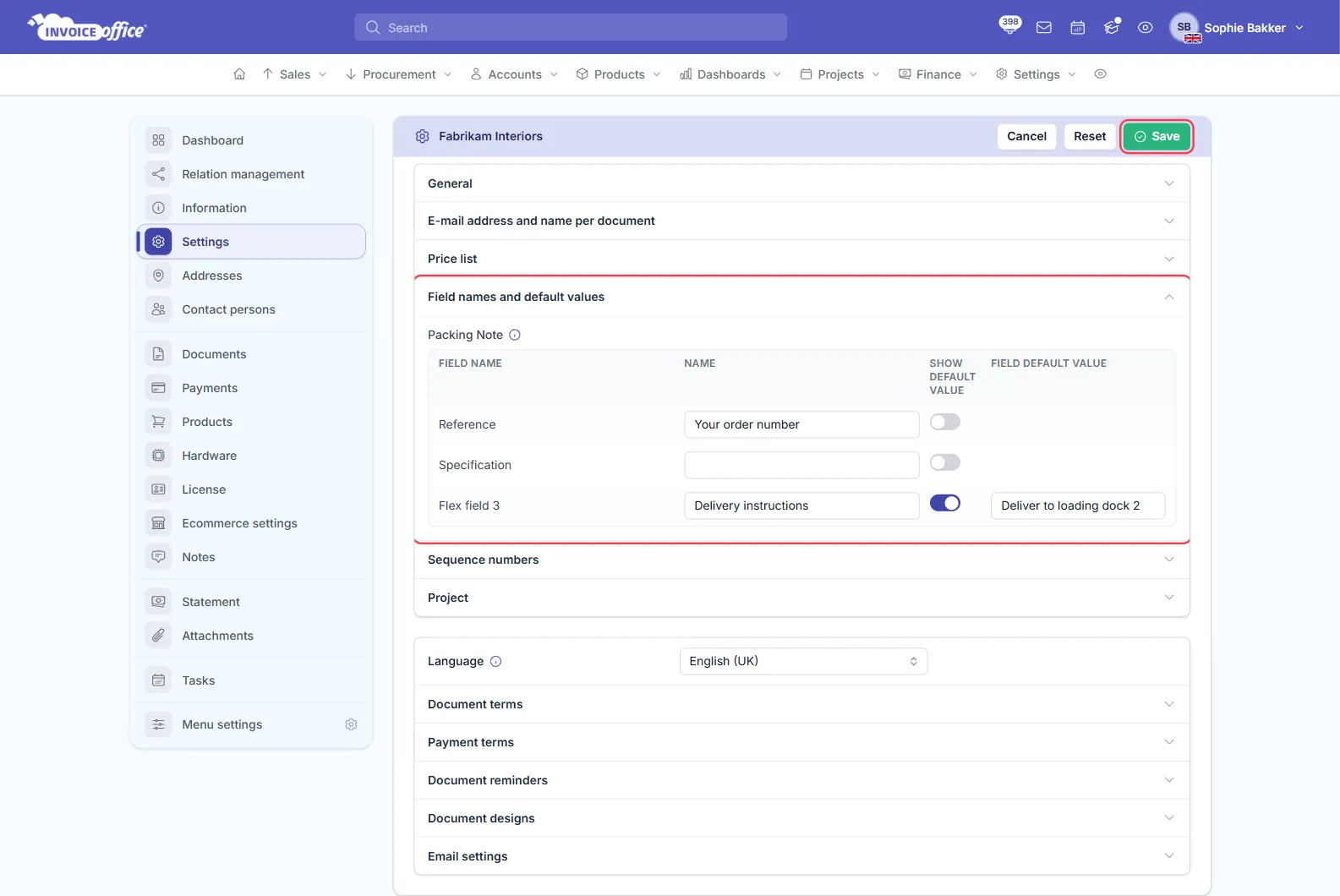
The rows are Reference, Specification and Flex field 3 — the first two fill the packing note’s Reference and Specification, the third fills Flex field 3. When you create a packing note and choose this customer, the names and values are filled in.
This per-customer setting exists for packing notes only. For invoices, quotes and other documents, use the default value in the document design, or give the customer their own document design.
Other places flex fields show up
- Copying a document — when the Flex fields switch in your document copy settings is on, Flex field 1 to 5 (with Reference and Specification) are copied to the new document. See How to duplicate a document.
- Automations — the Set field value action can fill Flex field 1 when it is still empty. See How to use automations.