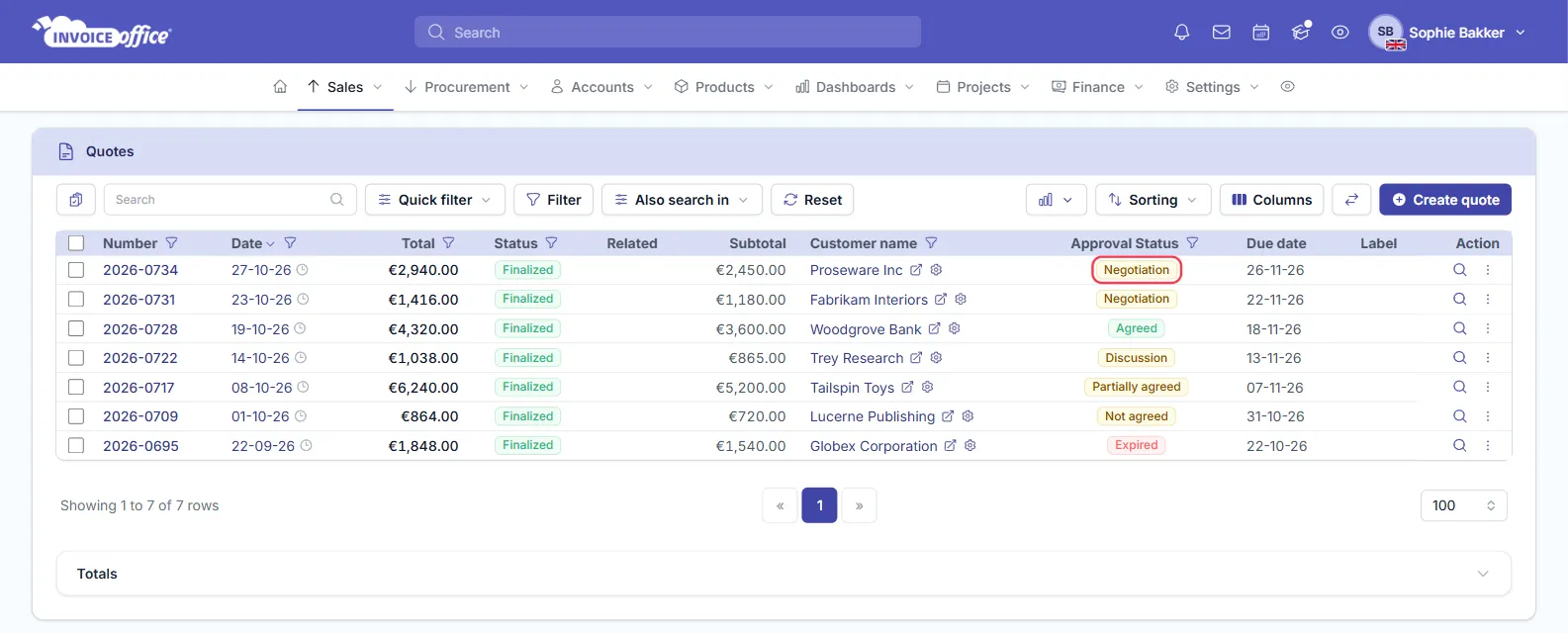
To track quote statuses in Invoice Office, open Sales → Quotes and look at the Approval Status column. It shows where every sales quote stands: Open, Agreed (approved), Expired, Not agreed (lost), Negotiation, Discussion or Partially agreed. You can filter the list by status, change a status yourself, and see your whole quote pipeline on the quote dashboard.
This guide covers where to find the statuses, how to filter by them, how to change one, and what each status means.
Step 1 — Open the Quotes overview
Go to Sales → Quotes. Every quote has two status columns:
- Status — where the document itself is: for example Draft, Finalized or Finalized by mail.
- Approval Status — what the customer has answered. This is the column to watch. A draft quote doesn’t have one yet: it gets Open when you first finalize it.
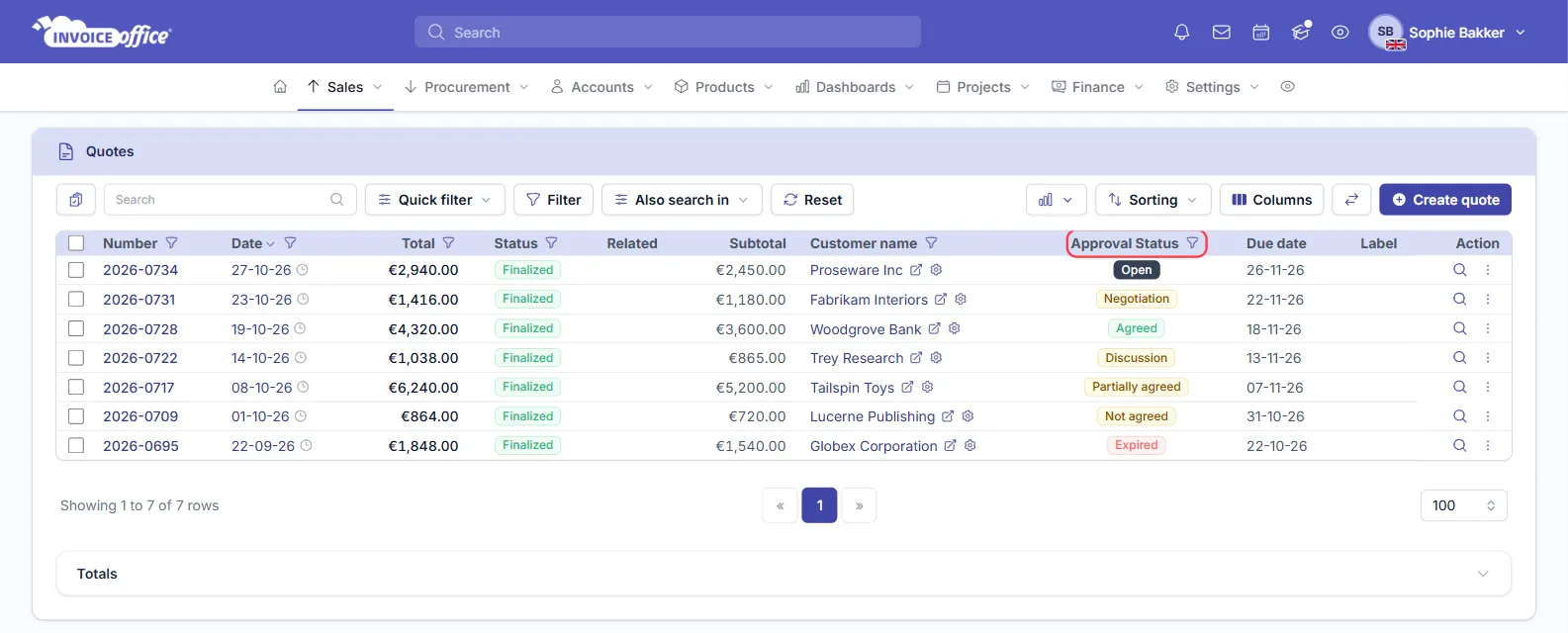
The Due date column shows the quote’s expiry date.
Step 2 — Filter the quotes by status
There are three ways to narrow the list down.
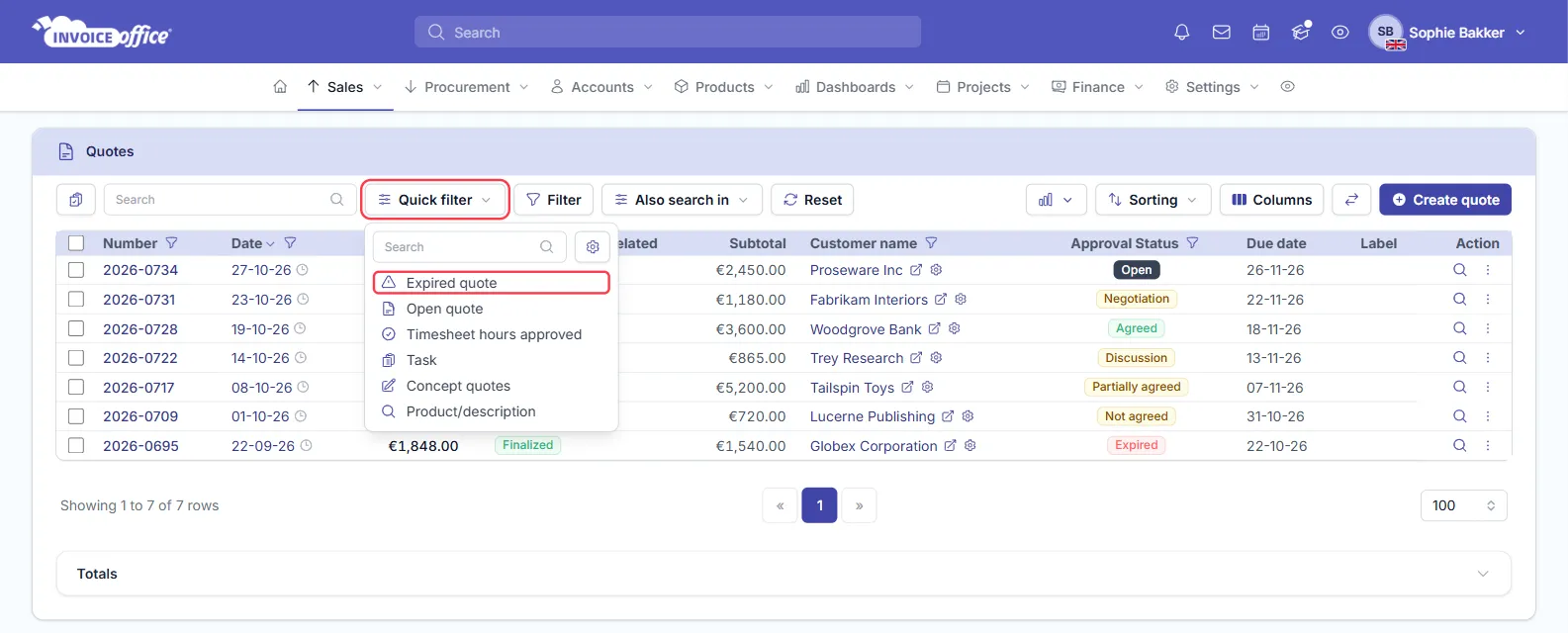
Quick filter. Click Quick filter and choose Open quote, Expired quote or Concept quotes (your drafts). This is the fastest way to see which offers still need an answer.
Approval Status column. For any other status:
- Click the funnel icon next to Approval Status.
- Tick one or more statuses. Use is none of instead of is any of to leave them out.
- Click Apply.
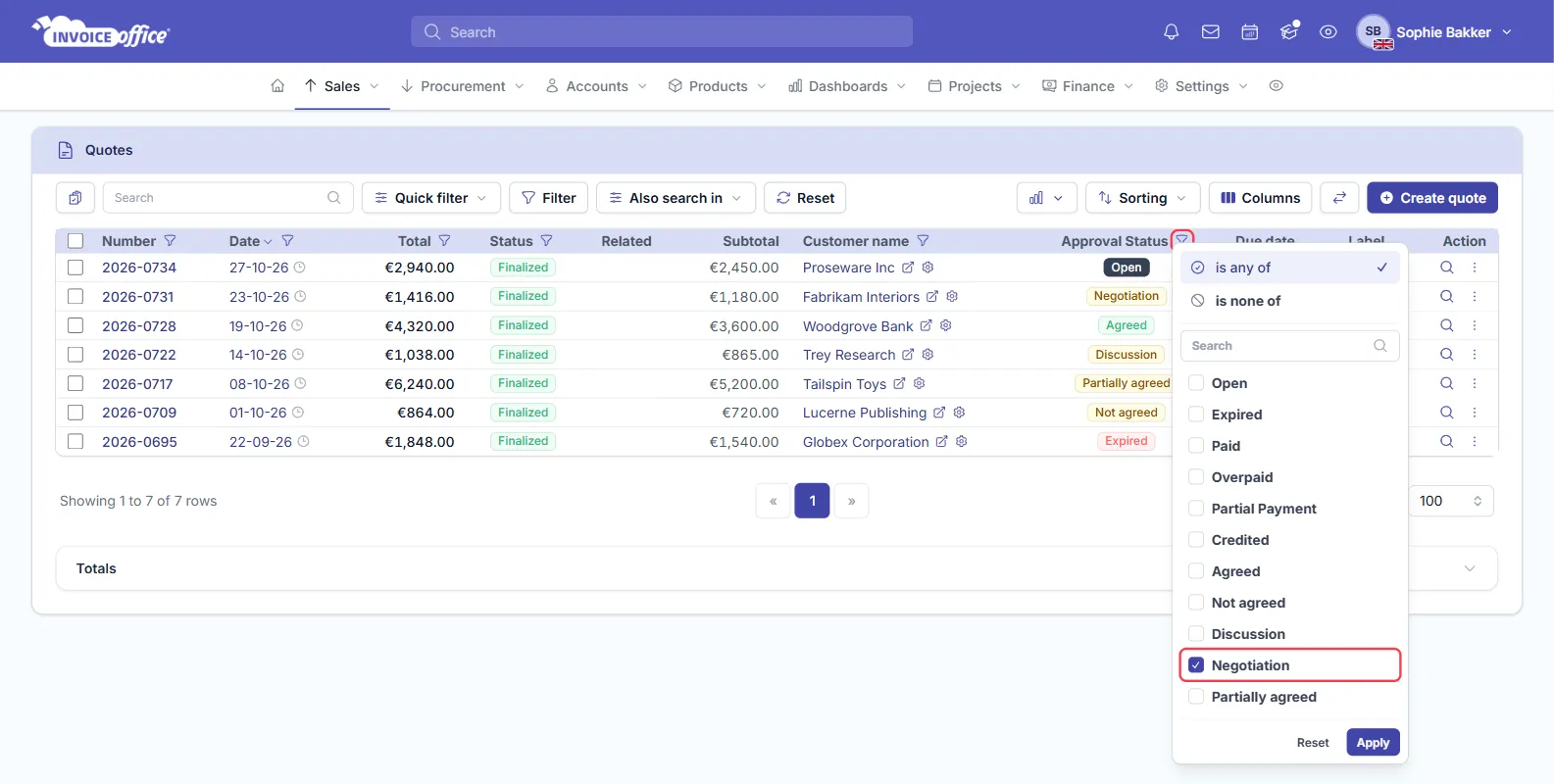
The list also offers invoice statuses such as Paid and Credited, but a quote doesn’t use those.
Filter panel. The Filter button opens all filters at once, so you can combine a status with a date range or an amount. In this panel the same status list is called Payment. See how to sort and filter lists.
Step 3 — Change a quote status
Record the customer’s answer as soon as you have it. Do this after you have finalized the quote, because finalizing a new quote sets the status to Open.
-
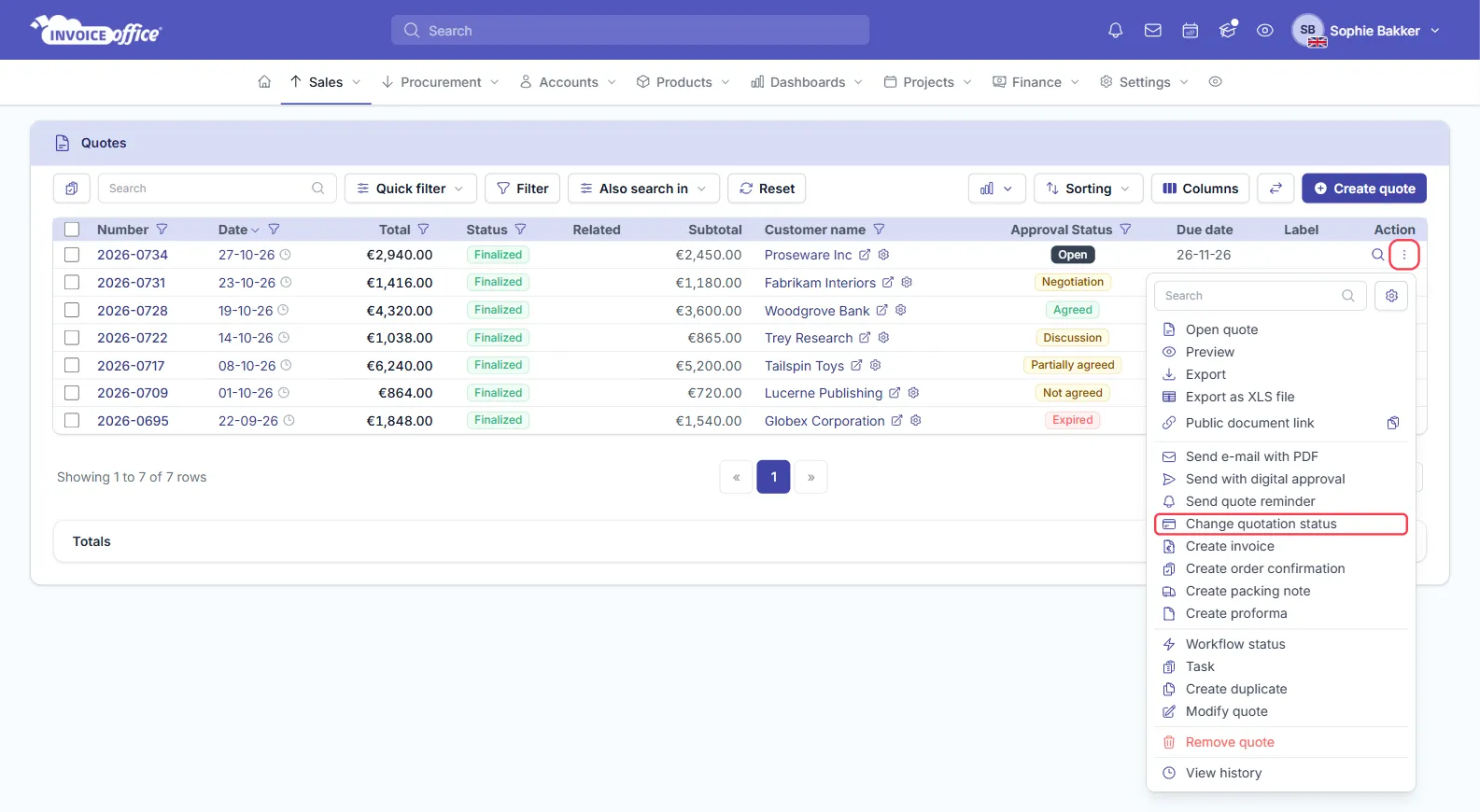
In Sales → Quotes, click the ⋮ (Action) button at the end of the quote’s row.
-
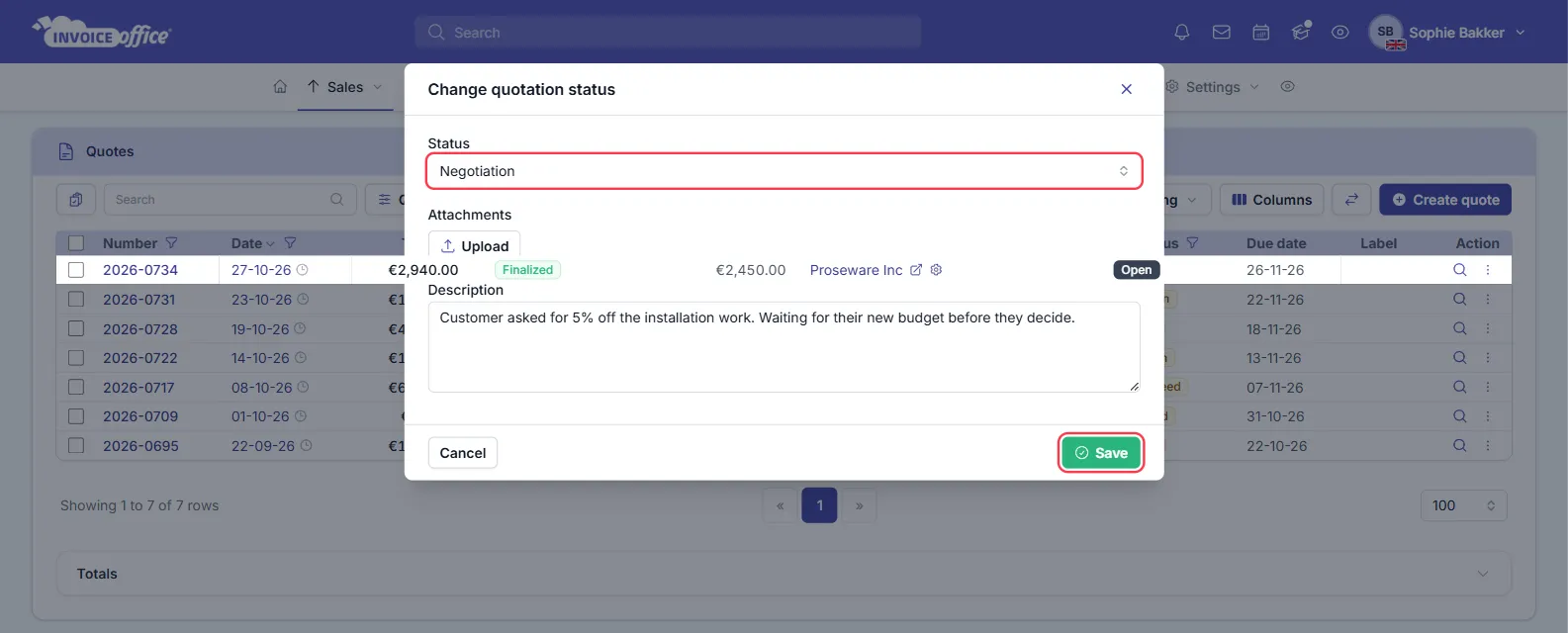
Choose Change quotation status.
-
Under Status, choose Agreed, Partially Agreed, Not agreed, Negotiation or Discussion.
-
Add a Description if you want, for example what the customer asked for. You can also add a file under Attachments with Upload, such as the customer’s email.
-
Click Save.
The new status appears in the Approval Status column straight away.
Changing the status doesn’t send anything to your customer. It is your own record of where the quote stands. You can change it as often as you need to, but the window has no Open option, so you can’t set a quote back to Open here.
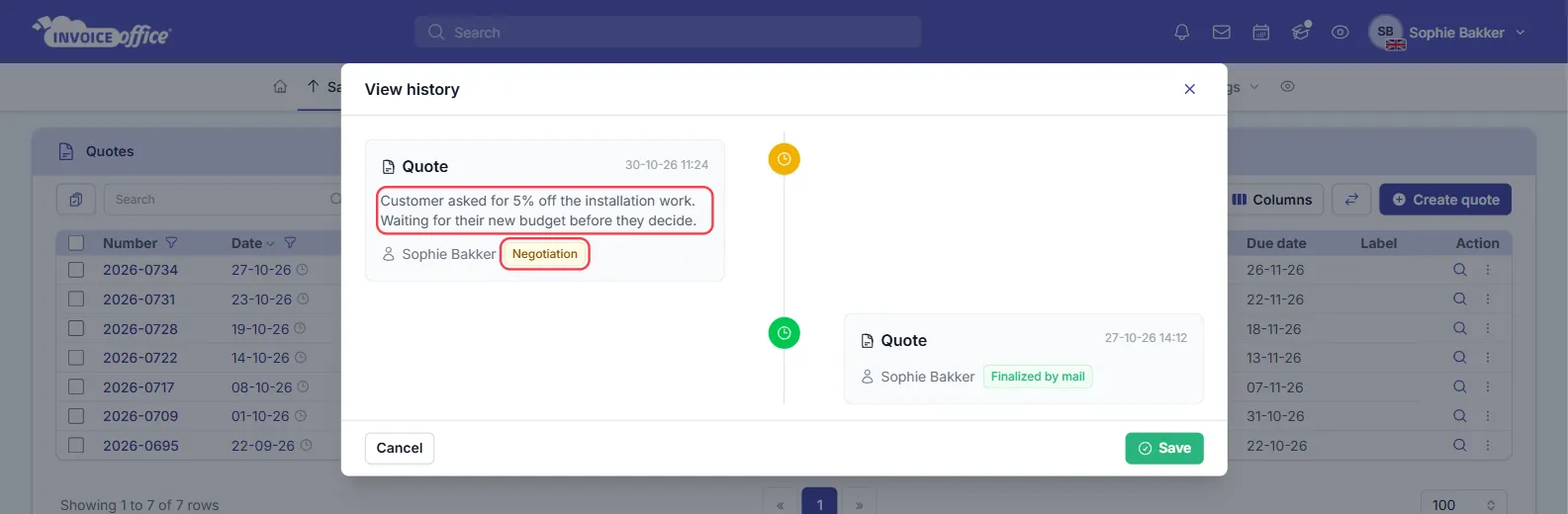
Every change is saved in the quote’s history. Choose View history in the ⋮ (Action) menu to see each status, who set it and when, and the description.
What each quote status means
| Approval Status | What it means | How it is set |
|---|---|---|
| Open | The quote is finalized and you are waiting for an answer. | Automatically, when you first finalize the quote. |
| Expired | The expiry date arrived while the quote was still open. | Automatically, by a nightly check. |
| Agreed | The customer accepted the quote. | Automatically, when your customer approves it online or when you create an invoice from the quote. You can also set it yourself. The quote dashboard counts these as quotes approved. |
| Partially Agreed | The customer accepted part of the offer. | By you. |
| Not agreed | The customer turned the quote down. | By you. The quote dashboard counts these as quotes lost. |
| Negotiation | You and the customer are working out the price or the terms. | By you. |
| Discussion | The customer has questions or the offer is still being talked through. | By you. |
A few things to keep in mind:
- Only open quotes expire. A quote you have marked Negotiation, Discussion or any other status keeps that status after its expiry date. To set the date or get a reminder before it passes, see how to set a quote expiry date.
- An expired quote isn’t locked. You can still choose Change quotation status or Create invoice. To give the customer more time, use Create duplicate and send the copy.
- Let customers answer online. With digital approval, the quote changes to Agreed by itself when your customer signs.
- React to a status in an automation. Use the Quote status is condition. See how to use automations.
Manage your quote pipeline on the dashboard
For an overview of your sales quotes, go to Dashboards → Quotes. The tiles show the number and value of your quotes for the selected period, such as Open quotes and quotes expired, and under Status the quotes approved, quotes in discussion and quotes lost.
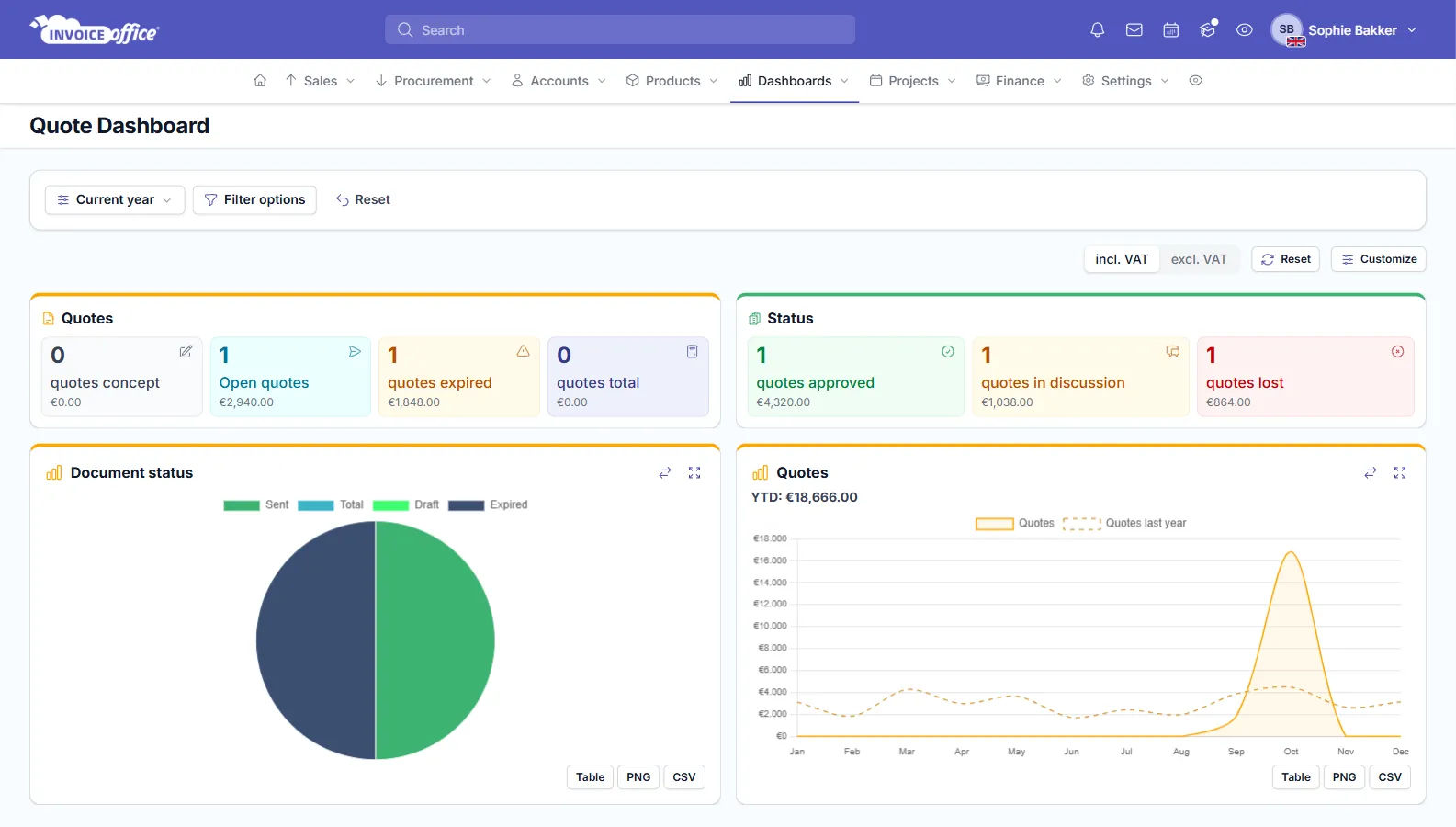
Click a tile to open the matching list of quotes. Negotiation and Partially Agreed don’t have a tile of their own, so filter the Approval Status column for those.
Next steps
Once a quote is Agreed, you can convert it to an invoice. New to quotes? Start with how to create a quotation.
Any doubts? Contact us and we will help.